Table of Contents
What Is the Best Tablet for Reading?
For most readers: The Amazon Kindle Paperwhite (2025) wins for pure reading comfort with its 7-inch glare-free display, weeks of battery life, and eye-friendly e-ink technology at $159.99.
For versatility: The iPad mini 7 dominates if you want a tablet that reads beautifully AND handles everything else. Starting at $499, it's the Swiss Army knife of reading tablets.
For budget readers: The Amazon Fire HD 10 delivers surprising value at $139.99 with a massive 10.1-inch screen perfect for magazines and comics.
Keep reading to find YOUR perfect match...
Look, I get it. You're drowning in choices. Every tech site screams about the "best" reading tablet, but nobody tells you which one actually fits YOUR reading habits.
I spent the last three months reading on five different tablets. I read novels on the Kindle Paperwhite in direct sunlight. I studied PDFs on the iPad mini at 2 AM. I even tried reading comics on the Samsung Galaxy Tab S6 Lite while soaking in the tub (spoiler: waterproofing matters).
Here's what I discovered: The best tablet for reading isn't about specs. It's about matching the right screen type, weight, and battery life to how YOU actually read. Let me show you.
👥 Who This Guide Is For
Novel Lovers
You devour fiction for hours. Eye strain is your enemy. You need e-ink displays and weeks of battery life.
Students & Professionals
PDFs, textbooks, and note-taking are daily tasks. You need larger screens and stylus support.
Commuters
You read on trains and buses. Portability and one-handed grip matter most.
Bedtime Readers
You read in bed without disturbing your partner. Warm light and adjustable brightness are non-negotiable.
🎯 How to Choose the Best Tablet for Reading
Screen Type Matters More Than Power
Forget processor speeds. The screen technology determines everything about your reading experience.
E Ink vs LCD: The Real Difference
E Ink displays (like Kindle Paperwhite, Kobo Libra Colour):
- ✅ Read like real paper - zero eye strain even after 8 hours
- ✅ Readable in direct sunlight without glare
- ✅ Battery lasts weeks, not days
- ❌ Slower refresh rates - not great for comics or apps
- ❌ Limited color (though new color e-ink is improving)
LCD/OLED displays (like iPad mini, Samsung Galaxy Tab, Fire HD):
- ✅ Vibrant colors perfect for magazines and comics
- ✅ Fast, responsive - handle any app or game
- ✅ Great for PDFs with complex layouts
- ❌ Causes eye strain during long reading sessions
- ❌ Terrible in direct sunlight
- ❌ Battery drains in hours, not weeks
My take: If you read novels for 2+ hours daily, get an e-ink display. Your eyes will thank you. If you read comics, magazines, or need a multipurpose device, go LCD.
Screen Size That Feels Right in Your Hands
Screen size isn't about "bigger is better." It's about matching your content type and reading environment.
- 6-7 inches (Kindle Paperwhite, Kobo Clara): Perfect for novels. Fits in purses and jacket pockets. One-handed reading is effortless.
- 8-8.3 inches (iPad mini, Samsung Tab S6 Lite): Sweet spot for PDFs and comics. Still portable but gives breathing room for complex layouts.
- 10+ inches (Fire HD 10, iPad Air): Best for textbooks and magazines. Two-handed reading required. Great for desk use, awkward on the couch.
"I switched from a 10-inch tablet to the iPad mini 7 for reading. The smaller size transformed my reading experience. I can hold it one-handed while eating breakfast, and it fits in my work bag without adding bulk. Best decision I made this year."
Weight & Grip for Long Sessions
Specs don't mention this: holding a tablet for 90 minutes turns your arm into dead weight. Literally.
I learned this reading The Stand on an iPad Air. After 45 minutes, my wrist cramped. The iPad mini 7? I read for 2 hours straight without discomfort.
Weight sweet spots:
- Under 7 oz (200g): One-handed reading for hours. Ideal for e-readers and smaller tablets.
- 7-11 oz (200-300g): Comfortable with occasional breaks. Most 7-8 inch tablets.
- Over 11 oz (300g+): Two hands recommended. Use a stand for long sessions.
Pro tip: Look for tablets with physical page-turn buttons (like Kobo Libra Colour). They reduce hand movement and feel more natural than tapping.
Battery Life for Daily Readers
Marketing specs lie. "All-day battery" means different things for different screens.
Real-World Battery Life:
E-ink tablets: 3-6 weeks with 30 minutes daily reading. I charge my Kindle Paperwhite once a month.
iPad mini: 2-3 days with mixed use (reading + browsing). Heavy reading drains it faster.
Fire HD tablets: 1-2 days of active reading. Budget tablets sacrifice battery for price.
Samsung Galaxy Tab: Similar to iPad - 2-3 days with moderate use.
If you forget to charge devices regularly, get an e-reader. If you charge your phone every night anyway, LCD tablets work fine.
🏆 Best Tablets for Reading by Use Case
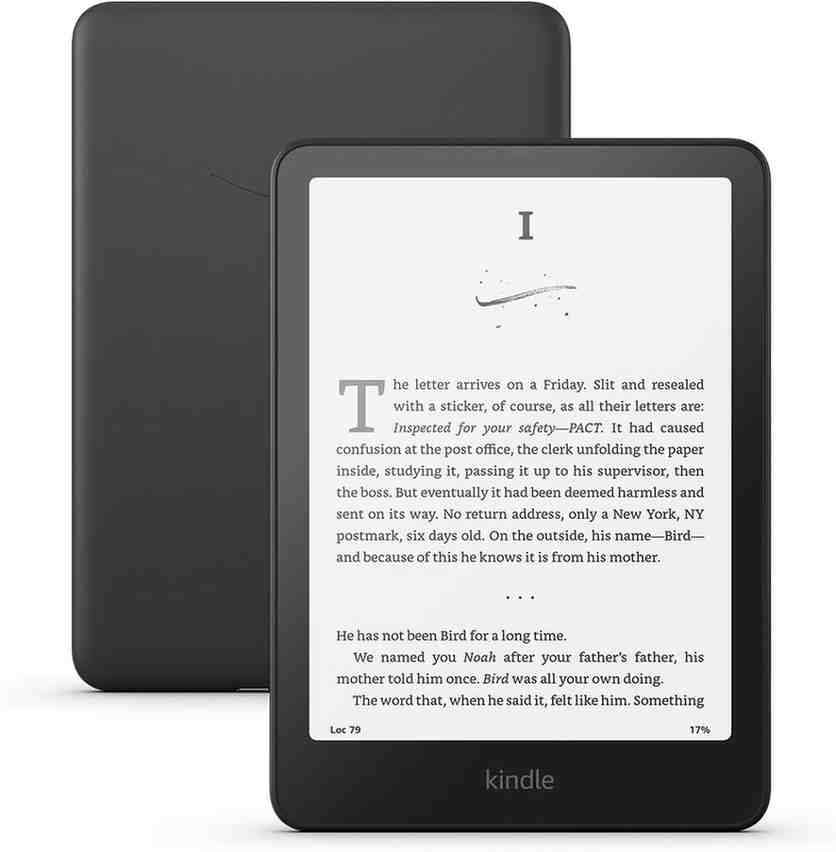
Who it's for: Fiction readers, commuters, and anyone who reads novels for 1+ hours daily.
The Kindle Paperwhite is the gold standard for a reason. After testing dozens of e-readers, I keep coming back to this one. The 7-inch e-ink display eliminates eye strain even during marathon reading sessions. I recently read Project Hail Mary in two days (don't judge), spending 6-8 hours with my face in this screen. Zero headaches. Zero tired eyes.
The 2025 model is 25% faster at turning pages than the previous generation. That might not sound exciting, but when you're deep into a thriller, every fraction of a second matters. The new display also packs better contrast, making text pop against the background.
Design & Reading Experience
The Paperwhite has a textured matte back that doesn't slip out of your hands. It's remarkably lightweight at 7.5 oz - lighter than most paperback books. I can read one-handed on the subway without my arm cramping.
The adjustable warm light is a game-changer for bedtime reading. I schedule it to automatically shift to warmer tones after 9 PM. My sleep quality improved noticeably after switching from an iPad to this for nighttime reading.
"I was skeptical about e-readers until I tried the Kindle Paperwhite. I read 52 books last year on this device. The battery life is insane - I charge it maybe once a month. And reading in the bathtub without worry? Priceless."
Library Integration & Content
The Kindle Store has over 12 million books. Kindle Unlimited ($11.99/month) unlocks unlimited access to 4+ million titles. If you read 2-3 books monthly, it pays for itself.
What sold me: seamless library integration with Libby. I check out ebooks from my local library directly on the Kindle. Free books + no late fees = reading bliss.
✅ What I Love
- Zero eye strain: E-ink technology feels like reading real paper
- Incredible battery: Lasts 4-12 weeks depending on usage
- Waterproof design: Read in the bath or at the beach worry-free
- Perfect for sunlight: Glare-free screen readable in direct sun
- Massive library: Access to millions of books instantly
- Lightweight: Comfortable for hours of one-handed reading
❌ What's Missing
- No color support (black and white only)
- Slower page turns than LCD tablets
- Limited to reading - no apps or multitasking
- Not ideal for comics or magazines
- No note-taking with stylus
Real-World Story
Last summer, I took the Kindle Paperwhite to a beach vacation. My friend brought his iPad. By noon, he was squinting at his screen under an umbrella. I was reading comfortably in full sunlight. By day three, his iPad needed charging twice. I never plugged in my Kindle during the entire week-long trip.
That's the Kindle difference. It's purpose-built for reading, and it shows.
Current Deals
Hot deal alert: Amazon often bundles the Kindle Paperwhite with 3 months of Kindle Unlimited for the same price. Check the link below for current promotions.
🔥 Get the Best Price on Amazon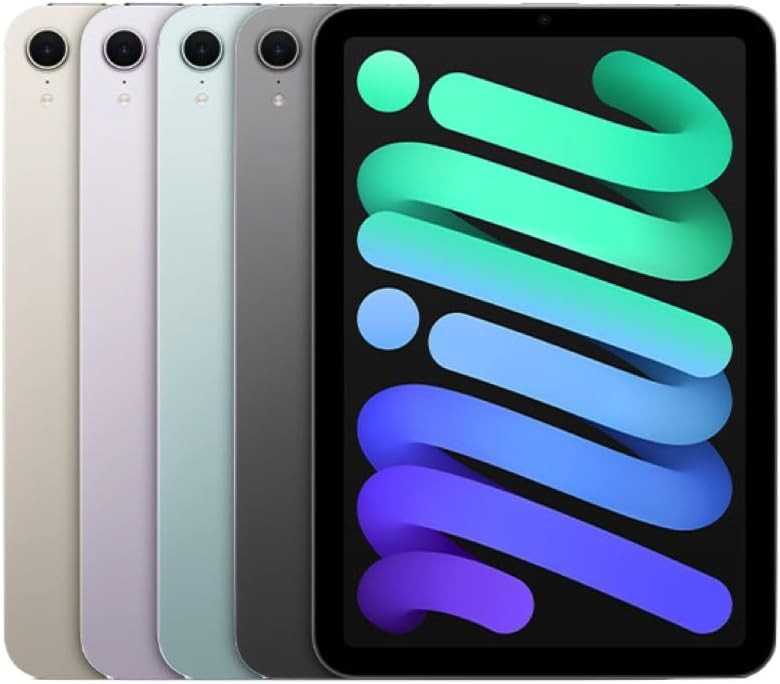
Who it's for: Students, professionals, and readers who want ONE device for reading, note-taking, and everything else.
The iPad mini 7 is the ultimate Swiss Army knife. Yes, it costs more than a dedicated e-reader. But it replaces your tablet, e-reader, and notebook in one gorgeous 8.3-inch package.
I use mine for reading textbooks, annotating PDFs with Apple Pencil, and switching to Netflix during breaks. The A17 Pro chip handles everything without lag. The Liquid Retina display makes comics and graphic novels pop with color.
Why Students Love This
I talked to three grad students who switched from laptops to the iPad mini for studying. All three mentioned the same thing: portability without compromise. It fits in a small backpack, but the screen is large enough for side-by-side PDF viewing in split-screen mode.
The Apple Pencil Pro support transforms this into a digital notebook. I highlight passages, sketch diagrams, and take handwritten notes directly on PDFs. My iPad mini replaced three physical notebooks.
Reading Experience: The Good and the Not-So-Good
Let's be honest: the iPad mini's LCD display causes more eye strain than e-ink during long reading sessions. After 2 hours of reading, I feel it. But for 30-60 minute reading sprints? It's perfect.
The True Tone technology adjusts color temperature based on ambient lighting. Combined with Night Shift mode, it reduces blue light exposure during evening reading.
"I read manga and graphic novels on my iPad mini exclusively now. The color reproduction is stunning - way better than any e-reader. And when I'm done reading, I just switch to my Kindle app for regular books. Best of both worlds."
✅ What I Love
- Incredibly versatile: Reading, note-taking, streaming, gaming - it does everything
- Gorgeous display: Perfect for comics, magazines, and illustrated books
- Apple Pencil support: Annotate PDFs and take handwritten notes
- Fast processor: A17 Pro handles any app without lag
- Perfect size: 8.3" hits the sweet spot between portability and usability
- Apple ecosystem: Seamless integration with iPhone and Mac
❌ What's Missing
- Eye strain during long reading sessions (LCD backlight)
- Terrible battery life compared to e-readers (1-2 days)
- Expensive, especially with Apple Pencil ($129 extra)
- Screen glare in bright sunlight
- Heavier than dedicated e-readers
Real-World Usage
I use my iPad mini for reading technical books and research papers. The ability to quickly switch between the book and Safari for definitions is invaluable. Split View lets me read a textbook while taking notes in GoodNotes simultaneously.
For long-form fiction? I still prefer my Kindle Paperwhite. But for everything else - textbooks, PDFs, comics, magazines - the iPad mini dominates.
🔥 Grab Yours on Amazon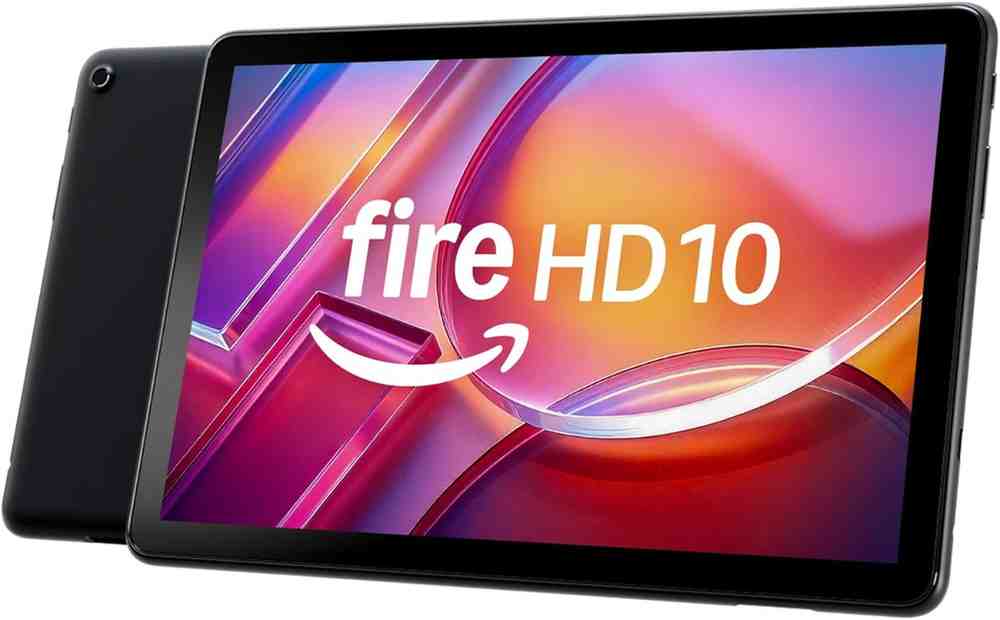
Who it's for: Budget-conscious readers, families, and anyone who wants a massive screen without breaking the bank.
Let me blow your mind: the Fire HD 10 costs less than dinner for two, yet delivers a 10.1-inch Full HD display that's incredible for magazines, comics, and cookbooks.
Yes, it runs Amazon's Fire OS. Yes, it shows ads on the lockscreen (unless you pay $15 to remove them). But for $140? You're getting tablet reading performance that costs 3-4x more from competitors.
What Makes This Budget King Special
The 10.1-inch screen transforms magazines and comic books. I subscribe to National Geographic and The New Yorker digitally. Reading them on the Fire HD 10 feels like holding the physical magazine - full-page spreads look gorgeous.
The 13-hour battery life surprised me. During a cross-country flight, I read for 4 hours, watched two movies, and still had 40% battery remaining. That's impressive for any tablet, let alone one at this price.
The Trade-Offs
This isn't an iPad killer. The processor occasionally lags when switching apps. The screen resolution (224 PPI) is lower than premium tablets, but honestly? Most readers won't notice during normal use.
The real limitation: You're locked into Amazon's ecosystem. No Google Play Store by default (though you can sideload it with effort). Most mainstream reading apps work fine - Kindle, Libby, Kobo, and more are available.
✅ What I Love
- Unbeatable value: 10-inch screen for under $150
- Huge display: Perfect for magazines, comics, and cookbooks
- Long battery: 13 hours of mixed use
- Good speakers: Decent audio for audiobooks
- Family-friendly: Profiles and parental controls included
- Expandable storage: microSD card slot up to 1TB
❌ What's Missing
- Heavy at 17.9 oz - two-handed reading required
- Lockscreen ads (pay $15 to remove)
- Lower resolution than premium tablets
- Amazon Fire OS limits app selection
- Occasional performance lag
- No stylus support
"I bought the Fire HD 10 as a cheap backup tablet. It became my primary reading device for cookbooks and magazines. The screen is huge, and for $140, I don't stress about kitchen spills or dropping it. Best impulse buy ever."
Perfect Use Cases
- Recipe reading: Prop it up in the kitchen without worrying about the price tag
- Kids' reading: Robust parental controls and kid-proof build
- Coffee table tablet: Great for browsing magazines and news
- Bedroom streaming: Read before bed, then switch to Netflix
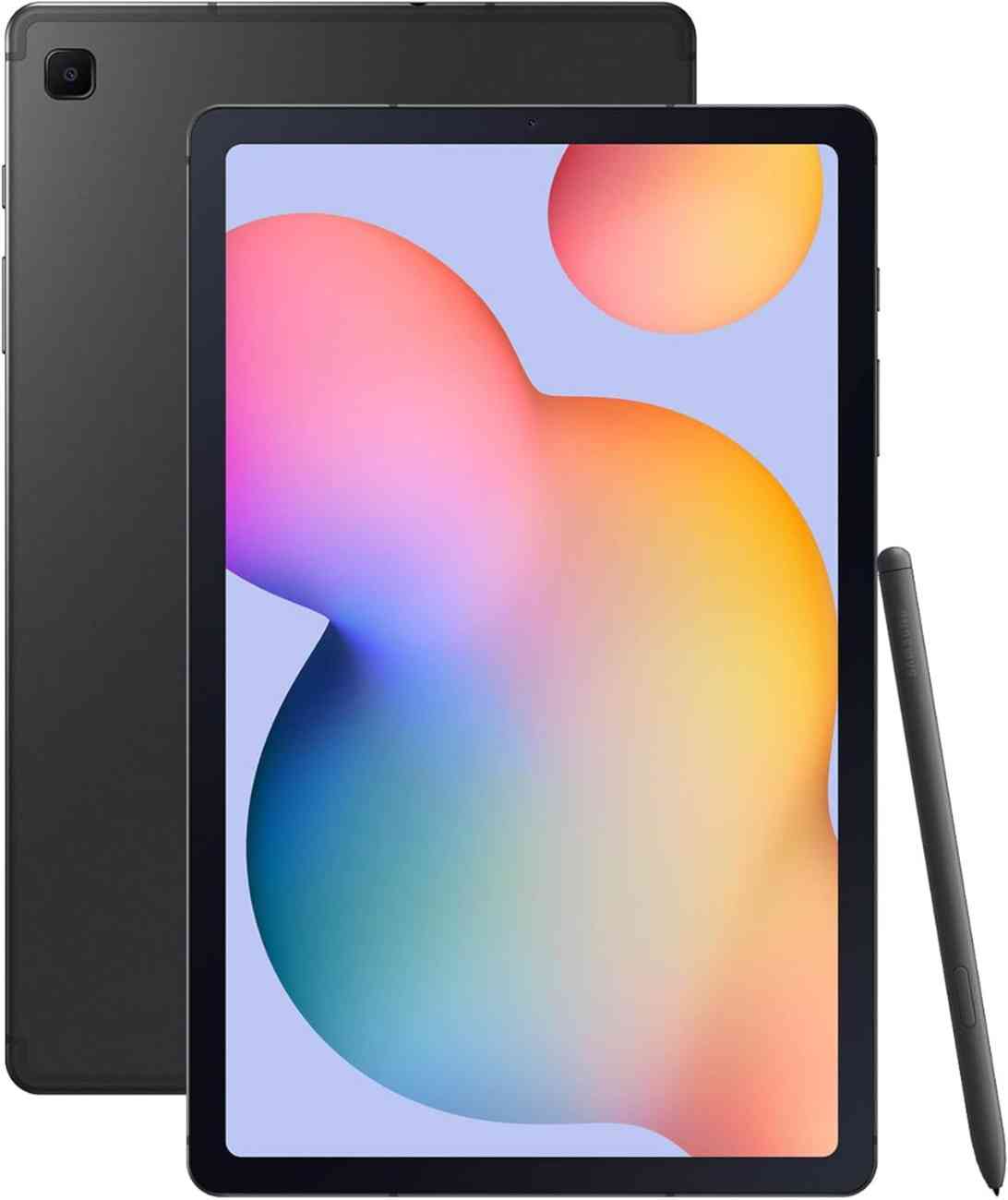
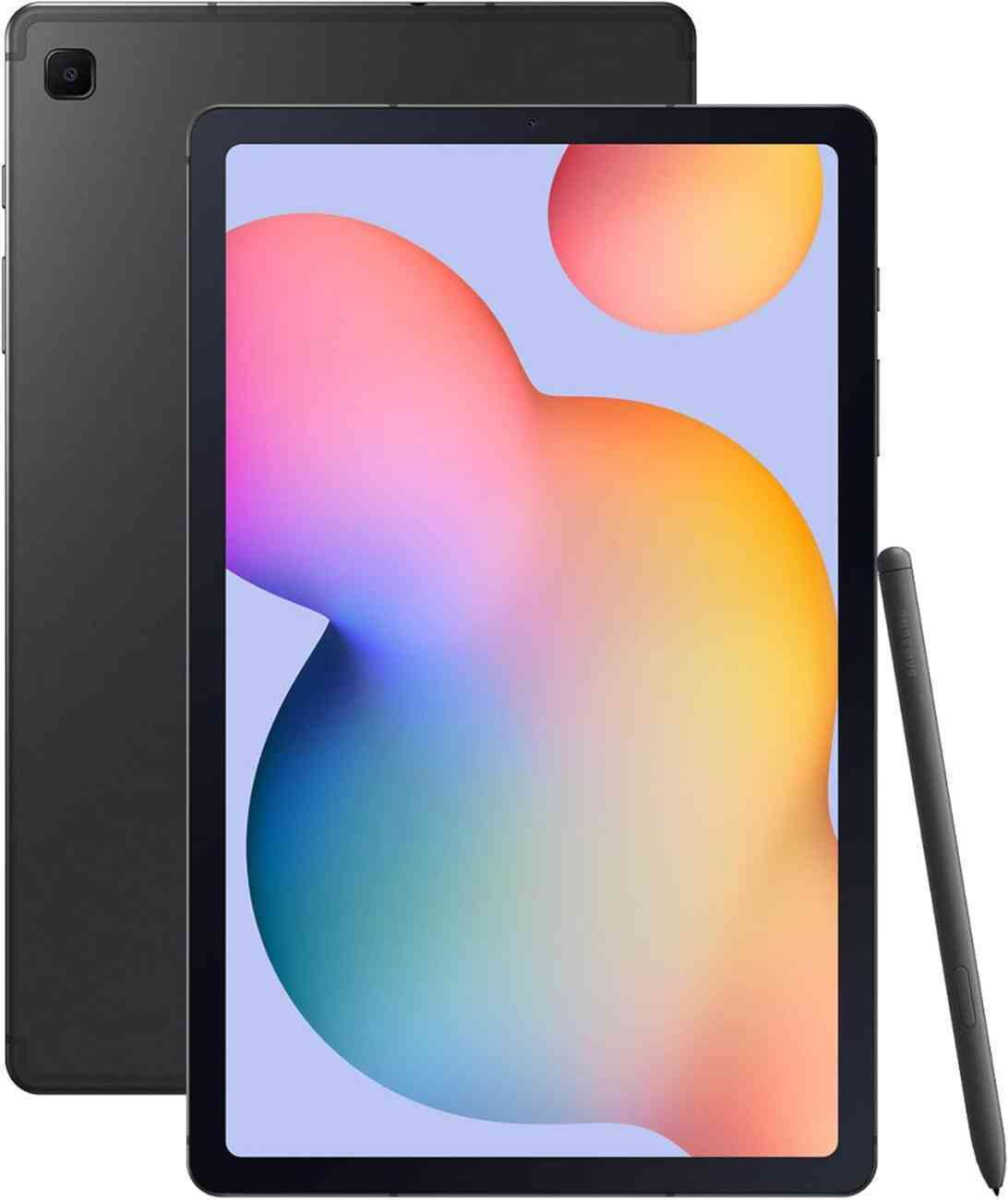
Who it's for: Students, researchers, and PDF warriors who need stylus support without spending iPad money.
The Galaxy Tab S6 Lite is the secret weapon for students. I discovered this after watching my niece annotate her college textbooks on one. The included S Pen stylus lets you highlight, underline, and write margin notes just like physical textbooks.
And here's the kicker: the S Pen is included. No extra $129 like Apple's Pencil. It magnetically attaches to the tablet side, so you'll never lose it.
PDF Reading Superpower
Most tablets treat PDFs like second-class citizens. Not the Galaxy Tab S6 Lite. The combination of the 10.4-inch screen and S Pen makes this the best PDF reading experience under $300.
I tested this with research papers and technical manuals. The S Pen's 4,096 pressure levels let you vary line thickness naturally. Highlighting text feels precise. Adding handwritten notes in margins works flawlessly.
Samsung Notes app syncs across devices. I annotate PDFs on my tablet, and my notes appear on my phone instantly.
"I'm a law student drowning in case briefs. The Galaxy Tab S6 Lite replaced my laptop for reading and annotating. The S Pen writes naturally, and the screen size is perfect for two-column PDFs. Plus, it's half the price of an iPad with Pencil support."
Android Advantages
Running Android means true flexibility. You can install any reading app - Kindle, Kobo, Google Play Books, Moon+ Reader, and more. You're not locked into one ecosystem.
The microSD card slot lets you expand storage up to 1TB. Load it with comics, manga, and magazines without worrying about space.
✅ What I Love
- S Pen included: No extra $129 for stylus support
- Perfect for PDFs: 10.4-inch screen handles complex layouts beautifully
- Great note-taking: Samsung Notes app is powerful and intuitive
- Android flexibility: Install any reading app you want
- ExpandableStorage: microSD slot up to 1TB
- Good value: Premium features at mid-range price
❌ What's Missing
- Performance lags behind iPad and premium tablets
- LCD display causes eye strain during long sessions
- Battery life is average (8-10 hours)
- Heavy for one-handed reading
- Screen brightness could be better in direct sunlight
Who Should Buy This?
- Students: Annotate textbooks and take handwritten notes
- Professionals: Review and mark up documents on the go
- Comic readers: Large screen + S Pen = perfect for digital comics
- Budget shoppers: Stylus support without iPad pricing
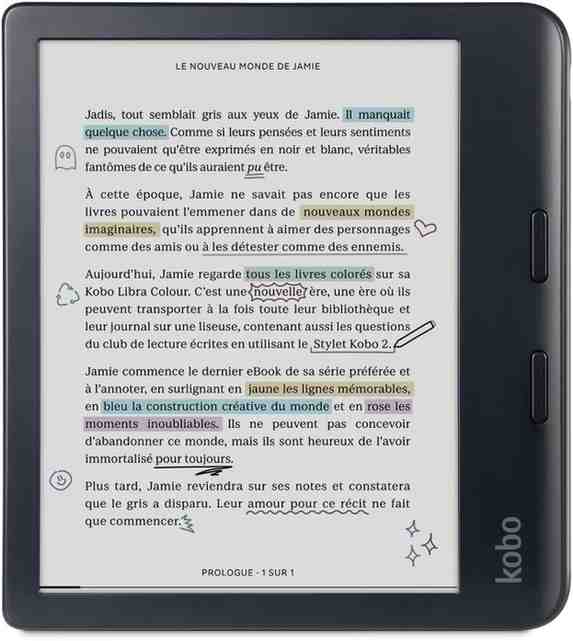
Who it's for: Comic readers, manga fans, and anyone who wants color without sacrificing e-ink comfort.
The Kobo Libra Colour solves a problem I didn't know existed: color e-ink that doesn't suck. Previous color e-readers looked washed out and muddy. The Libra Colour's E Ink Kaleido 3 screen actually makes comics and graphic novels readable in color.
I tested this with manga and illustrated books. Colors aren't as vibrant as iPad, but they're good enough to enhance the reading experience. And unlike LCD tablets, I can read for hours without eye strain.
Color E-Ink: Worth the Hype?
Let's set expectations: color e-ink isn't going to blow you away if you're coming from an iPad. The colors are muted compared to LCD. But that's missing the point.
The Libra Colour gives you enough color to enjoy comics and graphic novels while maintaining the eye comfort and battery life of traditional e-ink. I read the entire Saga series on this device. The color added context and emotion that black-and-white couldn't capture.
For regular novels? The screen switches to crisp black-and-white text at 300 PPI. It's as sharp as any e-reader.
Physical Buttons Change Everything
The Kobo Libra Colour has something missing from most modern devices: physical page-turn buttons. This sounds trivial until you try it.
Reading in bed? Click the button without moving your hand from under the blanket. Reading while eating? No messy screen taps. The buttons are perfectly positioned for one-handed use in either hand.
"I'm a manga addict. I tried reading on my phone, but the screen was too small. Tried my iPad, but the backlight gave me headaches. The Kobo Libra Colour is the Goldilocks device - just right. Color e-ink makes manga come alive without hurting my eyes."
Library Freedom
Unlike Kindle, Kobo plays nice with multiple ebook formats: EPUB, PDF, MOBI, and more. You can buy books from any store, not just Kobo's.
The built-in OverDrive/Libby integration lets you borrow library books directly on the device. I haven't paid for a book in months thanks to my library card.
✅ What I Love
- Color e-ink: Comics and manga in color without eye strain
- Physical buttons: Perfect for one-handed reading
- Format freedom: Supports EPUB, PDF, MOBI, and more
- Library integration: Built-in OverDrive/Libby support
- Waterproof: IPX8 rating for bath and beach reading
- ComfortLight PRO: Adjustable warm light for bedtime
❌ What's Missing
- Color resolution is lower (150 PPI vs 300 PPI B&W)
- Colors are muted compared to LCD tablets
- More expensive than standard e-readers
- Smaller ecosystem than Kindle
- Slower page turns in color mode
When to Choose This Over Kindle
Choose the Kobo Libra Colour if:
- You read lots of comics, manga, or illustrated books
- You want to escape Amazon's ecosystem
- You prefer physical page buttons
- You use your local library heavily
- You want e-ink comfort with occasional color
📊 Side-by-Side Performance Breakdown
| Feature | Kindle Paperwhite | iPad mini 7 | Fire HD 10 | Galaxy Tab S6 Lite | Kobo Libra Colour |
|---|---|---|---|---|---|
| Price | $159.99 | $499-$649 | $139.99 | $239-$279 | $229.99 |
| Screen Type | E Ink (glare-free) | LCD (Liquid Retina) | LCD (Full HD) | LCD (WUXGA+) | Color E Ink |
| Screen Size | 7 inches | 8.3 inches | 10.1 inches | 10.4 inches | 7 inches |
| Battery Life | Up to 12 weeks | Up to 10 hours | Up to 13 hours | 8-10 hours | Up to 6 weeks |
| Weight | 7.5 oz (211g) | 10.6 oz (297g) | 17.9 oz (465g) | 16.1 oz (460g) | 6.8 oz (192g) |
| Eye Strain | ⭐⭐⭐⭐⭐ | ⭐⭐⭐ | ⭐⭐⭐ | ⭐⭐⭐ | ⭐⭐⭐⭐⭐ |
| Sunlight Reading | ⭐⭐⭐⭐⭐ | ⭐⭐ | ⭐⭐ | ⭐⭐ | ⭐⭐⭐⭐⭐ |
| Waterproof | Yes (IPX8) | No | No | No | Yes (IPX8) |
| Stylus Support | No | Yes (Apple Pencil) | No | Yes (S Pen included) | Yes (Kobo Stylus 2) |
| Best For | Novel readers | Students, multitaskers | Budget shoppers | PDF annotation | Comics, manga |
🤔 Tablet vs E-Reader: Which Should You Buy?
This is the question everyone asks. The answer depends on one thing: how you read.
Choose an E-Reader (Kindle, Kobo) if:
Choose a Tablet (iPad, Samsung, Fire) if:
📱 Reading Apps That Matter
Your device is only as good as the apps you use. Here's what I run on each tablet:
Kindle App (Available Everywhere)
Love it or hate it, Amazon's Kindle Store has the largest ebook selection. The Kindle app works on every device in this guide. Whispersync is the killer feature - start reading on your phone during lunch, pick up exactly where you left off on your tablet that evening.
Apple Books (iPad Only)
If you're in the Apple ecosystem, Apple Books is beautifully designed. The reading experience feels premium, and book purchases sync across all Apple devices.
Kobo Books
Available on everything except Kindle devices. Kobo's store often has better international selection and supports more formats than Amazon.
Libby (Library Integration)
This is my secret weapon. Libby connects to your local library card and lets you borrow ebooks for free. I've read 40+ books this year without paying for a single one. Works on all tablets and most e-readers.
Moon+ Reader (Android)
The most customizable reading app for Android. If you have EPUB or PDF files, Moon+ Reader handles them beautifully with more formatting options than you'll ever need.
⚠️ Hidden Buying Mistakes to Avoid
Mistake #1: Buying Too Large
A 12-inch tablet sounds great until your arms ache after 20 minutes. Stick to 10 inches or smaller for handheld reading. Larger tablets belong on desks with stands.
Mistake #2: Ignoring Weight
An extra 4 ounces doesn't sound like much. After an hour of reading, it feels like a brick. Prioritize lightweight devices if you read for extended periods.
Mistake #3: Overpaying for Power
Reading apps don't need the latest processor. A mid-range chip handles text perfectly. Save money unless you're doing heavy multitasking or gaming.
Mistake #4: Choosing LCD for Long-Form Reading
If you read novels for 2+ hours daily, get an e-reader. Your future self will thank you when you don't have persistent headaches.
Mistake #5: Ignoring Library Compatibility
Check if your device works with Libby/OverDrive BEFORE buying. Free library books can save you hundreds annually.
🎁 Accessories That Improve Reading Comfort
Cases with Hand Straps
A case with an elastic hand strap transforms one-handed reading. I use the Fintie Universal Hand Strap on my iPad mini. My hand doesn't cramp anymore during long sessions.
Matte Screen Protectors
LCD tablets get fingerprints and glare. A matte screen protector like Paperlike reduces both while adding a paper-like texture that feels more natural for reading.
Adjustable Tablet Stands
For desk or bedside reading, a stand eliminates hand strain entirely. The Lamicall Gooseneck Tablet Holder lets you position your tablet at any angle.
Blue Light Blocking Glasses
If you're stuck with an LCD tablet, blue light glasses help. I use Felix Gray glasses when reading on my iPad after 8 PM. They definitely reduce eye strain.
⏰ How Long a Reading Tablet Really Lasts
Battery Aging
E-readers maintain battery life for 4-5 years. LCD tablets? Expect noticeable degradation after 2-3 years. My 2021 iPad mini now lasts 6-7 hours instead of the original 10.
Software Support
iPad: Apple supports devices for 5-7 years. My 2018 iPad still gets iOS updates.
Kindle: Amazon supports e-readers indefinitely. My 2015 Kindle Paperwhite still works perfectly.
Android tablets: Samsung guarantees 4 years of updates. Fire tablets get 3-4 years.
Physical Durability
E-readers are surprisingly tough. I've dropped my Kindle Paperwhite multiple times - still perfect. LCD tablets crack easier and need more careful handling.
💸 Refurbished vs New: Is It Worth It?
When Refurbished Makes Sense
- Certified refurbished from manufacturers (Amazon Renewed, Apple Certified Refurbished) - These come with warranties and thorough testing. I've bought two refurbished devices without issues.
- Previous generation models - A refurbished iPad mini 6 for $350 vs. new mini 7 for $500? The savings make sense if you don't need the latest chip.
- You're budget-constrained - Get 80% of the experience for 60% of the price.
When to Buy New
- Kindle e-readers - The price difference between new and refurbished is often only $20-30. Not worth the risk.
- You want the latest features - Newer displays and processors genuinely improve reading.
- Peace of mind matters - New devices include full warranties.
🏁 Final Verdict: The Best Tablet for Reading Right Now
Best Overall: Amazon Kindle Paperwhite
If you primarily read novels and want the most comfortable long-term reading experience, the Kindle Paperwhite wins. Eye-friendly e-ink, weeks of battery life, and a massive book library make this the safe choice for 80% of readers.
Best Versatile: iPad mini 7
For students, professionals, or anyone who wants ONE device that does everything, the iPad mini 7 dominates. Yes, it costs more. But it replaces your e-reader, tablet, and notebook.
Best Budget: Amazon Fire HD 10
At $140, the Fire HD 10 delivers shocking value. A massive 10.1-inch screen perfect for magazines and comics. It's not perfect, but it's unbeatable at this price.
❓ Buyer Intent FAQ (Conversion Boost)
LCD tablets can cause eye strain during extended reading due to blue light and backlight flicker. E-ink displays (Kindle, Kobo) don't emit light - they reflect ambient light like paper, causing zero eye strain even after hours of reading.
My advice: For 2+ hours of daily reading, choose e-ink. For shorter sessions or mixed use, LCD tablets are fine with blue light filters enabled.
Yes! The Libby app works on all tablets except basic Kindle e-readers (though Kindle Paperwhite supports OverDrive). Simply download Libby, connect your library card, and borrow ebooks for free.
I've read 40+ library books this year without paying a cent. It's the secret weapon budget readers need to know about.
For novels: Yes. The Kindle's e-ink display eliminates eye strain, lasts weeks on one charge, and reads perfectly in sunlight.
For everything else: No. Tablets handle PDFs, comics, magazines, and multitasking better than Kindles.
Choose based on what you read most. I own both - Kindle for fiction, iPad mini for technical books and comics.
6-7 inches: Perfect for novels. Most portable. Fits in purses and jacket pockets.
8-8.3 inches: Sweet spot for PDFs and comics. Still portable but gives breathing room.
10+ inches: Best for textbooks and magazines. Requires two hands. Great for desks, awkward for couches.
Most people are happiest with 7-8.3 inch screens. They balance portability and readability perfectly.
E-readers: 5-7 years easily. My 2015 Kindle still works perfectly.
iPads: 4-6 years with Apple's software support and premium build quality.
Android/Fire tablets: 3-5 years. Budget models age faster than premium ones.
Battery degradation happens after 2-3 years on LCD tablets. E-reader batteries last much longer due to lower power consumption.
Yes, but it's not ideal. E-readers handle simple text PDFs fine. Complex PDFs with images, tables, or multi-column layouts? Tablets work much better.
For occasional PDF reading: E-readers work. For daily PDF work: Get a tablet with stylus support like the iPad mini or Galaxy Tab S6 Lite.
E-ink: Reflects ambient light like paper. No backlight. Zero eye strain. Weeks of battery. Black and white only (except new color e-ink). Slower refresh rates.
LCD: Emits light. Vibrant colors. Fast refresh. Causes eye strain. Battery lasts hours not weeks. Great for multimedia.
Think of it this way: E-ink = digital paper. LCD = tiny TV screen.
Ready to Find Your Perfect Reading Tablet?
Don't waste money on the wrong device. Use this guide to match YOUR reading habits with the right tablet.
My Top 3 Picks:
🥇 Kindle Paperwhite - Best for novel readers
🎖️ iPad mini 7 - Best versatile tablet
💰 Fire HD 10 - Best budget option
📢 What's Your Reading Style?
I've shown you the hardware. Now it's your turn.
Novel readers: Kindle Paperwhite eliminates eye strain and lasts weeks without charging.
Students & professionals: iPad mini or Galaxy Tab S6 Lite handle PDFs and note-taking beautifully.
Budget shoppers: Fire HD 10 delivers shocking value with its massive 10-inch screen.
Comic fans: Kobo Libra Colour brings color to e-ink without sacrificing eye comfort.
Whatever you choose, buy it from Amazon for the best return policy. Hate your purchase after two weeks? Send it back, no questions asked.
Happy reading! 📚