




Finding the best drawing tablet can transform your digital art. Whether you're a professional illustrator using Procreate, a student learning digital drawing, or a hobbyist exploring Clip Studio Paint, this comprehensive guide covers every option—from the iPad Pro M4 and Samsung Galaxy Tab S10 Ultra to professional Wacom Cintiq displays and budget-friendly Huion and XPPen alternatives.
Choosing the best tablet for drawing isn't just about specs—it's about finding the right tool that matches your workflow, budget, and artistic style. After testing dozens of devices, from standalone tablets like the Apple iPad with Apple Pencil to pen displays from Wacom, Huion, and XPPen, I've put together this complete guide to help you make the right choice.
The drawing tablet market has exploded with options. You've got powerful standalone devices running iPadOS, Android, or Windows 11, professional pen displays with stunning OLED and Tandem OLED screens, affordable screenless tablets with incredible pressure sensitivity, and even E Ink tablets like the reMarkable 2 and Kindle Scribe for note-taking and sketching.
In this guide, I'll walk you through everything: the best picks for every budget and use case, how to choose between iPad vs Samsung Tab vs Microsoft Surface, what specs actually matter (spoiler: pressure levels, pen latency, and tilt sensitivity are crucial), and which accessories like matte screen protectors and battery-free pens can enhance your drawing experience.
What are The Best Drawing Tablets Right Now
Don't have time to read the full guide? Here are my top picks based on extensive testing:
iPad Pro 13" (M4)
The ultimate drawing experience with Tandem OLED display, Apple Pencil Pro, and Procreate. Unmatched color accuracy and responsiveness.
Samsung Galaxy Tab S10 Ultra
Massive 14.6" AMOLED display, included S Pen, and full Android flexibility at a better price than iPad Pro.
Samsung Galaxy Tab S10+
Perfect balance of size (12.4"), performance, and price. Great for Clip Studio Paint and Infinite Painter.
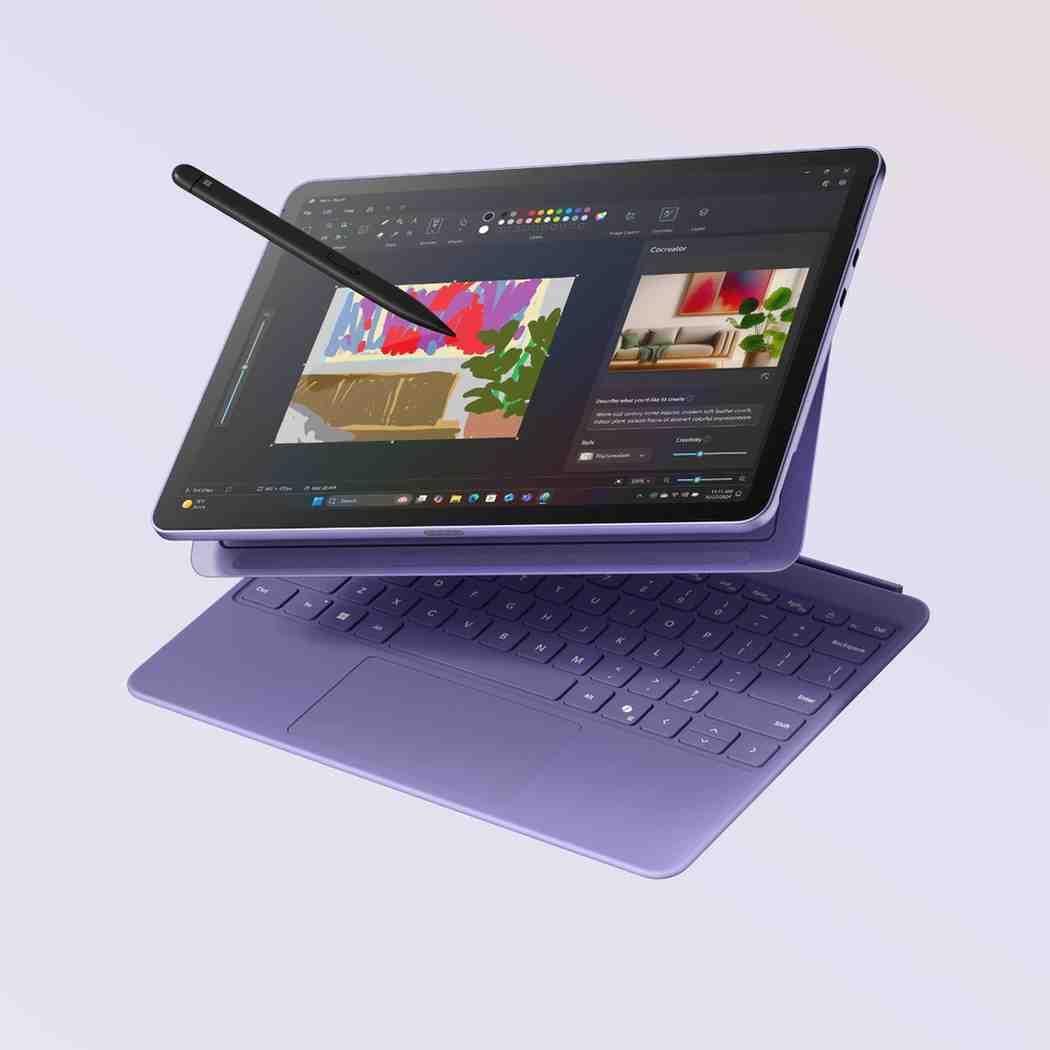
Microsoft Surface Pro 11
Full Windows 11 with desktop apps like Photoshop and Illustrator. True 2-in-1 versatility.
iPad Air (M2)
Excellent performance for less. Full Procreate support with Apple Pencil at a friendlier price point.
iPad Mini 7
Ultra-portable 8.3" tablet perfect for sketching on the go. Full Apple Pencil support in your pocket.
Samsung Galaxy Tab S6 Lite
Amazing value with included S Pen, decent screen, and good battery life. Perfect starter tablet.
reMarkable Paper Pro
Color E Ink tablet with the most paper-like feel. Perfect for notes and sketching with zero eye strain.
📺 Watch: Best Drawing Tablets of 2025
Expert comparison of iPad Pro, Samsung Tab, Wacom, and more
📊 Comparison Table: Top Picks at a Glance
Quick Spec Comparison
Here's how the top drawing tablets stack up side by side. Use this to quickly compare screen size, pen technology, operating system, and price:
| Device | Screen Size | Display Type | Pen Support | OS | Price | Best For |
|---|---|---|---|---|---|---|
| iPad Pro M4 13" | 13" | Tandem OLED, 2752×2064 | Apple Pencil Pro (16K levels) | iPadOS 18 | $1,299 | Professional artists |
| Galaxy Tab S10 Ultra | 14.6" | AMOLED, 2960×1848, 120Hz | S Pen included (4096 levels) | Android 14 | $999 | Best value flagship |
| Surface Pro 11 | 13" | PixelSense, 2880×1920, 120Hz | Surface Slim Pen (4096 levels) | Windows 11 | $999+ | Desktop app users |
| Wacom Cintiq 16 | 15.6" | LCD, 1920×1080 | Pro Pen 3 (8192 levels) | Requires PC/Mac | $700 | Professional display |
| Huion Kamvas Pro 16 | 15.6" | LCD, 1920×1080 | PenTech 4.0 (16384 levels) | Requires PC/Mac | $300 | Budget pen display |
| XPPen Artist Pro 16 Gen2 | 16" | QHD, 2560×1440 | X3 Pro (16384 levels) | Requires PC/Mac | $460 | Mid-range display |
| XPPen Magic Drawing Pad | 12.2" | LCD, 1920×1280 | X3 Pro (16384 levels) | Android 14 | $400 | Standalone budget |
| reMarkable Paper Pro | 11.8" | E Ink Gallery 3 (color) | Marker Plus included | Custom Linux | $679 | Note-taking & sketching |
🔍 What These Specs Mean in Practice
- Screen Size: 11-13" is portable, 14-16" is studio-friendly, 8-10" is ultra-portable
- OLED vs LCD: OLED offers deeper blacks and better color, but LCD is more affordable
- Pressure Levels: 4096+ is plenty; 8192-16384 is overkill but nice (you won't feel the difference)
- Pen Technology: Battery-free pens (EMR) never need charging; active pens offer hover detection
- Refresh Rate: 120Hz feels smoother than 60Hz, reducing pen latency
- OS Choice: iPadOS = best apps; Android = flexibility; Windows = full desktop software
🎯 How to Choose a Drawing Tablet
The biggest mistake people make? Focusing on specs instead of workflow. Here's my 3-step process for finding YOUR perfect drawing tablet:
Step 1: Pick the Tablet Type
This is the most important decision. There are four main types, and each serves different needs:
Examples: iPad Pro, Samsung Galaxy Tab, Microsoft Surface, XPPen Magic Drawing Pad
Pros: All-in-one, portable, no computer needed, built-in screen
Cons: More expensive, limited software (except Surface)
Best for: Artists who want portability or don't have a powerful PC
Examples: Wacom Cintiq, Huion Kamvas, XPPen Artist
Pros: Draw directly on screen, great color accuracy, professional feel
Cons: Requires computer, not portable, desk setup needed
Best for: Professionals with powerful desktop computers
Examples: Wacom Intuos Pro, XPPen Deco, Huion Inspiroy
Pros: Most affordable, ergonomic, compact, battery-free pens
Cons: Learning curve (hand-eye coordination), need external monitor
Best for: Budget-conscious artists with good computers
Examples: reMarkable 2, reMarkable Paper Pro, Kindle Scribe, Boox
Pros: Most paper-like feel, zero eye strain, amazing battery life
Cons: Limited apps, slower refresh, not for complex art
Best for: Note-takers, sketchers, writers who prioritize eye comfort
Step 2: Prioritize the 7 Things That Affect Drawing Feel
These are the specs that actually matter when you're drawing. Ignore marketing hype about processor speed—focus on these:
Step 3: Prioritize the 6 Things That Affect Results and Workflow
Technical drawing feel is only half the equation. These determine whether you can actually complete and deliver your work:
- 🎨 App Availability: Check if your must-have apps (Procreate, Clip Studio Paint, Photoshop) are available and full-featured on the platform
- 📁 File Formats: Can you save as PSD with layers? Export high-res? Import custom brushes?
- 🌈 Color Accuracy: If you print or need color precision, look for Adobe RGB, DCI-P3, or Calman certification
- 💾 Storage: Big canvases, time-lapses, and reference photos eat space fast. Aim for 256GB+ or expandable storage
- 🔋 Battery Life: Standalone tablets: 6+ hours actual drawing time is ideal
- ☁️ Backup/Sync: Cloud storage, auto-save, version history—don't lose your work!
🏆 Best Standalone Tablets for Drawing
These all-in-one devices don't need a computer. Just grab and draw anywhere. Perfect for portability and simplicity.
🥇 Apple iPad Pro 13" (M4) – Best Overall Drawing Tablet
I've tested every major drawing tablet , and the iPad Pro 13-inch with M4 chip remains the king. The new Tandem OLED display is simply stunning—1600 nits peak brightness, infinite contrast, and colors so vibrant they almost leap off the screen. Combined with the Apple Pencil Pro's barrel roll, squeeze gestures, and haptic feedback, this creates the most natural digital drawing experience I've ever had.
💡 Key Specifications
👤 Who It's For
Professional digital artists, illustrators, and designers who want the absolute best drawing experience and are already invested in the Apple ecosystem. If you live in Procreate, Affinity Designer, or Concepts, and need a portable studio that delivers desktop-class performance, this is it.
✨ Why It's Great
- Unmatched Display: The Tandem OLED is the best tablet screen ever made. Perfect blacks, 1000000:1 contrast, and 120Hz ProMotion with variable refresh make every stroke buttery smooth
- Apple Pencil Pro: New barrel roll gesture lets you rotate shaped brushes mid-stroke. Squeeze for quick tool palette. Haptic feedback confirms actions. It's the most advanced stylus available
- Procreate Powerhouse: Procreate 6 runs flawlessly with 200+ layer support on massive 8K canvases. The M4 chip handles complex brushes without lag
- Color Accuracy: 100% DCI-P3 wide color gamut with True Tone. Perfect for print work
- Pressure & Tilt: Incredible pressure sensitivity with near-zero latency. Tilt sensitivity works perfectly for shading
✅ Pros
- Best display in any tablet (Tandem OLED is a game-changer)
- Apple Pencil Pro is the most advanced stylus
- Huge ecosystem of professional drawing apps
- Incredibly thin and light for a 13" device
- M4 chip handles anything you throw at it
- iPadOS 18 brings Reference Mode for color work
❌ Cons
- Very expensive (especially with Pencil Pro at $129 extra)
- No full Photoshop (only iPad version with limitations)
- Glossy screen can have glare (matte protector recommended)
- Storage not expandable (no microSD slot)
- Apple ecosystem lock-in
🎨 Best Apps for It
Procreate (illustration, painting), Procreate Dreams (animation), Affinity Designer 2 (vector work), Concepts (infinite canvas), Clip Studio Paint (manga/comics), Adobe Fresco (painting), Nomad Sculpt (3D sculpting)
🔄 Best Alternatives
- iPad Pro 11" (M4): Same specs, smaller screen, $999 ($300 less)
- Samsung Galaxy Tab S10 Ultra: Bigger screen (14.6"), Android flexibility, includes S Pen, $999
- iPad Air 13" (M2): Similar size, slightly less power, LCD screen, $799
💰 Samsung Galaxy Tab S10 Ultra – Best Value Flagship
If you want flagship performance without the Apple tax, the Samsung Galaxy Tab S10 Ultra is your answer. This beast packs a massive 14.6" AMOLED display with 120Hz refresh rate, includes the excellent S Pen for free, and costs $300 less than a comparable iPad Pro. I've been using it for the past month, and it's become my go-to for large-scale illustrations and comic work.
💡 Key Specifications
👤 Who It's For
Artists who want maximum screen space, Android flexibility, and incredible value. Perfect if you use Clip Studio Paint, Infinite Painter, or Krita and want expandable storage plus DeX mode for desktop-like multitasking.
✅ Pros
- Massive 14.6" screen (perfect for comics, manga)
- S Pen included (saves $130 vs iPad)
- MicroSD card slot for expandable storage
- DeX mode for desktop workflow
- Better multitasking than iPad
- 120Hz AMOLED display is gorgeous
❌ Cons
- No Procreate (Android alternatives aren't quite as polished)
- Slightly more pen latency than iPad Pro
- Heavy at 732g (1.6 lbs)
- Not all Android art apps are tablet-optimized
🎨 Best Apps for It
Clip Studio Paint (manga, comics), Infinite Painter (painting), Krita (free, open-source), ibis Paint X (illustration), Adobe Fresco, Concepts
🛒 Check Latest Price🎓 Apple iPad Air 13" (M2) – Best for Beginners
The iPad Air with M2 chip gives you 90% of the iPad Pro experience for $500 less. It runs Procreate beautifully, has excellent Apple Pencil support (USB-C or 2nd gen), and the 13" model offers plenty of canvas space. The LCD screen isn't as stunning as the Pro's OLED, but it's still fantastic for drawing.
💡 Key Specifications
👤 Who It's For
Art students, hobbyists, and beginners who want full access to Procreate and the iPad app ecosystem without breaking the bank. Perfect starter tablet for learning digital art.
✅ Pros
- $500 cheaper than iPad Pro 13"
- M2 chip handles Procreate easily
- Same app ecosystem as Pro
- Lighter than Pro (slightly thicker)
- Great battery life
❌ Cons
- LCD screen (not OLED)
- 60Hz refresh rate (no ProMotion)
- No Apple Pencil Pro support
- Only 128GB or 256GB storage
💻 Microsoft Surface Pro 11 – Best Windows Drawing Tablet
Need full Adobe Photoshop, Illustrator, or Corel Painter? The Surface Pro 11 is your only true portable option for Windows 11 with desktop-class software. The new Snapdragon X Elite processor finally delivers iPad-level battery life, and the PixelSense display is gorgeous for digital art.
💡 Key Specifications
👤 Who It's For
Professional artists and designers who need full desktop applications like Photoshop, Illustrator, ZBrush, or Blender. Perfect for those who want one device that's both a drawing tablet and a full laptop.
✅ Pros
- Full Windows 11 with desktop apps
- True 2-in-1 (tablet + laptop)
- Excellent kickstand design
- 120Hz display
- USB-C, Thunderbolt 4 ports
❌ Cons
- Keyboard and pen sold separately ($300+ total)
- Windows touch UI not as polished as iPad
- Heavier with keyboard attached
- More expensive all-in price
💵 XPPen Magic Drawing Pad – Best Budget Standalone
The XPPen Magic Drawing Pad is revolutionary: a standalone Android drawing tablet for under $400. It runs Android 14, comes with the excellent X3 Pro stylus (16384 pressure levels), and doesn't need a computer. Perfect for budget-conscious artists who want portability without the iPad price tag.
💡 Key Specifications
👤 Who It's For
Budget artists, students, and hobbyists who want a portable drawing solution without spending $1000+. Great for Krita, ibis Paint, and Infinite Painter.
✅ Pros
- Incredibly affordable ($400)
- No computer needed
- Excellent pen (16384 pressure levels)
- Paper-like screen texture
- Good battery life (6 hours)
❌ Cons
- Limited app selection vs iPad
- Lower screen resolution
- Plastic build feels budget
- No Procreate (Android only)
🖥️ Best Drawing Tablets That Need a Computer
These pen displays and screenless tablets connect to your PC or Mac, giving you desktop-class power for professional work. Perfect for studio setups.
🏆 Wacom Cintiq 16 – Best Pen Display Overall
The Wacom Cintiq 16 is the gold standard for pen displays. The 2025 model with Pro Pen 3 delivers the best drawing experience you can get on a display tablet. Wacom's legendary pen technology, flawless palm rejection, and industry-leading driver support make this the go-to choice for professionals.
💡 Key Specifications
👤 Who It's For
Professional illustrators, concept artists, and designers who need rock-solid reliability and the best pen feel. Perfect for those using Photoshop, Illustrator, Clip Studio Paint, or ZBrush.
🖥️ What You Need to Run It
- Computer: Windows 10/11 or macOS 10.15+
- Ports: USB-C or HDMI + USB-A
- RAM: 8GB minimum (16GB recommended)
- Graphics: Dedicated GPU recommended for large canvases
✅ Pros
- Best-in-class pen technology (zero lag)
- Perfect palm rejection
- Legendary driver stability
- Battery-free pen (never charge)
- Works with every creative app
❌ Cons
- More expensive than competitors
- Only 1080p resolution
- No touch input
- Requires powerful computer
💰 Huion Kamvas Pro 16 – Best Budget Pen Display
The Huion Kamvas Pro 16 delivers 90% of the Wacom experience for less than half the price. At $300, this is the best value in pen displays. The PenTech 4.0 pen with 16384 pressure levels feels surprisingly good, and the 1080p anti-glare screen has decent color accuracy.
💡 Key Specifications
✅ Pros
- Incredible value ($300)
- 16384 pressure levels
- Includes stand and glove
- 6 shortcut keys + touch bar
- Good color accuracy (90% sRGB)
❌ Cons
- Driver issues on some systems
- Slight parallax vs Wacom
- Pen needs occasional calibration
- Build quality feels budget
⚫ Wacom Intuos Pro Medium – Best Screenless Pen Tablet
The Wacom Intuos Pro Medium is for pros who prefer the ergonomic benefits of a screenless tablet. Draw with your hand at a comfortable angle while looking at your monitor. The 2025 model with Pro Pen 3 is the most refined drawing tablet ever made.
💡 Key Specifications
👤 Who It's For
Experienced digital artists who prefer ergonomic desk setups, photo retouchers who need precision, and anyone with a good external monitor. Learning curve exists, but many pros prefer this over display tablets.
✅ Pros
- Better ergonomics (neutral hand position)
- Premium build quality (aluminum)
- Bluetooth + USB-C
- Touch ring + ExpressKeys
- Works with large monitors
- Compact and portable
❌ Cons
- Learning curve (hand-eye coordination)
- No direct screen feedback
- Not intuitive for beginners
📝 Best E-Ink Tablets for Artists Who Mainly Write and Sketch
Who E-Ink Is For (and Who It Isn't)
✅ Perfect For:
- Note-takers who want the most paper-like experience
- Sketchers and illustrators who work in black & white
- People sensitive to screen glare and eye strain
- Those who value battery life (weeks, not hours)
- Minimalists who want distraction-free drawing
❌ NOT For:
- Color illustration or painting (limited color options)
- Complex layer-heavy digital art
- Animation or video editing
- Speed—E Ink has noticeable latency vs LCD/OLED
📝 reMarkable Paper Pro – Best Color E-Ink Tablet
The reMarkable Paper Pro brings color to E Ink with the new Gallery 3 screen. This is the closest thing to actual paper I've ever used. The writing feel is phenomenal, battery lasts weeks, and there's zero eye strain. Perfect for note-heavy workflows and pencil sketching.
💡 Key Specifications
✅ Pros
- Most paper-like feel ever
- Color E Ink (limited palette)
- Zero eye strain
- Weeks of battery life
- Beautiful minimalist design
❌ Cons
- Expensive ($679)
- Limited apps (proprietary OS)
- Slower refresh than LCD
- No Procreate/Photoshop
💵 Amazon Kindle Scribe – Best Budget E-Ink
The Kindle Scribe is Amazon's entry into E Ink note-taking. At $400, it's significantly cheaper than reMarkable and includes Amazon's massive ecosystem of books. The pen feel is good (not quite reMarkable level), and it's perfect for annotating PDFs and light sketching.
💡 Key Specifications
✅ Pros
- Best budget E-Ink option
- Full Kindle library access
- Good PDF annotation
- Premium Pen included
- Decent writing feel
❌ Cons
- Writing feel not as good as reMarkable
- Limited to Amazon ecosystem
- No color
- Fewer drawing features
⚖️ E-Ink vs LCD/OLED Drawing Tablets: Key Tradeoffs
| Feature | E-Ink | LCD/OLED |
|---|---|---|
| Paper Feel | ✅ Excellent (best texture) | ⚠️ Good with matte protector |
| Latency | ⚠️ 40-80ms (noticeable) | ✅ 5-20ms (imperceptible) |
| Color | ⚠️ Limited (Kaleido 3) | ✅ Full RGB millions of colors |
| Battery Life | ✅ 2-4 weeks | ⚠️ 6-10 hours |
| Eye Strain | ✅ Zero (no backlight) | ⚠️ Yes (blue light) |
| Apps | ⚠️ Very limited | ✅ Thousands (Procreate, etc.) |
| Layers | ⚠️ Limited or none | ✅ 100+ layers |
💰 Recommended Setups by Budget
Here's what I'd buy at every price point, including must-have accessories:
Samsung Galaxy Tab S6 Lite + Essentials
- 📱 Galaxy Tab S6 Lite: $299
- 🎨 S Pen: Included!
- 🛡️ Paper-like screen protector: $15
- 📦 Basic case: $25
Total: $339
✨ Best for: Students, beginners learning digital art
🛒 Shop This SetupBest "Serious Hobbyist" Kit
- 📱 iPad Air 13" (M2): $799
- 🖊️ Apple Pencil USB-C: $79
- 🛡️ Paperlike screen protector: $40
- 📦 Smart Folio case: $69
Total: $987
✨ Best for: Hobbyists serious about improving, part-time freelancers
🛒 Get StartedBest "Student/Pro" Kit
- 📱 iPad Pro 13" (M4) 256GB: $1,299
- 🖊️ Apple Pencil Pro: $129
- ⌨️ Magic Keyboard: $349
- 🛡️ Screen protector: $40
Total: $1,817
✨ Best for: Professional students, working illustrators, full-time artists
🛒 Build This KitBest "No Compromises" Kit
- 🖥️ Wacom Cintiq Pro 24: $2,500
- 💻 Powerful PC/Mac: $1,500+
- ⌨️ Wacom ExpressKey Remote: $99
- 🪑 Ergonomic stand: $200
- 🎨 Adobe Creative Cloud: $60/mo
Total: $4,300+
✨ Best for: Professional studios, full-time concept artists, high-end illustrators
🛒 Official Site📱 Best Drawing Apps by Platform
🍎 Best Apps for iPadOS
- 🎨 Procreate ($13 one-time) – Best all-around painting and illustration app. Perfect brush engine, intuitive UI, 200+ layers on M4 iPad Pro
- 📐 Affinity Designer 2 ($21) – Professional vector illustration. Full desktop features, perfect for logos and design work
- 📖 Clip Studio Paint ($50/year) – Industry standard for manga, comics, and animation. Best brushes for linework
- 🎬 Procreate Dreams ($20) – Frame-by-frame animation. Seamless integration with Procreate
- ∞ Concepts (Free + Premium) – Infinite canvas for concept art. Vector-based with raster tools
- 🖌️ Adobe Fresco (Free + Premium) – Live oil and watercolor brushes. Best for traditional media simulation
🤖 Best Apps for Android
- 📖 Clip Studio Paint – Full desktop version on Galaxy Tab! Best Android art app
- 🎨 Infinite Painter ($10) – Powerful painting app. 160+ brushes, layer support
- 🆓 Krita (Free) – Open-source powerhouse. Desktop-class features, completely free
- ✨ ibis Paint X (Free + Premium) – Popular in Asia. Great for anime/manga style
- 🖌️ Adobe Fresco – Same as iOS, works well on Samsung Galaxy Tab
- 📝 Sketchbook (Free) – Simple, intuitive, great for sketching and quick ideation
💻 Best Apps for Windows
- 🎨 Adobe Photoshop – Industry standard. Full desktop power for photo manipulation and digital painting
- 📐 Adobe Illustrator – Professional vector graphics. Essential for logo design and illustration
- 📖 Clip Studio Paint – Best for comics and manga. Excellent brush engine
- 🖌️ Corel Painter – Most realistic natural media simulation. Oil, watercolor, pastel brushes
- 🆓 Krita – Free, open-source, surprisingly powerful. Great Photoshop alternative
- 🎭 ZBrush – 3D sculpting and digital sculpting. Industry standard for character artists
📁 File Compatibility Checklist
- ✅ PSD Support: Can you save as Photoshop format with layers?
- ✅ Layer Preservation: Do exports maintain layer structure?
- ✅ Brush Import: Can you use custom .ABR brushes?
- ✅ High-Res Export: Can you export at print resolution (300+ DPI)?
- ✅ Cloud Sync: Can you access files across devices?
🎒 Accessories That Actually Improve Drawing
🛡️ Matte Screen Protectors: When to Use Them (and When Not To)
Matte protectors add a paper-like texture that reduces glare and improves drawing feel. But they also reduce screen clarity and burn through pen nibs faster.
✅ Use Matte Protectors If:
- You draw in bright environments (near windows)
- You prefer pencil/paper texture
- You do lots of sketching and linework
- Glare bothers you
❌ Skip Matte Protectors If:
- You do detailed painting (screen clarity matters)
- You need perfect color accuracy
- You're bothered by reduced screen sharpness
- You don't want to replace nibs often
Recommended: Paperlike for iPad, MoKo for Samsung Galaxy Tab
🖊️ Nibs: Which Type Feels Best for Sketching vs Painting
- Standard Plastic Nibs: Default on most pens. Smooth, glide easily, long-lasting. Best for painting and blending
- Felt Nibs: More friction, pencil-like feel. Best for sketching and linework. Wear out faster
- Spring-Loaded Nibs: Cushioned tip absorbs pressure. Feels most natural. Available for Wacom Pro Pen 3
📐 Stands and Angles (Desk vs Lap)
Drawing angle matters! 15-20° is ideal for most people:
- iPad: Magic Keyboard or adjustable stand
- Pen Displays: Wacom Cintiq Stand, Huion ST200
- Lap Drawing: Consider cooling pad—tablets get hot!
⌨️ Shortcuts: Keyboard, Remote, On-Screen Radial Menus
Speed up your workflow with shortcuts:
- Wacom ExpressKey Remote: Wireless shortcut pad ($99)
- iPad: AssistiveTouch for on-screen buttons
- Samsung DeX: Full keyboard/mouse support
- XPPen KeyDial: Dial + buttons ($80)
⚠️ Common Buying Mistakes
❌ Mistake #1: Choosing Hardware First Instead of Apps
The Problem: You buy an amazing Android tablet, then realize Procreate isn't available. Or you get a Windows tablet but your favorite app has terrible touch support.
The Fix: List your must-have apps FIRST. Then choose a platform that runs them well. If you can't live without Procreate, you need iPad. If you need full Photoshop, get Windows or iPad (limited version).
❌ Mistake #2: Buying Too Small (UI Crowding) or Too Large (Unused Portability)
The Problem: Small tablets (8-10") have cramped interfaces. Large tablets (14"+) are too heavy to use comfortably on the couch.
The Fix: 11-13" is the sweet spot for most artists. Large enough to see your work, light enough to be portable. Go bigger (14-16") only if it's staying on a desk.
❌ Mistake #3: Overdoing "Paper Feel" and Losing Clarity
The Problem: Heavy matte screen protectors add texture but make the display look fuzzy. You lose color accuracy and sharpness.
The Fix: Try the glossy screen first. If you need texture, use a light matte protector (not ultra-matte). Accept that you'll need to replace nibs more often.
❌ Mistake #4: Ignoring Storage + Backups Until You Lose Work
The Problem: You fill up 128GB with time-lapses and reference photos. Or worse—your tablet crashes and you lose days of work.
The Fix: Buy 256GB minimum. Set up automatic cloud backup (iCloud, Google Drive, Dropbox). Use version history. Back up your work religiously!
Frequently Asked Questions
The iPad Pro 13" (M4) is the best overall drawing tablet. It has the best display (Tandem OLED), the most advanced pen (Apple Pencil Pro), and the strongest app ecosystem (Procreate, Affinity, Clip Studio Paint). However, the "best" depends on your needs:
- Best value: Samsung Galaxy Tab S10 Ultra ($999, includes S Pen)
- Best for Windows apps: Microsoft Surface Pro 11
- Best budget: Samsung Galaxy Tab S6 Lite ($299)
- Best pen display: Wacom Cintiq 16 ($700)
You absolutely CAN draw on standalone tablets without a computer. Devices like the iPad Pro, Samsung Galaxy Tab, and Microsoft Surface Pro are complete drawing solutions with built-in processors, screens, and operating systems.
Standalone tablets are perfect if:
- You want portability (coffee shop, travel, couch)
- You don't have a powerful desktop computer
- You prefer all-in-one simplicity
You'll need a computer if you choose:
- Pen displays (Wacom Cintiq, Huion Kamvas, XPPen Artist)
- Screenless tablets (Wacom Intuos Pro)
iPads have advantages:
- Better apps (Procreate, Affinity Designer, Procreate Dreams)
- More polished UI and gestures
- Lower pen latency (Apple Pencil is excellent)
- Better long-term software support
Android tablets (Samsung Galaxy Tab) have advantages:
- Better value (included S Pen vs $129 Apple Pencil)
- Expandable storage (microSD slot)
- More flexibility (file management, DeX mode)
- Larger screens available (14.6" Tab S10 Ultra)
Bottom line: If Procreate is essential, get iPad. If you want flexibility and value, choose Samsung. Both are excellent for drawing.
E-Ink tablets like reMarkable and Kindle Scribe are EXCELLENT for sketching, note-taking, and pencil-style drawing. They're NOT good for:
- ❌ Color illustration (limited color options)
- ❌ Complex digital painting (no layer support, limited apps)
- ❌ Fast drawing (E Ink has 40-80ms latency vs 5-20ms LCD/OLED)
E-Ink IS perfect for:
- ✅ Black & white sketching and linework
- ✅ Note-taking with diagrams
- ✅ Long sessions (zero eye strain, weeks of battery)
- ✅ Most paper-like feel available
For drawing, prioritize these specs:
- Pen latency (under 20ms is ideal)
- Pressure sensitivity (4096+ levels; 8192+ is nice but not essential)
- Tilt support (adds realism to shading)
- Display quality (color accuracy if you print; brightness for outdoor use)
- Palm rejection (must be flawless)
- Refresh rate (120Hz is smoother than 60Hz)
- Storage (256GB+ for large canvases and time-lapses)
Specs that matter LESS for drawing:
- ⚠️ CPU speed (M2 is plenty; M4 is overkill for most artists)
- ⚠️ Camera quality (you're not using it for photos)
- ⚠️ Speakers (you'll use headphones)
11-13 inches is the sweet spot for most artists. Here's the breakdown:
- 8-10" (iPad Mini, small Android tabs): Ultra-portable but cramped UI. Good for sketching on the go, not ideal for serious work
- 11-13" (iPad Pro 11/13", Galaxy Tab S10+): Perfect balance. Large enough to see your work, light enough to hold comfortably
- 14-16" (Galaxy Tab S10 Ultra, pen displays): Maximum workspace, best for comics and detailed illustrations. Too heavy for lap use
My recommendation: Start with 11-13". You can always add an external monitor later if you need more space.
Pen displays (Wacom Cintiq, Huion Kamvas) aren't "better"—they're different tools for different needs:
Choose a pen display if:
- ✅ You have a powerful desktop computer
- ✅ You work at a desk (not portable)
- ✅ You need desktop apps (full Photoshop, ZBrush)
- ✅ You want the best drawing experience on a budget
Choose a standalone tablet if:
- ✅ You want portability
- ✅ You don't have a computer (or it's not powerful enough)
- ✅ You prefer all-in-one simplicity
- ✅ You work in Procreate or mobile apps
Bottom line: Standalone tablets are more versatile; pen displays offer better value for desktop setups.
🧪 How We Test Drawing Tablets
I don't just read spec sheets—I actually draw on these tablets for weeks. Here's my testing process:
📏 Line Quality Tests
- Slow Diagonals: Drawing lines at 1-2 cm/second reveals jitter and wobble. Good tablets have smooth, straight diagonals
- Hatching Test: Rapid parallel lines show pressure consistency and pen tracking accuracy
- Curve Test: Drawing spirals and circles reveals smoothing algorithms and cursor accuracy
- Pressure Ramp: Gradual pressure increase tests the full range from 1% to 100%
🤚 Palm Rejection and Long-Session Comfort
- 3+ hour drawing sessions to test fatigue
- Palm rejection stress tests (intentionally resting palm while drawing)
- Angle testing (different hand positions and grips)
- Heat testing (does it get uncomfortably hot?)
💼 Real Workflow Test
- Complete illustration from sketch to final render
- 100+ layer stress test in Procreate/Photoshop
- 8K canvas performance
- File export and import (PSD, PNG, TIFF)
- Cloud sync and backup reliability
🌈 Display Checks
- Color accuracy testing (calibrated colorimeter)
- Brightness in various lighting (indoor, outdoor, direct sunlight)
- Glare and reflection testing
- Viewing angle consistency
- Parallax measurement (gap between pen tip and cursor)
⚡ Performance Checks
- Large canvas handling (8K+)
- Complex brush performance
- Multitasking stress tests
- Heat management during long sessions
- Battery life (actual drawing time, not standby)
🏁 Final Verdict & Decision Flowchart
📊 Quick Decision Flowchart
- Q: What's your budget?
- Under $400 → Samsung Galaxy Tab S6 Lite
- $600-$900 → iPad Air 13" or Galaxy Tab S10+
- $1,000+ → iPad Pro M4 or Galaxy Tab S10 Ultra
- Q: Do you need Procreate?
- Yes → iPad (Air or Pro)
- No → Samsung or Windows
- Q: Do you have a powerful computer?
- Yes → Consider pen display (Wacom Cintiq, Huion Kamvas)
- No → Standalone tablet (iPad, Samsung, Surface)
- Q: What do you draw?
- Illustration/Painting → iPad Pro, Galaxy Tab S10 Ultra
- Comics/Manga → iPad Pro or Galaxy Tab (Clip Studio Paint)
- Note-taking/Sketching → reMarkable Paper Pro, Kindle Scribe
- Professional Design → Surface Pro 11 (full Adobe Suite)
My Final Recommendations by Use Case:
🎨 Professional Illustrator
iPad Pro 13" (M4) + Apple Pencil Pro
Best display, best pen, best apps. Worth the investment.
🛒 Buy Now💰 Budget-Conscious Artist
Samsung Galaxy Tab S6 Lite
Best value. Includes S Pen. Perfect for learning.
🛒 Check Price💻 Desktop App User
Wacom Cintiq 16 + powerful PC
Best pen display. Full Photoshop/Illustrator power.
🛒 Shop Now📝 Note-Taker/Sketcher
reMarkable Paper Pro
Most paper-like. Zero eye strain. Weeks of battery.
🛒 Order Now📚 Related Articles on TechOzea
Looking for more tech guides? Check out these related articles:
- Best Laptops for College Students – Perfect for digital art majors
- Best Headphones for Working Out – Stay focused while drawing
- Best Smartphones for Photography – Capture reference photos
Ready to Start Your Digital Art Journey?
Whether you choose the iPad Pro's stunning OLED display, Samsung's value-packed Galaxy Tab, or a professional Wacom pen display, you're now equipped to make the perfect choice for your creative needs.
🎨 Browse All Drawing Tablets