Can you connect two Bluetooth headphones to an iPhone simultaneously?
✓ Quick Answer: Yes, It's Possible!
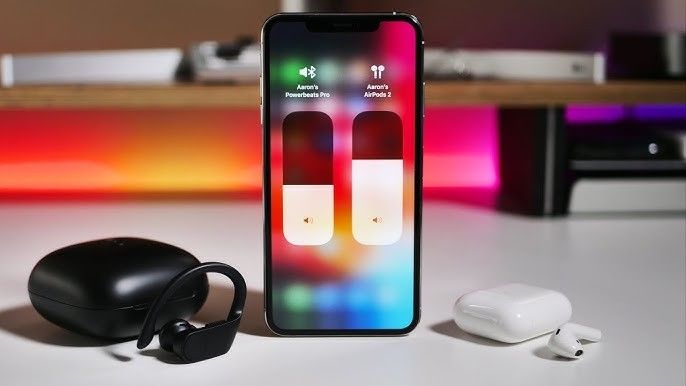
Apple's Audio Sharing feature enables you to connect two sets of Bluetooth headphones to a single iPhone, allowing two people to listen to the same audio simultaneously. This works seamlessly with compatible AirPods and Beats headphones, making it perfect for watching movies, sharing podcasts, or enjoying music together during flights or commutes.
The feature requires iOS 13 or later and works with iPhone 8 and newer models. Both sets of headphones must be compatible Apple products with the H1 or W1 chip. Each listener can adjust their own volume level independently, providing a personalized listening experience without affecting the other person's audio level.
🎧 For Apple Ecosystem Users
If you're invested in Apple's ecosystem with AirPods or Beats Studio Pro, Audio Sharing provides the most seamless experience. Compatible devices include AirPods (2nd gen and later), AirPods Pro (all generations), AirPods Max, Powerbeats Pro, Beats Fit Pro, Beats Studio Pro, Beats Solo 3, Beats Solo 4, and Beats Flex.
To set up Audio Sharing: First, connect your primary headphones to your iPhone. Then bring the second pair close to your device and open the case (for AirPods) or put them in pairing mode. A notification will appear on your iPhone screen offering to "Share Audio" — simply tap it to connect. Both sets of headphones will now play the same audio in perfect synchronization, with zero latency issues that often plague third-party solutions.
This feature works across all iOS apps including Apple Music, Spotify, Netflix, YouTube, and gaming apps. You can also use it on compatible iPads running iPadOS 13 or later, making it versatile for shared entertainment experiences.
🔧 Alternative Solutions for Non-Apple Headphones
Unfortunately, Apple's Audio Sharing feature only works with AirPods and specific Beats models that contain Apple's proprietary H1 or W1 chips. Third-party Bluetooth headphones from Sony, Bose, JBL, or other manufacturers cannot use this native iOS feature, regardless of how expensive or advanced they are.
However, you have alternative solutions: Bluetooth splitters provide a hardware workaround. Devices like the Avantree DualCast plug into your iPhone's charging port or connect wirelessly, then transmit audio to two Bluetooth headphones simultaneously. These adapters typically cost $30-60 and work with any Bluetooth headphones, though they may introduce slight audio delay (50-150ms latency).
Another option is using apps that support multi-output audio routing, though these are limited and often require both devices to have the app installed. For serious audiophiles, dedicated Bluetooth transmitters with aptX Low Latency codec support provide the best audio quality and synchronization when using non-Apple headphones.
⚙️ Technical Requirements & Compatibility
Minimum iOS Version: iOS 13.0 or later (released September 2019). Your iPhone should be running the latest iOS update for optimal performance and bug fixes.
Compatible iPhone Models: iPhone 8, iPhone 8 Plus, iPhone X, and all newer models including iPhone 15, 14, 13, 12, 11, XS, XR series. Older models like iPhone 7 and earlier cannot use Audio Sharing due to hardware limitations, even if running compatible iOS versions through unofficial means.
Bluetooth Requirements: While standard Bluetooth 5.0 hardware theoretically supports multiple simultaneous connections, iOS specifically restricts dual audio to Apple's own products with H1/W1 chips. This is a software limitation, not a hardware one — Android devices with Samsung's Dual Audio feature can connect to any two Bluetooth devices simultaneously.
Performance Impact: Audio Sharing has minimal impact on battery life (approximately 2-5% additional drain per hour) and maintains full audio quality with AAC codec support for both connected headphones. There is no audio quality degradation compared to using a single pair of headphones.
💰 Budget-Friendly Solutions
If you don't own compatible AirPods or Beats headphones, purchasing a Bluetooth splitter adapter is more cost-effective than buying two pairs of expensive Apple headphones. Quality adapters from brands like Avantree, TaoTronics, and 1Mii range from $25-50 and work with any Bluetooth headphones you already own.
The most affordable solution is a wired headphone splitter (the traditional 3.5mm Y-cable), but this requires both users to have wired headphones and your iPhone needs either a headphone jack (iPhone 6s and older) or a Lightning-to-3.5mm adapter. This solution costs under $10 but sacrifices the wireless convenience.
For those considering buying their first pair of Apple audio products specifically for Audio Sharing, the AirPods 2nd generation (around $99 on sale) or Beats Solo 4 (around $199) offer the most value. These provide full Audio Sharing compatibility at lower price points than AirPods Pro or Beats Studio Pro.
Budget-conscious users can also check for refurbished or renewed Apple headphones from authorized sellers, which typically cost 20-30% less while maintaining full functionality including Audio Sharing support.
Frequently Asked Questions
Audio Sharing is compatible with AirPods (2nd generation and later), AirPods Pro (all generations), AirPods Pro 2, AirPods Max, and AirPods 4. For Beats headphones, compatible models include Powerbeats Pro, Powerbeats Pro 2, Beats Fit Pro, Beats Solo 3 Wireless, Beats Solo 4, Beats Solo Pro, Beats Studio 3 Wireless, Beats Studio Pro, Beats Flex, and BeatsX. The key requirement is that headphones must have Apple's H1 or W1 chip built-in. First-generation AirPods (2016) are NOT compatible because they use Apple's older W1 chip without Audio Sharing support. You can mix and match any combination of these compatible models — for example, sharing audio between AirPods Pro and Beats Studio Pro works perfectly.
No, Apple's native Audio Sharing feature exclusively works with AirPods and specific Beats models that contain Apple's proprietary H1 or W1 audio chips. Third-party Bluetooth headphones from Sony, Bose, Sennheiser, JBL, or other manufacturers cannot access this feature, regardless of their price point or technical specifications. This is an intentional software restriction by Apple to maintain ecosystem control. However, you can achieve similar functionality using external Bluetooth transmitter adapters that plug into your iPhone's Lightning port (or USB-C port for iPhone 15 and newer). These adapters, such as Avantree DualCast or 1Mii ML300, cost around $35-60 and allow any two Bluetooth headphones to connect simultaneously. The trade-off is potential audio latency (50-200ms delay) and the inconvenience of carrying an additional device.
You need iOS 13.0 or later to use Audio Sharing on your iPhone. This iOS version was released in September 2019 and brought the Audio Sharing feature to compatible devices. iOS 13 is supported on iPhone 6s and newer models, though Audio Sharing itself requires iPhone 8 or later due to hardware requirements. To check your iOS version, go to Settings > General > About, and look at the "Software Version" field. If you're running an older version, go to Settings > General > Software Update to download the latest iOS version. Apple regularly improves Audio Sharing with bug fixes and performance enhancements in newer iOS updates, so updating to the latest available version (currently iOS 17.2 or later in 2026) is highly recommended for the best experience. The feature works identically across all compatible iOS versions, with no significant functionality differences between iOS 13 and the latest releases.
Setting up Audio Sharing is straightforward: Step 1: Connect your first pair of AirPods or Beats headphones to your iPhone normally through Bluetooth settings. Step 2: Start playing audio from any app (Music, Spotify, Netflix, etc.). Step 3: Bring the second pair of compatible headphones close to your iPhone (within 2-3 inches). For AirPods, open the charging case; for Beats, press and hold the pairing button until the LED flashes. Step 4: A notification should appear on your iPhone screen with "Share Audio" option — tap it. Step 5: Follow any on-screen prompts to complete pairing. Both headphones should now play audio simultaneously. If the notification doesn't appear automatically, swipe down from the top-right corner to open Control Center, long-press the audio playback widget, tap the AirPlay icon, then select "Share Audio" manually. You can control individual volume levels for each headphone from the same AirPlay menu.
Yes, independent volume control is one of the best features of Audio Sharing. Each listener can adjust their headphone volume without affecting the other person's audio level. To control volumes individually, open Control Center by swiping down from the top-right corner of your iPhone (or up from the bottom on older iPhones with Home buttons). Long-press the audio playback widget, then tap the AirPlay icon. You'll see two separate volume sliders — one for each connected headphone pair. Each person can also use the physical volume buttons on their individual Beats headphones or control volume through Siri on AirPods. This is particularly useful when two people have different hearing sensitivities or preferences. The iPhone owner can also control both volumes from their device, which is helpful for parents managing their children's safe listening levels while using Audio Sharing during travel or at home.
Yes, Audio Sharing works on iPads running iPadOS 13 or later, using the exact same setup process as iPhone. Compatible iPad models include iPad Pro (all models from 2017 onwards), iPad Air (3rd generation and later), iPad (6th generation and later), and iPad mini (5th generation and later). This makes iPads excellent for shared viewing experiences, particularly when watching movies or TV shows during flights or road trips. Audio Sharing also works with iPod touch (7th generation) running iOS 13 or later. However, Audio Sharing does NOT work on Mac computers, even with the latest macOS versions — this is a limitation Apple has not addressed. Apple TV devices also do not support Audio Sharing, though they have a separate feature called "Share Audio with AirPods" that works differently and only supports AirPods, not Beats headphones. For the fullest Audio Sharing compatibility, iPhone and iPad remain your best options.
If Audio Sharing isn't detecting your second pair of headphones, try these troubleshooting steps: 1) Reset the headphones: For AirPods, place them in the case, close the lid, wait 30 seconds, then open and hold the button on the back for 15 seconds until the LED flashes amber then white. For Beats, hold the power and volume down buttons simultaneously for 10 seconds. 2) Forget and re-pair: Go to Settings > Bluetooth, tap the (i) icon next to the headphones, select "Forget This Device," then pair them fresh. 3) Update iOS and firmware: Ensure your iPhone is running the latest iOS version and that your headphones have the latest firmware (they update automatically when connected to power and near your iPhone). 4) Restart your iPhone: A simple restart often resolves temporary Bluetooth glitches. 5) Check compatibility: Verify both headphone pairs are actually compatible with Audio Sharing using Apple's official compatibility list. If issues persist, contact Apple Support as there may be a hardware issue with your headphones or iPhone's Bluetooth radio.
Yes, Bluetooth splitter adapters are a cost-effective alternative that work with any Bluetooth headphones, not just Apple products. These small devices connect to your iPhone's charging port (Lightning for iPhone 14 and earlier, USB-C for iPhone 15 and newer) and transmit audio wirelessly to two Bluetooth receivers simultaneously. Popular options include the Avantree DualCast ($45), 1Mii ML300 ($40), and TaoTronics TT-BA09 ($35). The main advantages are universal compatibility with all Bluetooth headphones and lower total cost compared to buying two pairs of AirPods. The disadvantages are audio latency (typically 50-150ms delay, which is noticeable when watching videos), the need to carry an extra accessory that uses your charging port, and slightly reduced battery life. For serious movie watching or gaming, this latency makes lip-sync issues frustrating. However, for music listening or podcasts where timing isn't critical, Bluetooth splitters work perfectly well and represent excellent value for users who already own high-quality non-Apple headphones.