

Close Menu
Techozea | Product Reviews・Ultimate Guides・Best ProductsTechozea | Product Reviews・Ultimate Guides・Best Products

    Subscribe to Updates

    Get the latest technology news from TechOzea about product reviews, ultimate guides, best products, how-to guides and insights.

    What's Hot

    How to Wear Bone Conduction Headphones Correctly

    June 21, 2026

    How Bone Conduction Headphones Work (And Who They’re For)

    June 21, 2026

    How to Change Your iPhone Name in 30 Seconds: A Step-by-Step Guide

    June 19, 2026
    Facebook X (Twitter) Instagram
    Facebook X (Twitter) Instagram
    Techozea | Product Reviews・Ultimate Guides・Best ProductsTechozea | Product Reviews・Ultimate Guides・Best Products
    • Homepage
    • Headphones & Audio Gear
    • How-To and Tutorials
    • Laptops & Accessories
    • Camera & Accessories
    • PC & Gaming Gear
    • Mobile Gadgets & Accessories
    • TVs
    • News
    • Uncategorized
    Techozea | Product Reviews・Ultimate Guides・Best ProductsTechozea | Product Reviews・Ultimate Guides・Best Products
    Home | How-To and Tutorials | How to Pair Soundcore Earbuds (Fast Pairing + Fixes)
    How-To and Tutorials

    How to Pair Soundcore Earbuds (Fast Pairing + Fixes)

    MosesBy MosesFebruary 3, 2026No Comments1 Min Read
    Facebook Twitter Pinterest Telegram LinkedIn Copy Link Reddit WhatsApp
    Follow Us
    Facebook Pinterest YouTube
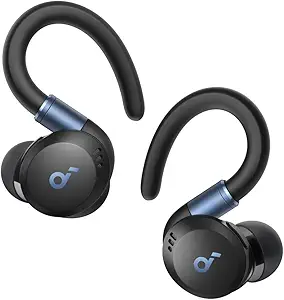
    Soundcore Sport X20
    Share
    Facebook Twitter LinkedIn Pinterest Copy Link WhatsApp

    How do I put Soundcore earbuds in pairing mode and connect them to my phone/PC?

    Most models pair in under 2 minutes: enter pairing mode, connect in Bluetooth, and if needed, run a quick reset (often ~10 seconds). Official reset steps.

    Human-Verified: Official Soundcore sources Confidence: 89% Common Fix: Forget → Reset → Re-pair

    To pair Soundcore earbuds: remove them from the case to enter pairing mode, then open your device’s Bluetooth list and select “soundcore”. If they don’t appear, reset (often hold the case button about 10 seconds), and re-pair. Troubleshooting flow.

    Verified using Soundcore guidance on pairing/reset and the “delete pairing record → reset → re-pair” sequence: Soundcore service article.

    Goal: connect in < 2 minutes using the most common workflow. Helpful background: pairing mode basics.

    1. Open the case and take out both earbuds (pairing mode often starts automatically).
    2. On your phone: Settings → Bluetooth → make sure Bluetooth is ON.
    3. Tap the earbuds name (usually starts with soundcore) and confirm Pair.
    4. If it fails once, repeat once—many guides note a second attempt often works.

    Goal: fix discovery issues using Soundcore’s recommended sequence: delete pairing record → reset → re-pair.

    1. In Bluetooth settings, remove/forget the earbuds, then toggle Bluetooth OFF.
    2. Reset the earbuds (many models: case open → hold case button ~10 seconds). Model table
    3. Toggle Bluetooth ON again → scan → pair.
    4. If still missing, test with another device to isolate compatibility issues.
    Quick check: If your model has connector “protective film,” remove it and ensure the case has charge. This is explicitly called out in Soundcore pairing-issue troubleshooting.

    Goal: resolve “sound only coming from one earbud” / “one side not pairing.” Soundcore P30i/R50i NC fix includes holding both touch areas for 10 seconds.

    1. Forget the earbuds in Bluetooth and disable Bluetooth briefly. Source
    2. Reset earbuds (example P30i/R50i NC: take out → hold both touch areas for 10 seconds).
    3. Re-enable Bluetooth → pair again.
    4. If prompted, choose “Pair” (if you tapped Cancel, refresh Bluetooth and retry). Source

    Goal: pair to PC and avoid call-audio confusion. Pairing steps mirror standard Bluetooth pairing workflow.

    1. Put earbuds in pairing mode (remove from case; reset if needed).
    2. Windows: Settings → Bluetooth & devices → Add device → Bluetooth → pick your Soundcore earbuds.
    3. In Teams/Zoom: set Soundcore as both output and mic input.
    4. If Windows doesn’t find them, run “forget device → reset → re-pair.”

    Evidence Metrics

    10s
    Common reset hold time on many models (case button).
    3-step
    Forget pairing → Reset earbuds → Re-pair.
    10s
    P30i/R50i NC: hold both touch areas 10 seconds (reset).
    >20%
    Firmware update prerequisite mentions power threshold for app-capable earbuds.
    Confidence Score: 89%
    Based on official Soundcore documentation consensus + model-specific reset tables.
    If your model differs, use Soundcore’s model list and match your reset method exactly. Reset-by-model table.

    Frequently Asked Questions

    Usually, just remove both earbuds from the charging case and they enter pairing mode (often indicated by blinking LEDs). If your earbuds keep reconnecting to an old device, run the official-style flow: forget the device, then reset (many models: case open + hold the case button ~10 seconds), then pair again. This matches Soundcore’s recommended troubleshooting steps. Soundcore guidance.
    The most common cause is a stale Bluetooth pairing record or the earbuds not being in pairing mode. Start by deleting the earbuds from your Bluetooth list and turning Bluetooth off, then reset the earbuds, then turn Bluetooth back on and scan again—Soundcore explicitly recommends this sequence for pairing failures. If you own P30i/R50i NC, also check the “protective film” and power-related notes in Soundcore’s pairing-issue article. Official steps and model troubleshooting.
    Many Soundcore models reset from the case: place both earbuds inside, keep the lid open, then press and hold the case button for about 10 seconds until the LEDs flash rapidly. Other models reset using touch controls (example: P30i/R50i NC uses holding both touch areas for 10 seconds). After reset, re-pair in Bluetooth and confirm “Pair” if prompted. For exact model-by-model instructions, use Soundcore’s official reset table. Reset table.
    This is typically a left-right sync problem, not a speaker failure. Follow a clean reconnection: forget the earbuds in Bluetooth, reset the earbuds, then re-pair. Soundcore’s troubleshooting for P30i/R50i NC specifically addresses “sound only coming from one earbud” and recommends a reset step (holding both touch areas for 10 seconds) before pairing again. If the issue persists, test with a second device to isolate phone-specific Bluetooth issues. Soundcore fix steps.
    Put your earbuds in pairing mode (remove from case; reset if needed), then on Windows go to Bluetooth settings and add a new Bluetooth device. Select your Soundcore earbuds when they appear. If audio works but calls don’t, set the earbuds as both output and microphone inside your call app and Windows sound settings. If Windows can’t find them, use the official-style fix: delete the pairing record, reset the earbuds, then re-pair. Pairing mode basics and troubleshooting sequence.
    First, forget the earbuds on the old phone so they stop auto-connecting. Then, if the earbuds won’t appear on the new phone, reset them (many Soundcore models reset with a ~10-second case-button hold, but check your model). Finally, enable Bluetooth on the new phone and tap the earbuds name to pair. This mirrors Soundcore’s recommended “remove pairing record → reset → pair” flow for connection problems. Soundcore troubleshooting and TechOzea Bluetooth transfer tips.
    Follow on Google News Follow on Flipboard
    Share. Facebook Twitter Pinterest LinkedIn Telegram Email Copy Link Reddit
    Moses
    • Facebook
    • X (Twitter)
    • Pinterest
    • Instagram
    • LinkedIn

    I'm Moses, a mechanical engineer by training, a web designer by profession, and a content developer by passion. Since 2019, I've been pouring my heart and soul into blogging about topics that fuel my curiosity and ignite my creativity. ‎ ‎From the latest tech trends to the intricacies of programming languages, I'm always on the lookout for opportunities to expand my knowledge and share my insights with the world. Connect with me on my social media platforms for the latest updates.

    Related Posts

    How to Wear Bone Conduction Headphones Correctly

    June 21, 2026

    How Bone Conduction Headphones Work (And Who They’re For)

    June 21, 2026

    How to Change Your iPhone Name in 30 Seconds: A Step-by-Step Guide

    June 19, 2026

    Are Bone Conduction Headphones Safe? Expert Review

    June 18, 2026
    Leave A Reply Cancel Reply

    Top Selling Multipurpose WP Theme
    Demo
    Top Posts

    Can You Connect Two Bluetooth Headphones to iPhone? Complete Guide

    January 4, 2026

    Are Bone Conduction Headphones Safe? Expert Review

    June 18, 2026

    Best Lightweight Laptops (Tested & Reviewed)

    March 19, 2026

    5 Best Noise Cancelling Headphones for Kids: A Parent’s Complete Review

    December 27, 2025
    Don't Miss

    How to Wear Bone Conduction Headphones Correctly

    June 21, 202612 Mins Read

    Summary: Bone conduction headphones only work their best when the transducers sit in the right…

    How Bone Conduction Headphones Work (And Who They’re For)

    June 21, 2026

    How to Change Your iPhone Name in 30 Seconds: A Step-by-Step Guide

    June 19, 2026

    Are Bone Conduction Headphones Safe? Expert Review

    June 18, 2026
    Stay In Touch
    • Facebook
    • Twitter
    • Pinterest
    • Instagram
    • YouTube
    • Vimeo

    Subscribe to Updates

    Get the latest creative news from SmartMag about art & design.

    Demo
    About Us
    About Us

    Discover cutting-edge technology news, product reviews, ultimate guides, best products, how-to guides and insights at Techozea. Your trusted destination for staying informed about the latest trends in the tech world.
    ‎
    ‎At Techozea, we provide a curated collection of industry news, hands-on product reviews, practical how-to guides, and detailed analysis, keeping you informed and empowered in an ever-evolving digital landscape.

    We're accepting new partnerships right now.

    Email Us: [email protected]

    Facebook X (Twitter) Pinterest YouTube WhatsApp
    Our Picks

    How to Wear Bone Conduction Headphones Correctly

    June 21, 2026

    How Bone Conduction Headphones Work (And Who They’re For)

    June 21, 2026

    How to Change Your iPhone Name in 30 Seconds: A Step-by-Step Guide

    June 19, 2026
    Most Popular

    The Ultimate Guide to Budget Gaming Laptops: Everything You Need to Know

    July 11, 2023

    Tecno Camon 20: Unleashing the Power of Innovation

    August 14, 2023

    15 Best Laptops for DJing: Reviews and Buying Guide, Pros, Cons, and Features

    August 17, 2023
    Facebook X (Twitter) Instagram Pinterest YouTube
    • Homepage
    • Affiliate Disclosure
    • Advertise
    • Privacy Policy
    • Contact Us
    • About Us
    © 2026 TechOzea. Designed by Moses.

    Type above and press Enter to search. Press Esc to cancel.

    Ad Blocker Enabled!
    Ad Blocker Enabled!
    Our website is made possible by displaying online advertisements to our visitors. Please support us by disabling your Ad Blocker.