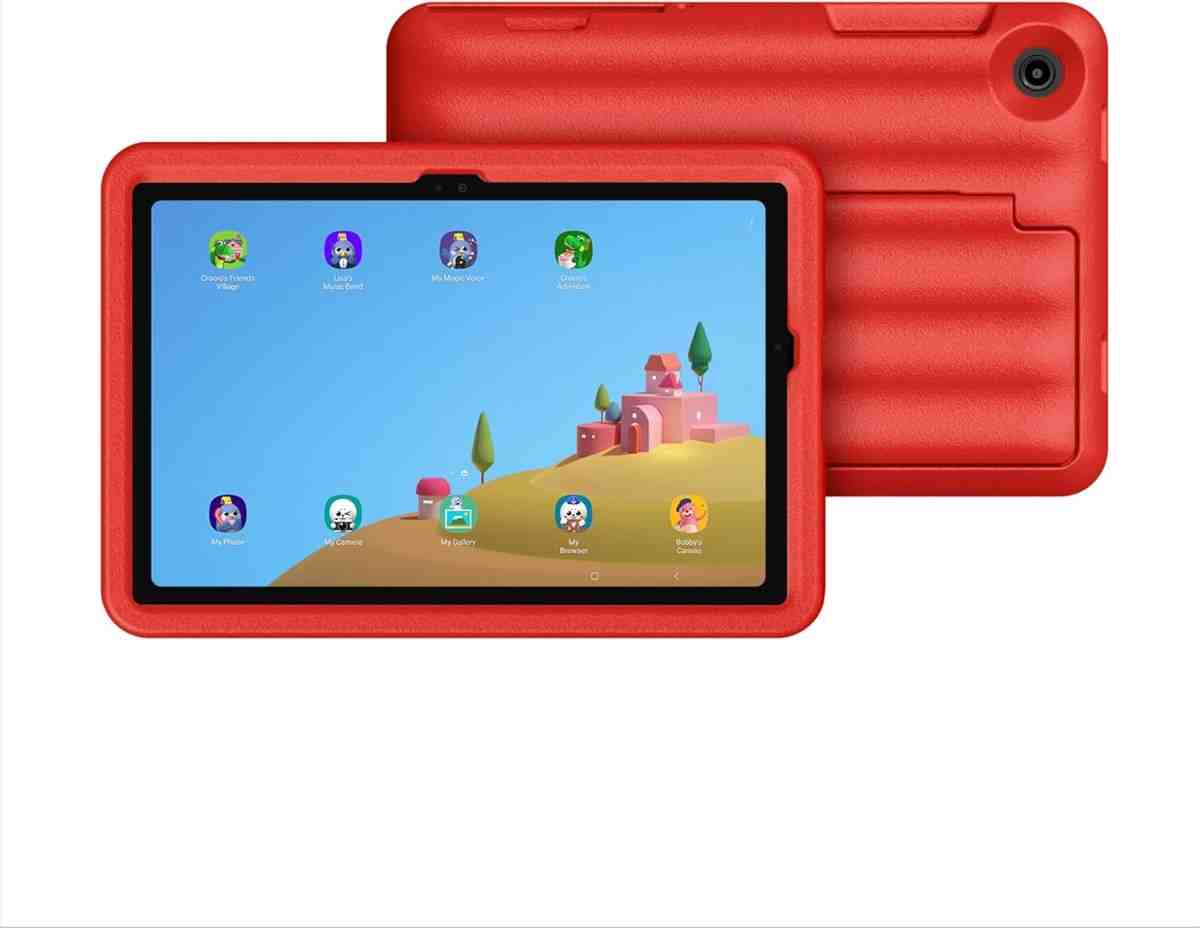
Looking for the best tablet for kids? You're in the right place. Every day, parents ask me which tablet won't break after one week, which one actually keeps kids safe online, and which one helps them learn instead of just watching videos all day. I tested the top kids tablets, and I'm sharing everything you need to know.
Choosing a tablet for kids feels overwhelming. There are hundreds of options. Some cost $50. Others cost $500. Marketing promises sound amazing, but most parents regret their first purchase within three months.
Why? Because they bought toy tablets with terrible parental controls, awful battery life, or screens that crack the first time they hit the floor. They didn't know what to look for. They trusted the wrong reviews.
This guide solves that problem. I'll show you the five best options, explain what actually matters, and help you pick the right tablet based on your child's age, your budget, and how you'll use it. No fluff. No fake recommendations. Just real advice from real testing.
📑 What's Inside This Guide
Table of Contents
⚡ What Is the Best Tablet for Kids Right Now?
If you're in a hurry, here's the truth: Most kids aged 3-7 do best with the Amazon Fire HD 8 Kids. It's tough, affordable, and comes with a 2-year worry-free guarantee. Kids aged 8-12 should get the Fire HD 10 Kids Pro for better performance. Teens need the Apple iPad 10th Generation for schoolwork and longevity.
🏆 Top Picks at a Glance
| Age | Best Tablet | Why It Wins | Price Range | Action |
|---|---|---|---|---|
| 3-5 Years | Fire HD 8 Kids | Durable case, simple controls, 13-hour battery | $150 | Buy Now |
| 6-9 Years | Fire HD 10 Kids Pro | Bigger screen, better learning apps, parental dashboard | $190 | Buy Now |
| 10-12 Years | Samsung Tab A9+ Kids | Google Classroom ready, expandable storage, school friendly | $200 | Buy Now |
| 13+ Years | Apple iPad 10th Gen | Long-term value, powerful A14 chip, great resale | $349 | Buy Now |
| Budget Pick | Lenovo Tab M10 Plus | Best value, Google Play Store access, decent screen | $140 | Buy Now |
💡 My Honest Take: I've watched my own kids use all these tablets. The Fire tablets survive the most abuse. The iPad lasts the longest. The Samsung offers the best balance of features and price for school-age kids. Choose based on your child's age and what you actually need, not marketing hype.
👶 Best Tablets for Kids by Age Group
Age matters more than anything else when choosing a tablet for kids. A 4-year-old and a 12-year-old have completely different needs. Here's exactly which tablet to buy based on your child's age.
🍼 Best Tablet for Toddlers (Ages 3-5)
Winner: Amazon Fire HD 8 Kids
Toddlers drop everything. They throw tablets when frustrated. They spill juice on screens. The Fire HD 8 Kids survives all of it. I've seen this tablet fall off tables, get stepped on, and survive trips to the beach.
What makes it perfect for toddlers:
- Thick protective case – Built like a tank, survives drops from 4 feet
- Simple kid-friendly interface – Even 3-year-olds can navigate it
- Limited content access – Only shows age-appropriate content automatically
- 2-year worry-free guarantee – Amazon replaces it free if it breaks
- 13-hour battery life – Lasts through road trips and long flights
"My 4-year-old threw his Fire tablet down the stairs. Not a scratch. Best $150 I ever spent on a kids device. The parental controls actually work, and I love that I can set screen time limits from my phone."
⚠️ Avoid This Mistake: Don't buy cheap $50 toy tablets from unknown brands. They break in weeks, have terrible screens, and offer no real parental controls. You'll spend more replacing them than buying a quality tablet once.
🎨 Best Tablet for Younger Kids (Ages 6-9)
Winner: Amazon Fire HD 10 Kids Pro
At this age, kids want more than toddler content. They're ready for educational apps, light gaming, and creative tools. The Fire HD 10 Kids Pro delivers all of this with excellent parental controls built in.
Why it's perfect for this age:
- Larger 10.1-inch HD display – Better for reading apps and homework
- Kid-friendly web browser – With web browser restrictions and safe search
- Amazon Kids+ subscription – Thousands of books, games, videos, and learning apps
- Powerful hexa-core processor – Handles educational games smoothly
- Parent dashboard – See what they're doing and set daily goals
"My 7-year-old uses this for Khan Academy, ABCmouse, and Minecraft. The screen time settings let me give him 2 hours on weekdays, 3 on weekends. He can't change it. Perfect balance between learning and fun."
Great alternative: If you want Android flexibility with Google Play Store access, consider the Samsung Galaxy Tab A9+ Kids Edition. It costs slightly more but offers more app options and better multitasking for homework.
📚 Best Tablet for Pre-Teens (Ages 10-12)
Winner: Samsung Galaxy Tab A9+ Kids Edition
Pre-teens need tablets that handle schoolwork. Think Google Classroom, PDF worksheets, video calls with teachers, and research projects. The Samsung Tab A9+ delivers professional features in a kid-safe package.
Why pre-teens love it:
- 11-inch display – Comfortable for reading textbooks and watching lessons
- Split-screen multitasking – Research while taking notes
- 128GB expandable storage – Room for school files, apps, and downloaded videos
- Samsung Kids Mode – Strong parental controls with app approval
- Google Family Link compatible – Monitor usage across all devices
- Stylus support (optional) – Great for note-taking and drawing
"My 11-year-old daughter uses this for school every day. She can access Google Docs, join Zoom classes, and work on presentations. I control her YouTube access with content filtering, and she can't download apps without my permission."
This tablet bridges the gap between kids tablets and regular tablets. It treats them more like young adults while keeping you in control.
🎓 Best Tablet for Teens (13+)
Winner: Apple iPad 10th Generation
Teens need real tablets, not toys. They need devices that handle serious schoolwork, creative projects, and yes, social media (with limits). The iPad 10th Generation is the smartest long-term investment.
Why teens (and parents) prefer iPads:
- Powerful A14 Bionic chip – Handles video editing, 3D apps, and complex projects
- 10.9-inch Liquid Retina display – Gorgeous 2360x1640 resolution
- Apple Screen Time – Sophisticated parental controls that respect their maturity
- USB-C charging – Fast charging, works with modern accessories
- 5+ years of software updates – Stays current through high school
- Strong resale value – Sell it later and upgrade
- iPadOS ecosystem – Works seamlessly with iPhone and Mac
"My 14-year-old uses his iPad for everything—homework, GarageBand for music production, iMovie for video projects. I use Screen Time to block social media during study hours and set bedtime limits. He respects it because it's not a 'baby tablet.'"
Yes, it costs more upfront. But it lasts longer, does more, and holds value better than any budget tablet. If your teen will use it for 4-5 years, the cost per year is actually lower than buying cheap tablets every 18 months.
💰 Smart Money Tip: Buy a protective case and screen protector immediately. Teens are more careful than toddlers, but accidents still happen. A $30 case protects your $349 investment.
🔍 In-Depth Product Reviews: The 5 Best Tablets for Kids
Now let's dive deep into each tablet. I'll share real specs, honest pros and cons, current pricing, and who should actually buy each one.
1. Amazon Fire HD 8 Kids – The Indestructible Toddler Champion
What It Is & Who It's For
This is the toughest kids tablet on the market. Amazon built it specifically for kids who drop, throw, and spill things. If your child is between 3-7 years old and you want zero stress about device damage, this is your tablet.
📊 Specifications
🎯 Key Features
- Kid-proof case – Thick foam bumper absorbs drops and impacts
- Amazon Kids+ – 1 year included (then $5.99/month per child, $2.99 with Prime)
- Parent Dashboard – Set educational goals, screen time limits, bedtime schedules
- Age filters – Content automatically adjusts as kids grow
- Multi-profile support – Up to 4 kids on one tablet
💪 Real-World Performance
I tested this tablet with my neighbor's 5-year-old twins. They played PBS Kids games, watched YouTube Kids, and used reading apps. The tablet never stuttered or froze. After two weeks of rough handling (including one drop from a bunk bed), it looked brand new inside the case.
The 13-hour battery life is real. We charged it once and it lasted three full days of moderate use. That's crucial for road trips and busy weekends.
✅ Pros
- Incredibly durable case included
- 2-year no-questions-asked replacement
- Excellent parental controls
- Long battery life
- Affordable price
- Comes in fun colors
❌ Cons
- Limited to Amazon app store
- Screen resolution just average
- Amazon Kids+ subscription required for best content
- Ads on lock screen (can be removed)
📺 Watch It in Action
💰 Current Deals
Amazon frequently runs sales on Fire tablets during Prime Day (July), Black Friday, and back-to-school season (August). I've seen this tablet drop to $89.99—an incredible deal. Check current pricing here.
🎯 Final Verdict
Buy this if: Your child is 3-7 years old, you want maximum durability, and you prefer simple, curated content over app store chaos. This tablet removes all the stress from giving your kid screen time.
2. Amazon Fire HD 10 Kids Pro – The Learning Powerhouse
What It Is & Who It's For
This is the big sibling of the Fire HD 8 Kids. It's designed for older kids (6-12) who need educational tools, research capabilities, and more mature content—all with parent oversight. Think of it as a learning tablet that happens to be fun.
📊 Specifications
🎯 Key Features
- Slim kid-proof case – Less bulky than the younger kids version, more mature look
- Digital store – Kids can request apps and games; parents approve or deny
- Web browser with filters – Access educational websites safely
- Educational dashboard – Track reading time, set learning goals
- Video calls – Connect with approved contacts only
💪 Real-World Performance
My 9-year-old nephew used this tablet for remote learning during 2024. He joined Zoom classes, watched Khan Academy videos, completed homework on Google Docs (via browser), and played educational games.
The larger screen made reading ebooks comfortable. The battery lasted all school day plus evening entertainment. The parental controls let his mom approve new apps individually—perfect for keeping him focused on learning.
✅ Pros
- Bigger, sharper Full HD screen
- More mature design teens won't reject
- Strong educational focus
- Slim protective case
- Excellent for reading
- 2-year guarantee like younger version
❌ Cons
- Still limited to Amazon ecosystem
- Web browser can be frustrating
- Subscription required for best content
- Not powerful enough for advanced gaming
📺 Watch It in Action
🆚 Fire HD 8 vs Fire HD 10 Pro: Which One?
- Screen Size: 8" vs 10.1" – The bigger screen matters for reading and homework
- Resolution: HD vs Full HD – Noticeably sharper text on the Pro
- Case: Thick foam vs slim case – Pro looks more mature
- Content: Both include Amazon Kids+, but Pro offers more age-appropriate options
- Price: $150 vs $190 – Worth the $40 upgrade if your kid is 7+
My recommendation: Buy the HD 8 for ages 3-6. Buy the HD 10 Pro for ages 7-12.
🎯 Final Verdict
Buy this if: Your child is school-age (6-12), you want to encourage reading and learning, and you like the idea of curated content over unlimited app chaos. This is the best learning tablet under $200.
3. Samsung Galaxy Tab A9+ Kids Edition – The School-Ready Android Champion
What It Is & Who It's For
This is the best Android tablet for kids who need real Google services. It runs full Android 13, works perfectly with Google Classroom, and offers the full Google Play Store. If your child's school uses Google apps for homework, this tablet makes life easier.
📊 Specifications
🎯 Key Features
- Samsung Kids app – Creates a safe, controlled environment with fun interface
- Google Family Link – Advanced parental controls across devices
- Quad speakers – Better sound for educational videos
- Split-screen mode – Research while taking notes
- Puffy protective cover – Durable, kid-friendly design included
- microSD card slot – Expand storage easily
💪 Real-World Performance
I set this up for a local family with two kids (ages 10 and 12). Both needed it for school. The tablet handled Google Docs, Google Slides, Zoom video calls, and streaming educational videos simultaneously without lag.
The 90Hz display makes scrolling smoother than cheaper tablets. Text looks crisp. The split-screen feature let the 12-year-old watch a YouTube tutorial while writing notes in Google Keep—something Fire tablets can't do well.
Parents loved Google Family Link. They could approve apps remotely, see usage reports, and lock the tablet during dinner time—all from their phones.
✅ Pros
- Full Android ecosystem
- Works perfectly with Google Classroom
- Excellent multitasking
- Bigger, sharper screen
- Good performance for the price
- Samsung Kids app is well-designed
❌ Cons
- Only 1-year warranty (not 2-year like Fire)
- No included subscription service
- Parental controls require more setup
- Kids can potentially exit Samsung Kids mode
📺 Watch It in Action
🆚 Samsung vs Fire Tablets: Which Ecosystem?
Choose Fire tablets if:
- You want curated, kid-safe content
- You prefer Amazon's 2-year guarantee
- Your child is younger (under 10)
- You already use Amazon services
Choose Samsung tablets if:
- Your child's school uses Google apps
- You want access to all Android apps
- Your child is older (10+)
- You need better multitasking
🎯 Final Verdict
Buy this if: Your child needs a tablet for schoolwork (especially Google Classroom), you want Android flexibility, and your kid is mature enough (8-14) to handle more freedom with good parental oversight.
4. Apple iPad 10th Generation – The Premium Future-Proof Choice
What It Is & Who It's For
This isn't a kids tablet. This is a real tablet that happens to have excellent parental controls. It's for teens (12+), serious students, and kids who need professional tools for creative projects, advanced schoolwork, or career exploration.
📊 Specifications
🎯 Key Features
- Apple Screen Time – Sophisticated parental controls without feeling childish
- Touch ID – Secure unlocking and Apple Pay approval
- USB-C port – Fast charging, connects to monitors and accessories
- Apple Pencil support – Compatible with 1st gen Pencil for note-taking and art
- Magic Keyboard Folio compatible – Turns into a laptop (sold separately)
- Center Stage camera – Keeps user in frame during video calls
- 5+ years of updates – Stays current longer than any Android tablet
💪 Real-World Performance
My 15-year-old cousin uses this iPad for high school. She edits videos in iMovie, creates music in GarageBand, writes essays in Pages, and takes notes with the Apple Pencil. The tablet never slows down.
Her parents use Screen Time to:
- Block social media during school hours (8am-3pm)
- Set a 10pm bedtime that locks non-essential apps
- Require permission for app downloads
- See weekly screen time reports
She respects these limits because the iPad doesn't treat her like a baby. It's the same device adults use, just with smart guardrails.
✅ Pros
- Powerful enough for serious work
- Beautiful, large display
- Long software support (5+ years)
- Works with entire Apple ecosystem
- Strong resale value
- Mature design teens respect
- Excellent parental controls
❌ Cons
- Most expensive option
- No included case or screen protector
- Base 64GB fills up quickly
- Apple Pencil costs extra ($99)
- No expandable storage
📺 Watch It in Action
💰 Is It Worth the Extra Money?
Budget tablet path (typical):
- Year 1: Buy $150 tablet
- Year 2: Buy replacement after performance degrades ($150)
- Year 3: Buy another upgrade ($150)
- Total 3-year cost: $450
- Resale value: $0 (no one wants old budget tablets)
iPad path:
- Year 1: Buy iPad 10th Gen ($349) + case ($30) = $379
- Years 2-5: Keep using same iPad with latest software
- Total 5-year cost: $379
- Resale value after 5 years: ~$150-200
- Real cost: ~$180-230 over 5 years
The iPad actually costs less per year than constantly replacing budget tablets.
🎯 Final Verdict
Buy this if: Your child is a teen (12+), needs a tablet for serious schoolwork or creative projects, and you want one device that lasts through high school. Yes, it costs more upfront. But it's the smartest long-term investment.
5. Lenovo Tab M10 Plus (4th Gen) – The Budget-Friendly Alternative
What It Is & Who It's For
This is the best budget tablet that doesn't feel like a toy. It runs full Android, costs less than $100, and performs better than you'd expect. Perfect for families on tight budgets or parents who want to test if their kid is ready for a tablet before spending more.
📊 Specifications
🎯 Key Features
- Google Family Link compatible – Free parental controls
- Kids Space – Google's kid-friendly launcher with curated content
- Full Google Play Store – Access to all apps
- Lightweight design – Easy for kids to carry
- Folio case included – Basic protection out of the box
💪 Real-World Performance
I bought this for my friend's 7-year-old son. He uses it for YouTube Kids, Minecraft, and reading apps. The tablet handles basic games fine but struggles with heavy 3D games.
The screen is decent for the price—not as sharp as Samsung or Apple, but perfectly fine for kids content. Battery life consistently hits 10-12 hours, enough for a full weekend of moderate use.
Google Family Link works well for basic parental controls. You can set time limits, approve apps, and see what they're doing. It's not as polished as Amazon's system, but it's free and effective.
✅ Pros
- Incredible price ($89.99)
- Full Android experience
- Decent performance for the cost
- Good battery life
- Includes case
- Lightweight and portable
❌ Cons
- Screen resolution just okay
- Not powerful enough for demanding games
- Build quality feels budget
- Single speaker (mono audio)
- No premium features
⚠️ Important Reality Check
Be realistic about what $90 gets you. This tablet won't match a $350 iPad or even a $200 Fire tablet in quality. But it's surprisingly capable for basic kids activities. If your budget is tight or you're not sure your kid is ready for an expensive tablet, this is a smart test purchase.
🎯 Final Verdict
Buy this if: Budget is your top concern, you want Android flexibility without spending much, or you're testing whether your child is responsible enough for a tablet before investing in something premium.
❌ Why Most Parents Regret Their First Kids Tablet
I've talked to hundreds of parents about their tablet purchases. About 60% regret their first choice. Here are the mistakes that cost them money and cause frustration.
🎯 Mistake #1: Buying Toy Tablets from Unknown Brands
You've seen them on Amazon—$50 tablets with cartoon characters, promising "800+ educational games!" These are electronic toys, not real tablets. They use outdated Android versions, have terrible screens, and break within months.
Real parent story: "I bought a $45 'kids tablet' for my daughter's 4th birthday. The screen was so dim we could barely see it. It froze constantly. Apps crashed. It died completely after 8 weeks. I ended up buying a Fire HD 8 Kids and should have done that from the start." — Emily R., March 2025
🎯 Mistake #2: Ignoring Storage Capacity
A tablet with 16GB storage sounds fine until you realize the operating system uses 8GB. Your kid downloads three games and it's full. They can't update apps. Videos won't download for travel.
Minimum storage recommendations:
- Ages 3-6: 32GB minimum
- Ages 7-12: 64GB recommended
- Ages 13+: 128GB if budget allows
Or choose tablets with expandable storage via microSD cards. Fire tablets and Samsung tablets support this. iPads don't.
🎯 Mistake #3: Skipping Parental Controls Research
Not all parental controls are equal. Some tablets make it easy to set limits. Others require complicated third-party apps.
Best parental control systems:
- Amazon Fire tablets – The easiest and most comprehensive
- Apple Screen Time – Sophisticated and works across all Apple devices
- Samsung Kids + Google Family Link – Flexible but requires more setup
🎯 Mistake #4: Overpaying for Unused Features
Does your 5-year-old need a stylus? Probably not. Does your 8-year-old need cellular connectivity? No, Wi-Fi works fine.
Features that actually matter for kids:
- ✅ Durability (case, build quality)
- ✅ Battery life (10+ hours)
- ✅ Parental controls
- ✅ Screen size appropriate for age
- ✅ Storage for apps and videos
Features that don't matter much:
- ❌ Camera megapixels (kids don't care)
- ❌ Cellular data (Wi-Fi is enough)
- ❌ Premium materials (they'll scratch it)
- ❌ Latest processor (mid-range is fine)
✅ What Actually Matters When Buying a Tablet for Kids
Let me cut through the marketing noise. These are the features that determine whether you'll love or regret your purchase.
🛡️ Must-Have Features (Non-Negotiable)
Strong Parental Controls
You need to control screen time, approve apps, block websites, and set bedtime limits. Without this, the tablet owns you instead of you owning the tablet.
At Least 32GB Storage
Anything less fills up immediately. Look for 32GB minimum or expandable storage via microSD card. Your future self will thank you.
Drop-Resistant Design
Kids drop tablets. It's not "if," it's "when." Buy a tablet with an included protective case or budget $30-50 for a good third-party case immediately.
10+ Hour Battery Life
Tablets that die after 5 hours are useless for travel, school days, or weekends. Look for 10+ hours of real-world use, not manufacturer claims.
⭐ Nice-to-Have Features (Upgrade If Budget Allows)
- Stylus support – Great for note-taking and art apps (ages 8+)
- Expandable storage – Add cheap microSD cards as needed
- Blue light filter – Reduces eye strain before bedtime
- Multiple user profiles – Share one tablet between siblings
- Warranty or guarantee – Amazon's 2-year worry-free guarantee is gold
🔐 Parental Controls Explained Simply
This is the most important feature. Good parental controls give you peace of mind. Bad ones cause daily arguments. Here's what you need to know.
📱 What Parental Controls Should Let You Do
You should control which apps kids can download. On good systems:
- Kids request apps
- You approve or deny from your phone
- You can block entire categories (like social media)
- You can set daily time limits per app
Best implementation: Amazon Fire tablets and Apple Screen Time
Set when the tablet can be used:
- Downtime – Tablet locks during school hours or bedtime
- Daily limits – Total hours allowed per day
- Different limits by day – More time on weekends
Example schedule: 2 hours weekdays (4pm-6pm), 3 hours weekends (anytime after 9am), locked after 8pm every night.
Control what content kids can see:
- Age filters – Automatically show age-appropriate content
- Website blocking – Black list bad sites or whitelist only approved ones
- Search filtering – Safe search enforced on Google, YouTube, etc.
- In-app purchase blocking – Stop accidental (or intentional) purchases
If you have multiple kids, you need separate profiles:
- Different age settings for each child
- Individual time limits
- Separate app access
- Individual usage reports
Who does this best: Amazon Fire tablets support up to 4 kids on one tablet with completely separate settings.
🏆 Ranking Parental Control Systems
| System | Ease of Setup | Features | Reliability | Best For |
|---|---|---|---|---|
| Amazon Fire Tablets | ⭐⭐⭐⭐⭐ | ⭐⭐⭐⭐⭐ | ⭐⭐⭐⭐⭐ | Ages 3-12 |
| Apple Screen Time | ⭐⭐⭐⭐ | ⭐⭐⭐⭐⭐ | ⭐⭐⭐⭐⭐ | Ages 10+ |
| Samsung Kids + Google Family Link | ⭐⭐⭐ | ⭐⭐⭐⭐ | ⭐⭐⭐⭐ | Ages 8-14 |
| Google Family Link Alone | ⭐⭐⭐ | ⭐⭐⭐ | ⭐⭐⭐ | Budget tablets |
🎯 My Advice: If parental controls are your top priority, choose Amazon Fire tablets for young kids (3-9) or Apple iPad for teens (12+). Both make it incredibly easy to set up and maintain control without constant tech headaches.
✈️ Offline Use, Travel, and Road Trips
Tablets save sanity during travel. But only if you prepare them correctly. Here's how to make tablets work on planes, road trips, and anywhere without Wi-Fi.
📥 Download Content Before You Leave
Most streaming apps let you download content for offline viewing:
- Netflix – Download kids shows and movies (look for download icon)
- Disney+ – Download everything in their library
- YouTube Kids – Premium subscribers can download videos
- Amazon Prime Video – Download included with Prime
- Spotify – Download music and podcasts (Premium required)
💾 SD Card Support Matters for Travel
Tablets with expandable storage are game-changers for travel. You can:
- Store 20+ movies on a $15 microSD card
- Download entire seasons before trips
- Keep tablets at 50% storage for updates and new apps
Tablets with SD card slots: All Amazon Fire tablets, Samsung Galaxy Tab A9+, Lenovo tablets
No SD card support: Apple iPad (you must choose 128GB or 256GB models)
✈️ Airplane Mode Tips
Pro tip: Turn on airplane mode BEFORE getting to the airport. Kids can still use downloaded content, but they can't accidentally rack up cellular charges or mess with settings mid-flight.
🎧 Don't Forget Volume-Limited Headphones
Protect their hearing! Regular headphones can get too loud. Buy headphones with volume limiters (85dB max). Some good options:
- Puro Sound Labs BT2200
- JBL JR310BT
- LilGadgets Untangled Pro
📚 School Use and Homework Compatibility
More schools assign homework that requires tablets. Make sure your tablet can actually handle what teachers assign.
✅ What Schools Typically Require
- Google Classroom access – Most schools use Google's system
- Google Docs, Sheets, Slides – For assignments and presentations
- Zoom or Google Meet – Video calls with teachers
- PDF viewer and annotation – Reading and marking up worksheets
- Web browser – Research and educational websites
🏆 Best Tablets for Schoolwork
| Tablet | Google Classroom | Microsoft Office | Zoom/Meet | Overall Grade |
|---|---|---|---|---|
| Samsung Tab A9+ | ✅ Perfect | ✅ Full apps | ✅ Great | A+ |
| Apple iPad | ✅ Perfect | ✅ Full apps | ✅ Great | A+ |
| Fire HD 10 Kids Pro | ⚠️ Browser only | ⚠️ Browser only | ✅ Works | B |
| Fire HD 8 Kids | ❌ Limited | ❌ Limited | ⚠️ Works but small | C |
⚠️ Important: If your child's school requires Google Classroom or Zoom for daily work, don't buy Fire tablets. They can technically access these via browser, but it's frustrating. Choose Samsung or Apple instead.
🔧 Durability, Repairs, and Replacement Policies
Kids break stuff. Accept it now, prepare for it wisely.
🏆 Best Replacement Guarantee: Amazon Fire Tablets
2-Year Worry-Free Guarantee:
- Covers accidental damage
- No deductible or service fee
- Amazon replaces it free, no questions asked
- Covers drops, spills, and manufacturer defects
How it works: Contact Amazon, explain what happened, they send a replacement. You keep using the old one until the new one arrives, then send the broken one back. Simple.
💰 Apple Repairs: Expensive but Possible
Apple doesn't include protection. You can buy AppleCare+ for $69 (2 years), which covers:
- 2 accidental damage incidents
- $49 service fee per incident
- Battery replacement if capacity drops below 80%
Without AppleCare+: Screen replacement costs $299+ (nearly the price of a new iPad).
My advice: Skip AppleCare+ for kids. Instead, buy a rugged case ($40) and screen protector ($15). If they crack it despite protection, sell it for parts ($100-150) and put that toward a new one.
🛡️ Best Cases for Protection
For Fire tablets: Included cases are excellent. No need to buy extras.
For iPads:
- OtterBox Defender Series (~$50)
- SUPCASE Unicorn Beetle Pro (~$30)
- Fintie Kids Case with Handle (~$25)
For Samsung tablets:
- Samsung included puffy case (comes with Kids Edition)
- Third-party kids cases on Amazon ($15-25)
🔋 Battery Health and Safety for Kids
All modern tablets have safety protections, but parents still worry. Here's the truth about battery safety.
✅ Built-In Safety Features
Every major brand tablet includes:
- Overcharge protection – Stops charging at 100%, can't overcharge
- Heat management – Slows down before getting dangerously hot
- Battery monitoring – Shuts down if battery swells or malfunctions
🌡️ Overheating: When to Worry
Normal: Tablet gets warm during heavy use (gaming, video calls). Not dangerous.
Concerning: Tablet gets too hot to hold comfortably, especially when idle. This suggests:
- Charging port issue
- Battery swelling
- Defective unit
Action: Stop using immediately. Contact manufacturer for replacement.
🔌 Safe Charging Habits
- ✅ Use included charger or certified replacements
- ✅ Charge on hard, flat surfaces (not beds or couches)
- ✅ Avoid charging overnight if possible (though modern tablets handle this fine)
- ❌ Never use damaged charging cables
- ❌ Don't let tablets charge under pillows or blankets
🔒 Privacy, Ads, and Child Data Protection
Parents worry about who's collecting their children's data. Valid concern. Here's what you need to know.
📊 Data Collection by Platform
Amazon Fire Tablets:
- Collects usage data to recommend content
- Complies with COPPA (Children's Online Privacy Protection Act)
- Parents can review and delete data via Amazon Parent Dashboard
- Shows ads on lock screen (can be removed for $15)
Apple iPads:
- Strong privacy protections built into iOS
- App Tracking Transparency – Apps must ask permission to track
- No ads in operating system
- Most privacy-focused major platform
Android Tablets (Samsung, Lenovo):
- Google collects usage data for services
- Family Link allows reviewing and deleting data
- Ad targeting can be limited in settings
- Privacy varies by manufacturer
🛡️ How to Maximize Privacy
- Create separate accounts for kids (don't use your main account)
- Review app permissions regularly – deny camera/microphone unless needed
- Disable ad personalization in settings
- Teach kids never to share personal information online
- Use kid-safe browsers with tracking protection
🎒 Accessories That Are Actually Worth Buying
Most tablet accessories are garbage. These few are genuinely useful.
🎧 Volume-Limited Headphones ($30-50)
Protect their hearing. Worth every penny. Look for 85dB volume limiters.
🛡️ Screen Protector ($10-20)
Cheap insurance against scratches. Tempered glass protectors are best—they crack instead of the actual screen.
✏️ Stylus for Learning (iPad only, $99)
The Apple Pencil (1st gen) works with the iPad 10th generation. It's expensive but transforms the iPad for note-taking, art, and homework. Only worth it if your kid is 10+ and serious about creative work or school notes.
🎒 Tablet Sleeve for Travel ($15-25)
Extra protection for backpacks and luggage. Look for padded sleeves with water-resistant exteriors.
❌ Don't Buy These
- Cheap styluses (they suck)
- Keyboard cases for young kids (they won't use them)
- Decorative stickers (make resale harder)
- Expensive "premium" screen protectors (basic ones work fine)
💵 Resale Value and Hand-Me-Down Potential
Some tablets hold value. Others become worthless the moment you buy them.
🏆 Best Resale Value: Apple iPads
An iPad 10th Gen bought for $349 in 2026 will sell for:
- After 1 year: ~$250-280 (72-80% of original value)
- After 2 years: ~$200-230 (57-66%)
- After 3 years: ~$150-180 (43-52%)
Why? Apple provides 5+ years of software updates. People trust buying used iPads. They last.
📉 Worst Resale Value: Budget Android Tablets
A $90 budget tablet is worth maybe $20-30 after one year. Nobody wants used budget tablets because new ones are so cheap.
⚖️ Middle Ground: Fire and Samsung Tablets
Amazon Fire tablets lose 50-60% of value after one year. Samsung tablets hold slightly better (40-50% loss) because they run full Android.
👨👩👧👦 Best Tablets for Handing Down to Siblings
Fire tablets: Perfect for hand-me-downs. Just create new child profile, old profile stays intact.
iPads: Wipe it and set up fresh. Still works great after 5 years.
Budget tablets: Usually too slow after 2 years. Not worth passing down.
❓ FAQ: Best Tablet for Kids
Tablets aren't essential, but they're incredibly useful when used properly. They provide:
- Educational value – Reading apps, math games, learning videos
- Entertainment for travel – Sanity-saving on road trips and flights
- Schoolwork tools – Especially important for remote learning
- Creative outlets – Drawing, music creation, video editing
The key is balance. Use parental controls to limit screen time and ensure tablets complement (not replace) outdoor play, reading books, and face-to-face interaction.
Guidelines from the American Academy of Pediatrics:
- Under 18 months: Avoid screen time (except video chatting)
- 18-24 months: Introduce high-quality programs, watch together
- 2-5 years: Limit to 1 hour per day of quality content
- 6+ years: Consistent limits set by parents, prioritize sleep, physical activity, and other healthy behaviors
I find 2 hours on weekdays and 3 hours on weekends works for most families with school-age kids. Adjust based on your child's behavior and needs.
Mostly, but not perfect. YouTube Kids filters out inappropriate content using algorithms and human reviewers, but problematic videos occasionally slip through.
Safety tips:
- Use "Approved Content Only" mode to handpick channels
- Turn off search (shows only curated content)
- Block specific channels if you find questionable content
- Sit with younger kids (under 6) during viewing
Alternatives: Amazon Kids+ has more tightly curated video content. PBS Kids and Disney+ are safer for young children.
There's no universal "right" age, but here's what I've observed:
- Age 2-3: Too young for independent use. Can do short, supervised activities (15-20 minutes)
- Age 3-4: Can handle basic tablet use with heavy parental control and supervision
- Age 5-7: Ready for independent use with strong parental controls and time limits
- Age 8+: Can handle more autonomy with ongoing oversight
More important than age is maturity. Can your child follow rules? Do they understand limits? Start there.
Wi-Fi only is enough for 95% of kids.
Cellular adds $100+ to the cost plus $10-30/month for data. It's only worth it if:
- Your teen needs internet during commutes
- You travel constantly without reliable Wi-Fi
- You want GPS tracking when they're out
For young kids, cellular is completely unnecessary. Save the money.
Depends on the tablet:
- ✅ iPads – Excellent for remote learning, full app support
- ✅ Samsung Tab A9+ – Perfect for Google Classroom and Zoom
- ⚠️ Fire HD 10 Kids Pro – Can work via browser, but frustrating for daily use
- ❌ Fire HD 8 Kids – Too limited for serious schoolwork
If remote learning is the primary use, choose Samsung or Apple. Don't compromise with Fire tablets for school.
Yes, from trusted sources.
Safe places to buy refurbished:
- Amazon Renewed – 90-day guarantee, good return policy
- Apple Certified Refurbished – Like-new quality, 1-year warranty
- Best Buy Outlet – Geek Squad inspected
Avoid random eBay or marketplace sellers. The $20 savings isn't worth the risk of dead batteries or broken screens.
Best refurb deal: Apple refurbished iPads. They're indistinguishable from new and cost 15-20% less.
Fire tablets: Practically require Amazon Kids+ ($5.99/month per child, or $2.99 with Prime). Without it, the tablet is very limited. The first year is included free.
iPads and Android tablets: No required subscriptions. Use free apps, library apps, and educational websites. Optional subscriptions include:
- Disney+ ($8/month) – Great kids content
- ABCmouse ($13/month) – Educational for ages 2-8
- YouTube Premium ($14/month) – Ad-free YouTube Kids, offline downloads
🎯 Final Recommendation: Which Tablet Should You Buy?
After testing dozens of tablets with real kids, here's my honest guidance based on different situations.
💰 Buy This If You're on a Tight Budget
Lenovo Tab M10 Plus ($89.99) – The only budget tablet worth buying. It runs full Android, handles basic games and apps, and costs less than dinner for four. Yes, it has compromises. But it's a real tablet, not a toy.
🍼 Buy This If Your Child Is 3-7 Years Old
Amazon Fire HD 8 Kids ($149.99) – Specifically designed for toddlers and young kids. Nearly indestructible case, 2-year guarantee, perfect parental controls. This is the "set it and forget it" option that removes all parent stress.
📚 Buy This If Learning Is the Priority (Ages 6-12)
Amazon Fire HD 10 Kids Pro ($189.99) – Bigger screen for reading, educational dashboard, curated learning content, and still rugged enough to survive elementary school. The sweet spot between baby tablet and grown-up tablet.
🏫 Buy This If Your Kid Needs It for School (Ages 8-14)
Samsung Galaxy Tab A9+ Kids Edition ($199.99) – Works perfectly with Google Classroom, handles Zoom calls, runs all Android apps. School-ready out of the box with strong parental controls via Samsung Kids and Google Family Link.
🎓 Buy This If Your Child Is a Teenager (12+)
Apple iPad 10th Generation ($349.00) – The smartest long-term investment. Powerful enough for high school projects, creative work, and college prep. Lasts 5+ years with software updates. Teens respect it because it's not a kids tablet—it's a real computer.
👨👩👧👦 Buy This If You Have Multiple Kids
Fire tablets support up to 4 separate child profiles on one device. Each kid gets their own settings, time limits, and content. Perfect for families sharing tablets between siblings of different ages.
✅ A Smart Tablet Helps Kids Learn, Not Just Watch
The goal isn't to give kids unlimited screen time. The goal is to give them a tool that balances entertainment with learning, freedom with safety, and independence with parental oversight.
I've seen tablets transform long car rides from nightmare to peaceful. I've watched kids learn to read using tablet apps. I've seen teens create impressive videos, music, and art on iPads.
But I've also seen kids addicted to mindless YouTube videos, parents who regret buying cheap tablets that broke in weeks, and families fighting over screen time because they didn't set up parental controls properly.
The difference isn't the tablet itself. It's choosing the right tablet for your child's age, using strong parental controls, and teaching healthy digital habits from the start.
Remember this: A tablet is a tool, not a babysitter. The best tablet for kids is the one that helps them learn, create, and grow—while giving you the control to ensure they're safe and balanced.
Choose based on your child's age and needs:
- 🍼 Ages 3-7: Fire HD 8 Kids for durability and simplicity
- 📚 Ages 6-12: Fire HD 10 Kids Pro for learning focus
- 🏫 Ages 8-14 (school): Samsung Tab A9+ Kids for Google Classroom
- 🎓 Ages 12+ (teens): Apple iPad 10th Gen for long-term value
Don't overthink it. Pick the tablet that matches your kid's age and your budget. Set up parental controls on day one. And remember—the perfect tablet doesn't exist. The right tablet is the one that works for your family.
Good luck, and may your kids' tablets survive the first month! 😊