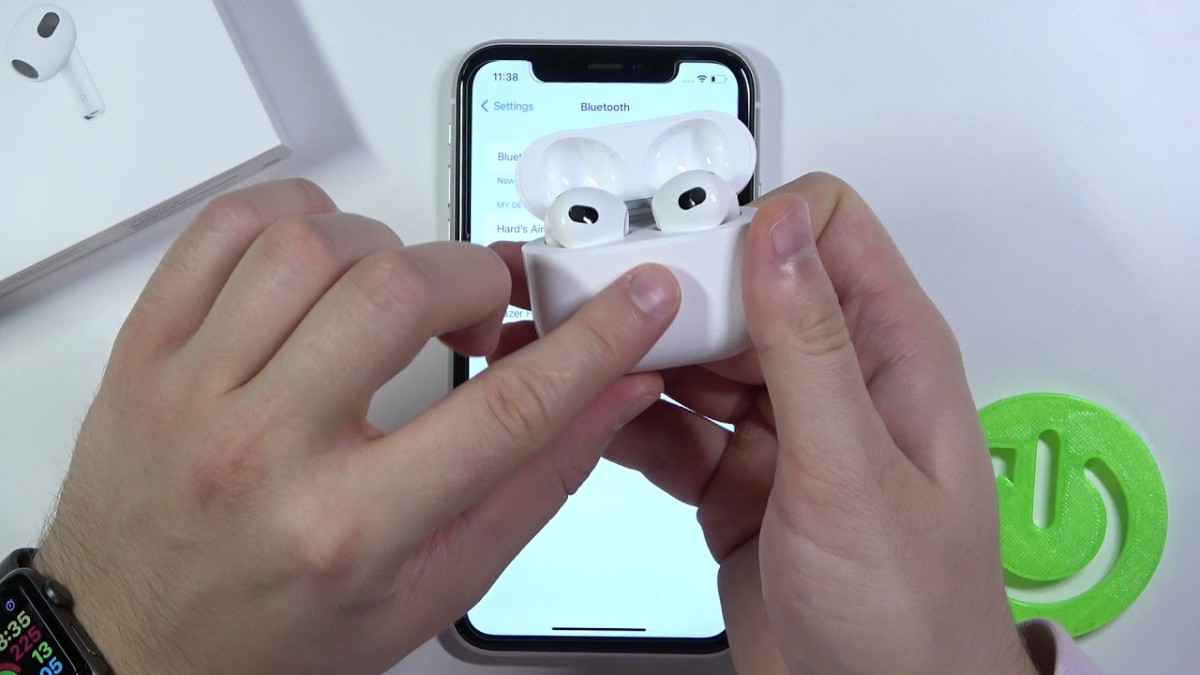
How to Find My AirPods (Fast): Find My Steps, Offline Fixes, and Lost Mode

by Moses
0 comment 16 minutes read
How To Factory Reset AirPods
Search intent: Informational Confidence: 93% Sources: Apple Support · Apple AirPods Guide

HowHow can I find my lost AirPods (or AirPods case) quickly using Apple’s Find My tools?

This quick answer block is optimized for Google AI Overviews: short, direct steps + clear limits (Online vs Offline), plus practical recovery actions and prevention tips.

Answer (quick + measurable)

Open Find My → Devices → select your AirPods. Use the map to see location, tap Play Sound if nearby, or Get Directions if far. If they show Offline, you only get the last known location until they reconnect. Official steps: Apple Support.

  1. Open Find My on iPhone/iPad/Mac/Watch, or use iCloud.com/find.
  2. Choose Devices → select your AirPods (pick left/right if needed).
  3. Use Play Sound for nearby recovery, or Get Directions for map-based retrieval.
  4. If available, use Find Nearby for on-screen guidance (model-dependent).
  5. If you can’t locate them, enable Lost Mode / Show Contact Info.

Model-dependent behavior and separated-AirPod workflow are detailed in the AirPods user guide.

Use Find My to locate AirPods via map location, then choose the right action: Play Sound for nearby recovery, or Get Directions for distance retrieval. If you see Offline, rely on the last known location and enable Lost Mode/contact info. Apple Support

If you’re confident they’re in the house, start with Play Sound and listen for beeps. If your model supports it, Find Nearby can guide you once they connect. Don’t forget to check couch cushions and bedding immediately—fast wins matter most in the first 5–10 minutes. Apple Support

When AirPods are Offline or show No location found, you typically can’t use Play Sound or Find Nearby. Go to the last known location and re-check later. Turn on Lost Mode/contact info so a finder can reach you if they reconnect. Apple Support

If AirPods are separated, many models show only one location at a time. Find the one shown first, place it in the case, then refresh to locate the second. For model-specific features and iCloud.com limitations, follow the AirPods user guide: Apple AirPods Guide

Frequently Asked Questions

Open Find My and tap Devices, then select your AirPods. Use the map to see where they are, tap Get Directions to navigate, and use Play Sound when you’re close enough to hear them. For model-dependent “Find Nearby,” follow the on-screen prompts once they connect. Official instructions are here: Apple Support. If you need pairing help first, use TechOzea’s AirPods connection guide.
Offline or No location found usually means your AirPods aren’t currently reporting location—commonly because they’re out of range, need charging, or can’t connect. In this state, Find My may only show the last known location; you typically can’t play a sound or use Find Nearby until they come back online. Apple documents these limits directly: Apple Support. If you’re comparing models with different tracking features, see AirPods 4 vs AirPods 3.
Yes. In Find My, select your AirPods and use Play Sound to help locate them when they’re nearby and reachable. Results depend on whether they can connect (and on model features). For the official “Play a sound” instructions and related limitations, use the Apple AirPods guide: Find your AirPods. If you want context on newer AirPods features and real-world usability, read TechOzea’s AirPods Pro 2 review.
In Find My, you may need to choose the left or right AirPod, especially when they’re out of the case. For most models, when AirPods are separated you often see only one location at a time—find the first one, place it back in the case, then refresh to locate the other. Apple describes this separated-AirPod workflow in its official guide: Apple AirPods User Guide. If pairing is acting up, start with how to connect AirPods.
Yes—use iCloud.com/find to sign in and select your AirPods. Apple notes the web experience may be different and some functions may not be available compared with using Find My on an Apple device. To confirm what’s supported and what to expect when AirPods are offline, follow Apple’s main support article: Find your lost AirPods with Find My. For general setup help, see TechOzea’s connection guide.
In Find My, select your AirPods, open the device options, then enable Lost Mode / Show Contact Info and follow the prompts. This displays contact details so someone can reach you if they find them. Apple’s official steps are listed here: Apple Support. For model-specific notes (including how AirPods behave when separated), consult: Apple AirPods Guide.
AirPods typically appear in Find My only after they’re paired with an Apple device where you’re signed in to your Apple Account, and Find My features are enabled before loss. Apple also recommends keeping iOS/iPadOS/macOS/watchOS updated for the best Find My experience. Review Apple’s requirements here: About using Find My with AirPods. For a quick pairing walkthrough, use TechOzea’s guide.
Turn on the Find My network and use separation alerts such as Notify When Left Behind (supported models). Apple explains that Find My network uses an encrypted, anonymous network of many Apple devices to help locate items, even if they’re offline, and alerts can warn you when you leave AirPods at an unknown location. Start here: Apple Support. If you’re deciding between models and feature sets, compare: AirPods 4 vs AirPods 3.

Editorial note: Recovery features vary by AirPods model and connection state. Always follow the official instructions in Apple Support and the AirPods User Guide.

Leave a Comment

You may also like

Techozea, your home destination for staying informed about the latest advancements in technology. At Techozea, we provide a wide array of resources that encompass cutting-edge technology news, product reviews, ultimate guides, best products and valuable insights, ensuring that you are always up to date with the dynamic world of tech.

Subscribe