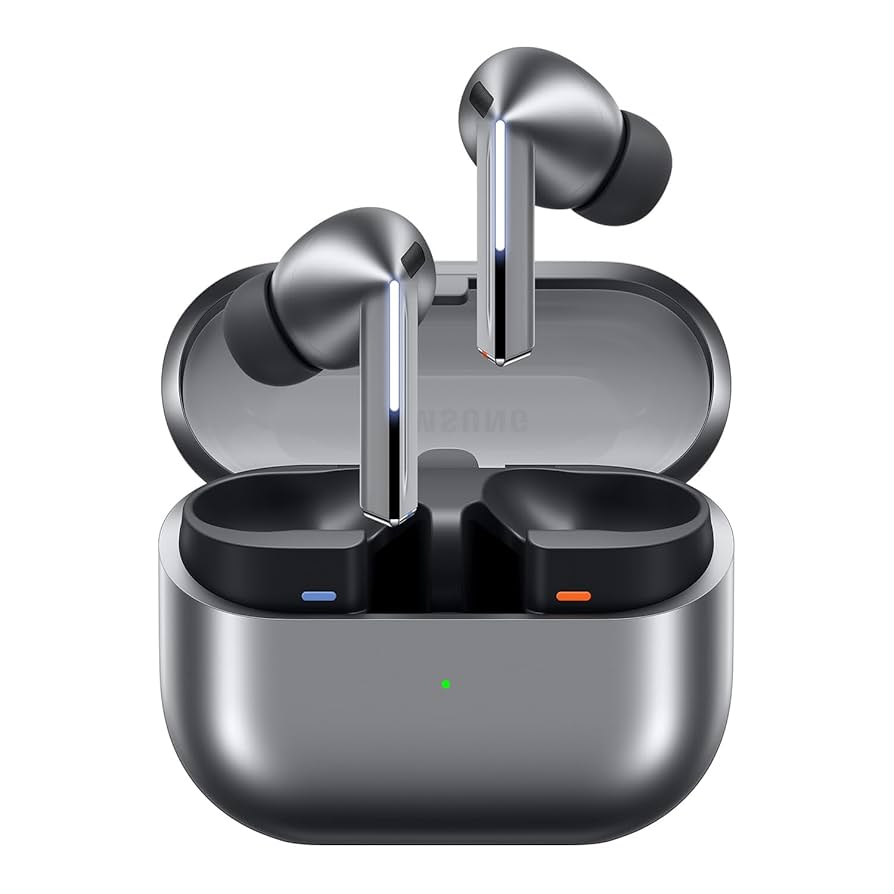
Are you ready to unlock the full potential of your Samsung earbuds? Whether you’ve just unboxed a brand-new pair or are struggling to reconnect an existing one, understanding how to connect Samsung earbuds effectively is key to enjoying your favorite audio content seamlessly.
From crisp music to clear calls, these compact audio powerhouses offer an exceptional listening experience, but only when properly paired. In this comprehensive guide, we’re going to demystify the connection process, providing step-by-step instructions for various devices and scenarios.
By the end of this article, you’ll be a master of connecting your Samsung earbuds, ensuring you get the most out out of your investment.
Key Takeaways
- Initial Pairing is Simple: Most Samsung earbuds are designed for quick, straightforward initial pairing via Bluetooth, especially with Samsung Galaxy devices.
- Galaxy Wearable App is Your Best Friend: For advanced features, settings management, and troubleshooting, the Galaxy Wearable app is essential.
- Troubleshooting is Common: Don’t panic if connection issues arise; simple resets, re-pairing, and device checks often resolve problems.
- Multipoint & Seamless Connection: Newer Samsung earbuds offer features for switching between multiple connected devices more easily.
- Maintenance Matters: Keeping your earbuds and charging case clean, and ensuring they’re charged, prevents many common connection woes.
Table of Contents
Understanding Bluetooth and Your Samsung Earbuds
Before diving into the “how-to,” let’s lay a solid foundation. Samsung earbuds, from the original Galaxy Buds to the latest Galaxy Buds3 Pro, rely on Bluetooth technology to establish a wireless connection with your audio source.

Bluetooth is a short-range wireless technology standard used for exchanging data between fixed and mobile devices over short distances, and building personal area networks (PANs). When you learn how to connect Samsung earbuds, you’re essentially initiating a Bluetooth pairing process.
What is Bluetooth Pairing?
Bluetooth pairing is like introducing two devices for the first time. During pairing, the devices exchange security keys and establish a trusted connection. Once paired, they remember each other and can automatically connect in the future when both are turned on and within range. This “memory” is what allows for convenient, instant re-connections after the initial setup.
Essential Pre-Connection Checks
Before you even think about tapping “Connect” on your device, a few preliminary checks can save you a lot of hassle. Think of these as your pre-flight checklist for a smooth connection:
- Charge Your Earbuds: This might seem obvious, but low battery is a common culprit for connection failures. Place your Samsung earbuds in their charging case and ensure the case itself is charged. Look for the indicator lights; typically, a solid green or blue light indicates a good charge. 🔋
- Charge Your Source Device: Whether it’s your smartphone, tablet, or laptop, ensure it also has sufficient battery power. A dying device can sometimes struggle with Bluetooth connections.
- Clean Your Earbuds and Case: Dust, lint, and earwax can sometimes interfere with charging contacts or sensors. A quick wipe with a dry, soft cloth can often prevent issues. Pay special attention to the charging pins inside the case and on the earbuds themselves.
- Update Software (Both Devices):
- Earbuds: The Galaxy Wearable app (which we’ll discuss shortly) is where you’ll find firmware updates for your earbuds. Keeping them updated ensures you have the latest features and bug fixes.
- Source Device: Ensure your smartphone, tablet, or PC’s operating system is up to date. Software bugs can sometimes affect Bluetooth performance.
- Be Within Range: Bluetooth is typically effective up to about 30 feet (10 meters). While pairing, it’s best to keep your earbuds and source device close to each other.
- Disable Other Bluetooth Devices: Temporarily turning off Bluetooth on other nearby devices that might have previously paired with your earbuds can prevent interference and ensure your current device picks them up first.
By diligently performing these checks, you significantly increase your chances of a successful and stress-free connection. Now, let’s get into the specifics of how to connect Samsung earbuds to various devices.
How to Connect Samsung Earbuds to Various Devices
The process for connecting your Samsung earbuds can vary slightly depending on the device you’re pairing them with. However, the core principle remains the same: enable Bluetooth on your source device, put your earbuds in pairing mode, and select them from the list of available devices.
Connecting to a Samsung Galaxy Smartphone or Tablet (The Easiest Way)
Samsung devices are designed to work seamlessly with each other, offering the most straightforward connection experience.
- Prepare Your Earbuds for Pairing:
- Open the charging case of your Samsung earbuds with both earbuds inside.
- The earbuds should automatically enter pairing mode. You’ll usually see an indicator light on the case blink (e.g., blue or white) to show it’s ready to connect. If they’ve been paired before, they might try to connect to the last known device first. If this happens, or if the light doesn’t blink, proceed to manually activate pairing mode (often by touching and holding both earbuds’ touchpads for a few seconds while they’re in the case, or by using the Galaxy Wearable app).
- Enable Bluetooth on Your Samsung Galaxy Device:
- Swipe down from the top of your screen to open the Quick Panel.
- Tap the Bluetooth icon (often a stylized ‘B’) to turn it on. If it’s already on, tap and hold it to go directly to the Bluetooth settings.
- Automatic Pop-Up Connection (Samsung Ecosystem Advantage):
- If you have a modern Samsung Galaxy device (running Android 7.1.1 or later) and your earbuds are in pairing mode nearby, a pop-up window may appear on your phone screen, saying “Your Galaxy Buds are detected.”
- Tap “Connect” on this pop-up.
- Follow any on-screen prompts to complete the connection, which might include downloading the Galaxy Wearable app if you don’t have it already.
- Manual Connection (If Pop-Up Doesn’t Appear):
- If no pop-up appears, navigate to Settings > Connections > Bluetooth.
- Under “Available devices,” you should see your Samsung earbuds listed (e.g., “Galaxy Buds3 Pro,” “Galaxy Buds2”).
- Tap on your earbuds’ name to connect.
- Confirm any pairing requests that appear on your screen.
- Install/Open the Galaxy Wearable App:
- For the best experience and to access all features (EQ settings, ANC control, touch controls, firmware updates, etc.), you’ll need the Galaxy Wearable app.
- If you don’t have it, your phone will likely prompt you to download it from the Galaxy Store or Google Play Store.
- Once installed, open the app, and your earbuds should automatically be detected and listed. From here, you can manage all their settings.
💡 Pro Tip: The Galaxy Wearable app is indispensable for Samsung earbud owners. It unlocks customization options that aren’t available through standard Bluetooth settings alone. Make sure you install it!
Connecting to a Non-Samsung Android Smartphone or Tablet
Connecting to other Android devices is very similar to Samsung, just without the automatic pop-up convenience.
- Prepare Your Earbuds for Pairing:
- Open the charging case with both earbuds inside.
- Ensure the indicator light on the case is blinking (e.g., blue or white), signifying pairing mode.
- If not, or if they were previously paired elsewhere, manually put them into pairing mode: With both earbuds in the case, touch and hold both touchpads simultaneously for a few seconds until the indicator light starts blinking.
- Enable Bluetooth on Your Android Device:
- Go to Settings > Connected devices > Bluetooth. (The exact path might vary slightly depending on your Android version and phone manufacturer, e.g., “Connected devices,” “Bluetooth & device connection,” “Bluetooth settings”).
- Ensure Bluetooth is toggled On.
- Scan for Devices:
- Your device should automatically scan for nearby Bluetooth devices. If not, look for an option like “Pair new device” or “Refresh.”
- Select Your Earbuds:
- From the list of available devices, tap on your Samsung earbuds (e.g., “Galaxy Buds Live,” “Buds Pro”).
- Confirm any pairing requests.
- Install the Galaxy Wearable App:
- Even for non-Samsung Android devices, the Galaxy Wearable app is crucial for managing your earbuds’ settings. Download it from the Google Play Store.
- Open the app, and it should detect your connected earbuds, allowing you to customize them fully.
Connecting to an iPhone or iPad
Yes, you can absolutely use your Samsung earbuds with Apple devices! The setup is standard Bluetooth pairing.
- Prepare Your Earbuds for Pairing:
- Open the charging case with both earbuds inside.
- Confirm the indicator light on the case is blinking (e.g., blue or white) to show it’s in pairing mode.
- If necessary, manually activate pairing mode: With both earbuds in the case, touch and hold both touchpads simultaneously for a few seconds until the indicator light starts blinking.
- Enable Bluetooth on Your iPhone/iPad:
- Go to Settings > Bluetooth.
- Toggle Bluetooth On.
- Scan for Devices:
- Your iPhone/iPad will start searching for nearby Bluetooth devices.
- Select Your Earbuds:
- Under “Other Devices,” you should see your Samsung earbuds listed (e.g., “Galaxy Buds2 Pro”).
- Tap on their name to connect.
- Confirm any pairing requests.
- Limitations on iOS: While your Samsung earbuds will function for audio playback and calls on iOS, you won’t be able to access the full range of customization features like EQ settings, ANC levels, or firmware updates, as the Galaxy Wearable app is not available on iOS.
Connecting to a Windows PC or Mac
Connecting to a computer allows you to use your Samsung earbuds for online meetings, music, and videos on your desktop or laptop.
Windows PC
- Prepare Your Earbuds for Pairing:
- Open the charging case with both earbuds inside.
- Ensure the indicator light on the case is blinking (e.g., blue or white) to show it’s in pairing mode.
- If needed, manually activate pairing mode: With both earbuds in the case, touch and hold both touchpads simultaneously for a few seconds until the indicator light starts blinking.
- Enable Bluetooth on Your Windows PC:
- Click the Start button (Windows icon) and go to Settings (gear icon).
- Select Bluetooth & devices (or “Devices” > “Bluetooth & other devices”).
- Make sure the Bluetooth toggle is On.
- Add a New Device:
- Click “Add device” (or “+ Add Bluetooth or other device”).
- Select “Bluetooth” from the options.
- Select Your Earbuds:
- Your PC will search for devices. Select your Samsung earbuds when they appear in the list.
- Click “Connect.”
- A confirmation might appear, click “Done.”
- Select as Audio Output:
- Once connected, click the speaker icon in your taskbar (bottom right).
- Click the arrow next to the volume slider and select your Samsung earbuds as the audio output device.
- Limitations on Windows: Similar to iOS, the Galaxy Wearable app is not available for Windows. You’ll get basic audio functionality but miss out on advanced customization.
Mac
- Prepare Your Earbuds for Pairing:
- Open the charging case with both earbuds inside.
- Ensure the indicator light on the case is blinking (e.g., blue or white) to show it’s in pairing mode.
- If necessary, manually activate pairing mode: With both earbuds in the case, touch and hold both touchpads simultaneously for a few seconds until the indicator light starts blinking.
- Enable Bluetooth on Your Mac:
- Click the Apple menu (top-left corner of the screen).
- Select System Settings (or “System Preferences” on older macOS versions).
- Click on Bluetooth in the sidebar.
- Ensure Bluetooth is toggled On.
- Select Your Earbuds:
- Your Mac will display a list of “Devices.”
- Locate your Samsung earbuds in the list and click “Connect” next to their name.
- Confirm any pairing requests.
- Select as Audio Output:
- Once connected, you may need to select them as your default output device. Go to System Settings > Sound > Output and choose your Samsung earbuds.
- Alternatively, click the Sound icon in the menu bar and select your earbuds.
- Limitations on Mac: The Galaxy Wearable app is not available for macOS. You’ll have basic audio playback and microphone functionality, but no access to advanced features or settings.
Connecting to a Smart TV (If Supported)
Some smart TVs, especially Samsung Smart TVs, have built-in Bluetooth to connect wireless headphones.
- Prepare Your Earbuds for Pairing:
- Open the charging case with both earbuds inside.
- Ensure the indicator light on the case is blinking (e.g., blue or white) for pairing mode.
- If necessary, manually activate pairing mode: With both earbuds in the case, touch and hold both touchpads simultaneously for a few seconds until the indicator light starts blinking.
- Access TV Bluetooth Settings:
- Using your TV remote, navigate to Settings.
- Look for Sound, Audio Output, or Bluetooth settings.
- Select “Bluetooth Speaker List” or “Add Device.” (Exact wording varies by TV model and brand).
- Scan and Select:
- Your TV will scan for available devices.
- Select your Samsung earbuds from the list when they appear.
- Confirm any pairing requests.
- Limitations: TV connections are typically for basic audio output only. You won’t have app control or advanced features.
This comprehensive guide covers the primary methods for how to connect Samsung earbuds to virtually any device. Remember, patience and following the steps carefully are your best tools for a successful connection.
Mastering the Galaxy Wearable App
While basic Bluetooth pairing gets you listening, the Galaxy Wearable app (available on Android devices only) is where the true power and customization of your Samsung earbuds lie. It’s not just an accessory; it’s an essential tool for every Samsung earbud owner.
Why the Galaxy Wearable App is Crucial
The Galaxy Wearable app provides a centralized hub for managing almost every aspect of your earbuds, significantly enhancing your user experience. Here’s what makes it so important:
- Firmware Updates: This is arguably the most critical function. Regular firmware updates bring new features, improve sound quality, enhance active noise cancellation (ANC), boost battery life, and fix bugs. Without the app, your earbuds would quickly become outdated.
- Active Noise Cancellation (ANC) & Ambient Sound Control: Depending on your earbud model, the app allows you to toggle ANC on/off, adjust its intensity, or switch to Ambient Sound mode to hear your surroundings.
- Equalizer (EQ) Settings: Tailor your audio experience with custom equalizer presets or create your own to match your musical preferences. Whether you like more bass or clearer vocals, the EQ has you covered.
- Touchpad Customization: Reassign the touch gestures on your earbuds. You can change what a single tap, double tap, triple tap, or touch and hold does (e.g., play/pause, skip track, volume control, activate voice assistant).
- Find My Earbuds: Misplaced an earbud? The app can play a loud chime on each earbud to help you locate them, or even show their last known location on a map.
- Battery Status: Get a precise battery percentage for each earbud and the charging case, so you’re never caught off guard.
- Read Notifications Aloud: For certain apps, you can set your earbuds to read out incoming notifications, useful when your phone isn’t easily accessible.
- Labs Features: Explore experimental features that Samsung is testing, offering a glimpse into future functionalities.
- In-Ear Detection Settings: Control whether your music pauses automatically when you take an earbud out.
How to Use the Galaxy Wearable App
Once you’ve initially connected your Samsung earbuds to an Android device (as described in the previous section), using the app is straightforward:
- Download and Install: If you haven’t already, download the “Galaxy Wearable” app from the Google Play Store.
- Open the App: Launch the app. If your earbuds are connected via Bluetooth, they should automatically be detected and displayed on the main screen.
- Explore the Dashboard: The app’s main screen acts as a dashboard, showing battery levels and quick access to essential features like ANC/Ambient Sound.
- Dive into Settings: Tap on various sections or the gear icon to access detailed settings. For example, under “Earbud settings,” you’ll find options for touch controls, equalizer, and more.
- Check for Updates: Regularly go to “Earbud settings” and look for “Earbud software update.” This ensures your earbuds are always running the latest firmware.
By actively using the Galaxy Wearable app, you’re not just ensuring the longevity of your earbuds through updates, but also personalizing them to fit your exact audio needs and preferences. It’s an integral part of understanding how to connect Samsung earbuds not just physically, but functionally.
Troubleshooting Common Connection Problems: When Your Earbuds Won’t Connect
Even with the best intentions and careful setup, sometimes your Samsung earbuds just won’t connect. Don’t throw them across the room just yet! Many common issues have simple solutions. Here’s a systematic approach to troubleshooting when you can’t figure out how to connect Samsung earbuds.
The “Restart Everything” Approach (The Universal Fix)
Often, a simple refresh of all components can resolve temporary glitches.
- Restart Your Source Device: Turn off your smartphone, tablet, or PC completely, wait a few seconds, and then turn it back on. This clears out any software conflicts or cached Bluetooth data.
- Reset Your Earbuds:
- Place both earbuds back into their charging case.
- Close the case for about 5-10 seconds, then open it again.
- This often reboots the earbuds and clears minor issues.
- Toggle Bluetooth On/Off: On your source device, turn Bluetooth off, wait 10 seconds, then turn it back on.
Re-Pairing: When They’ve Lost Their Memory
If your earbuds were previously connected but are now refusing to pair, it might be time to remove the old connection and start fresh.
- Forget the Device on Your Source Device:
- Android/Samsung Galaxy: Go to Settings > Connections > Bluetooth. Find your Samsung earbuds in the list of paired devices. Tap the gear icon next to them, then select “Unpair” or “Forget.”
- iPhone/iPad: Go to Settings > Bluetooth. Tap the “i” icon next to your Samsung earbuds, then select “Forget This Device.”
- Windows PC: Go to Settings > Bluetooth & devices. Find your earbuds, click the three dots or “Remove device.”
- Mac: Go to System Settings > Bluetooth. Find your earbuds, click the “X” or “Disconnect” button next to them, and confirm “Forget.”
- Put Earbuds in Pairing Mode: With the case open and earbuds inside, touch and hold both earbud touchpads for a few seconds until the case’s indicator light starts blinking (e.g., blue or white).
- Re-connect: Follow the initial connection steps for your specific device as outlined in the previous section. This essentially teaches your device how to connect Samsung earbuds from scratch.
Checking for Interference
Bluetooth operates on the 2.4 GHz frequency band, which is shared by other wireless technologies like Wi-Fi and cordless phones.
- Move Away from Interference Sources: Try connecting in a different room or away from Wi-Fi routers, microwaves, and other Bluetooth devices.
- Disable Other Bluetooth Devices: As mentioned before, temporarily turn off Bluetooth on any other devices that might try to connect to your earbuds.
Earbuds Not Entering Pairing Mode
If the indicator light on your case isn’t blinking after you open it or try to force pairing:
- Check Battery: Ensure both the earbuds and the charging case have sufficient battery. Low power often prevents pairing mode activation.
- Proper Placement: Make sure both earbuds are correctly seated in their charging cradles within the case.
- Try One Earbud: Sometimes a faulty earbud can prevent the pair from entering pairing mode. Try removing one, then trying to pair the other. If one pairs, the other might be the issue.
- Hard Reset (Last Resort): For some models, a hard reset can be performed. This usually involves holding the touchpads for an extended period (e.g., 7-10 seconds) while they’re in the case, or a specific sequence within the Galaxy Wearable app’s “Labs” or “About earbuds” section. Be cautious with hard resets, as they wipe all settings.
Audio Issues After Connection
Even if connected, you might face problems like one earbud not working or choppy audio.
- Check Balance Settings: On your phone, go to Settings > Accessibility > Hearing enhancements (or similar path) and check the left/right audio balance. It might be skewed.
- Clean Earbuds: Debris or earwax can block audio output. Gently clean the mesh grilles.
- Interference (Again): Choppy audio is a classic sign of Bluetooth interference.
- Distance: Ensure you’re within the effective Bluetooth range of your source device.
- Restart App/Device: Sometimes restarting the audio app or the source device can fix temporary audio glitches.
Galaxy Wearable App Not Detecting Earbuds
If the app isn’t showing your earbuds even though they’re connected via Bluetooth:
- App Permissions: Ensure the Galaxy Wearable app has all necessary permissions (Location, Nearby devices) enabled in your phone’s app settings.
- Clear Cache/Data: Go to your phone’s Settings > Apps > Galaxy Wearable > Storage. Try clearing the cache first. If that doesn’t work, try “Clear data” (this will reset the app and you’ll need to re-add your earbuds within the app).
- Reinstall App: If all else fails, uninstall the Galaxy Wearable app and reinstall it.
By following these troubleshooting steps, you can resolve the vast majority of connection issues and get back to enjoying your Samsung earbuds. It’s all part of the learning curve of how to connect Samsung earbuds reliably.
Advanced Features and Tips for Optimal Samsung Earbud Use
Once you’ve mastered how to connect Samsung earbuds and troubleshoot common issues, it’s time to explore some advanced features and best practices that elevate your listening experience. Samsung’s continuous innovation means newer models come packed with smart functionalities that are worth leveraging.
Seamless Earbud Connection & Auto Switching
Newer Samsung earbuds (like the Buds Pro, Buds2, Buds2 Pro, Buds3, Buds3 Pro) offer advanced connectivity features, especially within the Samsung ecosystem.
- Auto Switch: This fantastic feature allows your earbuds to automatically switch between compatible Samsung Galaxy devices (smartphones, tablets, and even some Samsung Smart TVs) that are signed into the same Samsung account. For instance, if you’re watching a video on your Galaxy Tab and a call comes in on your Galaxy phone, the earbuds will automatically switch to your phone.
- How to Enable: This is typically enabled by default. Ensure your earbuds are updated via the Galaxy Wearable app and your Samsung devices are running the latest software and signed into the same Samsung account. You can manage this in the Galaxy Wearable app under “Earbud settings” > “Seamless earbud connection” or “Auto Switch.”
- Multipoint (Manual): While not true multipoint (simultaneous connection to two devices with seamless audio switching), Samsung earbuds can be paired to multiple devices and manually switched. To switch, simply disconnect them from the current device (or put them back in the case and take them out again) and connect them to the desired new device from its Bluetooth settings.
Customizing Touch Controls
The touchpads on your Samsung earbuds are incredibly versatile. You can customize what different taps and presses do via the Galaxy Wearable app.
- Access in App: Go to the Galaxy Wearable app > “Earbud settings” > “Touch controls.”
- Assign Actions: You can often assign actions for single tap, double tap, triple tap, and touch & hold. Common options include:
- Play/Pause
- Next/Previous track
- Volume up/down (often requires assigning to one earbud each)
- Activate Bixby/Google Assistant/Siri
- Toggle ANC/Ambient Sound
- Gaming Mode: Some models offer a “Gaming mode” in the Labs section of the Wearable app. This reduces audio latency, making games and videos more synchronized.
Using Voice Assistants
Samsung earbuds can integrate with your preferred voice assistant.
- Bixby: If you’re deep in the Samsung ecosystem, you can set “Hey Bixby” wake-up commands on some models to control your phone hands-free.
- Other Assistants: You can also configure a touch-and-hold gesture to activate your phone’s default voice assistant (Google Assistant for Android, Siri for iOS).
Earbud Fit Test
A proper fit is crucial for both sound quality and effective Active Noise Cancellation (ANC).
- Galaxy Wearable App Feature: Some newer models in the Galaxy Wearable app offer an “Earbud fit test.” This feature plays tones and uses the internal microphones to analyze how well the earbuds seal in your ear, providing recommendations for adjusting their position or trying different ear tips.
- Experiment with Tips: Samsung earbuds usually come with several sizes of ear tips. Experiment to find the size that provides the best seal and comfort.
Battery Optimization and Longevity
To ensure your earbuds serve you well for years to come:
- Regular Full Charges: Don’t let your earbuds or case sit at 0% for extended periods.
- Avoid Extreme Temperatures: Don’t leave your earbuds in direct sunlight or very cold environments, as this can degrade battery health.
- Clean Regularly: As mentioned, cleaning the charging contacts and mesh helps maintain optimal performance.
- Store Properly: When not in use, always store your earbuds in their charging case to protect them.
By integrating these advanced features and best practices into your routine, you’ll not only know how to connect Samsung earbuds but also how to maximize their potential, ensuring a premium audio experience throughout 2026 and beyond.
Ensuring Compatibility: What Samsung Earbuds Work With What Devices?
Understanding compatibility is a crucial aspect of how to connect Samsung earbuds successfully and without frustration. While Samsung earbuds are fundamentally Bluetooth devices and can connect to most Bluetooth-enabled gadgets, the level of functionality and the user experience can vary significantly.
Universal Bluetooth Compatibility
At their core, all Samsung Galaxy Buds models (including Galaxy Buds, Buds+, Buds Live, Buds Pro, Buds2, Buds2 Pro, Buds3, Buds3 Pro) are standard Bluetooth headphones. This means:
- Basic Audio & Calls: They can connect to any device that supports Bluetooth audio profiles (A2DP for stereo audio, HFP for hands-free calling). This includes:
- Android smartphones and tablets (all brands)
- iPhones and iPads
- Windows PCs and Macs
- Smart TVs (with Bluetooth audio output)
- Smartwatches (for music playback, if they support it)
- Gaming consoles (like Nintendo Switch, PS5, Xbox Series X/S if they have Bluetooth audio support or an adapter)
- Fundamental Functions: You’ll typically get basic functions like play/pause, skip track, and answer/end calls through the earbud touch controls.
Enhanced Compatibility with Samsung Galaxy Devices
This is where Samsung earbuds truly shine and offer the most integrated experience.
- Galaxy Wearable App: Full access to the Galaxy Wearable app is exclusive to Android devices. While it can be installed on non-Samsung Androids, it works most seamlessly and reliably with Samsung Galaxy phones and tablets. This app is critical for:
- Firmware updates
- ANC/Ambient Sound control
- Equalizer settings
- Touch control customization
- Find My Earbuds
- Gaming mode (on supported models)
- Earbud fit test (on supported models)
- Auto Switch/Seamless Connection: The ability for earbuds to automatically switch between multiple Samsung Galaxy devices (phone, tablet, certain smart TVs) linked to the same Samsung account is a major convenience feature specific to the Samsung ecosystem.
- Pop-up Pairing: The instant pop-up connection prompt when you open the earbud case near a new Samsung Galaxy phone or tablet significantly speeds up the initial pairing process.
- Bixby Voice Wake-up: Specific Samsung earbuds can be set to respond to “Hey Bixby” commands for hands-free control, primarily useful for Samsung phone users.
Limitations with Non-Samsung Devices
While functional, using Samsung earbuds with non-Samsung devices comes with certain limitations:
- No Galaxy Wearable App on iOS/Windows/macOS: This is the biggest drawback. Without the app, you miss out on firmware updates, ANC customization, EQ adjustments, touch control remapping, and other advanced settings. Your earbuds will function with their default settings and whatever firmware they had last.
- No Auto Switch: You’ll need to manually disconnect and reconnect your earbuds when switching between an iPhone, iPad, PC, or Mac.
- No Pop-up Pairing: The initial connection will always be a manual process through the device’s Bluetooth settings.
- Limited Voice Assistant Integration: While you can usually activate the default voice assistant (Siri, Google Assistant) with a touch gesture, you won’t get deep integration like “Hey Bixby” functionality.
Compatibility Overview Table
To summarize compatibility at a glance:
| Feature/Functionality | Samsung Galaxy (Android) | Other Android (Non-Samsung) | iPhone/iPad (iOS) | Windows PC | Mac |
|---|---|---|---|---|---|
| Basic Audio & Calls | ✅ Fully Supported | ✅ Fully Supported | ✅ Fully Supported | ✅ Fully Supported | ✅ Fully Supported |
| Galaxy Wearable App | ✅ Full Access | ✅ Full Access | ❌ Not Available | ❌ Not Available | ❌ Not Available |
| Firmware Updates | ✅ Via Wearable App | ✅ Via Wearable App | ❌ Not Available | ❌ Not Available | ❌ Not Available |
| ANC/Ambient Control | ✅ Via Wearable App | ✅ Via Wearable App | ✅ Hardware Control | ✅ Hardware Control | ✅ Hardware Control |
| EQ Settings | ✅ Via Wearable App | ✅ Via Wearable App | ❌ Not Available | ❌ Not Available | ❌ Not Available |
| Touch Controls Customization | ✅ Via Wearable App | ✅ Via Wearable App | ❌ Not Available | ❌ Not Available | ❌ Not Available |
| Find My Earbuds | ✅ Via Wearable App | ✅ Via Wearable App | ❌ Not Available | ❌ Not Available | ❌ Not Available |
| Auto Switch/Seamless Connect | ✅ Yes (between Galaxy devices) | ❌ No | ❌ No | ❌ No | ❌ No |
| Pop-up Pairing | ✅ Yes | ❌ No | ❌ No | ❌ No | ❌ No |
| Bixby Voice Wake-up | ✅ On supported models | ❌ No | ❌ No | ❌ No | ❌ No |
*Hardware Control refers to using the earbud’s touch control to cycle through ANC/Ambient modes if the earbud model supports it directly, without app intervention.
In essence, while you can technically connect your Samsung earbuds to almost anything with Bluetooth, the richest, most feature-packed experience is reserved for those within the Samsung Galaxy ecosystem. If you primarily use non-Samsung devices, you’ll still get excellent audio, but you’ll miss out on the extensive customization and smart features that the Galaxy Wearable app provides. Understanding these nuances is crucial when you learn how to connect Samsung earbuds and integrate them into your daily tech life.
Maintaining Your Samsung Earbuds for Lasting Performance
Knowing how to connect Samsung earbuds is only half the battle; maintaining them properly ensures they continue to connect reliably and deliver high-quality audio for years to come. Proper care extends battery life, prevents connection issues, and maintains sound integrity.
Cleaning Regimen for Optimal Performance
Regular cleaning is paramount for any in-ear device.
- Earbuds (Weekly/Bi-weekly):
- Silicone Ear Tips: Gently remove the silicone ear tips. Wash them with mild soap and warm water, then rinse thoroughly. Ensure they are completely dry before reattaching. If they are worn or torn, replace them with new ones (Samsung often includes spares or they can be purchased).
- Earbud Mesh/Grille: This is where earwax and debris accumulate, often leading to muffled sound or one earbud being quieter than the other. Use a clean, dry cotton swab or a soft, dry toothbrush to gently brush away any buildup. For stubborn debris, a small amount of isopropyl alcohol on a cotton swab can be used, but be extremely careful not to let any liquid seep into the earbud’s internal components.
- Charging Contacts: Use a dry cotton swab or a clean, soft cloth to wipe the metal charging contacts on the earbuds. Any residue here can prevent proper charging and connection.
- Charging Case (Monthly):
- Inside the Case: Wipe the inside of the case, especially the charging pins that connect to the earbuds, with a dry cotton swab or a clean, soft cloth. Dust and lint can build up and interfere with charging.
- Outside the Case: A quick wipe with a clean, soft cloth (slightly dampened if necessary, then immediately dried) keeps the case looking new.
⚠️ Important Note: Never use abrasive materials, sharp objects, or excessive liquid when cleaning your earbuds or case. This can cause irreparable damage.
Battery Best Practices
Battery degradation is inevitable over time, but you can slow it down.
- Avoid Deep Discharges: Try not to let your earbuds or case completely run out of battery frequently. Charge them when they’re low, rather than waiting until they’re dead.
- Don’t Overcharge Constantly: While modern batteries have protection circuits, continuously leaving them plugged in at 100% (especially in extreme heat) can still contribute to long-term degradation.
- Store at Moderate Charge: If you plan not to use your earbuds for an extended period (weeks or months), charge them to around 50-70% before storing them in a cool, dry place. Storing them fully charged or completely depleted can stress the battery.
- Use Original or Certified Chargers: Always use the charging cable and adapter that came with your earbuds, or a reputable certified alternative.
Software Updates are Key
As emphasized, the Galaxy Wearable app is your gateway to firmware updates.
- Regular Checks: Make it a habit to open the Galaxy Wearable app every few weeks and check for “Earbud software updates.”
- Benefits: Updates often improve battery efficiency, enhance ANC performance, fix bugs that might affect connectivity, and introduce new features. Staying updated is a proactive measure against future connection issues.
Protecting Your Investment
- Avoid Water Damage: Samsung earbuds often have some level of water resistance (IPX ratings), but they are not waterproof unless explicitly stated. Avoid swimming with them, exposing them to heavy rain, or submerging them. If they do get wet, dry them thoroughly before placing them back in the charging case.
- Prevent Physical Damage: Always store your earbuds in their charging case when not in use. This protects them from being dropped, crushed, or getting lost. Avoid exposing them to extreme temperatures.
By diligently following these maintenance tips, you’ll ensure that your Samsung earbuds remain in peak condition, providing a reliable and enjoyable audio experience as you continue to learn how to connect Samsung earbuds and integrate them into your tech ecosystem. This preventative care is just as important as the initial setup.
Conclusion
Mastering how to connect Samsung earbuds is more than just a technical skill; it’s about unlocking a world of immersive audio and seamless convenience. Throughout this comprehensive guide, we’ve navigated the initial setup process, explored the vital role of the Galaxy Wearable app, provided actionable troubleshooting steps, and even delved into advanced features and long-term maintenance.
From the straightforward pairing with a Samsung Galaxy smartphone to connecting with iPhones, PCs, and even Smart TVs, you now possess the knowledge to establish and maintain a reliable connection across various devices. We’ve highlighted how crucial the Galaxy Wearable app is for firmware updates, sound customization, and unlocking the full potential of your earbuds, especially for Android users.
Remember the key takeaways: a quick charge, a clean earbud, and checking your device’s Bluetooth settings can solve most problems. Don’t be afraid to “forget” and re-pair if issues persist, and always keep your earbuds’ firmware updated through the Wearable app.
Your Samsung earbuds are engineered to deliver an exceptional listening experience. By applying the strategies and tips outlined in this article, you’ll ensure that you’re always connected, always in control, and always enjoying your audio content at its best. So go ahead, connect with confidence, and dive into your favorite podcasts, music, and calls with the crystal-clear sound your Samsung earbuds are designed to provide. Happy listening!