




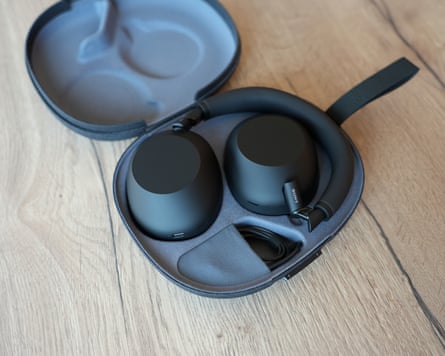
How do I pair Sony earbuds with my device?
To pair Sony earbuds, remove them from the charging case (they automatically enter pairing mode for first-time setup). On your device, enable Bluetooth and select your Sony model from available devices. For subsequent pairings, hold the touch sensors on both earbuds for 5-7 seconds until you hear "Bluetooth pairing". The LED indicator will flash, confirming pairing mode. Connection typically completes within 10-15 seconds.
First-Time Pairing (New Earbuds)
For brand new Sony earbuds, pairing is automatic and effortless. Remove both earbuds from the charging case—they will automatically power on and enter pairing mode within 3 seconds (indicated by a flashing blue LED light). On your smartphone, tablet, or laptop, navigate to Bluetooth settings and enable Bluetooth if it's not already on. Look for your Sony earbud model name (such as "WF-1000XM5" or "WF-C500") in the list of available devices and tap to select it. You may hear a confirmation tone or voice prompt saying "Bluetooth connected" in both earbuds. The entire process takes 15-30 seconds. Some Android devices with Google Fast Pair will display an automatic popup notification when the earbuds are detected, allowing one-tap pairing. Once paired, your earbuds will automatically reconnect to this device whenever you remove them from the case in the future.
Pairing to a Second or Third Device
Sony earbuds can remember up to 8 paired devices but connect to only one at a time. To pair with a second device, ensure your earbuds are not currently connected to any device (disconnect from the first device or turn off its Bluetooth). Place both earbuds in your ears, then simultaneously touch and hold the touch sensors on both earbuds for 5-7 seconds until you hear the voice guidance "Bluetooth pairing". The LED indicators will flash blue rapidly. On your second device, open Bluetooth settings and select your Sony model from the available devices list. For models with a pairing button on the charging case (like WF-C500 and WF-C510), open the case lid and press-hold the pairing button for 5+ seconds. The earbuds will remain in pairing mode for up to 5 minutes—if you don't complete the pairing within this window, they'll exit pairing mode to save battery. This method works identically whether you're connecting to an iPhone, Android phone, Windows laptop, Mac, or even gaming consoles like PS5.
Premium Models (WF-1000XM5 / WF-1000XM4)
Sony's flagship WF-1000XM5 and WF-1000XM4 earbuds use touch sensor controls rather than physical buttons. For first-time pairing, simply remove both earbuds from the charging case—they automatically enter pairing mode with a flashing blue LED. To pair with additional devices after initial setup, insert both earbuds in your ears (this is important—the touch sensors won't register properly if the earbuds are just held in your hand). Place your fingertips gently on the circular touch panel of both the left and right earbuds simultaneously. Hold for exactly 5-7 seconds until you hear a notification beep followed by the voice prompt "Bluetooth pairing" from both units. Release your fingers and check your device's Bluetooth menu where "WF-1000XM5" or "WF-1000XM4" should appear. These premium models support multipoint connectivity when enabled via the Sony Headphones Connect app, allowing them to stay connected to two devices simultaneously and automatically switch based on which device is playing audio. Note that some users accidentally activate other touch controls—make sure to use a light touch and hold steady for the full duration without sliding your fingers.
Budget Models (WF-C500 / WF-C510 / WF-C700N)
Sony's affordable earbud models including the WF-C500, WF-C510, and WF-C700N use a physical pairing button located on the charging case rather than touch sensor controls. For first-time pairing, simply remove both earbuds from the case—they automatically enter pairing mode. For subsequent device pairings, place both earbuds back in the charging case and keep the lid open. Locate the small pairing button (usually on the back or bottom of the case) and press-hold it for at least 5 seconds until the LED indicator on the case starts flashing blue rapidly. The earbuds are now in pairing mode. On your device, access Bluetooth settings and select your earbud model name from the list. The LED will turn solid blue once connected. These models offer excellent value with reliable Bluetooth 5.0 or 5.2 connectivity, up to 20 hours total battery life with the case, and IPX4 water resistance. While they lack premium features like adaptive noise cancellation or multipoint connectivity, they provide dependable audio quality and seamless pairing across all device types. The button-based approach is often preferred by users who find touch controls too sensitive or accidental-prone during workouts.
Pairing to iPhone (iOS)
Pairing Sony earbuds to an iPhone (iOS 13 or later) follows Apple's standard Bluetooth protocol. First, put your Sony earbuds in pairing mode by removing them from the case (for first-time setup) or holding the touch sensors/pressing the case button for 5-7 seconds (for subsequent pairings). On your iPhone, open Settings > Bluetooth and ensure Bluetooth is toggled on. Under "Other Devices," you should see your Sony model name appear within 5-10 seconds. Tap the model name to initiate pairing. Once connected, it will move to the "My Devices" section and show as "Connected." Your iPhone will display the earbuds' battery level in the Bluetooth menu and in the status bar widget. For optimal experience, download the free Sony Headphones Connect app from the App Store to access advanced features like EQ customization, noise cancellation settings, and firmware updates. Unlike AirPods' seamless iCloud pairing across Apple devices, Sony earbuds must be manually paired to each iOS device separately. Voice assistant integration defaults to Siri—long-press the designated touch sensor to activate. For troubleshooting connection issues on iPhone, forget the device from Bluetooth settings, restart your iPhone, and re-pair from scratch.
Pairing to Android (Google Fast Pair)
Android devices (version 6.0 Marshmallow or newer) offer an enhanced pairing experience with Sony earbuds through Google Fast Pair technology. When you first open your Sony earbud charging case near an Android phone with Bluetooth enabled, a notification popup should appear automatically on your screen saying "Tap to pair with [Model Name]." Simply tap this notification to instantly pair without navigating through Bluetooth menus—the entire process takes just 3-5 seconds. If Fast Pair doesn't trigger, manually enable pairing mode on your earbuds and go to Settings > Connected Devices > Pair New Device, then select your Sony model from the list. Once paired, download the Sony Headphones Connect app from Google Play Store for full control over EQ profiles, adaptive sound control, noise cancellation modes, and DSEE audio upscaling. Android displays individual earbud battery percentages in the Bluetooth connection details. Google Assistant integration is seamless—long-press the assigned touch sensor to activate voice commands. Fast Pair also saves your earbud pairing to your Google account, potentially syncing across your Android devices. For Samsung Galaxy devices, additional features may be available through Samsung's Galaxy Wearable app.
Troubleshooting Pairing Issues
If your Sony earbuds won't pair or connect, try these solutions in order: 1) Check battery level—ensure both earbuds and the charging case have at least 20% charge; low battery prevents pairing mode activation. 2) Forget previous pairing—on your device, go to Bluetooth settings, find your Sony model, and select "Forget" or "Unpair," then restart your device's Bluetooth. 3) Reset the earbuds—place both earbuds in the charging case while it's plugged into power, then hold both touch sensors (or the case button) for 15-20 seconds until LEDs flash red then blue, indicating factory reset. 4) Clear Bluetooth cache (Android only)—go to Settings > Apps > Bluetooth > Storage > Clear Cache. 5) Check for interference—move away from Wi-Fi routers, microwaves, and other Bluetooth devices that may cause signal interference. 6) Update firmware—if you can connect even briefly, open the Sony Headphones Connect app to check for firmware updates that may fix bugs. 7) One earbud not connecting—place both in the case for 30 seconds, remove the working earbud first, then the problematic one. If issues persist after trying all steps, your earbuds may have a hardware defect—contact Sony customer support or check warranty coverage for replacement options.
Frequently Asked Questions
If your Sony earbuds won't enter pairing mode, first ensure they're fully charged (at least 20% battery). Remove both earbuds from the case and check that the LED indicators are flashing. If not, perform a reset by placing them in the charging case while plugged in, then hold both touch sensors for 15-20 seconds until the LED flashes red and blue. Common causes include low battery, Bluetooth cache conflicts, or the earbuds already being connected to another device. Try forgetting the device from your phone's Bluetooth settings and restarting both devices. For models like the Sony WF-1000XM4, ensure you're holding the touch sensors (not pressing buttons) for the full 7-second duration. If issues persist, consult the TechOzea headphones troubleshooting guide for advanced solutions.
To pair Sony WF-1000XM4 earbuds to a second device, insert both earbuds in your ears, then simultaneously touch and hold the touch sensors on both the left and right earbuds for at least 5 seconds. You'll hear a notification sound followed by the voice guidance saying "Bluetooth pairing" from both units. The LED indicators on the earbuds will flash blue, confirming they're in pairing mode. On your second device (iPhone, laptop, or tablet), go to Bluetooth settings and select "WF-1000XM4" from the list of available devices. The connection typically completes within 10-15 seconds. Note that Sony earbuds can remember up to 8 paired devices but can only actively connect to one device at a time. To switch between devices, disconnect from the current device first or disable its Bluetooth. For multipoint connectivity options, check if your specific model supports it through the Sony Headphones Connect app. This same method works for pairing Sony earbuds to gaming consoles like PS5.
The core pairing process for Sony earbuds is identical on iPhone and Android—both use standard Bluetooth protocols. However, there are platform-specific enhancements: On Android devices (version 6.0+), Sony earbuds may support Google Fast Pair, which displays an instant pairing notification as soon as you open the charging case near your phone, eliminating manual Bluetooth menu navigation. Android users also get deeper integration with the Sony Headphones Connect app for customizing EQ settings, noise cancellation levels, and firmware updates. On iPhone (iOS 13+), pairing requires manually navigating to Settings > Bluetooth and selecting your Sony model from the list. iOS users can access the same Sony Headphones Connect app from the App Store, but features like automatic device switching work more seamlessly within the Apple ecosystem with AirPods compared to Sony earbuds. Battery level indicators appear in the iPhone status bar for both platforms. For optimal performance on either platform, always update your earbuds' firmware through the Sony app and ensure your phone's OS is current. Voice assistant integration also differs—Android connects to Google Assistant, while iPhone accesses Siri through the touch sensor controls.
The location of the pairing control varies by Sony earbud model. Premium models like the WF-1000XM5, WF-1000XM4, and WF-1000XM3 don't have physical pairing buttons—instead, they use touch-sensitive panels on the outer surface of each earbud. To activate pairing mode, touch and hold both touch sensors simultaneously for 5-7 seconds. Budget-friendly models like the WF-C500, WF-C510, and WF-C700N have a dedicated pairing button located on the charging case itself (not on the earbuds). This button is typically on the back or bottom of the case—press and hold it for 5+ seconds while the case lid is open until the LED indicator starts flashing. For truly wireless LinkBuds (WF-L900 and WF-LS900N), the pairing control is activated by touching the circular driver area on each earbud. First-time pairing is automatic for all models when you first remove the earbuds from the case. Check your specific model's quick start guide or visit the official Sony support page for model-specific diagrams. Understanding these differences is crucial, especially when comparing wireless versus wired headphone options.
Sony earbuds typically complete the pairing process in 10-15 seconds under normal conditions. For first-time pairing with a new device, the process may take 15-30 seconds as the earbuds establish the initial Bluetooth handshake and exchange encryption keys. Subsequent connections to previously paired devices are much faster, usually reconnecting automatically within 3-5 seconds of removing the earbuds from the charging case. Factors affecting pairing speed include: Bluetooth signal strength (pairing is fastest within 3 feet of the device), the age of your phone or laptop's Bluetooth hardware (Bluetooth 5.0+ is significantly faster than 4.2), interference from other wireless devices, and whether your device's Bluetooth cache is cluttered with many saved connections. If pairing takes longer than 30 seconds, cancel the attempt, restart both devices, and try again. Models like the Sony WF-1000XM5 with Bluetooth 5.3 offer the fastest connection times. The 5-minute pairing mode timeout is a safety feature—if the earbuds don't connect within 5 minutes of entering pairing mode, they automatically exit to conserve battery. For optimal connection speeds, keep your device's Bluetooth firmware updated and periodically clear old paired devices you no longer use.
Most Sony earbuds can be paired to multiple devices (typically up to 8 devices in memory) but can only maintain an active connection to one device at a time. This means you cannot play audio from two devices simultaneously—for example, you can't listen to music from your laptop while also receiving phone calls from your smartphone at the same time. However, newer premium models like the WF-1000XM5 and WF-1000XM4 support multipoint connectivity when enabled through the Sony Headphones Connect app, allowing them to stay connected to two devices simultaneously and automatically switch audio based on which device is active. To switch between paired devices on standard models, you must disconnect from the current device (turn off Bluetooth or select "Disconnect" in settings) before connecting to another. The earbuds remember previous pairings, so you don't need to re-pair each time—simply select them from your device's Bluetooth menu. This limitation differs from some competing models that offer true multipoint connectivity as a standard feature. For users who frequently switch between devices like a laptop and smartphone, models with multipoint support provide the most convenient experience. Learn more about multi-device audio setups for gaming and work.
To reset Sony earbuds that won't pair, follow these model-specific steps: For WF-1000XM5/XM4/XM3 models, place both earbuds in the charging case while it's plugged into power via USB-C. With the lid open, simultaneously touch and hold both touch sensors for 15-20 seconds until the LED indicators flash red, then blue, confirming the reset. For WF-C500/C510 models with button controls, place the earbuds in the case, close the lid, then press and hold the case's pairing button for 20+ seconds until the LED flashes multiple times. After resetting, remove the earbuds from your phone's Bluetooth settings by selecting "Forget This Device" or "Unpair". Restart both your earbuds (by placing them back in the case for 10 seconds) and your phone. Then attempt pairing from scratch as if they're brand new. The reset clears all saved device pairings and returns the earbuds to factory settings, resolving issues like one earbud not connecting, audio lag, or persistent connection failures. If the reset doesn't resolve pairing issues, ensure your earbuds have the latest firmware by connecting them successfully to any device with internet and opening the Sony Headphones Connect app. For persistent hardware issues, reset procedures similar to AirPods may provide additional troubleshooting insights, or contact Sony customer support for warranty service.
No, you do not need the Sony Headphones Connect app to pair Sony earbuds with your device. Basic Bluetooth pairing works through your phone or computer's native Bluetooth settings without any additional software. The standard pairing process—removing earbuds from the case or holding touch sensors to enter pairing mode—functions independently of the app. However, downloading the Sony Headphones Connect app (available free on iOS App Store and Google Play Store) is highly recommended because it unlocks advanced features that significantly enhance your listening experience. Through the app, you can customize EQ settings with presets or manual adjustments, control adaptive noise cancellation levels, enable/disable multipoint connectivity, customize touch sensor controls, locate lost earbuds, check individual earbud battery levels, update firmware for bug fixes and new features, enable Speak-to-Chat for automatic pause when speaking, and adjust ambient sound modes. The app also provides access to Sony's 360 Reality Audio for supported models and services. For users who simply want basic audio playback, the app is optional. But for those who want to maximize their investment in premium models like the WF-1000XM5 or similar high-end audio equipment, the Sony Headphones Connect app is essential. The app requires iOS 11+ or Android 6.0+ and works with most Sony wireless headphones and earbuds released after 2018.
