

Close Menu
Techozea | Product Reviews・Ultimate Guides・Best ProductsTechozea | Product Reviews・Ultimate Guides・Best Products

    Subscribe to Updates

    Get the latest technology news from TechOzea about product reviews, ultimate guides, best products, how-to guides and insights.

    What's Hot

    How to Connect Sony Headphones to iPhone in 60 Seconds

    June 29, 2026

    Are Bluetooth Headphones Bad for You?

    June 27, 2026

    How to Pair Bluetooth Headphones in 60 Seconds (Any Device)

    June 26, 2026
    Facebook X (Twitter) Instagram
    Facebook X (Twitter) Instagram
    Techozea | Product Reviews・Ultimate Guides・Best ProductsTechozea | Product Reviews・Ultimate Guides・Best Products
    • Home
    • Headphones & Audio Gear
    • How-To and Tutorials
    • Laptops & Accessories
    • Camera & Accessories
    • PC & Gaming Gear
    • Mobile Gadgets & Accessories
    • TVs
    • News
    • Uncategorized
    Techozea | Product Reviews・Ultimate Guides・Best ProductsTechozea | Product Reviews・Ultimate Guides・Best Products
    Home | How-To and Tutorials | How to Pair Jabra Earbuds (Fast Pairing Mode Steps)
    How-To and Tutorials

    How to Pair Jabra Earbuds (Fast Pairing Mode Steps)

    MosesBy MosesFebruary 2, 2026No Comments1 Min Read
    Facebook Twitter Pinterest Telegram LinkedIn Copy Link Reddit WhatsApp
    Follow Us
    Facebook Pinterest YouTube
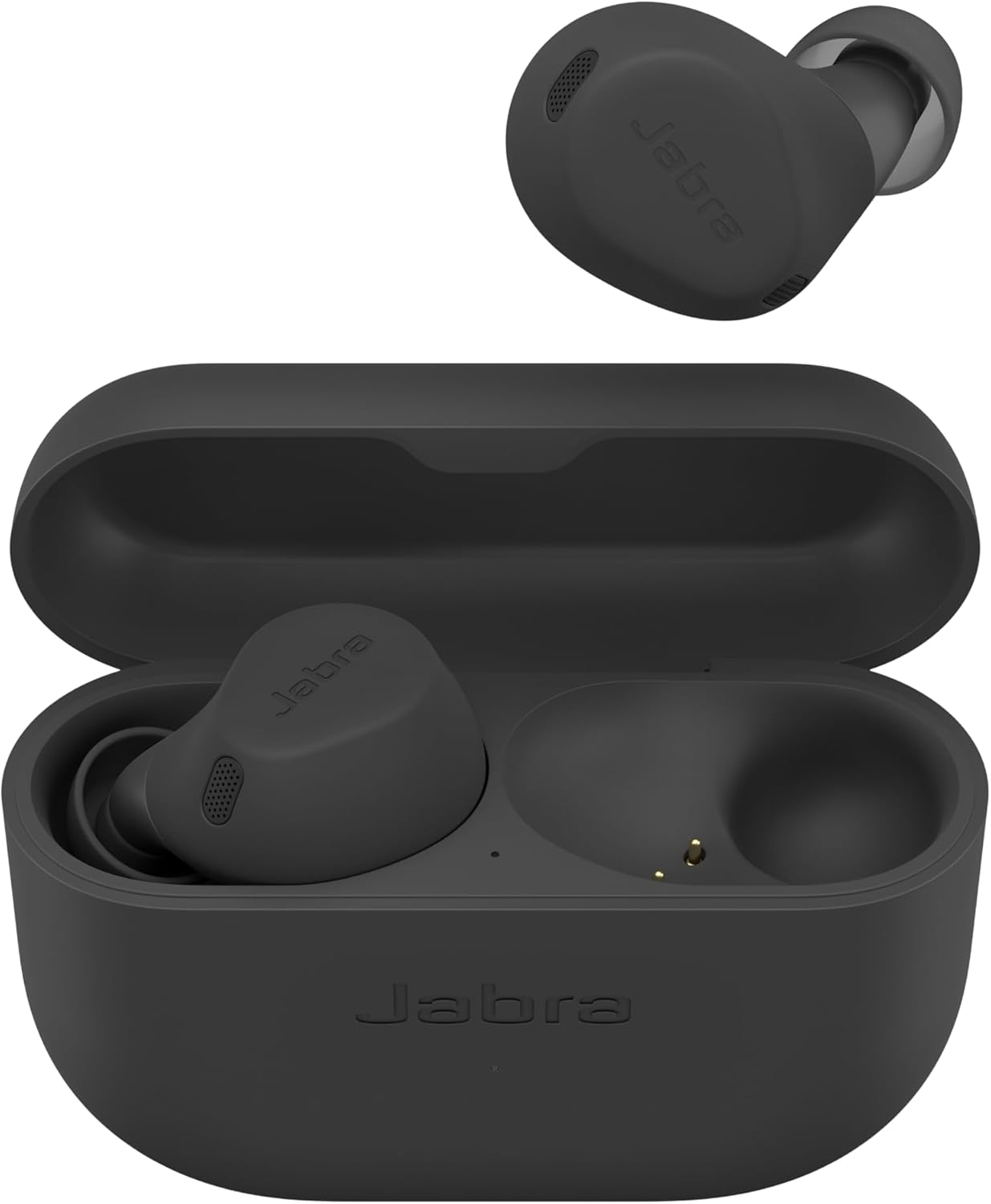
    Jabra Elite 8 Active Bluetooth Earbuds
    Share
    Facebook Twitter LinkedIn Pinterest Copy Link WhatsApp
    • Step-by-step • LED cues • Troubleshooting

    How do I put Jabra earbuds in pairing mode and connect them to my phone/computer?

    This quick guide targets the exact “how to pair Jabra earbuds” intent with measurable steps (3 seconds, blue flashing LEDs, PIN 0000). For more help topics, browse Jabra Support.

    Accepted Answer

    To pair Jabra earbuds, enable Bluetooth on your device, remove both earbuds from the case, then press and hold Left + Right for 3 seconds until LEDs flash blue—select “Jabra Elite” in Bluetooth. If prompted, enter 0000. Source: Jabra Elite 3 pairing FAQ.

    For model-specific wording, see the manufacturer steps on Jabra’s official pairing FAQ.
    Overall Confidence
    94%
    Search Intent
    Informational
    Time-to-pair target
    ≤ 60s

    Human Verification Badge

    HUMAN-VERIFIED

    Verified against manufacturer guidance: pairing mode is triggered by holding both earbud buttons for about 3 seconds until LEDs flash blue; PIN may be 0000; one-earbud use still requires pairing both first.

    Internal help on TechOzea: Bluetooth troubleshooting, wireless earbuds guides, Windows Bluetooth fixes.

    Goal: Pair in under 60 seconds using the universal Jabra method.
    1. Turn Bluetooth ON on your phone/tablet/computer.
    2. Remove both earbuds from the case (they power on).
    3. Press and hold Left + Right for 3 seconds until LEDs flash blue.
    4. Select your Jabra earbuds in the Bluetooth list. If asked for a PIN, enter 0000.

    iPhone quick path: Settings → Bluetooth → On, then trigger pairing mode (3 seconds to blue flashing).
    If you see multiple “Jabra” entries, remove/forget duplicates and reconnect to the one that behaves like a headphone device.

    Also see TechOzea’s iPhone Bluetooth tips.

    Android tip: Manual pairing always works even if Fast Pair doesn’t pop up.
    1. Bluetooth ON.
    2. Earbuds out of case.
    3. Hold both buttons 3 seconds to blue flashing LEDs.
    4. Select the Jabra device name.

    From Jabra: Android can use Google Fast Pair, but pairing mode steps are still the baseline method. Source

    Windows pairing checklist:
    1. Windows Settings → Bluetooth & devices → Bluetooth ON.
    2. Add device → Bluetooth.
    3. Put earbuds in pairing mode (3 seconds until LEDs flash blue).
    4. Select the Jabra earbuds entry.

    If it connects but you can’t hear audio, confirm the Windows audio output device is set to the earbuds.

    Evidence Metric: Pairing Mode Trigger

    Hold both earbud buttons for a measurable duration to force discoverable mode.

    Hold time: ~3 seconds → LEDs flash blue

    Evidence Metric: PIN Code

    If a device requests a pairing PIN, use the common default shown in Jabra’s guidance.

    PIN (when prompted): 0000

    Evidence Metric: One-Earbud Use

    Common misconception: you still pair both earbuds first, then you can dock one.

    Rule: Pair both first → then use one earbud

    Frequently Asked Questions

    Remove both earbuds from the case, then press and hold the Left + Right buttons for about 3 seconds until the LEDs flash blue. That blue flashing state means the earbuds are discoverable. Then open Bluetooth on your device and select the Jabra entry. For the manufacturer’s exact language, follow Jabra’s official instructions.
    First, verify the earbuds are truly in pairing mode (LEDs must flash blue). If they are not flashing blue, repeat the pairing hold for about 3 seconds. Next, toggle Bluetooth off/on and rescan. If your phone shows multiple Jabra entries, remove them and retry. For general Bluetooth fixes, see TechOzea’s Bluetooth not working guides, and cross-check the baseline method on Jabra Support.
    Use 0000 (four zeros) if your device prompts for a Bluetooth PIN during pairing. This default code is explicitly referenced in Jabra’s pairing guidance for some earbuds. After a successful first pairing, you typically do not need the PIN again unless you reset the earbuds or pair to a new device. See the pairing details on Jabra’s official FAQ.
    Usually, no for the first setup: you should pair with both earbuds present. Jabra notes that if you want to use just one earbud, you still pair both earbuds with your phone first, and only after pairing can you put one earbud back into the case. This avoids incomplete pairing and missing audio profiles. Confirm the one-earbud note in Jabra’s instructions.
    Turn Bluetooth on in Windows (Settings → Bluetooth & devices), then click Add device → Bluetooth. Put your earbuds in pairing mode by holding both buttons for about 3 seconds until LEDs flash blue, then select the Jabra device. If the earbuds connect but you have no sound, set the earbuds as the output device in Windows sound settings. For Windows-side help, TechOzea’s Windows Bluetooth articles are a good next step.
    Yes. Jabra states that in daily use, when you turn on the earbuds, they automatically reconnect with the last previously paired device if it is turned on and within range. If your earbuds keep reconnecting to the “wrong” device, disable Bluetooth on that device or remove the pairing record there. Reference: Jabra pairing FAQ.
    First, verify your device is actually sending audio to the earbuds (on computers, you may need to choose the earbuds as the output device). Next, remove duplicate Bluetooth entries and reconnect to the one that behaves like a headphone. Then place the earbuds back in the case for 10 seconds and retry to refresh the connection state. If you still struggle, see TechOzea’s Bluetooth no sound troubleshooting.

    Visual reference from Jabra support site: Support portal.

    Follow on Google News Follow on Flipboard
    Share. Facebook Twitter Pinterest LinkedIn Telegram Email Copy Link Reddit
    Previous ArticleHow to Clean Earbuds (Safely): Mesh, Tips, and Case
    Next Article How to Pair Bose Earbuds – Expert Guide
    Moses
    • Facebook
    • X (Twitter)
    • Pinterest
    • Instagram
    • LinkedIn

    I'm Moses, a mechanical engineer by training, a web designer by profession, and a content developer by passion. Since 2019, I've been pouring my heart and soul into blogging about topics that fuel my curiosity and ignite my creativity. ‎ ‎From the latest tech trends to the intricacies of programming languages, I'm always on the lookout for opportunities to expand my knowledge and share my insights with the world. Connect with me on my social media platforms for the latest updates.

    Related Posts

    How to Connect Sony Headphones to iPhone in 60 Seconds

    June 29, 2026

    Are Bluetooth Headphones Bad for You?

    June 27, 2026

    How to Pair Bluetooth Headphones in 60 Seconds (Any Device)

    June 26, 2026

    How to Connect Bluetooth Headphones to PS5 (2026 Guide)

    June 26, 2026
    Leave A Reply Cancel Reply

    techozea
    Demo
    Top Posts

    Can You Connect Two Bluetooth Headphones to iPhone? Complete Guide

    January 4, 202654 Views

    5 Best Noise Cancelling Headphones for Kids: A Parent’s Complete Review

    December 27, 2025

    Sennheiser HD 800 S Review: The Legendary Soundstage King Still Reigns Supreme

    January 19, 2026

    Complete Guide to PC Water Cooling: Build Your Dream Rig

    August 9, 2025
    Don't Miss

    How to Connect Sony Headphones to iPhone in 60 Seconds

    June 29, 202611 Mins Read

    You can connect Sony headphones to an iPhone in about a minute. The whole thing…

    Are Bluetooth Headphones Bad for You?

    June 27, 2026

    How to Pair Bluetooth Headphones in 60 Seconds (Any Device)

    June 26, 2026

    How to Connect Bluetooth Headphones to PS5 (2026 Guide)

    June 26, 2026
    Stay In Touch
    • Facebook
    • Twitter
    • Pinterest
    • YouTube
    • LinkedIn

    Subscribe to Updates

    Get the latest technology news from TechOzea about product reviews, ultimate guides, best products, how-to guides and insights.

    Demo
    About Us
    About Us

    Discover cutting-edge technology news, product reviews, ultimate guides, best products, how-to guides and insights at Techozea. Your trusted destination for staying informed about the latest trends in the tech world.
    ‎
    ‎At Techozea, we provide a curated collection of industry news, hands-on product reviews, practical how-to guides, and detailed analysis, keeping you informed and empowered in an ever-evolving digital landscape.

    We're accepting new partnerships right now.

    Email Us: [email protected]

    Facebook X (Twitter) Pinterest YouTube WhatsApp
    Our Picks

    How to Connect Sony Headphones to iPhone in 60 Seconds

    June 29, 2026

    Are Bluetooth Headphones Bad for You?

    June 27, 2026

    How to Pair Bluetooth Headphones in 60 Seconds (Any Device)

    June 26, 2026
    Most Popular

    The Ultimate Guide to Budget Gaming Laptops: Everything You Need to Know

    July 11, 2023

    Tecno Camon 20: Unleashing the Power of Innovation

    August 14, 2023

    How to turn off private browsing on ipad – Quick Step-by-Step

    April 4, 2024
    Categories
    • Camera & Accessories (27)
    • Headphones & Audio Gear (108)
    • How-To and Tutorials (112)
    • Laptops & Accessories (45)
    • Mobile Gadgets & Accessories (13)
    • News (2)
    • PC & Gaming Gear (13)
    • TVs (4)
    • Uncategorized (10)
    Facebook X (Twitter) Instagram Pinterest YouTube
    • Home
    • Affiliate Disclosure
    • Advertise
    • Privacy Policy
    • Contact Us
    • About Us
    © 2026 TechOzea. Designed by Moses.

    Type above and press Enter to search. Press Esc to cancel.

    Ad Blocker Enabled!
    Ad Blocker Enabled!
    Our website is made possible by displaying online advertisements to our visitors. Please support us by disabling your Ad Blocker.