How To Factory Reset AirPods? 🎧
Complete step-by-step guide for all AirPods models including AirPods 4, Pro 2, Pro 3, and Max
Choose Your AirPods Model
This method works for AirPods (1st, 2nd, 3rd generation), AirPods Pro (1st generation), and AirPods Pro 2. These models feature a physical setup button on the back of the charging case. The entire reset process takes approximately 2-3 minutes and will erase all settings, removing the AirPods from all connected devices.
Forget the Device (Recommended)
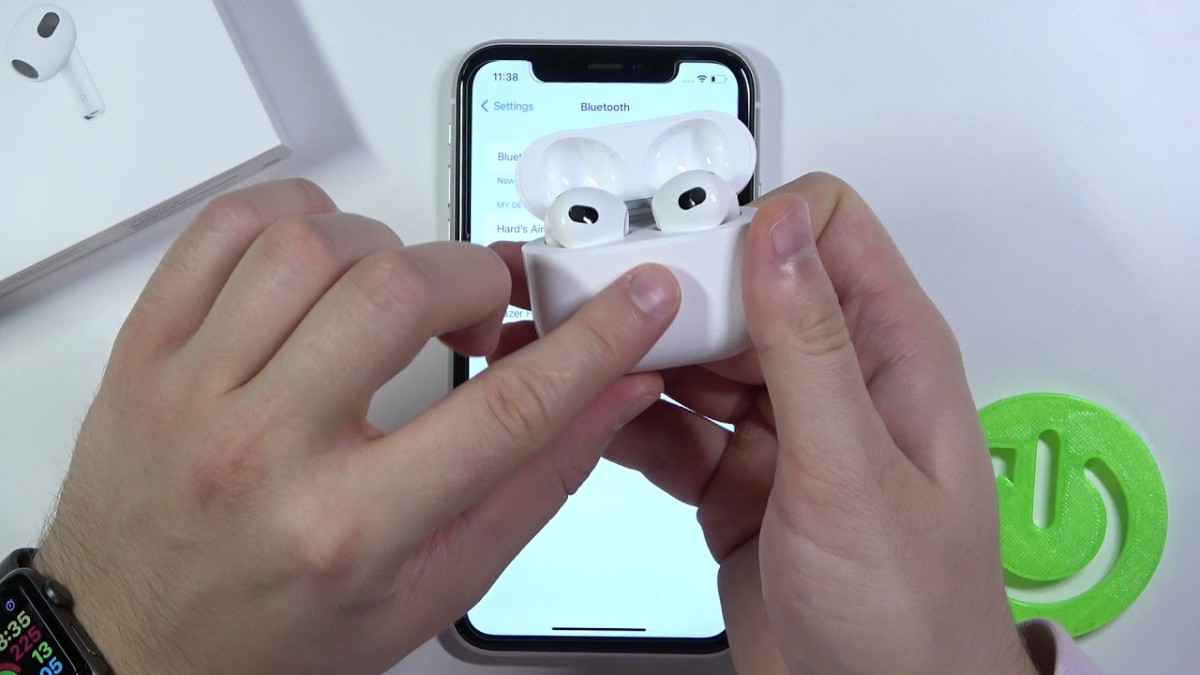
On your iPhone, iPad, or paired device, navigate to Settings > Bluetooth. Tap the information icon (ⓘ) next to your AirPods name, then select "Forget This Device" and confirm. This step prevents pairing conflicts after the reset.
Place AirPods in Charging Case
Insert both AirPods into their charging case. Ensure they're properly seated in their designated slots. Close the lid completely and wait for 30 full seconds. This waiting period allows the AirPods to fully disconnect from all paired devices and prepare for the reset sequence.
Open Case and Locate Setup Button
Open the lid of your charging case. The AirPods should remain inside the case during this entire process. Locate the small, circular setup button on the back of the case (opposite the hinge). On some models, this button is recessed and may require a pointed object like a pen tip to press firmly.
Press and Hold for 15 Seconds
Press and hold the setup button continuously for approximately 15 seconds. Watch the status light on the front of the case. It will initially flash amber (orange), then transition to flashing white. Release the button once you see the white flash—this confirms the factory reset is complete.
Reconnect to Your Device
Your AirPods are now reset to factory settings. To reconnect, keep the case open with AirPods inside and hold it near your unlocked iPhone or iPad. A setup animation will appear on your screen—tap "Connect" and follow the on-screen prompts. For Android or Windows devices, enable Bluetooth and select your AirPods from the available devices list.
Factory resetting removes your AirPods from all previously connected devices including iCloud. You'll need to pair them again manually. The reset also removes custom name settings, Spatial Audio configurations, and any personalized EQ settings. Make sure your case has at least 20% battery before attempting a reset.
AirPods 4 and AirPods Pro 3 feature a revolutionary button-less design with a capacitive sensor on the front of the case. This new design eliminates the physical setup button entirely. Instead of pressing a button, you'll use a double-tap gesture on the case's front panel where the LED status light is located. This method is equally effective and takes about 2 minutes.
Unpair from Current Device
Go to your device's Bluetooth settings. Find your AirPods 4 in the list of connected devices, tap the settings icon, and select "Forget Device" or "Unpair". This step prevents connection conflicts and ensures a clean reset process.
Prepare the Case
Place both AirPods 4 earbuds into their charging case. Close the lid completely and wait for 30 seconds. This pause is crucial for the internal system to properly disconnect from paired devices. After 30 seconds, open the case lid while keeping the AirPods inside.
Perform Double-Tap Reset Gesture
With the case open and AirPods inside, locate the LED status light on the front center of the case (between the two AirPods slots). Using your fingertip, double-tap this area three times in quick succession (tap-tap, pause, tap-tap, pause, tap-tap). You don't need to press hard—a gentle but deliberate tap on the capacitive surface is sufficient.
Watch for Confirmation
After the triple double-tap gesture, observe the LED status light. It will flash amber (orange) several times, then transition to flashing white. The white flash indicates your AirPods 4 have been successfully reset to factory defaults and are ready for initial pairing.
Pair as New Device
Keep the case open with the AirPods inside. On your iPhone or iPad, the setup animation should appear automatically when held nearby. Tap "Connect" to begin pairing. For other devices, go to Bluetooth settings and select "AirPods 4" from the list of available devices.
If the double-tap gesture doesn't work on the first try, ensure the case has sufficient charge (at least 10%). The capacitive sensor requires power to function. Also, make sure your fingers are relatively dry—moisture can interfere with the touch sensor. Some users report better success tapping slightly above the LED light rather than directly on it. The gesture timing matters: complete all three double-taps within 5 seconds for best results.
AirPods Max are over-ear headphones with a completely different reset mechanism. Unlike other AirPods that use a charging case, AirPods Max reset using two buttons located on the right earcup. The process is faster (about 1-2 minutes) but requires precise button timing. This reset will erase all settings and unpair the headphones from all devices.
Ensure Adequate Battery
Before resetting, make sure your AirPods Max have at least 20% battery charge. If the battery is critically low, charge the headphones for 10-15 minutes using the Lightning cable. Low battery can cause the reset process to fail or interrupt mid-process.
Locate the Two Control Buttons
On the right earcup of your AirPods Max, identify the Digital Crown (the circular dial on top) and the Noise Control button (the oval button below the Digital Crown). You'll need to press both simultaneously. Familiarize yourself with their locations before starting the reset.
Press and Hold Both Buttons
Simultaneously press and hold both the Digital Crown and the Noise Control button for approximately 15 seconds. Apply firm, consistent pressure to both buttons. Don't release until you see the LED status light (located near the Lightning charging port at the bottom of the right earcup) begin to flash.
Watch for LED Confirmation
Continue holding both buttons until the LED status light flashes amber (orange), then transitions to white. Once you see the white flash, release both buttons immediately. This confirms the factory reset is complete. The entire button-holding process typically takes 12-18 seconds.
Reconnect Your AirPods Max
Your AirPods Max are now in pairing mode. On your iPhone or iPad, go to Settings > Bluetooth and look for "AirPods Max" in the list of available devices. Tap to connect. The initial pairing animation may appear automatically when the headphones are near your device. For Mac or other Apple devices, follow similar pairing procedures through Bluetooth settings.
Unlike AirPods with a case, AirPods Max don't have a charging case to manage pairing. After a factory reset, all personalized settings are erased, including your custom EQ adjustments, Spatial Audio head tracking calibration, and device-specific volume limits. If you're selling or gifting your AirPods Max, also remove them from your Apple ID via iCloud.com/find to ensure the new owner can pair them successfully without Activation Lock issues.
Sometimes factory resets don't work on the first try, or you've purchased second-hand AirPods that won't pair. Common issues include: reset button not responding, AirPods locked to previous owner's Apple ID, mismatched AirPods (different generations), or persistent connection failures. Below are proven solutions for these challenging scenarios.
Reset Not Working? Try Charging First
If pressing the setup button produces no response, your case battery may be depleted. Charge the case for at least 30 minutes with both AirPods inside before attempting the reset again. A completely dead case won't respond to button presses. Connect to a power source using a Lightning or USB-C cable and look for the charging indicator light.
Previous Owner's Apple ID Lock
If you purchased used AirPods and they're still connected to the previous owner's Apple ID, you'll see an error message when trying to pair. Solution: Contact the previous owner and ask them to remove the AirPods from their Apple ID. They should go to iCloud.com/find, sign in, select "All Devices," find the AirPods, and click "Remove from Account." Without this step, the AirPods will remain locked and unusable. There is no workaround for this security feature.
Dealing with Mismatched AirPods
If you have two AirPods from different generations or different serial numbers, your iPhone may display a "Mismatch" error. First, try the standard reset procedure twice (complete two full reset cycles). If that fails, place both AirPods in the case and let them charge overnight while plugged in—this allows firmware to sync. According to Apple Support, some mismatched pairs simply cannot work together due to hardware incompatibility (e.g., USB-C vs Lightning case models).
Orange Light Stays On (Won't Turn White)
If the status light flashes amber but never transitions to white, your AirPods may have a firmware issue. Try this: Remove one AirPod from the case, close the lid, wait 10 seconds, then repeat the reset with only one AirPod. Once successful, repeat for the second AirPod. Then place both back in the case and perform one final reset with both inside. This method has a high success rate for stubborn resets.
Button Feels Unresponsive or Stuck
Physical buttons can accumulate debris over time. If the setup button feels stuck or mushy, use a soft-bristled toothbrush or cotton swab with 70% isopropyl alcohol to gently clean around the button. Let it dry completely (10-15 minutes) before attempting the reset. For AirPods 4's capacitive sensor, wipe the front panel with a microfiber cloth to remove oils and residue that may interfere with touch detection.
Still Not Working? Contact Apple Support
If you've tried all troubleshooting steps and your AirPods still won't reset, there may be a hardware defect. Check your warranty status at Apple's Check Coverage page. Contact Apple Support or visit an Apple Store for diagnostics. They can run advanced tests and, if necessary, arrange a repair or replacement under warranty or AppleCare+. Bring proof of purchase if possible.
Before declaring your AirPods defective, try resetting them while connected to a different iPhone or iPad running the latest iOS/iPadOS version. Sometimes device-specific software conflicts prevent successful resets. Borrow a friend's iPhone for testing if possible. Additionally, ensure your own device has been updated to the latest software—outdated iOS versions have known Bluetooth pairing bugs that can interfere with the reset process.
Not sure which reset method applies to your AirPods? This comparison breaks down the exact reset procedure for every AirPods model ever released. Identify your model by checking the model number inside the case lid or by the design features (charging port type, button location, etc.). Each model generation has slight variations that impact the reset process.
🎧 AirPods (1st Generation) - Released 2016
Reset Method: Setup button on back of case (15 seconds)
Identifying Features: White case with Lightning port, no wireless charging LED on front
Reset Time: ~2 minutes
Common Issues: Button may become less responsive over time due to age. Clean with isopropyl alcohol if needed.
🎧 AirPods (2nd Generation) - Released 2019
Reset Method: Setup button on back of case (15 seconds)
Identifying Features: Optional wireless charging case with front LED, "H1" chip engraving inside case
Reset Time: ~2 minutes
Special Note: Wireless charging models have LED on front; non-wireless models have LED inside case. Reset procedure identical for both.
🎧 AirPods (3rd Generation) - Released 2021
Reset Method: Setup button on back of case (15 seconds)
Identifying Features: Shorter stems, contoured design, MagSafe charging case with front LED
Reset Time: ~2-3 minutes
Special Note: First AirPods with spatial audio support. Force sensor on stems (not relevant for reset). Read more about AirPods water resistance.
✨ AirPods 4 - Released 2024
Reset Method: Double-tap front of case three times (no physical button)
Identifying Features: USB-C charging, capacitive touch sensor replaces setup button, improved fit
Reset Time: ~2 minutes
Special Note: First button-less design. Available in two variants: standard and ANC (Active Noise Cancellation). Both use identical reset method. This is the newest model as of 2026.
🎙️ AirPods Pro (1st Generation) - Released 2019
Reset Method: Setup button on back of case (15 seconds)
Identifying Features: In-ear silicone tips (S/M/L sizes), shorter stems, Lightning charging case
Reset Time: ~2-3 minutes
Special Note: First AirPods with active noise cancellation. Includes three tip sizes—ensure proper fit for best performance. Check out our guide on general AirPods maintenance.
🎙️ AirPods Pro (2nd Generation) - Released 2022
Reset Method: Setup button on back of case (15 seconds)
Identifying Features: MagSafe + Lightning case with front LED, speaker on case bottom, XS tip size added, H2 chip
Reset Time: ~2-3 minutes
Special Note: Enhanced ANC, longer battery life (6 hours), case includes lanyard loop and U1 chip for Precision Finding. Most popular Pro model in 2026.
✨ AirPods Pro 3 - Released 2025
Reset Method: Double-tap front of case three times (no physical button)
Identifying Features: USB-C charging, button-less capacitive design, improved noise cancellation
Reset Time: ~2 minutes
Special Note: Uses same capacitive reset method as AirPods 4. First Pro model without physical setup button. Features advanced health monitoring sensors.
🎧 AirPods Max - Released 2020
Reset Method: Press and hold Digital Crown + Noise Control button simultaneously (15 seconds)
Identifying Features: Over-ear design, aluminum earcups, mesh headband, no charging case (Smart Case sold separately)
Reset Time: ~1-2 minutes
Special Note: Only over-ear AirPods model. Lightning charging port on right earcup bottom. Available in 5 colors. Heaviest AirPods at 384.8g. Popular for gaming and studio use.
Can't remember which AirPods you own? Open the charging case lid and look inside—the model number is printed in small text (e.g., A2032, A2566). You can also check your iPhone: go to Settings > Bluetooth, tap the (i) icon next to your connected AirPods, and view the model information. For AirPods Max, the model number is on the left earcup's inner cushion. Cross-reference this with Apple's official model list at support.apple.com/airpods.