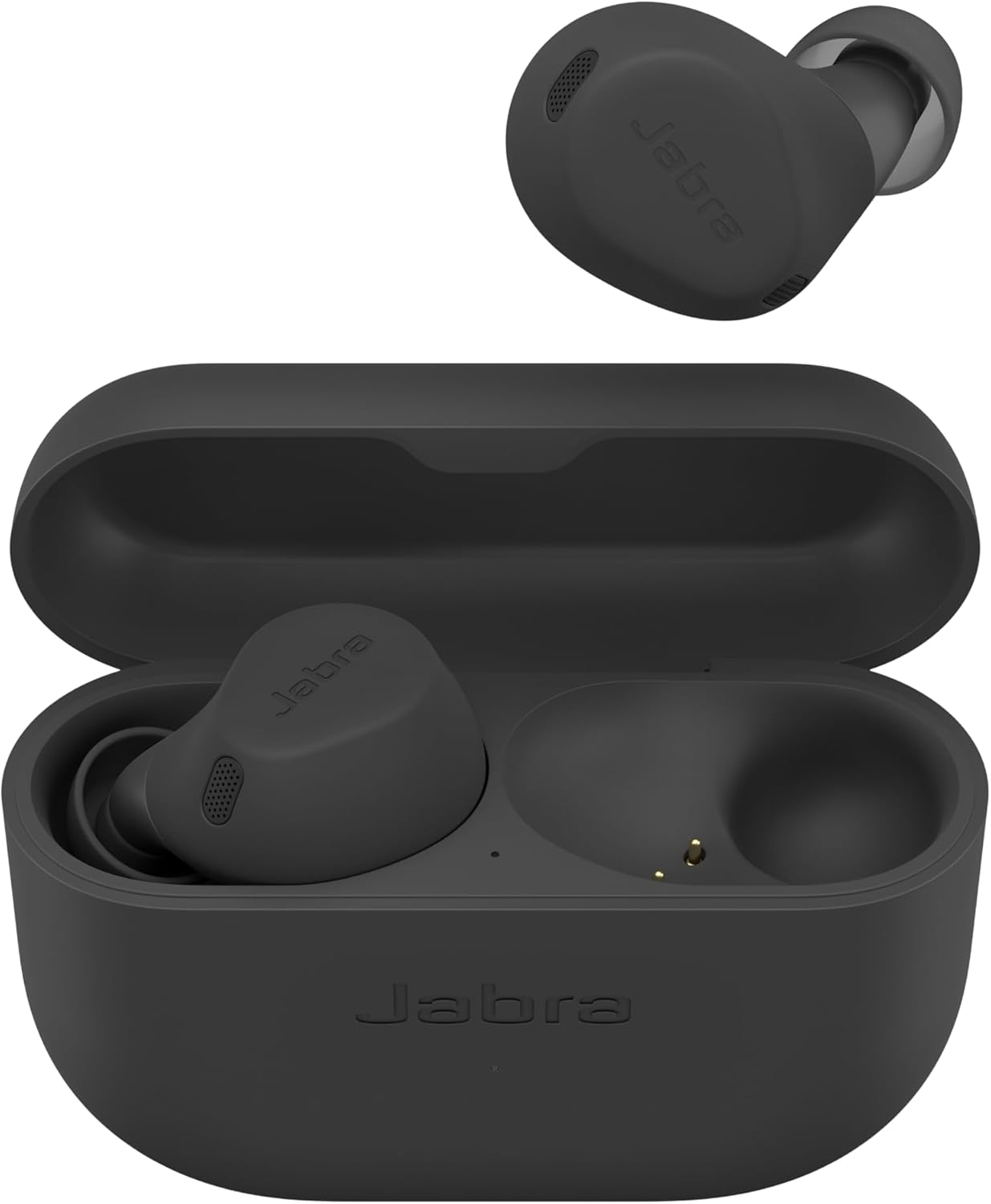
Table of Contents
How do I put Jabra earbuds in pairing mode and connect them to my phone/computer?
This quick guide targets the exact “how to pair Jabra earbuds” intent with measurable steps (3 seconds, blue flashing LEDs, PIN 0000). For more help topics, browse Jabra Support.
Accepted Answer
To pair Jabra earbuds, enable Bluetooth on your device, remove both earbuds from the case, then press and hold Left + Right for 3 seconds until LEDs flash blue—select “Jabra Elite” in Bluetooth. If prompted, enter 0000. Source: Jabra Elite 3 pairing FAQ.
- Turn Bluetooth ON on your phone/tablet/computer.
- Remove both earbuds from the case (they power on).
- Press and hold Left + Right for 3 seconds until LEDs flash blue.
- Select your Jabra earbuds in the Bluetooth list. If asked for a PIN, enter 0000.
Also see TechOzea’s iPhone Bluetooth tips.
- Bluetooth ON.
- Earbuds out of case.
- Hold both buttons 3 seconds to blue flashing LEDs.
- Select the Jabra device name.
From Jabra: Android can use Google Fast Pair, but pairing mode steps are still the baseline method. Source
- Windows Settings → Bluetooth & devices → Bluetooth ON.
- Add device → Bluetooth.
- Put earbuds in pairing mode (3 seconds until LEDs flash blue).
- Select the Jabra earbuds entry.
If it connects but you can’t hear audio, confirm the Windows audio output device is set to the earbuds.
Evidence Metric: Pairing Mode Trigger
Hold both earbud buttons for a measurable duration to force discoverable mode.
Evidence Metric: PIN Code
If a device requests a pairing PIN, use the common default shown in Jabra’s guidance.
Evidence Metric: One-Earbud Use
Common misconception: you still pair both earbuds first, then you can dock one.
Frequently Asked Questions
Visual reference from Jabra support site: Support portal.