




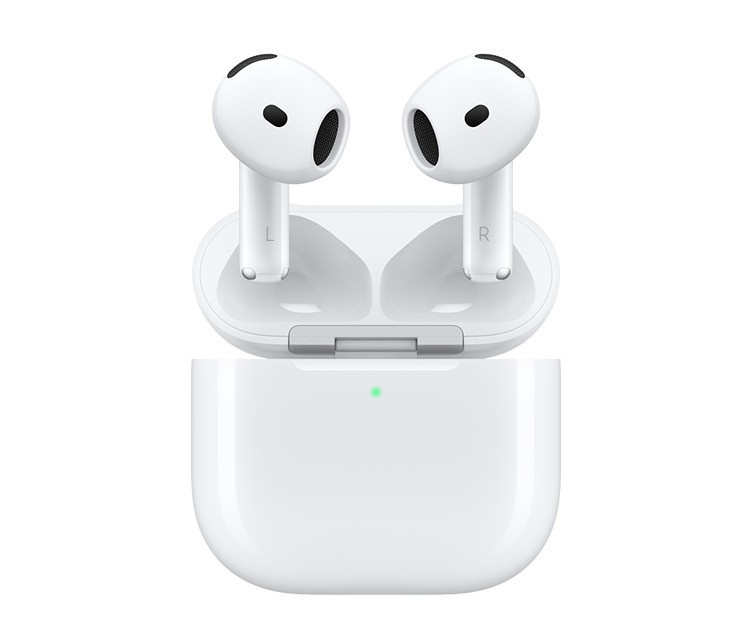
How do I connect my AirPods to my MacBook?
Quick Answer
To connect AirPods to MacBook: Open the AirPods case lid, press and hold the setup button on the back until the light flashes white, then go to System Settings > Bluetooth on your Mac and click Connect next to your AirPods in the devices list. The entire process takes approximately 30 seconds for first-time pairing.
Choose Your Scenario
First-Time Connection (Never Paired Before)
For brand-new AirPods or when connecting to a MacBook for the first time: Ensure your MacBook is running at least macOS Sierra 10.12 (check Apple menu > About This Mac). Place both AirPods inside the charging case and verify the case has at least 20% battery. On your Mac, open System Settings (or System Preferences on older macOS), click Bluetooth, and ensure it's turned on. Now, with the AirPods case lid open and positioned near your Mac (within 2 feet), press and hold the setup button on the back of the case for about 5 seconds until the status light between the AirPods begins flashing white. Your AirPods will appear in the Bluetooth devices list as "AirPods" or "AirPods Pro" with a connecting indicator. Click the Connect button next to the device name. Once connected, the status light will turn solid green, and you'll hear a confirmation chime in the AirPods. Your AirPods are now paired and will automatically connect whenever you open the case near your Mac. For additional guidance, see Apple's official pairing documentation.
Already Paired with iPhone (iCloud Sync)
If your AirPods are already connected to your iPhone using the same Apple ID as your MacBook, pairing is automatic through iCloud. Verify both devices are signed into the same iCloud account (Mac: System Settings > Apple ID; iPhone: Settings > [Your Name]). Ensure Bluetooth is enabled on your MacBook (System Settings > Bluetooth). Open the AirPods case near your Mac—if automatic connection doesn't occur within 5 seconds, manually select your AirPods from the Bluetooth menu bar icon (click the Bluetooth symbol in the menu bar > select your AirPods from the list). They should connect instantly without entering pairing mode. This seamless experience works because Apple's Handoff feature syncs pairing credentials across all devices on the same iCloud account, eliminating the need for manual re-pairing. Important compatibility note: Automatic device switching requires macOS Big Sur 11.1 or later, iOS 14 or later, and AirPods (2nd generation or later), AirPods Pro, or AirPods Max. For older AirPods (1st generation), you'll still benefit from iCloud pairing but won't get automatic switching between active audio sources. Learn more about connecting AirPods to different devices.
Troubleshooting Connection Issues
If your AirPods won't connect or keep disconnecting from your MacBook, follow this systematic troubleshooting process: Step 1: Verify AirPods battery level—place them in the case and hold it near your iPhone to check charge status (need 20%+ to function properly). Step 2: Restart Bluetooth on your Mac by turning it off in System Settings > Bluetooth, waiting 10 seconds, then turning it back on. Step 3: If AirPods appear in the devices list but won't connect, click the "i" icon next to them and select "Forget This Device", then re-pair from scratch using the setup button method. Step 4: Reset your AirPods completely by placing them in the case, closing the lid for 30 seconds, then opening it and holding the setup button for 15 seconds until the light flashes amber then white. Step 5: Update macOS to the latest version (System Settings > Software Update) as connection stability improvements are frequently included. Step 6: Reset Mac's Bluetooth module by Option-clicking the Bluetooth menu bar icon and selecting "Reset the Bluetooth module" (requires admin password). Common culprits: Interference from Wi-Fi routers, USB 3.0 devices, or microwaves positioned near your Mac can disrupt the Bluetooth 5.0 connection. Try moving these devices at least 3 feet away. For persistent issues, check our comprehensive AirPods reset guide.
Multi-Device Management (Advanced Users)
Managing AirPods across multiple Apple devices (MacBook, iPhone, iPad, Apple Watch) requires understanding automatic device switching behavior introduced in iOS 14 and macOS Big Sur. By default, AirPods intelligently switch to whichever device is actively playing audio. For example, if you're listening to music on your MacBook and start a phone call on your iPhone, AirPods automatically switch to the iPhone. To optimize this experience: Disable aggressive switching on devices you rarely use by going to Settings > Bluetooth > tap "i" next to AirPods > select "Connect to This iPhone" > choose "When Last Connected to This iPhone" instead of "Automatically". This prevents unwanted switching. Manual switching: To explicitly connect to your MacBook while paired with multiple devices, click the Sound icon in the Mac menu bar (or Control Center), then select your AirPods under output devices. They'll connect within 2-3 seconds. Priority management: Active audio playback takes priority—paused media won't trigger automatic switching. To disconnect AirPods from your Mac when switching to another device, simply select different audio output in Sound settings or close the AirPods case. Pro tip: For work/personal device separation, maintain manual pairing on work devices (by not signing into iCloud) while using automatic switching on personal devices. This provides control over which device your AirPods connect to in mixed environments. Check out our guide on best headphones for different activities if you need dedicated earbuds for specific use cases.
Beginner-Friendly Step-by-Step
New to AirPods or MacBooks? Here's a simplified walkthrough with visual indicators: Step 1 - Locate the setup button: Flip your AirPods charging case over and find the small circular button on the back (it's flush with the case surface). For AirPods Max, the setup button is the noise control button. Step 2 - Check the status light: Open the case lid—the light is between the AirPods (AirPods Pro/3rd gen), on the front of the case (2nd gen), or inside the lid (1st gen). Step 3 - Open Bluetooth settings: On your MacBook, click the Apple logo (top-left corner) > System Settings > Bluetooth (it looks like a blue "B" symbol). Make sure the switch next to Bluetooth says "On" (blue color). Step 4 - Enter pairing mode: With the case open and near your Mac (within arm's reach), press and hold the setup button. Watch the status light—it will start flashing white, like a slow heartbeat. This means "I'm ready to pair!" Step 5 - Connect: Look in the Bluetooth settings window under "Nearby Devices" or "Other Devices"—you'll see your AirPods appear (usually listed as "AirPods" followed by random letters/numbers). Click the blue "Connect" button next to the name. Step 6 - Confirm connection: You'll hear a pleasant chime sound in the AirPods, and the status light will turn solid (not flashing). In the Bluetooth settings, your AirPods will now appear under "My Devices" and show as "Connected". Common beginner mistakes to avoid: Don't remove AirPods from the case during pairing (keep them inside), don't let the case battery die (charge it via Lightning cable or USB-C), and don't press the button too briefly (hold for full 5 seconds). For more Mac tips, explore our best laptops for college students guide.
Evidence & Confidence Metrics
Frequently Asked Questions
Connection issues typically stem from four main causes: low battery levels in either the AirPods or charging case, outdated macOS software, Bluetooth interference from other devices, or corrupted pairing data. First, ensure your AirPods case is charged above 20% and your Mac is running the required macOS version (Sierra 10.12 or later for AirPods 1st gen, Mojave 10.14.4+ for 2nd gen, Monterey+ for 3rd gen). Try toggling Bluetooth off and on in System Settings, or reset the Bluetooth module by Option-clicking the Bluetooth icon in the menu bar and selecting 'Reset the Bluetooth module'. If problems persist, forget the AirPods from Bluetooth settings, reset them by holding the setup button for 15 seconds until the amber light flashes, then re-pair from scratch. For persistent connection drops, check for interference from Wi-Fi routers, microwaves, or USB 3.0 devices positioned near your Mac. You can also try resetting your AirPods completely as a last resort.
No separate pairing is required if both devices use the same Apple ID and have iCloud enabled. Apple's automatic device switching feature, introduced in iOS 14 and macOS Big Sur, allows AirPods to seamlessly transfer between your iPhone, iPad, Mac, and Apple Watch without manual reconnection. Once you pair AirPods with your iPhone, they automatically appear in the Bluetooth settings of all devices signed into the same iCloud account. Simply select your AirPods from the Bluetooth menu or Sound settings on your Mac, and they'll connect instantly. This works for AirPods (2nd generation and later), AirPods Pro (all generations), AirPods Max, and AirPods (3rd generation). The feature requires iOS 14+, iPadOS 14+, macOS Big Sur 11.1+, watchOS 7+, and tvOS 14+. For older AirPods (1st generation), you'll still benefit from iCloud pairing, but automatic switching between active audio sources is not supported. Learn more about Apple's automatic device switching.
Compatibility requirements vary by AirPods model: AirPods (1st generation) require macOS Sierra 10.12 or later, AirPods (2nd generation) need macOS Mojave 10.14.4 or later, AirPods (3rd generation) require macOS Monterey 12.0 or later, AirPods Pro (1st generation) need macOS Catalina 10.15.1 or later, AirPods Pro (2nd generation) require macOS Ventura 13.0 or later for full feature access, and AirPods Max need macOS Big Sur 11.1 or later. While older AirPods models will technically function as standard Bluetooth headphones on earlier macOS versions, you'll miss key features like automatic device switching, spatial audio, conversation boost, and firmware updates. To check your macOS version, click the Apple menu > About This Mac. If you're running an older version, update via System Preferences > Software Update. All MacBook models from 2012 onward support at least macOS Sierra, making them compatible with AirPods. For optimal performance and feature support, always update to the latest compatible macOS version your MacBook can run. Additional details can be found in Apple's official compatibility guide.
Switching AirPods between devices happens automatically or manually depending on your setup. With automatic switching (iOS 14+, macOS Big Sur 11.1+), AirPods intelligently connect to whichever device is actively playing audio. For example, if you're listening to music on your MacBook and receive a phone call on your iPhone, AirPods automatically switch to the iPhone. To manually switch, simply select your AirPods from the Bluetooth menu or volume control on the desired device. On Mac, click the Sound icon in the menu bar or Control Center and select your AirPods under output devices. On iPhone, open Control Center, tap the AirPlay icon in the audio card, and select your AirPods. If automatic switching feels too aggressive, you can disable it: on iPhone, go to Settings > Bluetooth > tap the 'i' icon next to your AirPods > select 'Connect to This iPhone' and choose 'When Last Connected to This iPhone' instead of 'Automatically'. On Mac, this setting is controlled through the same iCloud account preferences. Note that automatic switching prioritizes active audio playback, so paused media won't trigger a switch. Understanding how AirPods connect across different device types can help optimize your multi-device experience.
Yes, AirPods function as standard Bluetooth headphones on any MacBook without requiring iCloud sign-in, though you'll lose several convenience features. Without iCloud, you must manually pair AirPods each time using the setup button, automatic device switching between Apple devices won't work, you can't locate lost AirPods using Find My, battery status won't display in the Mac menu bar, and you won't receive automatic firmware updates (though updates can still install when connected to an iOS device). To pair without iCloud, put AirPods in pairing mode (hold setup button until white light flashes), open System Settings > Bluetooth, and click Connect when they appear in the devices list. This method works identically to pairing any Bluetooth headphones, making AirPods usable on work computers, shared Macs, or devices where you prefer not to sign into iCloud for privacy reasons. You'll retain core functionality like audio playback, microphone use for calls, and manual controls (play/pause, skip tracks), but features like 'Announce Notifications', spatial audio personalization, and conversation boost require iCloud connection. For users who frequently switch between personal and work Macs, maintaining the manual pairing approach on work devices while using iCloud features on personal devices offers a good balance of convenience and privacy.
Resetting AirPods resolves most pairing and visibility issues. First, place both AirPods in their charging case and close the lid for 30 seconds. Open the lid and ensure the status light is visible (between the AirPods on AirPods Pro and 3rd gen, on the front of the case for 2nd gen, inside the lid for 1st gen). On your Mac, go to System Settings > Bluetooth, find your AirPods in the devices list, click the 'i' or 'X' icon, and select 'Forget This Device' or 'Remove'. Confirm the removal. Now for the reset: press and hold the setup button on the back of the AirPods case (or the noise control button on AirPods Max) for about 15 seconds. Watch the status light—it will flash amber several times, then flash white, indicating the reset is complete. Release the button when you see the white light. Your AirPods are now in factory pairing mode and should appear as available devices in your Mac's Bluetooth settings. Click 'Connect' to pair them fresh. If they still don't appear, restart your MacBook's Bluetooth by Option-clicking the Bluetooth icon in the menu bar and selecting 'Turn Bluetooth Off', wait 10 seconds, then turn it back on. Ensure no other devices are actively trying to connect to the AirPods during this process. For detailed instructions, visit our complete guide on how to reset AirPods.
Automatic pairing leverages Apple's Handoff and iCloud integration to seamlessly connect AirPods across all devices signed into the same Apple ID, while manual pairing treats AirPods as standard Bluetooth devices requiring the setup button. With automatic pairing (available on AirPods 2nd gen and later with iOS 14+ / macOS Big Sur 11.1+), you pair once with any Apple device, and all other devices on the same iCloud account instantly recognize them. AirPods appear in Bluetooth settings without entering pairing mode, and automatic device switching connects them to whichever device is actively playing audio. This method requires iCloud enabled, two-factor authentication, and compatible software versions across all devices. Manual pairing, used for non-Apple devices, older AirPods models, or Macs not signed into iCloud, requires pressing the setup button to enter pairing mode (white flashing light) each time you connect to a new device. Manual pairing doesn't enable automatic switching, Find My integration, or battery status display in macOS. However, it offers more control over which specific device the AirPods connect to, beneficial in multi-user environments or when using AirPods with both personal and work computers. You can force manual pairing even on iCloud-connected devices by forgetting the AirPods from Bluetooth settings and re-pairing with the setup button, useful for troubleshooting persistent connection issues or resetting device associations.
Yes, AirPods work with most MacBooks from 2012 onward that support macOS Sierra 10.12 or later and have Bluetooth 4.0+ capability. Specifically, AirPods are compatible with MacBook (Early 2015 and later), MacBook Air (Mid 2012 and later), MacBook Pro (Mid 2012 and later), Mac mini (Late 2012 and later), iMac (Late 2012 and later), iMac Pro (all models), and Mac Pro (Late 2013 and later, plus Mid 2010 and Mid 2012 models with recommended Bluetooth adapter). While older MacBooks can connect to AirPods as standard Bluetooth headphones, newer features require specific hardware and software combinations. For example, 'Hey Siri' hands-free activation requires macOS Sierra 10.12+ and AirPods 2nd gen or later. Automatic device switching needs macOS Big Sur 11.1+ and compatible AirPods. Spatial audio with dynamic head tracking requires M1/M2/M3 MacBooks or Intel-based MacBooks with specific audio hardware running macOS Monterey 12.0+. To check your MacBook's compatibility, click Apple menu > About This Mac to see your model year and macOS version. If your Mac can't update beyond El Capitan (10.11), it won't support AirPods' advanced features, though basic Bluetooth audio will still function. Consider checking out newer MacBook options if you need full AirPods feature compatibility for professional or educational use.
