




In today's world, video calls are no longer just a fancy extra; they're how we connect, collaborate, and even socialize. Whether you're pitching a big idea to clients, catching up with colleagues, or attending an online class, your home office setup can make a huge difference. Nobody wants to be the person with bad lighting, a fuzzy picture, or a microphone that sounds like you're talking from inside a tin can, right?
Actually, upgrading your setup isn't as complicated or expensive as you might think. Small changes can lead to big improvements in how you look and sound, boosting your confidence and professionalism on every call. This guide will walk you through the essential steps to transform your workspace into a video conferencing powerhouse.
Key Takeaways
- Lighting is King: Good lighting is the single most important factor for looking great on camera. Aim for soft, even light from the front, avoiding harsh overhead or backlighting.
- Crystal Clear Audio is a Must: Your voice needs to be heard clearly. Invest in a dedicated microphone or a quality headset to cut out background noise and improve sound quality.
- Upgrade Your Camera Game: While built-in webcams are okay, an external webcam or even your smartphone can offer much better video resolution and clarity.
- Background Matters (Less is More!): Keep your background clean, uncluttered, and professional. Think about what your colleagues or clients will see behind you.
- Stay Connected and Comfortable: Ensure stable internet and a comfortable ergonomic setup for long calls.
1. Let There Be Light! (Seriously, It's Everything)
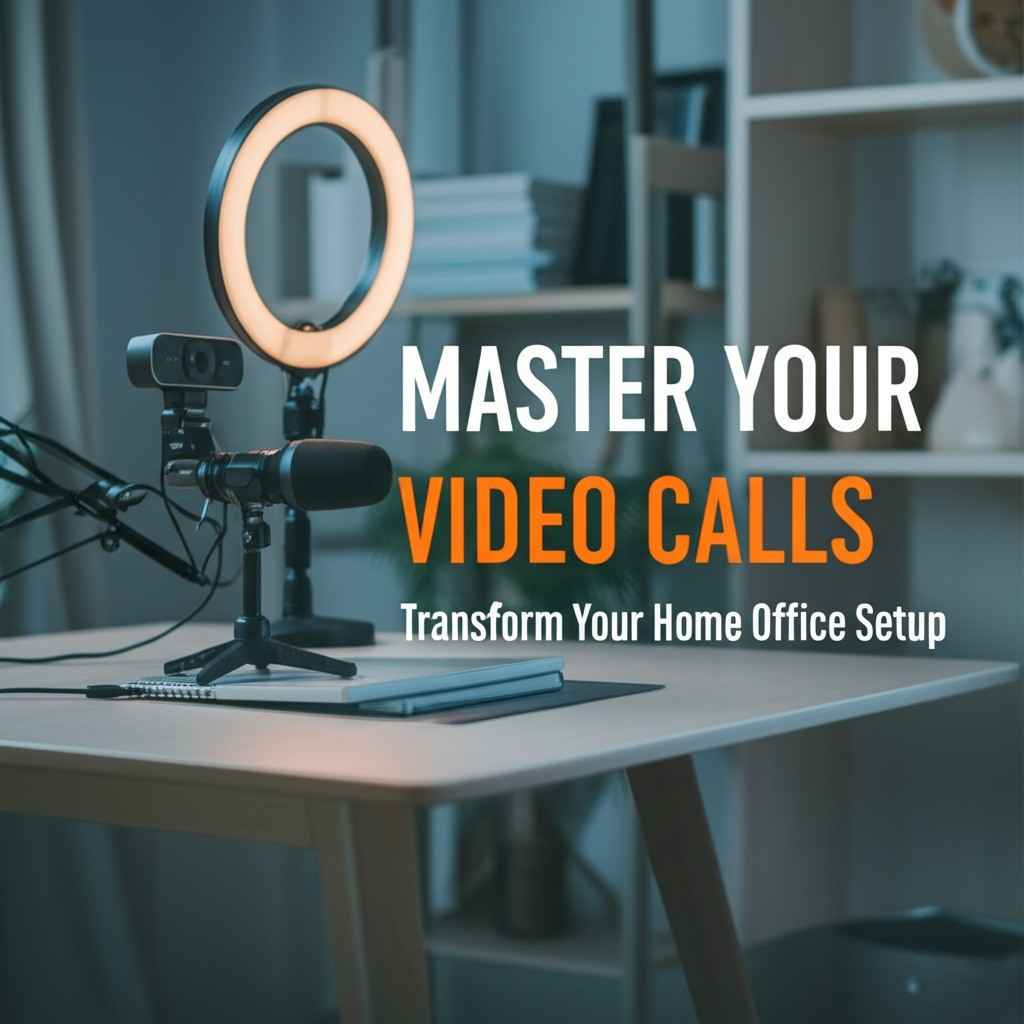
Think about it: have you ever been on a call with someone who looks like they're in a dimly lit cave, or worse, has a bright window behind them making them look like a shadowy figure? It's not a great look. Good lighting is arguably the most crucial element for a professional video presence. It makes you look awake, vibrant, and, well, visible.
Here's the thing: You want light hitting your face directly, or slightly from the sides. This fills in shadows and makes you look more natural.
- Natural Light is Your Best Friend: Position your desk so you're facing a window. The soft, diffused light from outside is often the most flattering. Just make sure the window isn't behind you, or you'll be a silhouette.
- Ring Lights and Softboxes: These are popular for a reason! A small LED ring light placed directly in front of you (around your camera) provides even, flattering light that minimizes shadows. Softboxes do a similar job but are often larger and provide an even softer glow. You can find decent ones for a reasonable price online.
- Avoid Overhead Lighting: That harsh ceiling light can create unflattering shadows under your eyes and nose. If you can't avoid it, try to supplement it with light from the front.
- Color Temperature: Some lights let you adjust the color temperature from warm (yellowish) to cool (bluish). A slightly warmer light (around 3200K-4500K) often looks more natural and inviting.
"Good lighting isn't just about brightness; it's about flattering angles and consistent illumination. It's the difference between looking tired and looking totally ready to tackle the day!"
Lighting Setup Ideas:
| Light Source | Pros | Cons | Best For |
|---|---|---|---|
| Window | Free, natural, soft, flattering | Dependent on time of day/weather | Everyday use, bright rooms |
| Ring Light | Even, direct light, portable | Can create ring reflection in eyes | Dedicated video calls, small spaces |
| Softbox | Very soft, diffused light, professional | Larger, less portable, more expensive | Professional setups, content creation |
| Desk Lamp | Affordable, versatile | Can be harsh, may need diffusing | Budget-friendly, supplementary lighting |
Pro Tip: If you're on a budget, even a simple desk lamp with a white sheet or parchment paper draped over it (carefully, to avoid fire hazards!) can diffuse the light and make it softer.
2. Sound Like a Pro! (Audio Quality Matters More Than You Think)
We've all been there: someone on a call sounds like they're underwater, or their dog is barking endlessly in the background. Poor audio is incredibly distracting and can make it hard to follow what you're saying. Actually, many people say they'd rather tolerate bad video than bad audio!
Your built-in laptop microphone is usually the weakest link in your setup. It picks up everything – your typing, the hum of your computer, even the faint sound of your neighbor's lawnmower.
- Headsets with Microphones: This is often the easiest and most cost-effective upgrade. A good quality headset, especially one with a noise-canceling microphone, will dramatically improve your voice clarity and block out background noise. Plus, they keep your audio private.
- USB Microphones: If you want to sound truly professional, a dedicated USB microphone is the way to go. Brands like Blue Yeti or Rode NT-USB Mini are popular choices for their ease of use and excellent sound quality. They sit on your desk and pick up your voice clearly, often with settings to reduce room echo.
- Microphone Placement: No matter what mic you use, placement is key. For a headset, make sure the mic is near your mouth but not directly in front of it (to avoid "popping" sounds). For a desktop mic, keep it about 6-12 inches from your mouth.
- Acoustic Treatment (Optional but Recommended): If your room has a lot of echo (think hard walls, bare floors), adding soft furnishings like rugs, curtains, or even acoustic panels can make a huge difference in how your voice sounds. A little bit of sound absorption goes a long way!
"Your voice is your most powerful tool in a virtual meeting. Make sure it's heard loud and clear, free from distractions. It shows you care about the conversation."
Top Audio Gear Picks:
- Budget-Friendly: Any good quality gaming headset with a boom mic.
- Mid-Range: Blue Yeti or Rode NT-USB Mini for desktop use.
- High-End: Shure MV7 or Elgato Wave:3 for streamers/podcasters.
3. Look Sharp! (Your Camera's Close-Up)
While lighting is number one, your camera comes in a close second. Many laptop cameras are fine for casual chats, but for important meetings, you might want something better. They often struggle in low light and produce grainy images.
- External Webcams: A dedicated webcam, like those from Logitech (C920, Brio) or Razer (Kiyo), offers significantly better image quality, resolution, and low-light performance than most built-in laptop cameras. They usually just plug into a USB port.
- Smartphone as a Webcam: Did you know you can often use your smartphone as a high-quality webcam? Apps like Camo or EpocCam let you connect your phone's excellent camera to your computer, giving you a huge visual upgrade without buying new hardware. This is a fantastic option if you already have a good phone!
- DSLR/Mirrorless Cameras: For the ultimate professional look, some people use their DSLR or mirrorless cameras with a capture card. This provides incredibly sharp, cinematic video with beautiful background blur (bokeh). This is definitely a more advanced setup, but the results are stunning.
- Camera Angle: Position your camera at eye level or slightly above. This is the most flattering angle and avoids the dreaded "double chin" view. Use a stack of books or a laptop stand if needed.
Camera Options at a Glance:
| Camera Type | Pros | Cons | Ideal For |
|---|---|---|---|
| Built-in Laptop Camera | Convenient, no extra setup | Low quality, poor in low light | Quick, casual calls |
| External Webcam | Significant quality bump, easy to use | Still limited by sensor size | Regular professional calls |
| Smartphone (with app) | Excellent quality (uses phone camera) | Requires phone mount, drains phone battery | High-quality calls on a budget |
| DSLR/Mirrorless + Capture | Best quality, cinematic look, bokeh | Complex, expensive, power-hungry | Content creators, very high-stakes meetings |
Anyway, remember to clean your camera lens regularly! A smudged lens can make even the best camera look blurry.
4. Curate Your Canvas (The All-Important Background)
What's behind you on a video call speaks volumes. A messy bed, a pile of laundry, or a busy, distracting bookshelf can take away from your professionalism.
- Keep it Clean and Simple: The easiest solution is a plain, clean wall. If you don't have one, tidy up! Remove clutter, organize shelves, and make sure nothing distracting is visible.
- Personal Touch (Subtle): A neat bookshelf, a piece of art, or a plant can add personality without being overwhelming. Just make sure it's not too busy.
- Virtual Backgrounds: Most video conferencing software offers virtual backgrounds. These can be fun, but they're not always perfect. If you don't have a green screen, your edges might look fuzzy, or parts of you might disappear. Use them sparingly for professional calls, or only if you have a solid, consistent background (like a plain wall) for the software to key off.
- Lighting Your Background: If you want to add depth, a subtle light on your background can separate you from it, creating a more professional look. This is often called a "backlight" or "hair light" in more advanced setups.
"Your background is your stage. Keep it clean, professional, and free from distractions so the focus stays on you and your message."
Here's a quick checklist for your background:
- Is it tidy? ✅
- Is it free of personal clutter? ✅
- Is it well-lit (not too dark, not too bright)? ✅
- Is it distracting? (If yes, rearrange!) ❌
5. Get Comfy and Connected (Ergonomics & Internet)
You can have the best camera and mic in the world, but if you're uncomfortable or constantly dropping calls, it won't matter.
Ergonomics: Your Body Will Thank You
Long video calls can be a pain – literally – if your setup isn't ergonomic.
- Chair: Invest in a comfortable, supportive office chair. Your back, neck, and shoulders will thank you. Look for adjustable height, lumbar support, and armrests.
- Desk Height: Your desk should be at a height where your forearms are parallel to the floor when you're typing.
- Monitor/Laptop Height: As mentioned earlier, your screen should be at eye level. This prevents neck strain. A laptop stand is a game-changer here.
- Keyboard and Mouse: If you're using a laptop, consider an external keyboard and mouse. This allows you to position your laptop screen at eye level while keeping your hands at a comfortable typing height.
Internet Connection: The Invisible Lifeline
A stable internet connection is non-negotiable for smooth video conferencing. There's nothing worse than freezing mid-sentence or having your audio cut out.
- Wired Connection (Ethernet): If possible, connect your computer directly to your router with an Ethernet cable. This provides the most stable and fastest connection, avoiding Wi-Fi interference.
- Wi-Fi Strength: If you must use Wi-Fi, ensure your router is centrally located and that you have a strong signal in your office. Wi-Fi extenders or mesh systems can help if your signal is weak.
- Bandwidth: Close other bandwidth-hogging applications (streaming services, large downloads) during calls. If multiple people in your household are online, consider upgrading your internet plan.
- Test Your Speed: Regularly test your internet speed using online tools (just search "internet speed test"). Aim for at least 10-20 Mbps upload and download for smooth video calls.
"A comfortable body and a reliable internet connection are the silent heroes of successful video conferencing. Don't overlook them!"
6. Software & Settings: The Final Polish
Even with great hardware, the right software settings can make a difference.
- Video Conferencing Platform Settings: Familiarize yourself with the settings in Zoom, Microsoft Teams, Google Meet, or whatever platform you use.
- HD Video: Enable HD video if your internet and camera can handle it.
- Noise Suppression: Many platforms have built-in noise suppression. Experiment with the settings – sometimes the highest setting can make you sound a bit robotic.
- Touch Up My Appearance/Adjust for Low Light: Some platforms offer features to subtly enhance your appearance or brighten your video in dim conditions. Use them sparingly.
- Virtual Backgrounds (Again): If you use them, ensure your lighting is even so the software can distinguish you from your background effectively. A green screen helps immensely here.
- Updates: Keep your video conferencing software and your computer's operating system updated. Updates often include performance improvements and bug fixes.
- Practice! Do a test call with a friend or colleague before an important meeting. This lets you check your lighting, audio, and camera angle.
Bringing it All Together: Your Video Conferencing Checklist
To recap, here's a quick checklist to help you improve your home office setup for video conferencing:
- Lighting:
- Is light coming from in front of you?
- Is it soft and even?
- Are harsh shadows minimized?
- Audio:
- Are you using a dedicated microphone or quality headset?
- Is your mic positioned correctly?
- Is background noise minimized?
- Camera:
- Are you using an external webcam or your phone?
- Is your camera at eye level?
- Is the lens clean?
- Background:
- Is it clean, uncluttered, and professional?
- Is it free from distractions?
- Ergonomics:
- Is your chair comfortable and supportive?
- Are your screen and keyboard at the right height?
- Connectivity:
- Are you on a stable internet connection (preferably wired)?
- Are other bandwidth-heavy apps closed?
- Software:
- Are your platform settings optimized?
- Is everything updated?
Improving your home office setup for video conferencing isn't just about looking good; it's about feeling confident, being understood, and making a strong impression. It shows professionalism and respect for the people you're connecting with.
So, go ahead, try out some of these tips! You might be surprised at the difference they make. We'd love to see your upgraded spaces! Happy conferencing!
