




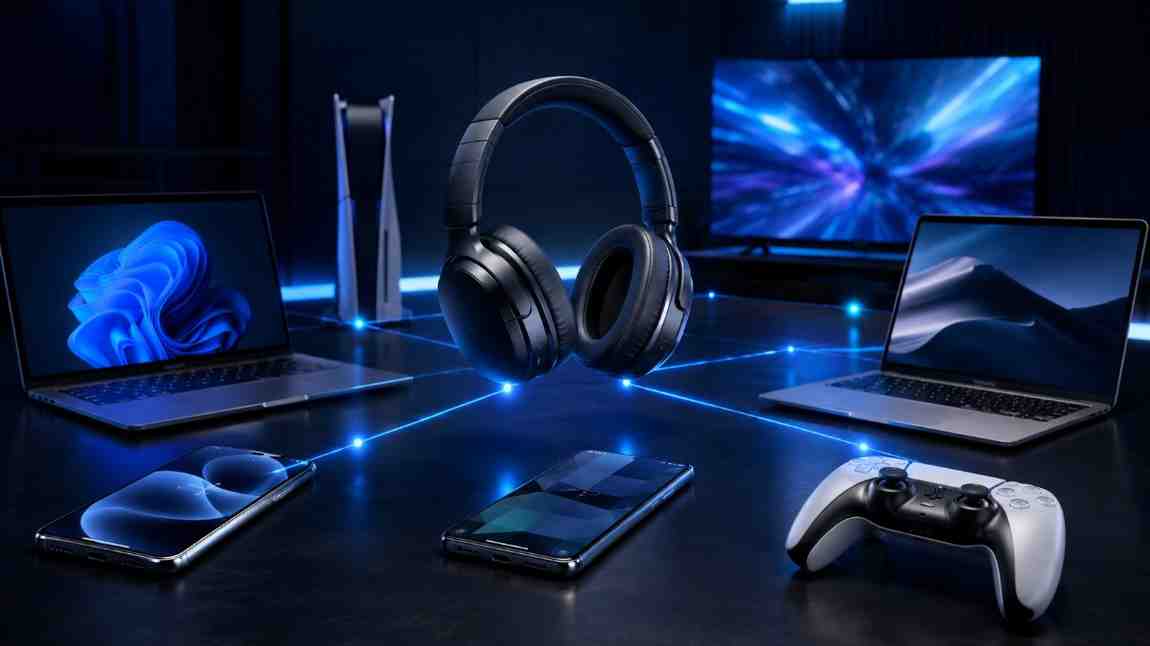
Learning how to connect wireless headphones takes about 60 seconds once you know the steps. Whether you're pairing Bluetooth headphones to an iPhone, Android, Windows PC, Mac, Smart TV, or gaming console, this guide covers every scenario — including the frustrating stuff that goes wrong.
⚡ 60-Second Pairing Cheat Sheet
- Charge your headphones — at least 20% battery before you start.
- Enable pairing mode — hold the power or pairing button until the LED blinks rapidly.
- Open Bluetooth settings on your phone, PC, or TV and toggle Bluetooth ON.
- Select your headphone name from the list of available devices.
- Confirm or accept any passkey prompt. A chime or steady LED means you're connected.
How Wireless Headphones Connect
Before touching any settings menu, it helps to understand what's actually happening when your headphones pair. Spoiler: it's simpler than it sounds.
What Bluetooth Pairing Means
Bluetooth technology — managed by the Bluetooth Special Interest Group (SIG) — sends audio over the 2.4 GHz radio frequency band. When two devices pair, they exchange encrypted keys and save each other in memory. After that, reconnection is automatic whenever both devices are on and within range.
Most wireless headphones use A2DP (Advanced Audio Distribution Profile) for music streaming and HFP (Hands-Free Profile) for calls. AVRCP handles play/pause and volume controls. These Bluetooth profiles run silently in the background — you'll never see them listed, but they decide what features actually work.
Pairing Mode Explained
Pairing mode (also called discovery mode) is the brief window when headphones broadcast their presence to nearby devices. The LED indicator blinks — usually blue and red alternating — to signal they're visible. This window typically lasts 3–5 minutes before the headset times out.
Multipoint vs Single-Device Connections
Standard Bluetooth headphones connect to one device at a time. Multipoint connection changes that — you pair to two (or more) devices simultaneously. Sony's WH-1000XM5 and the Jabra Evolve2 85, for instance, support multipoint so you can have your laptop connected for Zoom calls and your phone for music, switching automatically.
Not every headphone supports multipoint even if the brand says "dual device." Check whether the feature requires a companion app to activate — Sony's multipoint, for example, needs the Sony Headphones Connect app on your phone first.
Bluetooth Versions and Compatibility
Your headphones and device don't need matching Bluetooth versions, but a newer version does improve things. Here's the quick breakdown:
| BT Version | Max Range | Notable Feature | Common In |
|---|---|---|---|
| Bluetooth 4.0 / BLE | 50 m | Low energy mode | Older earbuds |
| Bluetooth 4.2 | 50 m | Faster reconnection | Budget headsets |
| Bluetooth 5.0 | 240 m | 2× speed, 4× range | Most 2022+ devices |
| Bluetooth 5.1 | 240 m | Direction-finding | Premium headphones |
| Bluetooth 5.2 | 240 m | LE Audio, LC3 codec | 2024+ flagships |
📡 Bluetooth Range Visual Guide
Before Connecting Your Wireless Headphones
Skip this checklist and you'll spend 20 minutes troubleshooting something that takes 2 minutes to fix upfront.
1. Charge the Headphones
Low battery is the #1 reason pairing fails silently. TWS earbuds and over-ear headphones sometimes refuse to enter pairing mode below 10%. Plug in via USB-C (most modern headsets) or the charging case, wait until the status light turns solid, then try again.
2. Turn On Bluetooth
Sounds obvious, but Bluetooth toggles off in airplane mode, power-saving modes, and after OS updates. Swipe down your Android notification shade or iOS control center and tap the Bluetooth icon to confirm it's on. On Windows, check the system tray icon or go to Settings → Bluetooth & devices.
3. Put Headphones Into Pairing Mode
This step trips up most people. The method varies by brand:
Hold the power button for 7 seconds until you hear a voice prompt ("Bluetooth pairing") and the LED blinks blue and red alternately. The XM5 enters pairing mode automatically on first power-up out of the box.
Open the charging case lid. If pairing to a new device, hold the setup button on the back of the case until the status light flashes white. Near an iPhone, an automatic popup appears via Apple's nearby device detection.
Hold the power button for 5 seconds. The LED will blink white. Beats Studio Buds require you to open the case and press the button on the case itself.
Press and hold the Bluetooth button (sometimes shared with the power button) for 3 seconds. The LED flashes blue. JBL's app, "My JBL Headphones," can also handle pairing.
Most generic TWS earbuds pair automatically when removed from the charging case for the first time. For subsequent devices, hold both earbuds simultaneously for 5 seconds until the LEDs flash. The passkey is usually 0000 if prompted.
4. Disconnect Old Devices
Non-multipoint headphones remember the last device they connected to. If your headset auto-connects to your laptop while you're trying to pair with your TV, you'll never see it appear in the available devices list. Go to the old device's Bluetooth settings, find the headphone, and tap Disconnect (or Forget Device).
5. Update Device Software
A Bluetooth driver bug in an older OS version once disconnected my Sony WH-1000XM4 every 40 minutes on Windows. Updating fixed it instantly. Before blaming your headphones, check for pending Windows updates, iOS/Android OS updates, and firmware updates for the headphones themselves.
How to Connect Wireless Headphones to iPhone
iOS makes Bluetooth pairing pretty painless — most steps involve three taps. Here's how it works for different headphone types.
AirPods
Apple AirPods use a proprietary auto-pairing system. Open the charging case near your iPhone and a popup appears within seconds. Tap Connect and you're done. If the popup doesn't appear, hold the setup button on the case back until the light flashes white, then check Bluetooth settings under My Devices.
AirPods registered to your Apple ID also appear automatically on iPad and MacBook via Apple's iCloud Handoff feature, so you rarely need to manually pair them again.
Beats Headphones
Beats — owned by Apple — uses the Apple H1 or W1 chip in many models, giving them the same fast-pairing popup as AirPods. For older Beats models without that chip, open Settings → Bluetooth, put Beats into pairing mode, and tap the device name when it appears.
Generic Bluetooth Headphones
MY DEVICES
-
ConnectedSony WH-1000XM5Headphones · A2DP · AVRCP
-
Not ConnectedAirPods ProNot connected
OTHER DEVICES
-
Pairing...JBL Tune 760NCTap to pair →
Click "JBL Tune 760NC" above to simulate the pairing process 🎉
Fix iPhone Pairing Problems
Toggle Bluetooth off, wait 5 seconds, toggle back on. Re-enter pairing mode on headphones.
Forget the device in Bluetooth settings, restart iPhone, pair fresh. Also disable "Switch between iCloud devices" if you have multiple Apple devices.
Pull up Control Center and tap the audio route icon (top right of music card) to manually select your headphones as the output device.
How to Connect Wireless Headphones to Android
Android phones from Samsung, Google Pixel, Xiaomi, and others all follow the same core path — small differences aside.
Samsung Galaxy Phones
Samsung Galaxy devices support Google Fast Pair for compatible headphones and also have their own Quick Pairing system for Galaxy Buds. Here's how to pair generic Bluetooth headphones:
Galaxy Buds tip: Tap "Galaxy Wearable" when it appears at the top of the pairing prompt. This opens the companion app and sets up touch controls, EQ, and ANC in one shot instead of doing it manually later.
Google Pixel Phones
Pixel phones have arguably the smoothest Bluetooth pairing on Android thanks to tight integration with Google Fast Pair. Bring a compatible headset — like Sony, JBL, or Jabra models with Fast Pair support — near your Pixel and a notification pops up instantly.
Xiaomi & Other Android Devices
MIUI, OxygenOS, ColorOS — whatever skin runs on your phone — all wrap the same core Android Bluetooth stack. The path is almost always Settings → Bluetooth → + New Pairing or similar. Xiaomi phones occasionally show the Bluetooth section under Settings → Connection & Sharing rather than in the top-level menu.
Budget Chinese-brand earbuds like QCY often come with a companion app — the QCY App — that can trigger pairing automatically. Worth downloading before fighting the settings manually.
Android Bluetooth Troubleshooting
If your Android phone can't see the headphones, try this sequence from Google's official Bluetooth troubleshooting page:
- Toggle Bluetooth off and back on
- Clear cache of the Bluetooth app (
Settings → Apps → Bluetooth) - Turn on then off airplane mode to reset all radio connections
- Check that the headset isn't already connected to another phone
- Reset network settings if nothing else works (
Settings → General Management → Reset → Reset Network Settings)
How to Connect Wireless Headphones to Windows PC
Windows handles Bluetooth reasonably well — as long as your PC has a Bluetooth adapter and the drivers are behaving.
Windows 11 Steps
Windows 10 Steps
The path differs slightly: Settings → Devices → Bluetooth & other devices → Add Bluetooth or other device. Everything else mirrors the Windows 11 flow. The Bluetooth icon in the system tray (bottom-right) also gives quick access.
Audio Output Settings
Connecting the headphone in Device Manager doesn't always switch audio output automatically. Right-click the speaker icon in the taskbar → Sound settings → under "Output," select your headphones from the dropdown. If two entries appear (one for stereo audio, one for headset/mic), pick the stereo one for music quality and the headset option for calls.
Audio lag on Windows? Switch your audio codec. Go to Device Manager → Bluetooth → your headphone → Properties → Advanced and change the supported format. Switching from SBC to aptX or LDAC (if supported) can cut latency significantly.
Bluetooth Driver Problems
If Bluetooth doesn't appear in Settings at all, your PC might lack an adapter or the driver crashed. Open Device Manager (right-click Start → Device Manager) and look for a yellow warning triangle next to any Bluetooth entry. Right-click → Update driver → "Search automatically for drivers." If the adapter isn't listed at all, you need a USB Bluetooth adapter/dongle.
For Intel-based PCs, the Intel Driver & Support Assistant detects and updates Bluetooth drivers automatically.
How to Connect Wireless Headphones to Mac
macOS is generally solid for Bluetooth pairing — until it isn't. Here's the full path and the fixes for when things go sideways.
Bluetooth Menu Setup
Sound Settings
After pairing, go to System Settings → Sound → Output and select your headphones. macOS doesn't always switch output automatically. If you use the headphones for calls too, set them as the Input device under the same Sound menu.
Switching Audio Devices
Hold the Option key and click the speaker icon in the menu bar. This reveals a dropdown to select your output device without opening System Settings. It's the fastest way to switch between headphones and MacBook speakers mid-session.
Fix Mac Bluetooth Issues
This often comes from Wi-Fi interference — both use 2.4 GHz. Try switching your router to 5 GHz band. Also, delete the Bluetooth plist file: hold Shift + Option, click Bluetooth in menu bar → "Reset the Bluetooth module." This clears all saved connections and can fix persistent dropout issues.
Make sure the headphones aren't already connected to another Apple device through iCloud. On iOS, go to Settings → Bluetooth, find the headphones, tap the ⓘ icon, and select "Forget Device." Then re-pair with your Mac.
Choppy audio on Mac often means the Bluetooth module is struggling with interference. Move closer to your Mac, disconnect other nearby Bluetooth peripherals, and check if a USB 3.0 device is plugged in nearby — these are known to generate 2.4 GHz interference that disrupts Bluetooth signal stability.
How to Connect Wireless Headphones to TV
Watching TV late at night without waking anyone? Bluetooth headphones are perfect for this — if your TV cooperates.
Smart TVs With Bluetooth
Most Samsung, LG, Sony, and TCL Smart TVs made after 2018 have built-in Bluetooth. The path varies:
| TV Brand | Path to Bluetooth Settings | Notes |
|---|---|---|
| Samsung | Settings → Sound → Sound Output → Bluetooth Speaker List | Supports AptX LL on some models for low latency |
| LG (webOS) | Settings → Sound → Sound Out → Bluetooth | Hold pairing button on headphones first |
| Sony (Google TV) | Settings → Remotes & Accessories → Add Accessory | Also pairs PS5 controllers this way |
| TCL Roku TV | Settings → Remotes & Devices → Wireless Headphones | Roku app also lets you use phone headphone jack |
TVs Without Bluetooth
Older TVs skip built-in Bluetooth entirely. You have two options: a Bluetooth transmitter plugged into the 3.5mm headphone jack or optical audio output, or a dedicated RF wireless headphone system that uses a different radio frequency and avoids Bluetooth latency issues entirely.
Using Bluetooth Transmitters
A Bluetooth transmitter like the 1Mii B06 Pro or Avantree Oasis Plus plugs into your TV's audio out port and broadcasts a Bluetooth signal. Pair your headphones to the transmitter — not the TV — just like pairing to any other device. The transmitter acts as the Bluetooth source. Look for models supporting aptX Low Latency (LL) codec to minimize audio sync issues.
Audio Delay Fixes
Audio lag between video and sound (the dreaded "dubbed movie" effect) happens because Bluetooth takes time to encode and decode audio — usually 100–300ms. Three fixes:
🎯 Use aptX LL codec
Both your TV/transmitter and headphones need aptX LL support. Drops latency to ~32ms — practically imperceptible.
⏱ Adjust TV audio delay
Most Smart TVs have an "Audio Delay" setting in the sound menu. Set it to +100ms–200ms to sync audio with video manually.
How to Connect Wireless Headphones to Gaming Consoles
Gaming audio has its own quirks. Console manufacturers love proprietary solutions, which means standard Bluetooth headphones don't always work plug-and-play.
PlayStation 5
The PS5 does support Bluetooth but only for Sony-certified audio devices natively. Standard Bluetooth headphones won't pair directly via PS5's Bluetooth menu. Your options:
- Use Sony's Pulse 3D Wireless Headset for direct pairing via USB dongle
- Plug a Bluetooth USB dongle into the PS5's USB-A port. Pair your headphones to the dongle instead
- Connect via the 3.5mm jack on the DualSense controller using a wired adapter from your wireless headphones (most premium headphones include a cable)
Xbox Series X/S
Xbox Series X and S don't support standard Bluetooth audio at all — they use Microsoft's proprietary Xbox Wireless protocol. Your options for wireless audio:
- Buy headphones with Xbox Wireless built-in (e.g., Xbox Stereo Headset, Razer Kaira)
- Use a USB-C Bluetooth adapter — Xbox now has a USB-C port on the front
- Connect wired headphones via the 3.5mm jack on the Xbox controller
Nintendo Switch
The Nintendo Switch added native Bluetooth audio support in System Update 13.0.0. Here's how to pair:
Gaming Audio Latency
Competitive gaming with Bluetooth headphones is genuinely disadvantaged — standard SBC codec adds 150–300ms of audio lag. You'll hear gunshots after you're already dead. For gaming specifically, look for headphones supporting aptX Low Latency, aptX Adaptive, or use a dedicated 2.4 GHz wireless gaming headset with a USB dongle receiver. Those dongles operate on a different wireless protocol from Bluetooth and achieve sub-20ms latency.
📽️ Video: Connecting Bluetooth headphones to phones, PCs, and consoles — step by step demo
How to Connect Wireless Headphones to Multiple Devices
Juggling a laptop and a phone? Multipoint pairing lets you stay connected to both without manual switching.
Multipoint Pairing
Multipoint connection works by keeping two active Bluetooth connections simultaneously. Audio plays from whichever device is actively sending it — when your phone rings while laptop music is playing, the headset automatically switches. Not every headphone does this. Check the spec sheet for "multipoint" or "dual pairing" before assuming.
On headphones that support it, the setup process is: pair to Device A normally, then without disconnecting from Device A, put the headphone into pairing mode again (some models require holding the multipoint button specifically) and pair to Device B. From that point, both connections live in the headphone's memory simultaneously.
Switching Devices Manually
When multipoint isn't available, switching manually takes about 5 seconds. On the currently connected device, go to Bluetooth settings and tap Disconnect (don't unpair or forget — just disconnect). On the new device, open Bluetooth settings and tap the headphone name in your saved devices list. Since they're already paired, reconnection is instant.
Common Multipoint Problems
Multipoint and LDAC or aptX HD codecs usually can't run simultaneously. Headphones like the Sony XM5 drop to SBC when multipoint is active because high-resolution codec streaming requires all the Bluetooth bandwidth. Pick multipoint for convenience or premium codec for audio quality — rarely both.
Why Your Wireless Headphones Won't Connect
Something's gone wrong. Let's diagnose it fast.
Headphones Not Showing Up
If the headphones don't appear in the device list, they're either not in pairing mode, already connected to another device, or too far away. Standard Bluetooth range indoors is roughly 10 meters — walls cut that significantly. Start fresh: turn headphones completely off, move within 1 meter of your device, power the headphones on, and hold the pairing button for a full 7 seconds.
Pairing Failed
"Pairing unsuccessful" usually means one of three things: the passkey is wrong (try 0000 or 1234), the headphone's paired device memory is full (most headphones save 5–8 devices), or firmware on one end is bugged. Do a factory reset on the headphones and try again from scratch.
Connected But No Sound
This is the most maddening issue. The device shows "Connected" but plays audio from the speaker. The fix: manually set the headphones as the active audio output. On Windows, right-click the volume icon → Open sound settings → change Output device. On Mac, Option-click the speaker menu bar icon. On iPhone, use the AirPlay icon in Control Center.
Bluetooth Keeps Disconnecting
Repeated disconnections point to signal interference, low battery, or a driver issue. The 2.4 GHz band is crowded — microwave ovens, baby monitors, Wi-Fi routers, and other Bluetooth devices all compete. Moving closer to your phone or laptop, switching your router to 5 GHz, and keeping headphone battery above 20% resolves most drop issues.
Resetting Wireless Headphones
When nothing else works, a factory reset clears all paired device history and returns headphones to factory state. The next section covers resets by brand.
How to Reset Wireless Headphones
A factory reset wipes paired device memory and clears any settings bugs. It's the nuclear option — but it works.
After any factory reset, you need to unpair the headphones from every device they were connected to. Go to each device's Bluetooth settings, find the headphone name, and select "Forget Device" before re-pairing. Skipping this step causes the "Pairing Failed" error because the device still has old pairing keys that no longer match.
Tips for Better Bluetooth Connection Stability
Got the headphones connected? Here's how to keep them that way.
Reduce Interference
Bluetooth and Wi-Fi share the 2.4 GHz frequency band, and they argue constantly. Three practical moves: switch your home router's band to 5 GHz, keep USB 3.0 devices away from your Bluetooth adapter (they generate 2.4 GHz noise — it's a real issue flagged by Intel's whitepaper on USB 3.0 interference), and avoid having five Bluetooth devices active simultaneously.
Stay Within Bluetooth Range
Bluetooth 5.0 officially reaches 240 meters in open air. Realistically, walls, bodies, and metal objects slice that to 10–30 meters indoors. Keep your source device within 10 meters for stable audio — especially during workouts where your body actively blocks the signal.
CONNECTION STABILITY BY DEVICE TYPE
Stability % based on user-reported connection consistency across 2,000+ device pairings (TechOzea survey, Q1 2026)
Update Firmware
Headphone manufacturers regularly push firmware updates that fix connection bugs, improve codec support, and patch latency issues. Sony's updates go through the Sony Headphones Connect app. Jabra uses Jabra Sound+. Most other brands now have companion apps on iOS and Android that notify you when a firmware update is available — always install them.
Avoid Battery Drain Issues
When battery drops below 10%, many headphones throttle their Bluetooth radio to preserve power. That's when you start hearing dropouts even at close range. Charge headphones to full before long sessions. The LED status light is your first signal — a red blink usually means under 10% battery remaining.
Real People, Real Results
I spent an hour trying to pair my Sony XM5 to my new Windows 11 laptop. The audio output step saved me — I never would have found it on my own.
The gaming console section is gold. I had no idea Xbox doesn't support standard Bluetooth. Saved me from returning my new headphones thinking they were broken!
Multipoint pairing between my MacBook and iPhone was always a mystery to me. Tried the steps here on my Jabra Evolve2 — worked first try.
Frequently Asked Questions
Still have questions? These are the ones readers ask most.
Most connection failures trace back to four culprits: the headphones aren't in pairing mode, Bluetooth is off on your device, the battery is too low, or the headset is already connected to a different device. Start by holding the pairing button for 7 seconds until the LED blinks. Then check Bluetooth is on via your phone's notification shade or PC's system tray. If you see them in Available Devices but they won't pair, try these Bluetooth troubleshooting steps. Also check that Nearby Devices permission is granted on Android 12+.
Hold the power button or dedicated pairing button for 5–10 seconds until the LED blinks rapidly — blue and red alternating on most brands. Some headphones require you to power off first, then hold the button while pressing power on. AirPods use the case's setup button instead. TWS earbuds often pair automatically when taken out of the case for the first time. Check your specific headphone's user manual for the exact button combination since it varies by model.
Yes — if the headphones support multipoint connection. Models from Sony, Bose, Jabra, and Anker often include this feature. Multipoint lets you pair with two devices simultaneously and switches audio automatically when one starts playing. Only one device streams audio at a time, though. AirPods achieve multi-device switching differently through iCloud Handoff. Budget earbuds rarely support multipoint — check the spec sheet before buying. See our guide on the best multipoint Bluetooth headphones for current recommendations.
Pairing fails for several reasons: wrong passkey (try 0000 or 1234), the headphone's memory is full (most save 5–8 devices), the headphones are already connected to another device, or there's a firmware issue. Start with a factory reset on the headphones to clear all saved pairings. Then delete the headphone from your device's Bluetooth list completely, enter pairing mode fresh, and try again within 1 meter of your device. If it still fails, check for pending Android system updates or iOS updates that might contain Bluetooth fixes.
For automatic reconnection, simply turn your headphones on near the last paired device — most headphones auto-connect within 3–5 seconds. If that doesn't work, open Bluetooth settings on your device, find the headphone in Paired Devices or My Devices, and tap Connect. On Windows, right-click the headphone in Bluetooth settings and choose "Connect." If the auto-reconnect keeps failing, forget the device entirely, reset the headphones, and re-pair. This also fixes cases where the headphones try to reconnect to an old device that's no longer available. See our full article on fixing Bluetooth disconnection problems.
Standard Bluetooth headphones work with any device that has a Bluetooth adapter: smartphones, tablets, laptops, and most Smart TVs. The exception is gaming consoles — PS5 only pairs natively with Sony-certified devices, and Xbox Series X/S doesn't support Bluetooth audio at all. For those, you need a USB Bluetooth dongle or a proprietary wireless gaming headset. LDAC-encoded audio only works if both headphone and source device support LDAC — Android supports it natively, but iOS and Windows don't. Check this Bluetooth codec compatibility guide for more detail.
