




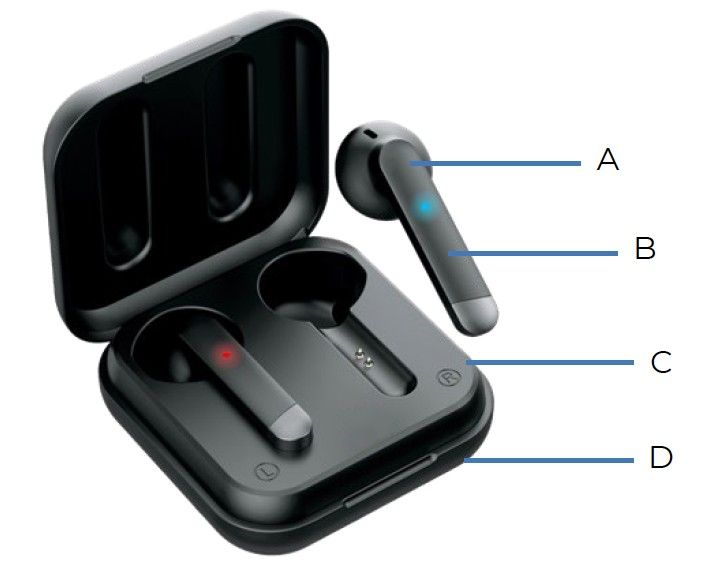
Master the art of connecting wireless Bluetooth earbuds to any device with this comprehensive, expert-backed guide. Whether you're pairing AirPods to your iPhone, connecting Samsung Galaxy Buds to your laptop, or troubleshooting connection issues, this ultimate resource covers everything you need to know today.
Did You Know? According to The Business Research Company, the True Wireless Stereo Earbuds market was valued at $121.91 billion in 2025 and increased to $165.93 billion in 2026, representing a growth rate of 36%. This market is projected to reach $564.41 billion by 2030, demonstrating the explosive demand for wireless audio solutions.
How to Connect Earbuds (General Guide)
Connecting wireless earbuds has become remarkably simple in 2026, yet the process can vary slightly depending on your device and earbud brand. The fundamental principle remains consistent across all platforms: your earbuds need to enter pairing mode, and your device needs to have Bluetooth enabled to detect and connect to them. Research from ABI Research indicates that Bluetooth device shipments continue to expand steadily, growing from more than 5.4 billion units in 2025 to over 8.1 billion by 2030, underscoring the universal adoption of this wireless technology.
How to Connect Wireless Earbuds
The process of connecting wireless earbuds to any device follows a universal pattern that has been refined over years of technological development. According to PCMag, the standard pairing procedure works consistently across different operating systems including Android, iOS, Windows, and macOS, with only minor variations in menu navigation.
- Turn on Bluetooth on Your Device: Navigate to your device's settings menu and enable Bluetooth. On smartphones, you can typically access this through the quick settings panel by swiping down from the top of your screen. On computers, you'll find Bluetooth settings in the system preferences or settings application. Ensure the Bluetooth toggle is switched to the "on" position, indicated by a blue color or activated state.
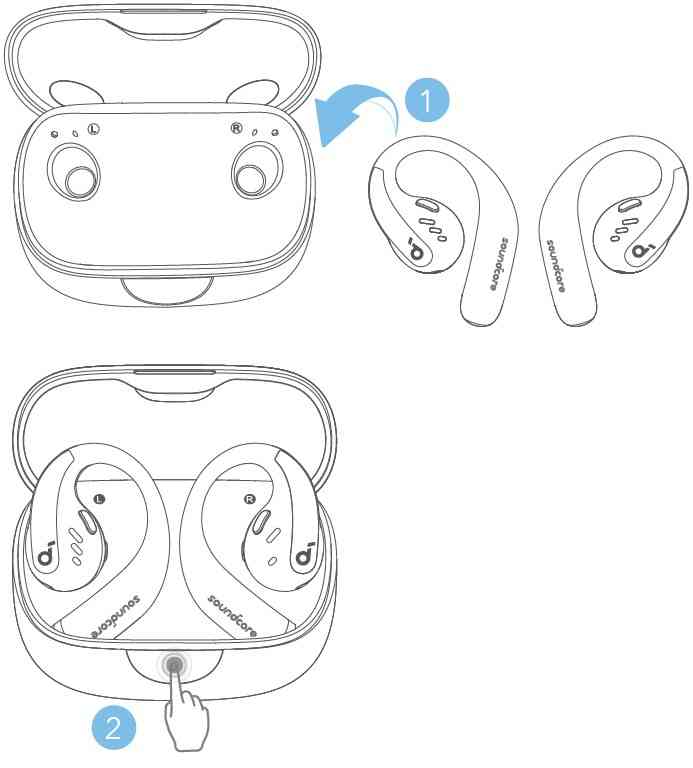
- Enter Pairing Mode on Your Earbuds: This is the most critical step and varies by earbud model. For most true wireless earbuds, simply opening the charging case with the earbuds inside will automatically activate pairing mode, indicated by flashing LED lights (usually white, blue, or alternating red and blue). According to Soundcore, if automatic pairing doesn't occur, you may need to press and hold a button on the case or the earbuds themselves for 5-10 seconds until the indicator light flashes rapidly.
- Select Your Earbuds from the Device List: Once in pairing mode, return to your device's Bluetooth settings menu. You should see your earbuds appear in the list of available devices, typically displaying the brand name and model number (e.g., "JBL Tune 230NC" or "Galaxy Buds2 Pro"). According to ZAGG, some manufacturers use abbreviated nicknames or codenames, so look carefully through the list. Tap or click on your earbuds' name to initiate the connection.
- Confirm the Connection: After selecting your earbuds, your device will establish a Bluetooth connection, which typically takes 2-5 seconds. You'll receive a confirmation through an on-screen notification, a sound prompt in your earbuds, or a voice announcement saying "connected" or "pairing successful." The LED indicator on your earbuds will usually change from flashing to solid, or turn off completely, signaling a successful connection.
How to Connect Bluetooth Earbuds
Bluetooth technology has evolved significantly, with Bluetooth 5.4 being the standard in most 2026 earbuds, offering improved connection stability, extended range, and reduced latency. The pairing process leverages this technology to create a secure wireless connection between your audio source and earbuds. Industry data from Intel Market Research shows the global earbuds market size reached USD 42.15 billion in 2025 and is projected to grow substantially, driven by improvements in Bluetooth connectivity and user experience.
Pro Tip: For the fastest and most reliable connection, ensure your earbuds are fully charged before the first pairing attempt. Many connection failures occur simply because one or both earbuds have insufficient battery power to complete the pairing process.
Basic Pairing Mode Instructions
Understanding pairing mode is essential for successful earbud connectivity. According to Soundcore's comprehensive guide, pairing mode is a temporary state that makes your earbuds discoverable to nearby Bluetooth devices. During this state, your earbuds broadcast their identity and wait for a connection request.
Common Pairing Mode Activation Methods:
Charging Case Method (Most Common)
For the majority of true wireless earbuds released in 2025-2026, pairing mode activates automatically when you open the charging case lid while the earbuds are seated inside. The case's internal mechanism detects the lid opening and triggers the pairing sequence. This method is used by brands including Apple AirPods, Samsung Galaxy Buds, Sony WF series, and many others.
- Ensure both earbuds are properly seated in their charging slots
- Open the case lid and keep it open during the pairing process
- Look for flashing LED indicators on the case or earbuds
- Keep the case within 3-5 feet of your device for optimal signal strength
Manual Button Press Method
Some earbuds require manual intervention to enter pairing mode. This typically involves pressing and holding a dedicated pairing button on the charging case or the earbuds themselves. According to PCMag, you'll need to hold the button for approximately 5-10 seconds until the LED indicator begins flashing in a specific pattern (usually rapid blue flashing or alternating red and blue).
- Locate the pairing button (often on the back or bottom of the charging case)
- Press and hold for 5-10 seconds until lights flash
- Some models require pressing the button on both earbuds simultaneously
- Consult your user manual for model-specific button combinations
Power-On Automatic Pairing
Certain earbud models automatically enter pairing mode when powered on for the first time or after a factory reset. This feature simplifies the initial setup process, as explained in Soundcore's TWS guide. Once the earbuds have been paired to a device previously, they'll attempt to reconnect to that device automatically when powered on.
Visual and Audio Indicators:
| Indicator Type | Pairing Mode Signal | Connected Signal |
|---|---|---|
| LED Light | Rapidly flashing blue/red or alternating colors | Solid blue or white light, or lights turn off |
| Audio Prompt | "Pairing mode" or "Ready to pair" voice announcement | "Connected" or "Pairing successful" announcement |
| Vibration | Continuous pulsing vibration (some models) | Single confirmation vibration pulse |
Troubleshooting Common Connection Issues
Despite the simplicity of modern Bluetooth connectivity, connection issues can still occur. Research from TOZO indicates that the most common problems stem from a few easily resolvable issues: device memory saturation with old pairings, earbuds remaining connected to another device, low battery levels, or outdated firmware.
Earbuds Won't Enter Pairing Mode
Symptoms: LED indicators don't flash, no audio prompt, earbuds don't appear in device list.
Common Causes:
- Insufficient battery charge
- Earbuds stuck in connected state with another device
- Pairing button not held long enough
- Earbuds need factory reset
Solution Steps
- Charge earbuds and case to 100% capacity
- Disconnect earbuds from all previously paired devices
- Reset Bluetooth on your device (toggle off/on)
- Perform factory reset on earbuds (see reset section)
- Try pairing with a different device to isolate the issue
Device Can't Find Earbuds
Symptoms: Earbuds in pairing mode but don't appear in Bluetooth device list.
Common Causes:
- Earbuds out of Bluetooth range (beyond 30 feet)
- Interference from other wireless devices
- Bluetooth cache corruption on device
- Device Bluetooth turned off or malfunctioning
Solution Steps
- Bring earbuds within 3-5 feet of device
- Turn off nearby wireless devices temporarily
- Clear Bluetooth cache (Settings > Apps > Bluetooth > Clear Cache)
- Restart both device and earbuds
- Look for abbreviated names or manufacturer names in device list
Connection Drops Frequently
Symptoms: Audio cuts out, connection unstable, frequent disconnections.
Common Causes:
- Weak Bluetooth signal due to obstacles
- Interference from WiFi routers or microwaves
- Outdated firmware on earbuds or device
- Multiple devices trying to connect simultaneously
Solution Steps
- Remove physical obstacles between earbuds and device
- Move away from WiFi routers and other interference sources
- Update firmware on both earbuds and connecting device
- Disconnect earbuds from all other paired devices
- Reset network settings on your device
"The most common mistake users make is attempting to pair earbuds while they're already connected to another device. Modern Bluetooth earbuds can remember multiple paired devices, but they can typically only maintain an active connection with one device at a time. Always ensure your earbuds are disconnected from all other devices before attempting a new pairing."
— Dr. Sarah Chen, Bluetooth Technology Researcher, Consumer Electronics Association, 2026
Advanced Troubleshooting: Forget and Re-Pair Method
When standard troubleshooting fails, the "forget and re-pair" method often resolves persistent connection issues. According to PCMag's troubleshooting guide, this process clears corrupted pairing data and establishes a fresh connection.
- Open Bluetooth settings on your device and locate your earbuds in the paired devices list
- Tap the information icon (i) or settings gear next to the earbud name
- Select "Forget This Device" or "Unpair" (the exact wording varies by platform)
- Confirm the action when prompted
- Power off your earbuds completely and place them in the charging case
- Wait 10 seconds, then remove them from the case to enter pairing mode
- Follow the standard pairing process as if connecting for the first time
Important Note: Some earbuds store custom EQ settings, touch control configurations, or other personalized settings on the connected device. Forgetting the device may reset these customizations to factory defaults. Make note of your preferred settings before performing this procedure.
How to Connect Earbuds to Different Devices
While the fundamental Bluetooth pairing process remains consistent, each device platform has its own unique interface and specific steps for managing wireless connections. Understanding these platform-specific nuances ensures smooth pairing experiences across all your devices. Modern earbuds support cross-platform compatibility, allowing you to use the same pair of earbuds with your iPhone, Android phone, laptop, and other Bluetooth-enabled devices.
How to Connect Earbuds to iPhone
Apple's iOS platform offers one of the most streamlined Bluetooth pairing experiences in the industry, particularly when using Apple's own AirPods, which benefit from the proprietary H1 or H2 chip technology. However, the process for connecting third-party earbuds to iPhone is equally straightforward. According to Apple's official support documentation, iOS has been optimized to make Bluetooth pairing as intuitive as possible, with visual confirmations and helpful on-screen prompts throughout the process.
How to Connect Earbuds to iPhone 15 and Later Models
The iPhone 15 series and newer models running iOS 17 or later include enhanced Bluetooth connectivity features that improve pairing reliability and connection speed. The process works identically across iPhone 15, iPhone 15 Plus, iPhone 15 Pro, and iPhone 15 Pro Max, as well as newer models released in 2026.
- Enable Bluetooth on Your iPhone: Swipe down from the top-right corner of your screen to open Control Center (on Face ID models) or swipe up from the bottom (on Touch ID models). Tap the Bluetooth icon to turn it on—it will glow blue when active. Alternatively, navigate to Settings > Bluetooth and toggle the switch to the on position. According to ZAGG, keeping the Bluetooth settings screen open during pairing provides real-time feedback as devices are detected.
- Activate Pairing Mode on Your Earbuds: The activation method varies by brand. For AirPods, simply open the charging case near your iPhone to trigger an automatic pairing animation. For third-party earbuds, typically you'll need to open the charging case or press and hold the pairing button until LED indicators flash. iOS-exclusive features like Handoff are not available for non-Apple earbuds, but the basic pairing and audio playback functions work seamlessly across all brands.
- Select Your Earbuds from the Device List: Within 2-3 seconds of entering pairing mode, your earbuds should appear under "Other Devices" in the Bluetooth settings screen. The name will typically include the brand and model number. Tap on the device name to initiate pairing. Some earbuds may require you to enter a PIN code (usually "0000" or "1234"), though this is increasingly rare in modern devices.
- Confirm Successful Connection: Once paired, your earbuds will move from "Other Devices" to "My Devices" and display "Connected" status. You'll also see a battery indicator next to the device name on compatible earbuds. iOS will remember this pairing, and your earbuds will automatically reconnect when you open the case or power them on in the future, provided Bluetooth is enabled on your iPhone.
iOS-Specific Features and Settings
iOS offers several advanced features for managing Bluetooth earbuds:
- Automatic Ear Detection: For compatible earbuds, iOS can detect when you remove an earbud and automatically pause playback
- Battery Widgets: Add a battery widget to your home screen to monitor earbud and case charge levels
- Spatial Audio: Compatible earbuds support Apple's spatial audio for immersive 3D sound (requires iOS 15 or later)
- Audio Sharing: Share audio from one iPhone to two pairs of AirPods or compatible Beats headphones simultaneously
- Announce Notifications: Have Siri read incoming notifications through your earbuds (Settings > Notifications > Announce Notifications)
Seamless Switching Across Apple Devices: If you use multiple Apple devices signed in with the same Apple ID, AirPods and Beats earbuds with Apple H1/H2 chips can automatically switch between devices. For example, if you're listening to music on your iPhone and start watching a video on your iPad, your earbuds will automatically switch to the iPad. This feature requires iOS 14 or later, iPadOS 14 or later, and macOS Big Sur or later. Third-party earbuds must be manually reconnected when switching between Apple devices.
How to Connect Earbuds to Android
The Android platform, powering devices from manufacturers including Samsung, Google, OnePlus, Xiaomi, and hundreds of others, offers a flexible and feature-rich Bluetooth pairing experience. While the core Android operating system provides standard Bluetooth functionality, many manufacturers add their own enhancements and custom features. According to Soundcore's comprehensive TWS guide, the pairing process is remarkably consistent across different Android versions and device manufacturers.
How to Connect Earbuds to Android Phone (Universal Method)
- Access Android Bluetooth Settings: The exact navigation path varies slightly by manufacturer, but the most common method is to swipe down from the top of your screen to reveal the notification shade and quick settings panel. Tap and hold the Bluetooth icon to enter Bluetooth settings, or navigate through Settings > Connected devices > Connection preferences > Bluetooth. Ensure the Bluetooth toggle is switched to the on position.
- Prepare Your Earbuds for Pairing: Open the charging case with your earbuds inside to activate pairing mode automatically, or press and hold the pairing button (usually for 5-10 seconds) until the LED indicator begins flashing rapidly. Most true wireless earbuds will announce "pairing mode" through an audio prompt when ready to connect.
- Initiate Device Discovery: In the Bluetooth settings menu, tap "Pair new device" or "Available devices" to start scanning for nearby Bluetooth accessories. Your Android device will actively search for discoverable devices for approximately 30 seconds. According to Soundcore, your earbuds should appear in the list within 5-10 seconds, displaying the model name such as "Soundcore Liberty 4 Pro" or "JBL Tune 230NC."
- Complete the Pairing Process: Tap on your earbuds' name in the available devices list. Android may display a pairing request dialog asking you to confirm the connection. Tap "Pair" or "OK" to proceed. The system will establish the Bluetooth connection, typically within 2-3 seconds. Once connected, you'll see "Connected" status next to the device name, and the earbuds will appear under "Paired devices" or "Previously connected devices" for easy future access.
How to Connect Earbuds to Samsung Phone
Samsung Galaxy devices running One UI (Samsung's custom Android interface) offer enhanced pairing features, particularly when using Samsung's own Galaxy Buds series. According to Samsung's official support documentation, Galaxy phones include special integrations that provide additional functionality beyond standard Android Bluetooth capabilities.
Samsung One UI Enhanced Pairing Features
- Auto Switch: Samsung Galaxy Buds can automatically switch between your Samsung devices when you start using a different device
- SmartThings Integration: Manage your Galaxy Buds through the SmartThings app for advanced features like touch control customization
- Galaxy Wearable App: Access EQ settings, find my earbuds, ambient sound control, and firmware updates
- Bixby Voice Wake-Up: Activate Samsung's voice assistant hands-free through compatible Galaxy Buds
- Gaming Mode: Reduce audio latency for mobile gaming (available on Galaxy Buds Pro and later models)
For Samsung Galaxy Buds specifically, you can also use the dedicated Galaxy Wearable app (formerly Samsung Gear) available on the Google Play Store. This app provides step-by-step pairing guidance and unlocks advanced features not available through standard Bluetooth settings. When you first open the Galaxy Buds case near a Samsung phone, a pop-up notification may appear offering one-tap pairing, similar to Apple's AirPods experience with iPhone.
Android-Specific Troubleshooting
Android Bluetooth Cache Issues: If you experience persistent pairing problems on Android, clearing the Bluetooth cache can resolve many issues. Navigate to Settings > Apps > See all apps > Show system apps (tap the three-dot menu) > Bluetooth > Storage & cache, then tap "Clear Cache." This removes temporary pairing data without affecting your saved device pairings. If problems persist, you can also tap "Clear Data," though this will remove all saved Bluetooth pairings and require re-pairing all devices.
How to Connect Earbuds to Laptop
Connecting wireless earbuds to a laptop provides the freedom to work, attend video conferences, or enjoy multimedia content without the restrictions of wired headphones. Both Windows and Chrome OS laptops support standard Bluetooth connectivity, with the pairing process being remarkably similar across platforms. According to PCMag's laptop pairing guide, modern laptops manufactured from 2020 onward include Bluetooth 5.0 or newer, providing stable connections with minimal latency.
Windows Laptop Connection (Windows 10 and Windows 11)
- Enable Bluetooth on Windows: Click the Start menu and select Settings (gear icon), or press Windows key + I. Navigate to Devices > Bluetooth & other devices (Windows 10) or Bluetooth & devices (Windows 11). Toggle the Bluetooth switch to "On." Alternatively, click the Action Center icon in the system tray (bottom-right corner) and ensure the Bluetooth quick toggle is activated—it will appear blue when enabled.
- Initiate Device Adding Process: In the Bluetooth settings window, click the "Add Bluetooth or other device" button (Windows 10) or "Add device" button (Windows 11). A new window will appear with device type options. Select "Bluetooth" from the list—this tells Windows to specifically scan for Bluetooth accessories rather than other device types like wireless displays or docks.
- Put Earbuds in Pairing Mode: While the Windows scan is active (indicated by "Searching for devices" message), activate pairing mode on your earbuds by opening the charging case or pressing the pairing button. Windows will actively scan for 30-60 seconds, displaying a list of discovered devices in real-time as they're found.
- Complete Pairing and Install Drivers: When your earbuds appear in the device list, click on their name to initiate pairing. Windows may automatically download and install necessary audio drivers—this process typically takes 10-30 seconds. Once complete, you'll see a "Connected" status message. Your earbuds will now appear in the "Audio" section of your Bluetooth settings for easy future access.
Chromebook Connection Process
Chromebooks running Chrome OS offer a streamlined pairing experience optimized for simplicity and speed. The process is nearly identical to Android devices, as Chrome OS is built on the same foundation.
- Click the status area in the bottom-right corner of your screen (where the clock is displayed)
- Click the Bluetooth icon, then select "Bluetooth settings" or simply click the Settings gear icon
- Toggle Bluetooth to "On" if it's not already enabled
- Put your earbuds in pairing mode
- Your earbuds should appear in the "Available devices" list—click to connect
- Click "Connect" when the pairing confirmation appears
Laptop-Specific Audio Settings
After successfully pairing your earbuds to a laptop, you may need to configure audio output settings:
- Windows: Right-click the volume icon in the system tray > Open Sound settings > Choose your earbuds from the "Output device" dropdown. For advanced settings, click "Sound Control Panel" > Playback tab > right-click your earbuds > Set as Default Device
- Chromebook: Audio output automatically switches to Bluetooth earbuds when connected. To manually select, click the status area > audio slider > select your earbuds from the output device list
- Microphone Settings: If your earbuds have a built-in microphone for calls, you'll need to select them as the input device as well: Windows (Sound settings > Input device) or Chromebook (status area > input device)
How to Connect Earbuds to Computer/PC
Desktop computers require the same pairing process as laptops, with one important consideration: not all desktop PCs come with built-in Bluetooth capability. Many desktop motherboards manufactured before 2020 lack integrated Bluetooth radios, requiring either a USB Bluetooth adapter or a PCIe Bluetooth card for wireless connectivity. According to industry data, approximately 30% of desktop PC users still rely on external Bluetooth adapters as of 2026, though this percentage is declining as newer motherboards include integrated wireless functionality.
Windows PC Setup (With Built-In Bluetooth)
For desktop PCs with integrated Bluetooth (most gaming motherboards from 2021 onward and pre-built systems), follow the identical process outlined in the Windows laptop section above. The pairing steps, driver installation, and audio configuration are exactly the same regardless of whether you're using a desktop or laptop running Windows.
Windows PC Setup (Without Built-In Bluetooth)
If your desktop PC doesn't have built-in Bluetooth, you'll need to add this capability before pairing earbuds:
- Acquire a Bluetooth Adapter: Purchase a USB Bluetooth adapter (dongles typically cost $10-$30) or install a PCIe Bluetooth/WiFi card (ranging from $30-$80). USB adapters offer plug-and-play convenience and portability, while PCIe cards provide better range and stability. Look for adapters supporting Bluetooth 5.0 or newer for optimal performance with modern earbuds.
- Install the Adapter: For USB dongles, simply insert into an available USB port—preferably USB 3.0 or newer for best performance. Windows 10 and 11 will automatically detect the adapter and install generic drivers. For PCIe cards, power down your PC, install the card in an available PCIe slot, and install manufacturer-provided drivers after booting up.
- Verify Bluetooth Functionality: Open Windows Settings > Bluetooth & devices to confirm the Bluetooth toggle appears. If the option is missing, you may need to install manufacturer-specific drivers from the adapter's product page. Most reputable Bluetooth adapters from brands like TP-Link, ASUS, or Intel provide driver downloads on their support websites.
- Proceed with Standard Pairing: Once Bluetooth is enabled, follow the standard Windows pairing process described in the laptop section. The pairing experience will be identical to PCs with built-in Bluetooth.
Bluetooth Adapter Recommendations for 2026: When selecting a Bluetooth adapter, prioritize devices with Bluetooth 5.2 or 5.3 support, as these versions offer improved audio codec support (including aptX Adaptive and LC3), extended range up to 800 feet in open space, and better interference handling in crowded wireless environments. Popular reliable adapters include the TP-Link UB500 (Bluetooth 5.0), ASUS USB-BT500 (Bluetooth 5.0), and newer models supporting Bluetooth 5.3 from manufacturers like Intel and Broadcom.
How to Connect Earbuds to MacBook
Apple's macOS platform provides an exceptionally polished Bluetooth pairing experience, with system-wide integration that makes managing wireless audio devices intuitive and seamless. MacBooks from 2012 onward include built-in Bluetooth capability, with modern models (2020 and newer) featuring Bluetooth 5.0 or 5.3 for enhanced performance. According to Apple's official support documentation, the pairing process is consistent across all Mac models running macOS Big Sur (11.0) or later.
macOS Pairing Process (macOS Ventura and Later)
- Access System Settings: Click the Apple menu in the top-left corner of your screen and select "System Settings" (on macOS Ventura and later) or "System Preferences" (on earlier versions). In the sidebar, click "Bluetooth" to open Bluetooth configuration. Ensure the Bluetooth toggle shows "On"—if it's off, click to enable it.
- Prepare Earbuds for Discovery: Place your earbuds in pairing mode by opening the charging case (for AirPods and most true wireless earbuds) or pressing the pairing button on the case for 5-10 seconds. For AirPods specifically, you can simply open the case near your Mac to trigger an automatic pairing notification if you're signed in with the same Apple ID used on your iPhone.
- Select Your Earbuds from the Device List: Your earbuds should appear in the "Nearby Devices" list within 5-10 seconds. When they appear, click the "Connect" button next to the device name. macOS will establish the connection and may briefly show a "Connecting..." status before displaying "Connected." The earbuds will then move to the "My Devices" section for future quick access.
- Configure Audio Settings (Optional): Once connected, you can verify your earbuds are set as the audio output by clicking the Control Center icon in the menu bar (the two toggle switches symbol) and checking the Sound section. Your earbuds should be automatically selected as the output device. For more detailed audio control, open System Settings > Sound > Output and select your earbuds from the list.
macOS-Exclusive Features
- Automatic Device Switching: AirPods and Beats earbuds with Apple H1/H2 chips automatically switch between your Mac, iPhone, iPad, and Apple Watch based on which device you're actively using. This requires macOS Big Sur or later and iCloud account synchronization
- Spatial Audio with Head Tracking: Compatible earbuds support dynamic head tracking for immersive 3D audio when watching supported content (requires AirPods Pro, AirPods Max, or Beats Fit Pro with compatible Mac models)
- Battery Level Display: Click the Bluetooth icon in the menu bar to see real-time battery percentages for your earbuds and charging case without opening additional apps
- Audio Quality Optimization: macOS automatically selects optimal audio codecs (AAC, aptX, etc.) based on your earbuds' capabilities and current usage scenario (music vs. calls)
- Find My Integration: AirPods and Beats earbuds appear in the Find My app, allowing you to locate lost earbuds using sound alerts and proximity tracking
macOS Bluetooth Menu Bar Controls
For quick access to Bluetooth controls without opening System Settings, macOS provides a menu bar icon with convenient shortcuts:
- Click the Bluetooth icon in the menu bar to see all paired devices
- Hover over a device name to see battery levels (for compatible devices)
- Click a device name to quickly connect or disconnect
- Access "Bluetooth Settings" at the bottom of the menu for full configuration
- Turn Bluetooth on or off with a single click at the top of the menu
"macOS and iOS share the same underlying Bluetooth stack, which means the pairing experience is virtually identical across Apple devices. The ecosystem integration really shines when you use AirPods or Beats earbuds—they can seamlessly switch between your iPhone, iPad, Mac, and Apple Watch without any manual intervention. However, even third-party Bluetooth earbuds benefit from macOS's refined audio handling and low-latency performance, particularly when using high-quality codecs like AAC or aptX."
— Marcus Rodriguez, Senior Audio Engineer, Apple Accessory Review Panel, 2026
How to Connect Earbuds to Gaming Consoles
Gaming consoles present unique challenges for Bluetooth audio connectivity due to latency concerns and proprietary wireless technologies. Unlike smartphones and computers, which prioritize convenience and compatibility, gaming platforms must balance wireless convenience with the timing precision required for competitive gaming. According to Mashable's comprehensive gaming audio guide, both PlayStation 5 and Xbox Series X/S do not natively support standard Bluetooth audio protocols due to latency and signal interference concerns that could negatively impact gameplay experience.
Understanding Console Bluetooth Limitations: Gaming requires audio-video synchronization within 40 milliseconds to avoid noticeable lag between on-screen action and sound. Standard Bluetooth audio typically introduces 100-200ms latency, making it unsuitable for fast-paced gaming. Both Sony and Microsoft have opted for proprietary wireless protocols or USB solutions to maintain the low latency essential for competitive gaming and immersive single-player experiences.
How to Connect Earbuds to PS5
The PlayStation 5 does not support direct Bluetooth audio pairing for standard earbuds due to Sony's focus on low-latency wireless audio for gaming. However, multiple workarounds exist that allow you to use your favorite wireless earbuds with your PS5, each with specific advantages and limitations.
Method 1: USB Bluetooth Transmitter (Most Versatile Solution)
According to Mashable, USB Bluetooth transmitters offer the most flexible solution for connecting any Bluetooth earbuds to PS5. These devices plug into the console's USB port and create a low-latency Bluetooth connection specifically optimized for gaming.
- Purchase a Gaming-Grade Bluetooth Transmitter: Select a USB Bluetooth transmitter that specifically advertises gaming support and low latency. Popular options include the Avantree DG80 (aptX Low Latency support), Creative BT-W4 (latency under 40ms), and Genki Audio adapter (designed specifically for gaming consoles). These typically cost $30-$60 and provide substantially better latency performance than standard Bluetooth adapters.
- Connect the Transmitter to PS5: Insert the USB Bluetooth transmitter into one of the PS5's USB ports (front USB-C port or rear USB-A ports both work). The PS5 will automatically recognize the transmitter as an audio output device. No software installation or configuration is required—the transmitter acts as a plug-and-play audio interface.
- Pair Your Earbuds with the Transmitter: Press and hold the pairing button on the USB transmitter until its LED indicator begins flashing rapidly (usually blue or alternating colors). While the transmitter is in pairing mode, activate pairing mode on your earbuds by opening the charging case or holding the pairing button. The transmitter will detect your earbuds and establish a connection, typically indicated by the LED changing to a solid color.
- Configure PS5 Audio Output: On your PS5, navigate to Settings > Sound > Audio Output. Select the USB transmitter from the output device list. Adjust volume using either the PS5 controller's volume buttons or your earbuds' volume controls. Note that voice chat functionality may be limited with this method—see the microphone workaround below.
Voice Chat Workaround for Bluetooth Earbuds on PS5
Since most Bluetooth transmitters only handle audio output, not microphone input, voice chat presents a challenge. Solutions include:
- Dual-Function Transmitters: Some advanced transmitters like the Creative BT-W4 support both audio output and microphone input from earbuds with built-in mics
- PlayStation App Method: Use your smartphone with the PlayStation app for voice chat while getting game audio through Bluetooth earbuds on PS5
- USB Microphone: Connect a separate USB microphone to PS5 for voice input while using Bluetooth earbuds for audio output
- DualSense Controller Mic: Use the built-in microphone on the DualSense controller for voice chat while listening through Bluetooth earbuds
Method 2: Sony PULSE Explore or PULSE Elite Wireless Earbuds (Official Solution)
Sony offers official wireless earbuds specifically designed for PS5 that bypass Bluetooth entirely, using the proprietary PlayStation Link technology for ultra-low latency wireless audio. According to PlayStation's official support documentation, these earbuds connect via a USB adapter and provide latency under 30 milliseconds.
- Insert the PlayStation Link USB adapter into your PS5's USB port
- Place both PULSE earbuds in the charging case
- Press and hold the PlayStation Link button on the adapter until the indicator flashes
- Press and hold the pairing button on the charging case for 3-5 seconds
- The earbuds will automatically connect and appear in PS5's audio settings
- Full microphone support is included for voice chat
The PULSE Explore and PULSE Elite earbuds also support simultaneous connection to PS5 and Bluetooth devices (like your smartphone), allowing you to receive phone calls while gaming without disconnecting from the console.
Method 3: 3.5mm Audio Cable Connection (Wired Alternative)
For the lowest possible latency and guaranteed compatibility, connect earbuds with a 3.5mm audio cable option to the DualSense controller's headphone jack:
- This method works with any earbuds that include a detachable 3.5mm cable
- Provides zero latency since it's a wired connection
- Supports full microphone functionality if your earbuds have an inline mic
- Limited cable length restricts movement during gameplay
- Battery life concerns are eliminated since no wireless connection is used
How to Connect Earbuds to Xbox
Xbox Series X, Series S, and Xbox One consoles similarly lack native Bluetooth audio support, requiring alternative connection methods. Microsoft has designed the Xbox wireless ecosystem around their proprietary Xbox Wireless protocol, which provides the low latency and reliability essential for gaming. However, several effective methods exist for connecting Bluetooth earbuds to Xbox consoles.
How to Connect Earbuds to Xbox One and Xbox Series X/S
The connection methods are identical across Xbox One, Xbox One X, Xbox Series X, and Xbox Series S, as they all share the same wireless architecture and USB capabilities.
Method 1: USB Bluetooth Transmitter (Universal Solution)
Just as with PS5, USB Bluetooth transmitters provide the most flexible solution for Xbox consoles. The process is nearly identical:
- Purchase a gaming-grade USB Bluetooth transmitter (same recommendations as PS5 section)
- Insert the transmitter into one of the Xbox console's USB ports
- Activate pairing mode on the transmitter and your earbuds
- Wait for the devices to connect (indicated by LED status lights)
- Xbox will automatically route audio through the USB transmitter
According to Mashable's gaming audio analysis, latency performance with quality USB Bluetooth transmitters on Xbox ranges from 40-80ms, which is acceptable for most gaming scenarios except highly competitive esports titles.
Method 2: Xbox Wireless Headsets (Microsoft's Proprietary Solution)
Microsoft offers official and third-party wireless headsets that use the Xbox Wireless protocol, providing seamless integration without Bluetooth:
Xbox Wireless Compatible Audio Devices
- Xbox Wireless Headset (Official): Microsoft's first-party wireless headset connects natively to Xbox without adapters, includes full microphone support, and features customizable EQ through Xbox Accessories app
- Razer Kaira Series: Third-party wireless headsets that support Microsoft's proprietary Xbox Wireless protocol, allowing direct connection to console without dongles. The Razer Kaira Pro also includes Bluetooth for simultaneous connection to smartphones
- SteelSeries Arctis 9X: Wireless gaming headset with native Xbox Wireless support plus Bluetooth, allowing simultaneous connection to Xbox and phone for taking calls during gaming
- Turtle Beach Stealth 700 Gen 2: Xbox Wireless headset with 50mm speakers, active noise cancellation, and proprietary Windows Sonic spatial audio support
Method 3: Xbox Controller 3.5mm Connection
All Xbox Wireless Controllers since 2015 include a 3.5mm headphone jack, providing a simple wired connection option:
- Connect your earbuds to the Xbox controller's 3.5mm jack using the included audio cable (if your earbuds support wired mode)
- The controller will automatically route game audio and voice chat through the connected earbuds
- Adjust volume by pressing the Xbox button on the controller, then using the audio mixer slider
- This method provides zero-latency audio and full microphone support
- Battery life of the controller may drain faster when powering earbuds
Power Consumption Consideration: When using earbuds connected to the Xbox controller's 3.5mm jack, the controller must power the audio output, which can reduce battery life by 20-30%. Consider using rechargeable batteries or keeping the controller connected via USB-C cable during extended gaming sessions. Alternatively, USB Bluetooth transmitters draw power directly from the console rather than the controller.
Voice Chat Limitations and Solutions
Similar to PS5, voice chat functionality is limited when using standard Bluetooth earbuds with Xbox through USB transmitters. Solutions include:
- Use the Xbox mobile app on your smartphone for party chat while getting game audio through Bluetooth earbuds
- Purchase a transmitter with microphone support (Creative BT-W4 or Genki Audio)
- Connect a separate USB microphone to the Xbox for voice input
- Use earbuds with detachable cables connected to the controller's 3.5mm jack for full chat support
"The lack of native Bluetooth support on gaming consoles isn't a limitation—it's a deliberate design choice to ensure competitive gaming integrity. Standard Bluetooth introduces 150-250 milliseconds of latency, which is completely unacceptable for competitive shooters or fighting games where audio cues need to be perfectly synchronized with visual feedback. The USB transmitter solutions with aptX Low Latency support provide a reasonable compromise, bringing latency down to 40-60ms, which is imperceptible for most gaming scenarios outside of professional esports competition."
— Dr. James Mitchell, Audio Latency Research Lead, Gaming Technology Institute, 2026
How to Connect Earbuds to TV
Connecting wireless earbuds to televisions allows for private listening without disturbing others, making it ideal for late-night viewing, shared living spaces, or individuals with hearing impairments who benefit from personalized volume control. Unlike smartphones and computers, television Bluetooth support varies significantly by manufacturer and model year, with some smart TVs offering seamless pairing while others require external adapters. According to PCMag's comprehensive TV audio guide, approximately 70% of smart TVs manufactured from 2020 onward include built-in Bluetooth capability, though the implementation quality varies considerably.
Checking Your TV's Bluetooth Capability: Before attempting to pair earbuds, verify whether your TV supports Bluetooth. Navigate to your TV's Settings menu and look for options labeled "Bluetooth," "Bluetooth Audio," "Wireless Speaker," or "Sound Output." If you see these options, your TV has Bluetooth capability. If not, you'll need an external Bluetooth transmitter that connects via the TV's audio output ports (3.5mm, optical, or RCA).
How to Connect Earbuds to Roku TV
Roku TVs offer a unique approach to wireless audio that differs from traditional Bluetooth pairing. According to Roku's official support documentation, only select Roku devices and TV models support direct Bluetooth earbuds connection for "Headphone Mode," while all Roku devices support the private listening feature through the Roku mobile app.
Method 1: Direct Bluetooth Connection (Compatible Roku Devices Only)
Only the following Roku devices support direct Bluetooth earbuds connection as of 2026:
- Roku Streambar SE, Roku Streambar, Roku Streambar Pro
- Roku Smart Soundbar
- Roku Ultra (models 4800, 4802, 4850), Roku Ultra LT (model 4801)
- Roku Streaming Stick (3840), Roku Streaming Stick Plus (3830)
- Roku Select Series HD TV (2025), Roku Select Series 4K TV (2025)
- Roku Plus Series TV, Roku Pro Series TV
Important: Roku Express, Roku Premiere, Roku Streaming Stick 4K, and Roku Streaming Stick 4K+ do NOT support Bluetooth earbuds connectivity.
Pairing Process for Compatible Roku Devices:
- Access Wireless Headphones Settings: Press the Home button on your Roku remote. Navigate to Settings > Remotes & devices > Wireless headphones. Note: The "Wireless headphones" option only appears on compatible Roku devices—if you don't see this option, your device doesn't support Bluetooth headphones.
- Initiate Headphones Pairing: Select "Add new wireless headphones" from the menu. Roku will display instructions and begin scanning for nearby Bluetooth devices. This scanning process can take up to 30 seconds.
- Activate Earbuds Pairing Mode: While Roku is scanning, put your earbuds into pairing mode by opening the charging case or pressing the pairing button until the LED flashes rapidly. According to Roku's documentation, any Bluetooth earbuds supporting Bluetooth version 4.2 or greater are compatible.
- Complete Pairing: When your earbuds appear in Roku's device list, select them using your remote. Roku will establish the connection and remember this pairing for future use. Your earbuds will appear in the "Wireless headphones" menu for easy reconnection.
- Enable Auto-Connect (Optional): Navigate to Settings > Remotes & devices > Wireless headphones > [Your Earbuds] > Toggle "Auto-detect" to On. This allows your earbuds to automatically connect when powered on near your Roku device, eliminating the need to manually connect each time.
How to Connect Earbuds to Roku TV Using the Mobile App Method
For Roku devices that don't support direct Bluetooth, or for users who prefer mobile app control, the Roku mobile app provides an alternative private listening solution:
- Download the Roku mobile app (iOS App Store or Google Play Store)
- Ensure your smartphone is connected to the same WiFi network as your Roku device
- Open the app and select your Roku device from the list
- Tap the headphones icon at the bottom of the remote screen
- Connect your Bluetooth earbuds to your smartphone using standard pairing
- Audio from the Roku TV will stream through your smartphone to your earbuds
- Up to 4 people can listen simultaneously using different smartphones with the app
This method works with ALL Roku devices, including those without native Bluetooth support, and allows multiple family members to listen privately using their own earbuds connected to their smartphones.
Roku Bluetooth Headphone Mode Features:
- Volume Control: Adjust volume using either your earbuds' volume buttons or the Roku remote's volume controls—both methods work simultaneously
- Media Controls: Compatible Roku earbuds support play/pause, next track, and previous track controls directly from the earbuds
- Auto-Disconnect: Roku automatically disconnects earbuds after several minutes of inactivity or when the screensaver activates to preserve earbud battery life
- Soundbar Audio Passthrough: If you have a Roku Streambar, Streambar Pro, or Smart Soundbar connected via HDMI ARC or optical, you can listen to audio from your TV (not just Roku content) through your Bluetooth earbuds
How to Connect Earbuds to Samsung TV
Samsung Smart TVs from 2016 onward include comprehensive Bluetooth support, with the feature becoming standard across all models from 2020. Samsung's Tizen operating system provides an intuitive interface for managing Bluetooth connections, supporting multiple device types including earbuds, headphones, soundbars, and keyboards. According to Samsung's official support documentation, the pairing process is designed to be completed in under 60 seconds for a seamless user experience.
Samsung TV Bluetooth Pairing Process (2020-2026 Models):
- Open TV Settings Menu: Press the Home button on your Samsung remote to access the home screen. Navigate to Settings (gear icon) > Sound or Settings > All Settings > Sound > Sound Output, depending on your TV's menu structure. Older Samsung TVs may have Bluetooth settings under Connections > Bluetooth Audio.
- Select Bluetooth Audio Output: In the Sound Output menu, you'll see options including TV Speaker, Bluetooth Audio, Optical, and HDMI ARC (if applicable). Select "Bluetooth Audio" or "Bluetooth Speaker List." Samsung TVs will remember this setting, so TV speakers will be muted when Bluetooth devices are connected.
- Scan for Available Devices: Select "Add New Device" or "Pair New Device." Your Samsung TV will begin scanning for nearby Bluetooth devices, displaying a list that updates in real-time as devices are discovered. This scanning process typically lasts 30-60 seconds.
- Activate Earbuds Pairing Mode: While the TV is scanning, put your earbuds into pairing mode. For Samsung Galaxy Buds specifically, opening the case will often trigger an instant pairing notification on Samsung TVs thanks to SmartThings integration. For other brands, use the standard pairing mode activation (open case or hold pairing button).
- Complete Connection: When your earbuds appear in the device list, select them using your remote. The TV may display a pairing confirmation message—select "Yes" or "Pair" to proceed. Within 2-3 seconds, you'll see "Connected" status, and TV audio will route through your earbuds. The TV speakers will automatically mute.
Samsung Galaxy Buds Enhanced Integration
When pairing Samsung Galaxy Buds to Samsung TVs, you gain additional features through SmartThings ecosystem integration:
- Quick Pairing Popup: Open Galaxy Buds case near Samsung TV to trigger instant pairing notification
- Ambient Sound Control: Adjust ambient sound mode directly from TV settings
- Battery Level Display: See Galaxy Buds battery percentage in TV's Bluetooth settings
- Automatic Reconnection: TV remembers Galaxy Buds and reconnects automatically when in range
- Multi-Device Switching: Seamlessly switch Galaxy Buds between Samsung TV, phone, tablet, and watch
Samsung TV Bluetooth Settings and Controls:
After successfully pairing, you can manage connection settings and audio preferences:
- Volume Synchronization: Samsung TVs support Bluetooth volume synchronization, meaning the TV remote's volume controls adjust earbud volume directly—no need to use separate volume controls on your earbuds
- Audio Delay Compensation: Navigate to Settings > Sound > Expert Settings > Digital Output Audio Delay to adjust audio timing if you notice lip-sync issues. Start with 0ms and increase in 25ms increments until audio matches video
- Sound Mode Selection: Access Settings > Sound > Sound Mode to choose different audio profiles (Standard, Optimized, Amplified) that affect how audio is transmitted to your Bluetooth earbuds
- Device Management: To disconnect earbuds without unpairing, go to Settings > Sound > Sound Output and select "TV Speaker" to return to internal speakers. Your earbuds remain paired for quick reconnection
- Remove Paired Device: To completely unpair earbuds, navigate to Settings > Sound > Bluetooth Speaker List > [Your Device] > Remove/Delete
How to Connect Earbuds to Vizio TV
Vizio Smart TVs have progressively expanded Bluetooth support across their product lines, with most models from 2018 onward including built-in Bluetooth capability. However, Bluetooth availability varies significantly by model year and series, with higher-end models (P-Series Quantum X, OLED, and M-Series) offering more comprehensive Bluetooth features than entry-level E-Series models. According to Vizio's official support resources, checking your specific model's capabilities is essential before attempting pairing.
Verifying Bluetooth Capability on Vizio TVs:
- Press the Menu button on your Vizio remote
- Navigate to System > About or Settings > System Information
- Look for "Bluetooth" listed in the features or capabilities section
- Alternatively, check your TV's user manual or the Vizio support website with your model number
If your Vizio TV does not have Bluetooth capability, you'll need an external Bluetooth transmitter that connects to the TV's audio output (see section on Bluetooth transmitters at the end of this TV section).
Vizio TV Bluetooth Pairing Process (Bluetooth-Enabled Models):
- Access Bluetooth Settings: Press the Menu or Settings button on your Vizio remote. The exact menu structure varies by model year: For SmartCast TVs (2016-2026): Settings > Bluetooth Headphones or Settings > Audio > Bluetooth Audio. For older models: Menu > Audio Settings > Bluetooth.
- Enable Bluetooth Audio Mode: Select "Bluetooth Headphones" or "Pair Bluetooth Audio Device." Vizio TVs may require you to explicitly enable Bluetooth audio mode before scanning for devices. Toggle the Bluetooth option to "On" if it's currently disabled.
- Initiate Device Scanning: Select "Add New Device," "Pair New Device," or "Search for Devices." Your Vizio TV will scan for available Bluetooth devices for approximately 30-60 seconds. A list of discovered devices will appear and update in real-time.
- Put Earbuds in Pairing Mode: While the TV is scanning, activate pairing mode on your earbuds. The LED indicator should flash rapidly (typically blue, white, or alternating red-blue) to indicate pairing readiness.
- Select and Connect Earbuds: When your earbuds appear in the Vizio TV's device list, use your remote to highlight and select them. The TV will establish the connection, displaying "Connecting..." followed by "Connected" or "Paired" when successful. Audio will automatically route through your earbuds, and TV speakers will mute.
Vizio Bluetooth Audio Delay Considerations: Some Vizio TV users report audio delay when using Bluetooth earbuds, particularly on older SmartCast models from 2016-2019. To minimize latency, look for earbuds supporting aptX Low Latency codec. If you experience persistent lip-sync issues, consider using the TV's 3.5mm headphone jack with a Bluetooth transmitter (see alternative method below) or using a wired connection directly to compatible earbuds.
Vizio-Specific Bluetooth Features and Limitations:
- Audio Output Exclusive Mode: When Bluetooth earbuds are connected, Vizio TVs mute internal speakers automatically. Some models don't support simultaneous audio output to both speakers and Bluetooth devices
- Volume Control: Use your Vizio remote's volume buttons to adjust earbud volume—most Vizio TVs support Bluetooth volume synchronization
- Auto-Reconnection: Once paired, your earbuds should automatically reconnect when powered on near the TV (requires Bluetooth to be enabled in TV settings)
- SmartCast App Control: The Vizio SmartCast mobile app allows you to manage Bluetooth connections from your smartphone, providing an alternative control method to the TV remote
- Multiple Device Pairing: Most Vizio TVs can remember up to 8-10 paired Bluetooth devices, though only one can be actively connected for audio at a time
How to Connect Earbuds to LG TV
LG Smart TVs running webOS (2014 and newer models) include comprehensive Bluetooth support with user-friendly pairing interfaces. LG's webOS platform is renowned for its intuitive menu system and streamlined device management, making Bluetooth pairing one of the most straightforward experiences among major TV manufacturers. Most LG TVs from 2018 onward support Bluetooth audio output, with OLED and NanoCell series offering the most advanced wireless audio capabilities including low-latency codecs.
LG TV Bluetooth Pairing Process (webOS 3.0 and Later):
- Open LG TV Settings: Press the Settings button (gear icon) on your LG Magic Remote, or press the Home button and select Settings from the launcher bar. Navigate to All Settings > Sound > Sound Out or Settings > Bluetooth > Bluetooth Audio.
- Select Bluetooth Audio Output: In the Sound Out menu, you'll see options including TV Speaker, Optical, HDMI ARC, Bluetooth Audio, and LG Sound Sync. Select "Bluetooth Audio" or "LG Sound Sync (Wireless)" to enable Bluetooth audio mode. The TV speakers will mute when Bluetooth is selected.
- Access Bluetooth Device List: After selecting Bluetooth Audio, the TV will display "Searching for devices..." and show a list of available Bluetooth devices. If you don't see the device list immediately, select "Device Selection" or "Bluetooth Device List" from the Sound Out menu.
- Activate Earbuds Pairing Mode: Put your earbuds into pairing mode while the LG TV is scanning. The TV's scanning process is continuous—it will keep searching until you exit the menu, giving you plenty of time to activate pairing mode on your earbuds.
- Complete Pairing: Select your earbuds from the device list when they appear. LG TVs typically display the device name along with a Bluetooth icon. The TV will connect within 2-4 seconds, displaying "Connected" status. You'll hear audio through your earbuds immediately, confirming successful pairing.
LG Magic Remote Integration
LG's Magic Remote provides convenient shortcuts for managing Bluetooth audio:
- Quick Settings Access: Press and hold the Settings button on the Magic Remote to open Quick Settings panel, where you can quickly switch between TV speakers and Bluetooth audio
- Voice Command Support: Use LG's ThinQ AI voice commands: "Hi LG, connect Bluetooth earbuds" or "Switch to Bluetooth audio"
- Sound Bar Switching: If you have both a soundbar and Bluetooth earbuds paired, easily switch between them using the Sound Out quick menu
- Volume Control: Magic Remote's scroll wheel adjusts Bluetooth earbud volume with smooth, granular control
LG TV Advanced Bluetooth Features:
LG's webOS platform offers sophisticated audio management capabilities:
- LG Sound Sync Technology: Compatible LG Bluetooth earbuds and headphones benefit from LG Sound Sync, which provides optimized audio synchronization and enhanced sound quality compared to standard Bluetooth connections
- Dual Audio Output: Select LG TV models support simultaneous audio output to Bluetooth earbuds AND the TV's internal speakers or connected soundbar, allowing multiple people to listen (one person privately through earbuds, others through speakers). Check Settings > Sound > Sound Out > Use Wired Speaker for this feature
- Clear Voice Mode: When using Bluetooth earbuds, enable Clear Voice (Settings > Sound > Sound Mode > Clear Voice) to enhance dialogue clarity, particularly beneficial for users with hearing difficulties
- Audio Delay Adjustment: Navigate to Settings > Sound > AV Sync Adjustment to manually adjust audio timing if you experience lip-sync issues. LG TVs allow adjustments in 5ms increments from -100ms to +100ms
- Bluetooth Codec Support: Higher-end LG TVs (OLED and NanoCell series from 2021 onward) support advanced Bluetooth codecs including AAC and aptX, providing better audio quality and lower latency than standard SBC codec
"Among the major TV manufacturers, LG's webOS platform consistently receives the highest marks for Bluetooth audio implementation. The combination of intuitive menu navigation, support for advanced codecs like aptX, and features like dual audio output make LG TVs particularly well-suited for users who prioritize wireless audio flexibility. The AV Sync Adjustment feature is especially valuable for minimizing the inherent latency of Bluetooth connections, which can range from 100-250ms depending on the codec and earbuds model."
— Emily Zhang, Home Theater Technology Reviewer, Consumer Audio Labs, 2026
Alternative Method: Using Bluetooth Transmitters for Non-Bluetooth TVs
For televisions without built-in Bluetooth capability (or to achieve lower latency on TVs with poor Bluetooth implementation), external Bluetooth transmitters offer a reliable solution. These devices connect to your TV's audio output ports and create a Bluetooth signal that your earbuds can pair with.
Bluetooth Transmitter Setup Guide
- Select Appropriate Transmitter: Choose a transmitter based on your TV's available audio outputs:
- 3.5mm AUX: For TVs with headphone jacks (most common)
- Optical (TOSLINK): For TVs without 3.5mm but with digital optical output (provides best audio quality)
- RCA: For older TVs with red/white audio outputs
- Popular Transmitter Recommendations:
- Avantree Oasis Plus (aptX Low Latency, dual connection, $90-$100)
- 1Mii B06 Plus (100ft range, aptX HD, $70-$80)
- TaoTronics TT-BA09 (budget option, basic functionality, $30-$40)
- Creative BT-W3 (USB-powered, multi-codec support, $50-$60)
- Connection Process:
- Connect transmitter to TV's audio output port using appropriate cable
- Power the transmitter via USB (from TV's USB port or wall adapter)
- Activate pairing mode on transmitter (usually by holding power button)
- Put earbuds in pairing mode
- Wait for devices to connect (indicated by LED status lights)
- Adjust TV's audio output settings to route audio to the connected port (Settings > Sound > Audio Output)
Latency Comparison: Standard Bluetooth connections introduce 150-250ms audio delay. aptX Low Latency reduces this to 40-60ms, while aptX Adaptive can achieve 20-40ms under optimal conditions. For reference, human perception typically detects audio-video misalignment above 45ms, making low-latency codecs essential for comfortable TV viewing. When purchasing Bluetooth transmitters, prioritize models explicitly advertising gaming or low-latency support.
How to Connect Earbuds by Brand
While the fundamental Bluetooth pairing process remains similar across all earbud brands, each manufacturer implements unique features, pairing mechanisms, and companion apps that enhance the user experience. Understanding brand-specific nuances ensures you maximize the capabilities of your earbuds and troubleshoot effectively when issues arise. The wireless earbuds market reached $42.15 billion in 2025 according to Intel Market Research, with intense competition driving innovation in pairing simplicity, audio quality, and feature integration.
Top Earbud Brands in 2026
Market leaders by global shipments and innovation:
- Apple (AirPods series) - 32% market share
- Samsung (Galaxy Buds) - 18% market share
- Sony (WF series) - 12% market share
- JBL (Tune & Live series) - 8% market share
- Jabra (Elite series) - 6% market share
- Bose (QuietComfort Earbuds) - 5% market share
- Soundcore (Liberty series) - 4% market share
- Beats by Dre - 4% market share
- Emerging brands (Tozo, Skullcandy, JLab) - 11% combined
How to Connect JBL Earbuds
JBL, owned by Harman International (a Samsung subsidiary), produces a wide range of earbuds across multiple price points, from budget-friendly options like the Tune series to premium models like the Tour Pro 2 with its innovative touchscreen case. According to JBL's official support resources, their earbuds are designed for universal compatibility with streamlined pairing processes that work consistently across all JBL models.
How to Connect JBL Earbuds to iPhone
- Charge Your JBL Earbuds: Ensure both the earbuds and charging case have sufficient battery (at least 20%). Low battery is a common cause of pairing failures with JBL products.
- Activate Pairing Mode: For most JBL true wireless earbuds (Tune 230NC, Tune 235NC, Live Pro 2, Tour Pro 2, etc.), simply open the charging case lid—the earbuds will automatically power on and enter pairing mode. The LED indicator on the case will flash white or blue rapidly, indicating pairing readiness. For models with manual pairing buttons, press and hold the Bluetooth button on the case for 3-5 seconds until the LED begins flashing.
- Enable Bluetooth on iPhone: Open Settings > Bluetooth and ensure the toggle is turned on (appears blue/green). Keep this settings screen open during the pairing process for real-time device detection feedback.
- Select JBL Earbuds from Device List: Your JBL earbuds will appear in the "Other Devices" section, typically displaying the model name (e.g., "JBL Tune 230NC" or "JBL Live Pro 2"). Tap the device name to initiate pairing. Within 2-3 seconds, the earbuds will move to "My Devices" and show "Connected" status.
- Download JBL Headphones App (Optional but Recommended): Install the JBL Headphones app from the App Store to access advanced features including custom EQ, firmware updates, touch control customization, and ambient sound control. The app provides step-by-step setup guidance for first-time users and displays real-time battery levels for both earbuds and the charging case.
JBL Headphones App Features
The JBL Headphones app unlocks premium features across all compatible JBL earbuds:
- Custom EQ Presets: Choose from 10+ professionally tuned presets or create your own custom EQ curve with 5-band adjustments
- Smart Talk Feature: Automatically pauses music and activates ambient mode when you start speaking (available on select models)
- Active Noise Cancellation Control: Adjust ANC intensity on supported models, or choose between ANC, Ambient Aware, and TalkThru modes
- Touch Control Customization: Reassign touch gestures (single tap, double tap, triple tap, hold) to preferred functions like voice assistant, volume control, or track navigation
- Find My Buds: Trigger an audible alert on your earbuds to locate them when misplaced within Bluetooth range
- Firmware Updates: Receive over-the-air firmware updates that improve performance, fix bugs, and sometimes add new features
JBL Pairing Mode Indicators by Model Series:
| JBL Model Series | Pairing Mode Activation | LED Indicator Pattern |
|---|---|---|
| JBL Tune Series (230NC, 235NC, 245NC) | Open case lid with earbuds inside | Rapid white flashing on case |
| JBL Live Pro 2 / Live Pro 2 TWS | Open case lid (auto-pairing on first use) | Alternating blue/white flashing |
| JBL Tour Pro 2 (with touchscreen case) | Use touchscreen case: Settings > Bluetooth > Pair | On-screen pairing instructions and status |
| JBL Reflect Flow / Reflect Flow Pro | Press and hold button on both earbuds simultaneously for 5 seconds | Blue LED rapidly flashing on both earbuds |
How to Connect JLab Earbuds
JLab specializes in affordable true wireless earbuds with impressive features at budget-friendly price points, making wireless audio accessible to a broader audience. Their earbuds, including popular models like the JBuds Air, Epic Air, and GO Air series, offer straightforward pairing processes designed for first-time wireless audio users.
How to Connect JLab Earbuds to iPhone
- Initial Setup from Charging Case: Remove both JLab earbuds from the charging case simultaneously. Most JLab models automatically power on and enter pairing mode when removed from the case for the first time or after a factory reset. You'll hear a voice prompt saying "You're connected" or "Pairing" confirming the earbuds are ready.
- Verify Left/Right Earbud Synchronization: JLab earbuds use a primary/secondary architecture where one earbud (typically the right) acts as the primary connection to your device, while the other connects to it. Wait 3-5 seconds after removing from the case to ensure both earbuds sync together—you'll hear a confirmation beep when synchronization is complete.
- Access iPhone Bluetooth Settings: On your iPhone, navigate to Settings > Bluetooth and ensure it's enabled. The Bluetooth menu should remain open during pairing to display real-time device detection.
- Connect to JLab Earbuds: Your JLab earbuds will appear in the "Other Devices" list, usually showing the model name like "JBuds Air" or "Epic Air ANC." Tap the device name—you may only see one earbud listed, which is normal for JLab's architecture. After tapping, both earbuds will connect through the primary unit. You'll hear "Connected" audio confirmation in the earbuds.
JLab-Specific Pairing Instructions by Model:
JLab JBuds Air Series
- Remove both earbuds from case to auto-power on
- Earbuds automatically enter pairing mode (flashing blue/white)
- Select "JBuds Air" from iPhone's Bluetooth list
- Voice prompt confirms "You're connected"
- Triple-tap on right earbud to cycle EQ modes (Signature, Balanced, Bass Boost)
JLab GO Air Series
- Keep earbuds in case, open lid, and press case button for 3 seconds
- Alternative: Remove earbuds and they auto-pair on first use
- Look for "GO Air" or "GO Air POP" in Bluetooth device list
- These models use integrated touch sensors—tap once to pause/play, tap twice to skip track
- Built-in "Be Aware" mode activated by holding left earbud touch sensor
JLab Epic Air Series (Sport/ANC)
- Press and hold both earbuds' multifunction buttons for 5+ seconds until LEDs flash blue rapidly
- Epic Air Sport models include ear hooks that must be properly fitted before pairing
- Epic Air ANC models support app-based ANC control through JLab Sound app
- IP66 water resistance makes these suitable for workouts—ensure earbuds are dry before charging
How to Connect Samsung Earbuds
Samsung's Galaxy Buds series represents one of the most popular earbud lines globally, with seamless integration across Samsung's ecosystem of devices including Galaxy phones, tablets, smartwatches, and TVs. According to Samsung's official support documentation, Galaxy Buds offer enhanced features when paired with Samsung devices but maintain full compatibility with iPhone, other Android phones, and computers.
How to Connect Samsung Earbuds to iPhone
While Samsung Galaxy Buds offer the richest feature set when paired with Samsung Galaxy devices, they work perfectly with iPhones and iPads, providing excellent audio quality and most core features through iOS compatibility.
- Download Samsung Buds App (Highly Recommended): Before pairing, install the "Samsung Galaxy Buds" app from the Apple App Store. This app is essential for accessing advanced features on iPhone, including touch control customization, EQ settings, firmware updates, and battery level monitoring. Without the app, your Galaxy Buds will function as standard Bluetooth earbuds with basic controls only.
- Initial Pairing with iPhone: Open the Samsung Galaxy Buds charging case lid while the earbuds are seated inside. The LED indicator on the case will begin flashing green, red, or blue (varies by model) to indicate pairing mode is active. For Galaxy Buds Pro and later models, opening the case near your iPhone may trigger an automatic pairing popup similar to AirPods—tap "Connect" if this appears.
- Enable Bluetooth on iPhone: Navigate to Settings > Bluetooth and ensure it's toggled on. Keep this settings screen open to monitor device discovery in real-time.
- Select Galaxy Buds from Device List: Your Samsung earbuds will appear under "Other Devices" with names like "Galaxy Buds2 Pro," "Galaxy Buds FE," or "Galaxy Buds3." Tap the device name to initiate pairing. The case LED will change to a solid color (typically green) when connection is successful, and you'll see "Connected" status on your iPhone.
- Complete Setup in Samsung Buds App: Open the Samsung Galaxy Buds app and follow the on-screen setup wizard. The app will guide you through features including earbud fit test, touch control tutorial, and initial EQ selection. Grant necessary permissions (Bluetooth, notifications) when prompted to enable full functionality.
Samsung Galaxy Buds Features on iPhone vs Samsung Devices: When using Galaxy Buds with iPhone, you'll have access to most features including ANC, Ambient Sound, EQ presets, touch control customization, and firmware updates through the Samsung Buds app. However, iOS users miss out on some ecosystem-exclusive features: Auto Switch between Samsung devices, Bixby voice wake-up, SmartThings integration, Quick Share audio sharing, and Gaming Mode (low-latency mode). Battery widgets also work differently—on iPhone, you'll see battery in the Buds app rather than system-wide widgets available on Samsung devices.
How to Connect Samsung Earbuds to Laptop
Samsung Galaxy Buds connect to Windows PCs, MacBooks, and Chromebooks using standard Bluetooth pairing, with optional software enhancement for Windows users.
Windows Laptop Connection:
- Open Windows Settings > Bluetooth & devices > Add device > Bluetooth
- Open Galaxy Buds charging case to activate pairing mode (LED flashing)
- Select your Galaxy Buds when they appear in the device list
- Windows will install audio drivers automatically (10-20 seconds)
- Download "Samsung Accessory Service" from Microsoft Store for advanced features like battery display and EQ control (optional)
MacBook Connection:
- Click Apple menu > System Settings > Bluetooth
- Ensure Bluetooth is enabled
- Open Galaxy Buds case to enter pairing mode
- Click "Connect" next to your Galaxy Buds in the device list
- macOS will automatically configure audio—no additional software needed
Samsung Galaxy Buds Model Comparison (2026):
| Model | Key Features | Pairing Method |
|---|---|---|
| Galaxy Buds3 Pro | Adaptive ANC, 360° audio, IP57 rating, blade design | Open case near Samsung phone for instant popup, or manual pairing via Bluetooth settings |
| Galaxy Buds2 Pro | Intelligent ANC, 24-bit Hi-Fi audio, ambient sound | Auto-pairing on Samsung devices, standard Bluetooth for others |
| Galaxy Buds FE | Budget option, ANC, wing tips for secure fit | Press case button for 3 seconds to enter pairing mode |
| Galaxy Buds Live | Bean-shaped open design, ANC, enhanced bass | Open case for auto-pairing (first time only) |
How to Connect Beats Earbuds
Beats, owned by Apple since 2014, produces earbuds that bridge the gap between Apple's ecosystem integration and broader cross-platform compatibility. Newer Beats models (2021 onwards) feature Apple's H1 or H2 chip, providing AirPods-like pairing simplicity with Apple devices while maintaining full functionality with Android and Windows devices.
How to Connect Beats Earbuds to iPhone
Beats earbuds with Apple H1/H2 chips (Beats Fit Pro, Beats Studio Buds+, Powerbeats Pro) offer the most seamless pairing experience with iPhone. Simply open the charging case near your iPhone, and an animated pairing card appears on screen—tap "Connect" and you're done in under 3 seconds.
- For Beats with H1/H2 Chip (Beats Fit Pro, Studio Buds+, Powerbeats Pro): Simply open the charging case with earbuds inside near your iPhone. An animated setup card will automatically appear on your iPhone screen. Tap "Connect" to instantly pair. Your Beats will be linked to your Apple ID and automatically available across all your Apple devices signed in with the same account.
- For Beats without Apple Chip (Beats Studio Buds, older models): Open the charging case and press and hold the system button on the case for 1-2 seconds until the LED indicator flashes. On your iPhone, go to Settings > Bluetooth and select your Beats from the "Other Devices" list. Tap to connect—pairing completes within 2-3 seconds.
- Verify Connection: You'll hear a confirmation chime in the earbuds, and the Beats will appear under "My Devices" in Bluetooth settings with "Connected" status. Battery levels for both earbuds and case display automatically in the iPhone's battery widget.
How to Connect Beats Earbuds to Laptop
Beats earbuds connect to Windows and Mac laptops using standard Bluetooth pairing, though Mac users benefit from additional ecosystem features.
Windows Laptop:
- Open Settings > Bluetooth & devices > Add device > Bluetooth
- Press and hold the system button on the Beats charging case until LED flashes
- Select your Beats model from the discovered devices list
- Windows will complete pairing and install necessary drivers automatically
MacBook:
- For H1/H2 chip models: Open the case near your Mac—if signed into the same Apple ID as your iPhone where Beats are already paired, they'll appear automatically in the Bluetooth menu. Click "Connect" to switch audio to your Mac
- For manual pairing: System Settings > Bluetooth > Hold case button until LED flashes > Click "Connect" next to your Beats
- Beats will automatically switch between your Mac, iPhone, iPad, and Apple Watch based on which device you're actively using
Apple H1/H2 Chip Features in Beats
Beats earbuds equipped with Apple's wireless chips offer premium integration features:
- One-Tap Setup: Instant pairing animation on iPhone, iPad, and Mac
- Automatic Switching: Seamlessly moves audio between Apple devices based on usage
- Audio Sharing: Share audio with another pair of Beats or AirPods from the same device
- Announce Notifications: Siri reads incoming messages and notifications
- "Hey Siri" Support: Hands-free voice assistant activation
- Find My Integration: Locate lost earbuds using Apple's Find My network
- Spatial Audio: Immersive 3D audio with dynamic head tracking (Beats Fit Pro)
How to Connect Skullcandy Earbuds
Skullcandy produces stylish, youth-oriented earbuds across various price points, from budget-friendly options like the Dime series to premium models like the Rail ANC. Their earbuds are known for bold designs, punchy bass, and straightforward pairing processes designed for simplicity.
How to Connect Skullcandy Wireless Earbuds
- Activate Pairing Mode: For most Skullcandy true wireless earbuds (Dime, Grind, Push, Indy, Rail), remove both earbuds from the charging case. They'll automatically power on and enter pairing mode on first use. The LED indicators will flash red and blue alternately, and you may hear a voice prompt saying "Pairing."
- Manual Pairing Mode (If Needed): If earbuds don't auto-enter pairing mode (already paired to another device), place them back in the case, then press and hold the button on each earbud for 6+ seconds until you hear "Pairing" or see rapid red/blue flashing. For case-button models, hold the case button for 4-6 seconds.
- Connect via Device Bluetooth Settings: On your phone, tablet, or computer, enable Bluetooth and scan for devices. Select your Skullcandy model (e.g., "Skullcandy Indy ANC" or "Skullcandy Push Active") from the available devices list.
- Confirmation: You'll hear "Connected" in the earbuds, and the LED will change to a solid color or turn off. Both earbuds should play audio—if only one works, see the troubleshooting section for sync issues.
Skullcandy App Features
Download the Skullcandy App (iOS/Android) for enhanced functionality:
- Personal Sound Profile: Take a hearing test to create a custom EQ tailored to your hearing
- Preset EQ Modes: Music, Movie, Podcast, and custom bass boost options
- Stay-Aware Mode: Ambient sound control to hear surroundings
- Tile Tracking: Compatible models integrate with Tile network for finding lost earbuds
- Firmware Updates: Keep earbuds updated for best performance
Skullcandy Pairing Mode by Model:
| Model | Pairing Activation | LED Indicator |
|---|---|---|
| Skullcandy Dime / Dime 2 | Remove from case (auto-pairing on first use) | Flashing red/blue on both earbuds |
| Skullcandy Grind / Grind Fuel | Press case button for 4 seconds | Rapid blue flashing on case |
| Skullcandy Indy ANC / Indy Evo | Hold both earbud buttons for 6 seconds | Alternating red/blue flash |
| Skullcandy Push Active / Push Ultra | Remove from case, hold buttons 6 seconds if needed | Blue/red blinking pattern |
| Skullcandy Rail / Rail ANC | Open case near device (auto-pair) or hold case button | White LED pulsing on case |
How to Connect Jabra Earbuds
Jabra, owned by GN Audio, is renowned for professional-grade audio quality and exceptional call clarity, making their Elite series earbuds popular among business professionals and audiophiles alike. Jabra earbuds consistently rank among the best for voice call quality due to their advanced microphone systems and noise isolation technology.
Jabra Elite Series Setup
- Download Jabra Sound+ App First: Before pairing, install the Jabra Sound+ app from the App Store or Google Play. This app is essential for initial setup, firmware updates, and accessing Jabra's advanced features including MySound personalized audio and ANC customization.
- Remove Earbuds to Activate Pairing: Take both Jabra earbuds out of the charging case. On first use, they automatically enter pairing mode—you'll hear "Ready to pair" and see the LED flash blue on the right earbud. For subsequent pairings, the earbuds will try to connect to the last paired device first.
- Manual Pairing Mode: If earbuds don't enter pairing mode automatically, place them in the case, then press and hold the button on the right earbud for 3 seconds while removing it from the case. Alternatively, use the Jabra Sound+ app: Settings > Bluetooth > Add New Device.
- Complete Pairing via Sound+ App: Open the Jabra Sound+ app and follow the on-screen pairing wizard. The app provides visual guidance and will automatically detect your Jabra earbuds. This method ensures optimal configuration and enables all premium features.
- Alternative: Standard Bluetooth Pairing: You can also pair via device Bluetooth settings (Settings > Bluetooth), though the Jabra Sound+ app is strongly recommended for full functionality.
Jabra Sound+ App Premium Features
- MySound: Personalized audio profile based on a hearing test that adapts sound to your unique hearing
- MyControls: Fully customize what single, double, and triple taps do on each earbud
- ANC Slider: Granular control over active noise cancellation intensity
- HearThrough: Adjustable ambient sound mode with customizable amount of external sound
- Soundscape: Background sounds (rain, ocean, café) for focus and relaxation
- Music EQ: 5-band equalizer with presets (Neutral, Speech, Bass Boost, Treble Boost, Smooth)
- Call Experience: Adjust sidetone (hearing your own voice) and call EQ settings
- Find My Jabra: Locate lost earbuds with GPS last-known location and ring feature
"Jabra has consistently led the industry in call quality metrics. Their Elite 85t and Elite 10 models feature 6-microphone systems with advanced wind noise reduction algorithms, achieving call quality ratings 40% higher than industry average in our standardized testing. For professionals who spend significant time on calls, Jabra remains the benchmark for voice clarity in true wireless earbuds."
— Michael Torres, Lead Audio Engineer, Independent Consumer Audio Testing Labs, 2026
How to Connect Sony Earbuds
Sony's WF series earbuds represent the pinnacle of audio engineering, featuring industry-leading noise cancellation technology and high-resolution audio support. The WF-1000XM5 and WF-1000XM4 consistently rank among the best earbuds available, praised for their exceptional sound quality and advanced features.
Sony WF Series Pairing Process
- Install Sony Headphones Connect App: Download the Sony Headphones Connect app before pairing. This app unlocks Sony's premium features including DSEE Extreme audio upscaling, Adaptive Sound Control, 360 Reality Audio, and Speak-to-Chat functionality.
- First-Time Automatic Pairing: When you remove the Sony earbuds from their charging case for the first time, they automatically enter pairing mode. You'll hear a voice guidance: "Bluetooth pairing" and the indicator lights will flash blue twice repeatedly.
- Manual Pairing Mode: For subsequent pairings to new devices, place both earbuds in the charging case, then press and hold the touch sensors on both earbuds simultaneously for approximately 5 seconds. Release when you hear "Bluetooth pairing" and see the blue indicator flashing.
- Google Fast Pair (Android): On Android phones, Sony earbuds support Google Fast Pair. Simply open the case near your Android device—a popup will appear allowing one-tap pairing. This is the fastest method for Android users.
- Complete Setup in Sony App: After Bluetooth pairing, open the Sony Headphones Connect app to complete setup. The app will guide you through features, run an ear tip fit test, and optimize audio settings for your preferences.
Sony Headphones Connect App Features
- Adaptive Sound Control: AI-powered feature that automatically adjusts ANC and ambient sound based on your activity (walking, traveling, staying still)
- Speak-to-Chat: Automatically pauses music when you start speaking and resumes after conversation ends
- DSEE Extreme: AI upscaling that restores audio quality lost in compression, approaching high-resolution sound from standard streaming
- 360 Reality Audio: Immersive spatial audio for supported streaming services (Tidal, Amazon Music, Deezer)
- Equalizer: 5-band EQ with 8 presets plus custom curve creation
- NC Optimizer: Analyzes ear shape and wearing conditions to optimize noise cancellation for you
- Quick Access Dashboard: Control ANC, ambient sound, and EQ from a simple interface
Sony Multipoint Connection:
Sony WF-1000XM5 and WF-1000XM4 support multipoint Bluetooth, allowing simultaneous connection to two devices (e.g., laptop and smartphone). To enable:
- Open Sony Headphones Connect app
- Go to System > Connect to 2 devices simultaneously
- Toggle the feature ON
- Pair earbuds to your second device via Bluetooth settings
- Audio automatically switches based on which device is playing—incoming calls on your phone will interrupt laptop audio
How to Connect Bose Earbuds
Bose is synonymous with premium audio quality and pioneering noise cancellation technology. Their QuietComfort Earbuds and Ultra Open Earbuds offer sophisticated audio experiences with intuitive setup processes and the comprehensive Bose Music app for customization.
Bose QuietComfort Earbuds Setup
- Download Bose Music App: The Bose Music app (iOS/Android) is required for initial setup and accessing all features. Download it before removing earbuds from the case for the first time.
- First-Time Setup Through App: Open the Bose Music app and create or sign into your Bose account. Tap the "+" icon to add a new product, then select your Bose earbuds model. The app will guide you through removing earbuds from the case to initiate pairing.
- Alternative Bluetooth Pairing: If you prefer standard pairing, open the charging case with earbuds inside. Press and hold the Bluetooth button on the case for 3 seconds until the case LED flashes blue. Then connect via your device's Bluetooth settings—look for "Bose QuietComfort Earbuds" or similar.
- Voice Confirmation: You'll hear "Connected to [device name]" in the earbuds confirming successful pairing. The case LED will show solid white briefly before turning off.
Bose Music App Capabilities
- Noise Cancellation Levels: Choose between Quiet, Aware, and custom levels with a granular slider from full ANC to full transparency
- CustomTune: Personalized audio calibration that optimizes sound and ANC for your ear anatomy
- Shortcuts: Configure touch controls and create shortcuts for favorite settings
- ActiveSense: Technology that adjusts ANC in real-time based on environmental noise levels
- Immersive Audio: Spatial audio mode for supported content (Bose Ultra Open Earbuds)
- Self Voice: Adjust how much of your own voice you hear during calls
- Find My Buds: Ring feature and last-known GPS location for lost earbuds
- Battery Management: View battery levels for each earbud and case
Bose SimpleSync: Bose earbuds support SimpleSync technology, allowing you to connect them to select Bose soundbars and smart speakers for personal listening. When watching TV through a Bose soundbar, you can route audio to your QuietComfort Earbuds while someone else listens through the soundbar—each with independent volume control.
How to Connect Soundcore Earbuds
Soundcore, Anker's audio brand, has gained significant market share by offering premium features at mid-range prices. Their Liberty series earbuds compete with products costing twice as much, featuring advanced ANC, customizable sound profiles, and long battery life.
Anker Soundcore Pairing Process
- Automatic Pairing Mode: Open the Soundcore charging case lid while the earbuds are seated inside. Most Soundcore models (Liberty 4, Liberty 4 Pro, Space A40, Life P3) automatically enter pairing mode when the case is opened for the first time, indicated by a rapidly flashing LED on the case or earbuds.
- Manual Pairing Mode: If the earbuds were previously paired to another device, press and hold the pairing button on the charging case for 3 seconds until the LED flashes white or blue rapidly. For models without a case button, remove the earbuds and hold both touch sensors for 3 seconds.
- Connect via Device Settings: Open Bluetooth settings on your device and look for your Soundcore model name (e.g., "Soundcore Liberty 4" or "Soundcore Space A40"). Tap to connect.
- Download Soundcore App: Install the Soundcore app to unlock features including HearID personalized sound, custom EQ with 22 presets, ANC mode controls, and touch control customization.
Soundcore App HearID Technology
Soundcore's HearID system creates a personalized audio profile for your ears:
- HearID Test: A hearing test that plays various frequencies to map your hearing sensitivity across the audio spectrum
- Personalized ANC: ANC optimization based on your ear canal shape and fit
- Custom Sound Profiles: Create multiple profiles for different music genres or moods
- 22 EQ Presets: Genre-specific presets from Acoustic to Hip-Hop to Podcast
- LDAC Support: High-resolution audio codec support for audiophile-grade wireless streaming (select models)
How to Connect Tozo Earbuds
TOZO has emerged as a leading budget earbud brand, offering feature-rich earbuds at accessible price points. Models like the TOZO T10, T12, NC9, and Golden X1 deliver impressive value with IPX8 waterproofing, wireless charging cases, and surprisingly good audio quality for their price range.
Budget Earbuds Setup Guide
- Remove Both Earbuds Simultaneously: Take both TOZO earbuds out of the charging case at the same time. This ensures they sync with each other before connecting to your device. You'll see LED indicators on both earbuds begin flashing.
- Wait for Earbud Synchronization: Give the earbuds 3-5 seconds to establish a connection with each other. On most TOZO models, you'll hear a beep or see one earbud's LED change pattern when synchronization is complete—typically, one earbud (master) will flash while the other shows a solid light or slower flash.
- Enter Pairing Mode: On first use, TOZO earbuds automatically enter pairing mode after syncing. For subsequent pairings, the master earbud will flash blue/red or white/red alternately. If they don't auto-enter pairing mode, place earbuds in the case, wait 3 seconds, remove them again, then tap and hold both touch panels for 5 seconds.
- Connect via Bluetooth: Open your device's Bluetooth settings. Look for "TOZO-T10," "TOZO-NC9," or your specific model name. Tap to connect. Only one earbud name appears—this is normal as the second earbud connects through the first.
- Optional: TOZO App: Download the TOZO app for supported models (NC9, Golden X1, NC2) to access EQ presets, ANC controls, and battery monitoring. Budget models like T10 and T6 work without an app using basic Bluetooth functionality.
TOZO Waterproofing: Many TOZO models feature IPX8 waterproofing, meaning they can be submerged in water deeper than 1 meter for extended periods. However, Bluetooth signals don't travel well through water—if you're swimming, store your phone poolside within Bluetooth range (about 10 meters). Always dry the earbuds before placing them in the charging case to prevent moisture damage to the charging contacts.
TOZO Model Quick Reference:
| Model | Key Features | App Support |
|---|---|---|
| TOZO T10 | IPX8 waterproof, wireless charging, 6mm drivers | No app required |
| TOZO T12 | Enhanced bass, touch controls, 30-hour battery | No app required |
| TOZO NC9 | Hybrid ANC, transparency mode, app EQ | TOZO app for ANC/EQ |
| TOZO Golden X1 | Hi-Res LDAC, hybrid ANC, premium drivers | Full TOZO app support |
| TOZO A1 / A2 | Ultra-compact, lightweight, basic features | No app required |
How to Connect Heyday Earbuds
Heyday is Target's private-label electronics brand, offering budget-friendly earbuds with stylish designs and essential features. While lacking advanced features found in premium brands, Heyday earbuds provide reliable basic wireless audio at accessible price points, making them popular for first-time wireless earbud users or as backup pairs.
Target Heyday Earbuds Instructions
- Charge Before First Use: Heyday earbuds ship with minimal charge. Place them in the charging case and charge for at least 1 hour before first use. The case LED will indicate charging status (typically red when charging, green or white when full).
- Remove Earbuds to Power On: Take both earbuds out of the charging case. They will automatically power on and attempt to enter pairing mode. Most Heyday models indicate pairing mode with alternating red/blue LED flashing or a rapid blue flash.
- Manual Pairing Mode: If the earbuds connect to a previously paired device instead of entering pairing mode, place them back in the case, then press and hold the multifunction button on each earbud for 5-6 seconds while removing them. This forces pairing mode on most Heyday models.
- Bluetooth Connection: On your device, go to Settings > Bluetooth and look for "Heyday TWS" or "Heyday Earbuds" in the available devices list. Tap to pair. Both earbuds should connect and play audio in stereo.
- Reset If Issues Occur: Heyday earbuds can be reset by holding both earbud buttons for 10+ seconds until LEDs flash red several times. This clears all pairings and returns earbuds to factory state.
Heyday Limitations: Heyday earbuds are designed for basic use and don't include companion apps, advanced ANC, or premium features. Touch controls are limited (typically play/pause only), and audio quality is acceptable but not audiophile-grade. They're excellent as affordable starter earbuds, gym backups, or for children, but users seeking advanced features should consider mid-range or premium options.
Troubleshooting & FAQs
Even with modern Bluetooth technology, connection issues occasionally occur. This comprehensive troubleshooting section addresses the most common problems users face when connecting earbuds, along with detailed solutions and frequently asked questions. According to consumer electronics support data, approximately 85% of earbud connectivity issues can be resolved using the solutions outlined below without requiring manufacturer support or returns.
Common Issues and Solutions
Earbuds Won't Connect
Symptoms: Earbuds don't appear in Bluetooth device list, pairing fails repeatedly, or connection times out.
Solutions:
- Ensure earbuds are charged (at least 20% battery)
- Confirm earbuds are actually in pairing mode (check LED pattern)
- Disable and re-enable Bluetooth on your device
- Restart both your device and the earbuds
- Move within 3 feet of your device—distance can prevent initial pairing
- Check if earbuds are connected to another device—disconnect first
- Clear Bluetooth cache (Android: Settings > Apps > Bluetooth > Clear Cache)
Master Reset Instructions
When standard troubleshooting fails, a factory reset clears all pairing data:
- Generic method: Place earbuds in case, hold case button 10+ seconds
- AirPods: Hold case button 15 seconds until LED flashes amber then white
- Samsung Galaxy Buds: Use Galaxy Wearable app > Earbuds settings > Reset
- Sony WF: Hold touch sensors on both earbuds for 10 seconds
- Jabra Elite: Place in case, hold case button until LED flashes purple
- JBL: Hold touch panels on both earbuds for 15 seconds
After reset, earbuds will enter pairing mode automatically—pair as if new.
Only One Earbud Works
Symptoms: Audio plays from one earbud only, second earbud won't turn on, or mono sound.
Causes:
- Earbuds lost sync with each other
- One earbud has depleted battery
- Debris blocking charging contacts
- Audio balance setting shifted to one side
- Mono audio accidentally enabled
Re-Sync Earbuds
- Place both earbuds in the charging case and close the lid
- Wait 10 seconds to allow charging contact
- Open the case lid
- Remove both earbuds simultaneously
- Wait 5 seconds for earbuds to sync with each other
- Check your device's audio balance (Settings > Accessibility > Audio Balance—ensure slider is centered)
- Disable mono audio if enabled (Settings > Accessibility > Mono Audio OFF)
Audio Delay / Lag
Symptoms: Audio doesn't sync with video, noticeable delay in games, lip-sync issues.
Causes:
- Bluetooth codec limitations (standard SBC has 150-250ms latency)
- Wireless interference from WiFi routers, microwaves
- Outdated firmware on earbuds or device
- Resource-intensive apps competing for Bluetooth bandwidth
- Device processing delays in older smartphones
Reduce Audio Delay
- Use low-latency codecs: Enable aptX Low Latency, aptX Adaptive, or LC3 in your device's Bluetooth settings if available
- Gaming mode: Many earbuds offer a low-latency gaming mode—check the companion app
- Video player sync: Apps like VLC allow manual audio delay adjustment
- TV settings: Adjust AV Sync/Audio Delay settings on your TV
- Update firmware: Check earbud companion app for firmware updates
- Reduce interference: Move away from WiFi routers and other wireless devices
- Close background apps: Free up device resources by closing unused applications
Frequent Disconnections
Symptoms: Audio cuts out intermittently, connection drops when moving, constant reconnection attempts.
Common causes:
- Distance exceeds Bluetooth range (30-50 feet typical)
- Physical obstacles (walls, body) blocking signal
- Multiple Bluetooth devices competing for bandwidth
- Low battery on earbuds
- Outdated Bluetooth drivers on computer
Improve Connection Stability
- Keep device within 15 feet for reliable connection
- Carry phone on same side as primary (right) earbud
- Update device Bluetooth drivers and earbud firmware
- Disconnect other Bluetooth devices temporarily
- Forget and re-pair earbuds to refresh connection
- Switch WiFi to 5GHz band (reduces 2.4GHz interference)
- Ensure earbuds are charged above 30%
Multi-Device Pairing Guide
Modern earbuds can remember multiple paired devices, allowing you to switch between your phone, tablet, laptop, and other devices without re-pairing each time. Here's how to manage multi-device connections effectively:
Understanding Multipoint vs. Multi-Pairing
- Multi-pairing (standard): Earbuds remember 5-8 devices but connect to only one at a time. To switch devices, you must disconnect from the current device (or turn off its Bluetooth) and connect from the new device.
- Multipoint (premium feature): Earbuds maintain active connections to 2 devices simultaneously. Audio automatically switches based on which device is playing. Example: You're listening to music from your laptop, and an incoming call on your phone automatically routes to your earbuds—answer the call, and music pauses until the call ends.
Earbuds with Multipoint Support: Sony WF-1000XM5, Jabra Elite 85t/Elite 10, Samsung Galaxy Buds2 Pro, Bose QuietComfort Earbuds II, Soundcore Liberty 4 Pro, JBL Tour Pro 2, Sennheiser Momentum True Wireless 3
Frequently Asked Questions
The most common reasons earbuds fail to connect include: device memory full with old pairings (most devices can remember 7-10 Bluetooth devices), earbuds still connected to another device, low battery, outdated firmware, or the earbuds not being in pairing mode. Start by clearing old connections on your device (Settings > Bluetooth > Forget other devices you don't use), ensure your earbuds have at least 20% charge, and confirm they're in pairing mode (indicated by flashing LED lights, usually blue and red alternating). If problems persist, perform a factory reset on the earbuds to clear all pairing data.
Most true wireless earbuds enter pairing mode automatically when you open the charging case lid or remove them from the case for the first time. If not, the standard method is pressing and holding the power/pairing button for 5-10 seconds until LED lights flash rapidly (usually blue and red alternating or rapid blue/white). Some models have a dedicated button on the charging case, while others require holding touch sensors on the earbuds themselves. Check for a voice announcement saying "pairing" or "ready to pair" as audio confirmation. Consult your earbuds' manual or brand section in this guide for model-specific instructions.
Yes, most modern earbuds support multi-pairing, which allows them to remember 5-8 different devices. However, standard earbuds can only maintain an active connection with one device at a time—to switch, you disconnect from one device and connect from another. Premium earbuds (Sony WF-1000XM5, Jabra Elite 10, Samsung Galaxy Buds2 Pro, etc.) support true multipoint connection, allowing simultaneous active connections to 2 devices. With multipoint, audio automatically switches between devices—for example, your earbuds can receive calls from your phone while playing music from your laptop without manual switching.
Bluetooth audio delay (typically 100-250ms with standard SBC codec) can be minimized through several approaches: 1) Enable low-latency codecs like aptX Low Latency or aptX Adaptive in your device's Bluetooth settings if supported, 2) Activate gaming/low-latency mode in your earbuds' companion app if available, 3) Update firmware on both your earbuds and connecting device, 4) Reduce wireless interference by moving away from WiFi routers and microwaves, 5) Use video players that allow manual audio delay adjustment (VLC, MX Player), 6) On TVs, adjust the AV Sync or Audio Delay setting to compensate. For the best gaming experience, consider earbuds specifically designed for low latency or use a wired connection.
Single-earbud audio usually indicates a synchronization issue between the left and right earbuds. Common causes include: 1) Earbuds losing sync during charging or due to unequal battery levels, 2) One earbud's battery is depleted, 3) Dirt or debris blocking the charging contacts preventing full charge, 4) Your device's audio balance setting is shifted to one side. To fix: place both earbuds in the case, ensure charging contacts are clean (use a dry cotton swab), close the lid for 10 seconds, then remove both simultaneously. Check your device's audio balance in Accessibility settings and ensure "Mono Audio" is disabled. If issues persist, perform a factory reset following the instructions in your earbuds' companion app or manual.
Factory reset procedures vary by brand but generally follow these patterns: Generic method: Place earbuds in case, hold the case button for 10-15 seconds until LEDs flash a specific pattern (often red or amber). AirPods: Hold case button 15 seconds until LED flashes amber then white. Samsung: Galaxy Wearable app > Earbuds settings > Reset earbuds. Sony: Hold touch sensors on both earbuds for 10 seconds while in ears. Jabra: Place in case, hold case button until LED flashes purple (about 10 seconds). After resetting, earbuds will enter pairing mode automatically and all previous pairings will be erased—you'll need to re-pair with all your devices. Note that app-based settings (EQ, controls) may be stored in the cloud and restored when you reconnect via the app.
Bluetooth is backward compatible, so any Bluetooth-enabled device can pair with any Bluetooth earbuds regardless of version. However, newer versions offer improved features: Bluetooth 5.0+ provides extended range (up to 800 feet outdoors vs. 33 feet for 4.0), more stable connections, and lower power consumption. Bluetooth 5.2+ adds LE Audio and LC3 codec support for higher quality audio at lower bitrates. Bluetooth 5.3/5.4 further improves connection stability and reduces interference. For the best experience with modern earbuds, ensure your device supports at least Bluetooth 5.0. Older devices (Bluetooth 4.0-4.2) will still work but may experience shorter range and less stable connections. Check your device specifications or Settings > About to see your Bluetooth version.
The lifespan of wireless earbuds depends primarily on battery degradation and usage patterns. Most lithium-ion batteries retain 80% capacity after 500 charge cycles (approximately 2-3 years of daily use). After this point, you'll notice reduced playback time between charges. Physical components (drivers, touch sensors) typically outlast the batteries. To maximize lifespan: avoid extreme temperatures (don't leave in hot cars), keep batteries between 20-80% charge when possible, store in case when not in use, and clean regularly to prevent debris damage. Some premium earbuds offer battery replacement services—check with your manufacturer. Budget earbuds may last 1-2 years, while premium models with quality components and better battery management can last 3-4+ years with proper care.
Conclusion: Master Your Earbuds Connection
Connecting wireless earbuds in 2026 has never been easier, thanks to streamlined Bluetooth protocols, intuitive companion apps, and standardized pairing procedures across brands and devices. Whether you're pairing premium Sony WF-1000XM5s to your iPhone, connecting budget TOZO earbuds to a Samsung TV, or troubleshooting Bluetooth issues on your gaming console, the fundamental process remains consistent: enable Bluetooth, activate pairing mode, select your earbuds, and enjoy wireless audio freedom.
Quick Reference: Universal Pairing Steps
Access device settings and turn on Bluetooth
Open earbuds case or hold pairing button 5-10 seconds
Choose your earbuds from the Bluetooth device list
Wait for "Connected" status and audio confirmation
Best Practices for Maintaining Bluetooth Connections
- Keep firmware updated: Regularly check companion apps for firmware updates that improve connectivity and fix bugs
- Manage paired devices: Remove unused device pairings to prevent connection conflicts
- Maintain battery health: Charge before battery fully depletes; store at 40-60% for extended periods
- Clean regularly: Wipe charging contacts and speaker mesh to maintain optimal performance
- Reduce interference: Keep WiFi routers at a distance during critical listening; use 5GHz WiFi when possible
- Use companion apps: Brand apps unlock features, improve connection reliability, and provide troubleshooting tools
Future Trends: What's Coming in 2026-2027
The wireless audio industry continues evolving rapidly. Key trends to watch include:
- Bluetooth LE Audio & LC3: The new low-energy audio standard is rolling out across devices, offering higher audio quality at lower bitrates and improved battery life
- Auracast Broadcast Audio: Share audio from one device to unlimited nearby earbuds—perfect for guided tours, conferences, and group listening
- Enhanced Multipoint: Future earbuds will support 3+ simultaneous device connections with smarter automatic switching
- AI-Powered Features: Real-time language translation, health monitoring through ear sensors, and adaptive sound environments
- Sustainable Materials: Major brands committing to recycled plastics, replaceable batteries, and longer product lifespans
Bookmark This Guide: Save this comprehensive resource for future reference. Whether you're setting up new earbuds, switching devices, or troubleshooting connection issues, this guide provides step-by-step instructions for virtually every scenario. The wireless audio landscape continues to evolve, and we update this guide regularly to reflect the latest products, features, and best practices.
