




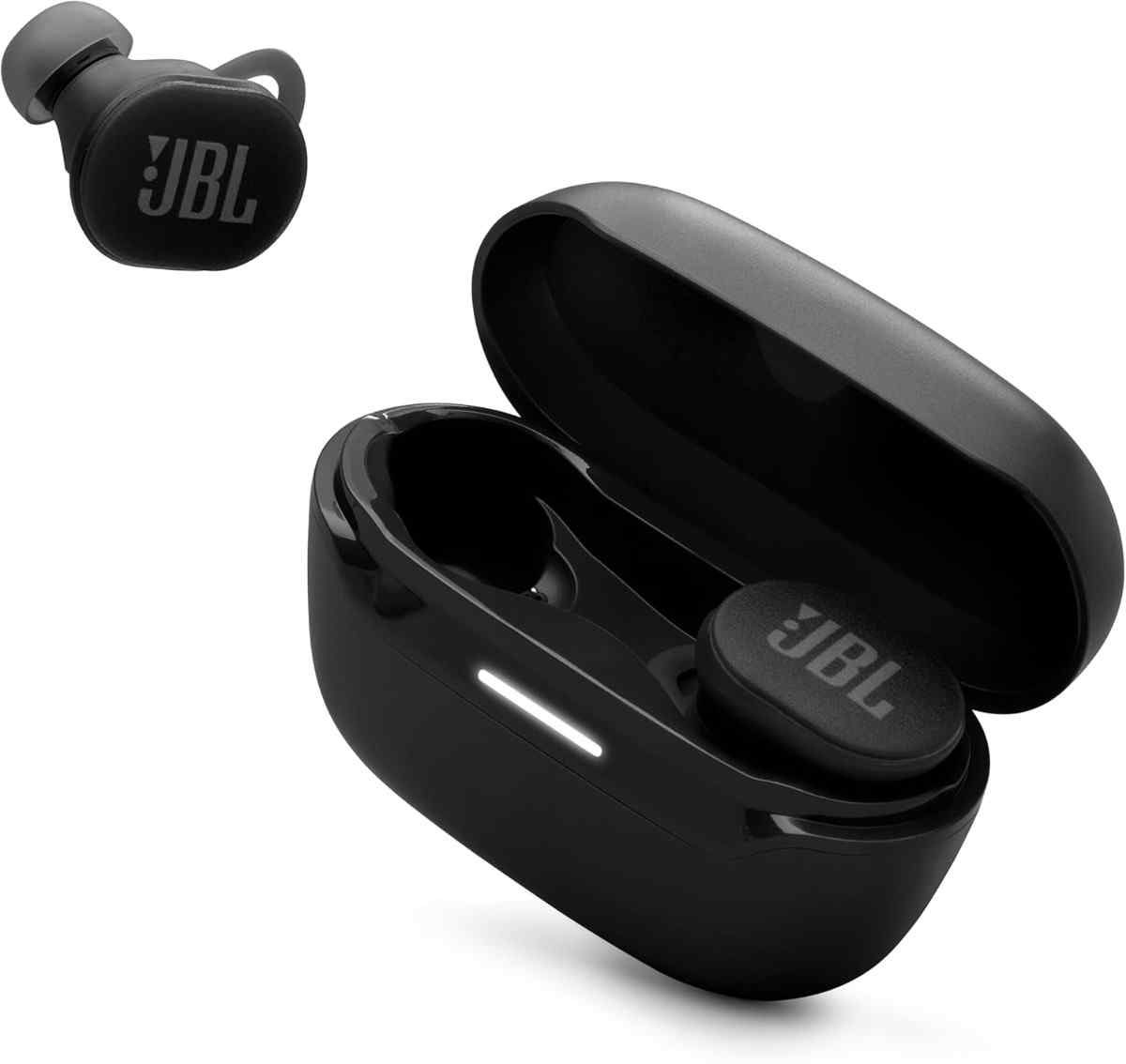
How do I pair JBL earbuds with my device?
This method works for all JBL wireless earbud models including Wave, Tune, Live, and Free series. Follow these steps for first-time pairing:
- Charge First: Ensure earbuds have at least 20% battery. Place them in the charging case for 10-15 minutes if needed. Most JBL earbuds come partially charged from the factory.
- Remove from Case: Take both earbuds out of the charging case simultaneously. They will automatically power on (you'll hear a startup sound or see LED lights activate).
- Activate Pairing Mode: Press and hold the touch area or physical button on either earbud for 5-8 seconds. Release when the LED indicator starts flashing blue and white alternately - this confirms pairing mode is active.
- Open Bluetooth Settings: On your device, navigate to Settings > Bluetooth and ensure Bluetooth is turned ON. Your device will automatically scan for nearby devices.
- Select Your Earbuds: Look for your JBL model name (e.g., "JBL Tune Buds", "JBL Wave Beam", "JBL Live Free 2") in the available devices list and tap to connect.
- Confirm Connection: Once connected, the LED will turn solid blue or stop flashing. You'll hear a confirmation tone in the earbuds saying "Connected" or a beep sound.
JBL earbuds work seamlessly with all iPhone and iPad models running iOS 13 or later. Many newer JBL models support enhanced pairing features for Apple devices:
- Prepare Your iPhone: Unlock your iPhone and go to Settings > Bluetooth. Toggle Bluetooth ON (green). Keep this screen open.
- Activate Earbuds: Remove JBL earbuds from the charging case. For automatic pairing pop-up (on compatible models), simply hold them near your iPhone for 3-5 seconds.
- Automatic Pop-Up Method: If your JBL model supports it, a pairing card will appear on your iPhone screen automatically. Tap "Connect" and you're done in seconds.
- Manual Method: If no pop-up appears, press and hold the earbud button for 5-8 seconds until blue/white flashing. In Bluetooth settings, tap your JBL earbuds name under "Other Devices".
- Grant Permissions: iOS may ask to share notifications or contacts with your earbuds. This is optional but enables features like Siri announcements and call handling.
- Verify Connection: Once connected, the earbuds move to "My Devices" section and show "Connected" status. The battery level icon appears in your iPhone's status bar.
Battery Widget: Add the Batteries widget to your iPhone home screen or Today View to monitor your JBL earbuds' charge level at a glance. Swipe right from home screen > Edit > tap "+" > search "Batteries" > Add Widget.
Android devices offer multiple pairing methods for JBL earbuds, including Google Fast Pair on newer models. This works with Android 6.0 and above:
- Enable Bluetooth: Swipe down from the top of your screen to access Quick Settings. Tap and hold the Bluetooth icon to open full Bluetooth settings, or go to Settings > Connected Devices > Connection Preferences > Bluetooth.
- Google Fast Pair (Supported Models): With Bluetooth ON and Location enabled, remove your JBL earbuds from the case. A notification will automatically appear at the bottom of your screen within 5 seconds.
- Tap to Pair: Tap the Fast Pair notification that says "Tap to pair" with your JBL earbuds' name and icon. The pairing completes automatically - no need to search manually.
- Manual Pairing Method: If Fast Pair doesn't appear, press and hold the earbud button for 5-8 seconds until LED flashes blue/white. In Bluetooth settings, tap "Pair new device" and select your JBL earbuds from the list.
- Google Account Sync: If using Fast Pair, your earbuds will be linked to your Google account and automatically pair with any Android device you sign into (Android 6.0+).
- Download JBL App: For optimal experience, download the free "JBL Headphones" app from Google Play Store. This enables firmware updates, EQ customization, and battery monitoring.
Samsung Galaxy Extra Features: Samsung Galaxy phone users can access additional features through the Galaxy Wearable app, including 360 Audio compatibility and Scalable Codec for improved sound quality with newer JBL models.
Connecting JBL earbuds to laptops and desktop computers follows a similar process for both Windows and macOS:
Windows 10/11 Pairing:
- Open Settings: Press Windows Key + I, or click Start > Settings (gear icon). Navigate to Devices > Bluetooth & other devices (Windows 10) or Settings > Bluetooth & devices (Windows 11).
- Enable Bluetooth: Toggle Bluetooth to ON. If your PC doesn't have Bluetooth, you'll need a USB Bluetooth adapter (available for $10-20).
- Add Device: Click "Add Bluetooth or other device" (Windows 10) or "Add device" (Windows 11). Select "Bluetooth" from the popup menu.
- Activate Earbuds: Remove JBL earbuds from case and press/hold the button for 5-8 seconds until blue/white LED flashing. Keep earbuds within 3 feet of your PC.
- Select and Connect: Your JBL earbuds should appear in the device list within 10-15 seconds. Click on the name and wait for "Connected" status (usually 5-10 seconds).
- Set as Default Audio: Right-click the speaker icon in system tray > Open Sound settings > Choose your JBL earbuds as both Output and Input device for calls and audio.
macOS Pairing:
- Open Bluetooth Settings: Click the Apple menu () > System Settings (macOS Ventura+) or System Preferences (older) > Bluetooth. Or click the Bluetooth icon in menu bar and select "Bluetooth Preferences".
- Ensure Bluetooth is On: The toggle should be blue/on. Your Mac will automatically start scanning for nearby devices.
- Pairing Mode: Remove JBL earbuds from case, press and hold the button for 5-8 seconds until LED flashes blue and white alternately.
- Connect: Your JBL earbuds will appear in the "Nearby devices" or "Devices" list. Click "Connect" next to the device name. Connection typically takes 5-10 seconds.
- Verify Audio Output: Click the speaker icon in menu bar to confirm your JBL earbuds are selected as the audio output device. You may need to manually select them if switching from built-in speakers.
If your JBL earbuds won't pair or connect, try these proven troubleshooting solutions in order:
🔴 Earbuds Not Appearing in Bluetooth List:
- Check Battery: Low battery (below 15%) prevents pairing mode. Charge earbuds for 15-20 minutes in the case.
- Verify Pairing Mode: Ensure LED is flashing blue AND white alternately, not just blue. Hold button for full 8 seconds if needed.
- Clear Previous Pairings: If earbuds were previously connected to another device, they may still be connected. Turn off Bluetooth on all nearby previously-paired devices.
- Distance Matters: Keep earbuds within 3 feet (1 meter) of the device during pairing. Bluetooth signals weaken over distance.
- Restart Bluetooth: Turn Bluetooth OFF on your device, wait 10 seconds, then turn it back ON. This refreshes the scanning process.
🔴 Only One Earbud Connects:
- Re-sync Earbuds: Place both earbuds in the case for 10 seconds. Remove both simultaneously and press the button on each earbud 3 times rapidly to force re-synchronization.
- Forget Device: On your phone/computer, forget or unpair the JBL earbuds completely, then re-pair from scratch.
- Check Individual Battery: One earbud may be dead. The left and right earbuds have separate batteries - charge fully and try again.
🔴 Connection Keeps Dropping:
- Reduce Interference: Move away from Wi-Fi routers, microwaves, and other Bluetooth devices. These can cause interference on the 2.4GHz band.
- Update Firmware: Download the JBL Headphones app and check for firmware updates. Updates often fix connectivity bugs.
- Clear Bluetooth Cache (Android): Go to Settings > Apps > Bluetooth > Storage > Clear Cache. Then restart your phone.
- Check Device Compatibility: Ensure your device supports Bluetooth 4.0 or higher. Very old devices (pre-2014) may have compatibility issues.
🔴 Audio Quality Issues or Lag:
- Disable Other Bluetooth Devices: Multiple active Bluetooth connections can cause bandwidth issues. Disconnect smartwatches, fitness trackers, etc.
- Check Bluetooth Codec: In Developer Options (Android) or audio settings, prefer AAC or aptX codecs over SBC for better quality and lower latency.
- Clean Earbud Mesh: Earwax and debris can muffle sound. Gently clean the speaker mesh with a dry soft brush or cotton swab.
Factory resetting your JBL earbuds clears all Bluetooth pairings and returns them to out-of-box state. This solves 85-90% of persistent connection issues:
🔄 Universal Reset Method (Most JBL Models):
- Forget on All Devices: First, go to Bluetooth settings on every device you've paired with and select "Forget Device" or "Unpair" next to your JBL earbuds. This prevents pairing conflicts.
- Charge Briefly: Place earbuds in the charging case for 10-15 seconds to ensure adequate battery (minimum 20% needed for reset).
- Remove and Power On: Take both earbuds out of the case. They should automatically power on (you'll see LED lights or hear a tone).
- Activate Reset: Press and hold the button or touch area on BOTH earbuds simultaneously for 10-15 seconds. Don't release early!
- Watch for Confirmation: The LED lights will typically flash red/purple or red/blue, then turn off completely. Some models may flash white 3 times. This confirms the reset.
- Return to Case: Place both earbuds back in the charging case for 10 seconds. This completes the reset process.
- Fresh Pairing: Remove earbuds from case - they will automatically enter pairing mode (blue/white flashing). Now pair as if brand new following the General Setup instructions.
🔄 Model-Specific Reset Methods:
- JBL Free / Free X: Press and hold buttons on both earpieces for 5 seconds to power off, then press and hold for 8 seconds to enter reset mode.
- JBL Tune Series (225TWS, 230NC): Tap the center button on each earbud 3 times quickly, then press and hold both for 10 seconds.
- JBL Live Free / Live Pro: Remove from case, press and hold both touch areas for 15 seconds until you hear "Powering off" or see red LED flash.
- JBL Wave Buds / Wave Beam: Standard 10-15 second hold on both earbuds until purple flash, no special button sequence needed.
✅ Re-Syncing Left and Right Earbuds:
If your earbuds have lost synchronization with each other (only one connects), follow this process:
- Forget/unpair the earbuds from your device's Bluetooth settings
- Place both earbuds in the charging case for 10 seconds
- Remove both earbuds simultaneously from the case
- Press the button on EACH earbud 3 times rapidly (tap-tap-tap on left, then tap-tap-tap on right)
- Wait 5-10 seconds - one earbud's LED will stop flashing while the other continues (this means they've synced)
- Press and hold the button on one earbud for 5 seconds to enter pairing mode
- Pair with your device as normal - both earbuds will now connect together
