




Pairing Beats headphones is usually a one minute job, but only if you know the two steps that matter:
- Put your Beats in pairing mode (so your device can see them).
- Connect in your device’s Bluetooth menu (so the connection actually sticks).
That’s it. In this guide, I’ll show you exactly how to pair Beats headphones with iPhone, iPad, Android, laptops, Chromebooks, computers, TVs, and more. I’ll also answer common questions like “How do I put Beats in pairing mode?”, “How do I put my on headphones in pairing mode?”, and “How to make Beats 4 discoverable?”.
Before You Start: Do This Once (It Prevents 90% of Pairing Issues)
Before we jump into how to pair Beats headphones with different devices, take 20 seconds to do these quick checks:
- Charge your Beats for a few minutes if they are low.
- Turn on Bluetooth on the device you want to pair to.
- Move your Beats close to the device (within 1 to 3 feet is ideal).
- If your Beats keep connecting to another device, turn Bluetooth off on that other device for a moment.
If you have paired your Beats to multiple devices before, keep reading. I’ll show you how to force pairing mode and fix “not showing up” problems.
How Do I Put Beats in Pairing Mode?
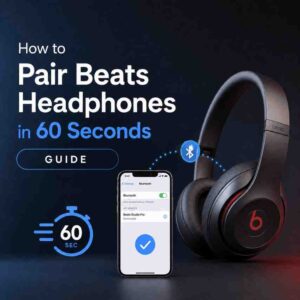
This is the core skill. If you can do this, you can pair your Beats to anything.
In general, the method is:
- Hold the power button or system button until the LED starts flashing (often white flashing, sometimes a red/white pattern depending on model).
- When the LED flashes, your Beats are discoverable and ready to pair.
How do I put my on headphones in pairing mode?
If you’re using Beats over-ear/on-ear headphones (like Studio, Solo, or similar), pairing mode is usually:
- Turn the headphones on.
- Press and hold the power button for about 5 seconds.
- Release when the LED flashes.
How to make Beats 4 discoverable?
People often mean “Beats Studio Buds,” “Powerbeats,” or a Beats model they call “Beats 4.” The rule is the same: you must trigger pairing mode so it becomes discoverable.
Common versions of this for earbuds:
- Beats Studio Buds / Studio Buds+: put buds in the case, open the lid, then press and hold the button on the case until the light flashes.
- Powerbeats Pro: open the case with earbuds inside, then press and hold the button inside the case until the light flashes.
If you aren’t sure which Beats model you have, the fastest approach is: look for either a power button on the headphones, or a small pairing button on the case.
How to Pair Beats Headphones With iPhone (Fastest Method)
If you’re searching for how to pair Beats headphones with iPhone, do this:
- Put your Beats in pairing mode (LED flashing).
- On iPhone, go to Settings > Bluetooth.
- Make sure Bluetooth is On.
- Under “Other Devices,” tap your Beats name.
- Tap Pair if prompted.
If you see the iPhone pop-up animation
Many Beats models show a pop-up pairing card on iPhone when you bring them close. If you see it:
- Tap Connect.
- Follow any quick prompts.
That’s the quickest version of how to pair Beats headphones with iPhone, and it’s usually done in under 60 seconds.
How to Pair Beats Headphones to iPad (Same Idea, Slightly Different Menu)
If you need how to pair Beats headphones to iPad, here’s the clean process:
- Put your Beats into pairing mode (flashing LED).
- On iPad, go to Settings > Bluetooth.
- Turn Bluetooth On.
- Tap your Beats under Other Devices.
If they don’t show, keep the Bluetooth screen open for 10 to 15 seconds while your Beats are flashing.
How to Connect Beats Headphones to Android (Step-by-Step)
A lot of people ask: How to connect Beats headphones to Android? Or phrased another way: How to pair Beats headphones to Android.
Here’s the reliable method that works across Samsung, Pixel, OnePlus, and most Android devices:
- Put Beats into pairing mode (LED flashing).
- On Android, open Settings.
- Tap Connected devices (or Bluetooth, depending on your phone).
- Tap Pair new device (or New connection).
- Tap your Beats from the list.
If Android asks for permissions
Some Android phones will ask to allow contacts, calls, or media access. For headphones, you typically want media audio enabled at minimum.
How to Pair Beats Headphones to Laptop (Windows and macOS)
If you’re searching how to pair Beats headphones to laptop, it depends on whether you’re on a Windows laptop or a MacBook. Here are both.
Windows: how to pair Beats headphones to computer (Windows 11/10)
- Put Beats in pairing mode (flashing LED).
- On Windows, open Settings.
- Go to Bluetooth & devices.
- Turn Bluetooth On.
- Click Add device.
- Select Bluetooth.
- Click your Beats when it appears.
If you want the simplest phrasing: this is how to pair Beats headphones to computer on Windows.
macOS: how to pair Beats headphones to laptop (MacBook)
- Put Beats in pairing mode.
- Click Apple menu > System Settings (or System Preferences on older macOS).
- Click Bluetooth.
- Find your Beats and click Connect.
Tip: keep your Beats close to the MacBook while pairing, especially if you’ve connected them to other devices before.
How to Pair Beats Headphones to Chromebook (Quick Steps)
If you need how to pair Beats headphones to Chromebook, here’s the fastest way:
- Put Beats into pairing mode (LED flashing).
- On your Chromebook, click the time (bottom-right).
- Click Bluetooth.
- Turn Bluetooth On if needed.
- Click Pair new device.
- Select your Beats from the list.
If your Chromebook says “No devices found,” don’t close the menu. Leave it open and re-trigger pairing mode on your Beats.
How to Pair Beats Headphones to TV (This One Varies)
If you’re looking up how to pair Beats headphones to TV, the steps depend on whether your TV supports Bluetooth audio.
If your TV has Bluetooth (common on newer smart TVs)
- Put Beats in pairing mode.
- On the TV, open Settings.
- Find Sound or Audio Output settings.
- Look for Bluetooth audio or Bluetooth speaker/headphones.
- Select your Beats and connect.
If your TV does not have Bluetooth
Your Beats cannot pair directly. You have two common options:
- Use a Bluetooth transmitter (plugs into the TV’s headphone jack or optical output).
- Use a streaming device that supports Bluetooth headphones (some do, depending on model).
If you tell me your TV model, you can usually find the exact Bluetooth menu in under a minute.
How to Pair Beats Headphones to Computer (General, Works for Most Devices)
If you’re not sure whether you’re on a laptop, desktop, Mac, or Windows, here’s the universal checklist for how to pair Beats headphones to computer:
- Put Beats into pairing mode (flashing LED).
- Open your computer’s Bluetooth settings.
- Choose Add device (or Pair).
- Select your Beats.
- Confirm connect/pair if prompted.
If your computer doesn’t have Bluetooth, you’ll need either:
- A USB Bluetooth adapter, or
- A wired connection (if your Beats model supports an audio cable and your computer has a headphone jack).
If Your Beats Won’t Show Up: Fix “Not Discoverable” in 2 Minutes
This is where most pairing guides get vague. Let’s keep it practical.
1) Make sure your Beats are actually in pairing mode
The LED must be flashing. A solid light usually means “on,” not “discoverable.”
If you’re asking “How do I put Beats in pairing mode?” because it keeps failing, do this:
- Turn the Beats off completely.
- Turn them on, then hold the power/system button again until the LED flashes.
2) Disconnect from the device they’re stuck to
If your Beats automatically connect to your iPhone while you’re trying to pair to a laptop:
- Turn Bluetooth off on the iPhone temporarily, or
- Forget the device (see next step).
3) Forget the Beats and re-pair (recommended)
On the device you used before:
- iPhone/iPad: Settings > Bluetooth > (i) next to Beats > Forget This Device
- Android: Settings > Bluetooth > Beats > Forget/Unpair
- Windows: Settings > Bluetooth & devices > Beats > Remove device
- Mac: Bluetooth > Beats > Forget (or Remove)
Then put Beats back into pairing mode and connect again.
4) Restart the device you’re pairing to
It sounds basic, but Bluetooth stacks can get stuck. Restarting clears it fast.
5) Reset your Beats (last resort, but works)
Resetting varies by model, but the goal is the same: clear the saved pairing list so it behaves like new.
If you tell me your exact model (Solo, Studio, Powerbeats Pro, Studio Buds, etc.), I can give the exact reset button combo. If you want to try right now, look for:
- A power button + volume down combo on some headphones, or
- A case button hold for earbuds (until light changes pattern).
Common Pairing Questions (Quick Answers)
Why do my Beats connect but audio plays from the phone speaker?
After pairing, you may need to set the audio output:
- iPhone: Control Center > AirPlay/audio output icon > select Beats
- Android: Volume panel or Bluetooth device settings > enable “Media audio”
- Windows: Sound settings > choose Beats as output device
- Mac: Sound settings > Output > Beats
Can I pair Beats to multiple devices?
Yes, but they can only actively play to one device at a time. If switching is annoying, disconnect Bluetooth on the device you’re not using.
My Beats show up in Bluetooth but won’t connect. What now?
Try in this order:
- Forget/remove the device.
- Reboot your phone/computer.
- Put Beats back into pairing mode.
- If still stuck, reset the Beats.
60-Second Cheat Sheet (Do This for Any Device)
If you only remember one thing from this 2026 guide, make it this:
- Hold the power/system button until the LED flashes (pairing mode).
- Open your device’s Bluetooth settings.
- Tap/click your Beats to connect.
That exact flow is the foundation for:
- how to pair Beats headphones with iPhone
- how to pair Beats headphones to iPad
- how to pair Beats headphones to Android
- how to pair Beats headphones to Chromebook
- how to pair Beats headphones to laptop
- how to pair Beats headphones to computer
- how to pair Beats headphones to TV
If you want, tell me your exact Beats model and what you’re pairing to (iPhone, Android, Windows laptop, TV brand, etc.), and I’ll give you the precise button to hold and the exact menu path for that device.
FAQs (Frequently Asked Questions)
How do I put my Beats headphones in pairing mode?
To put your Beats headphones in pairing mode, hold the power button or system button until the LED starts flashing (usually white). This flashing light means your Beats are discoverable and ready to pair.
How can I pair my Beats headphones with an iPhone quickly?
First, put your Beats in pairing mode (LED flashing). Then on your iPhone, go to Settings > Bluetooth, make sure Bluetooth is on, find your Beats under ‘Other Devices’, tap on them, and then tap Pair if prompted. Some models also show a pop-up card to connect instantly when nearby.
What should I do if my Beats headphones aren’t showing up on my device’s Bluetooth list?
Make sure your Beats are in pairing mode with the LED flashing. Keep the Bluetooth settings screen open for 10 to 15 seconds while your Beats remain discoverable. Also, ensure Bluetooth is enabled on your device and that other connected devices have Bluetooth turned off temporarily to avoid interference.
How do I make my Beats Studio Buds or Powerbeats Pro discoverable for pairing?
For Beats Studio Buds or Studio Buds+, put the buds in their case, open the lid, then press and hold the button on the case until the light flashes. For Powerbeats Pro, open the case with earbuds inside and press and hold the button inside the case until the light flashes. This puts them into pairing mode.
What steps should I take before trying to pair my Beats headphones to prevent common issues?
Charge your Beats for a few minutes if battery is low, turn on Bluetooth on your device, keep your Beats close (within 1 to 3 feet), and if they keep connecting to another device, temporarily turn off Bluetooth on that other device.
How do I connect my Beats headphones to an Android device?
Put your Beats into pairing mode (LED flashing). On your Android phone, go to Settings > Connected devices or Bluetooth. Tap ‘Pair new device’ or ‘New connection’, then select your Beats from the list. If prompted for permissions, enable media audio at minimum for proper headphone functionality.
