




Step-by-step solutions that actually work
⚡ TL;DR — Quick Answer
Why won't my AirPods connect? The most common causes are Bluetooth issues, low battery, outdated software, or old pairing data stuck on your device. Here's the fastest fix:
- Reset AirPods — hold the case button 15 seconds until amber light
- Toggle Bluetooth off → wait 10 seconds → turn back on
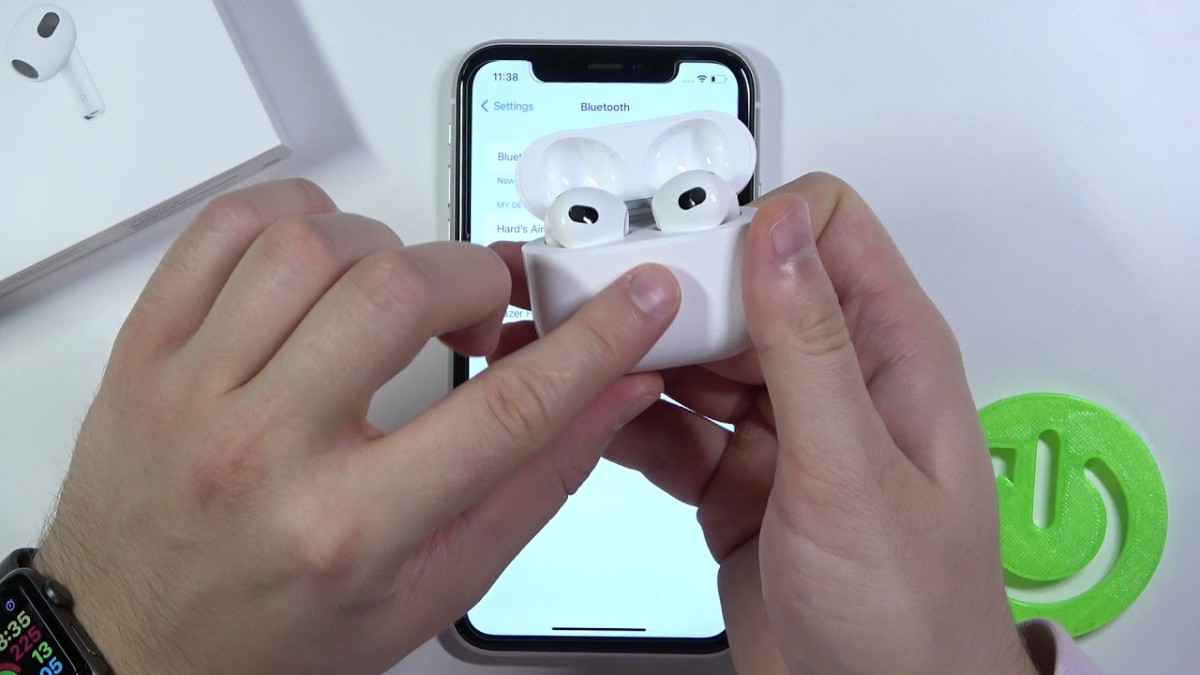
- Reconnect — open AirPods case near your device and re-pair
- Works for iPhone, Android, Windows, and Mac
You're about to start a call. You pop your AirPods in. Nothing happens. No chime. No connection. Just silence. Sound familiar? I've been there — and so have millions of other people.
I'm Wiringiye Moise, and I've helped thousands of readers at TechOzea fix tech problems just like this one. In this guide, I'll walk you through every reason your AirPods won't connect — and exactly how to fix it. Most solutions take under two minutes.
🔍 The Most Common Reasons Your AirPods Won't Connect
Before we start fixing, it helps to know why this happens. Here are the six most common culprits.
1. Bluetooth Is Turned Off or Glitching
This sounds obvious. But Bluetooth can silently crash in the background. Your phone may show Bluetooth as "on" even when it's stuck. A quick toggle usually fixes it. According to Apple's own support page, Bluetooth issues are the number one cause of AirPods connection failures.
2. AirPods Battery Is Too Low
AirPods need at least a small charge to pair. If the case is dead too, your AirPods can't even begin the connection process. Check the battery by opening the case lid near your iPhone — a popup should show levels.
3. Device Is Already Connected Elsewhere
Your AirPods might already be connected to another device — your iPad, Mac, or even a family member's phone. AirPods can only connect to one device at a time. This trips people up constantly.
4. Outdated Software or Firmware
Running an old version of iOS, macOS, or Android can create bugs. Apple releases firmware updates for AirPods that fix known connection issues. These install automatically, but only when your AirPods are charging near a connected iPhone.
5. Pairing Cache or Connection Bugs
Your device stores old pairing data. Sometimes this data gets corrupted. When that happens, your phone "thinks" it's connected — but your AirPods disagree. Forgetting the device and re-pairing clears this up.
6. Hardware Issues (Rare but Possible)
Liquid damage, a broken charging case button, or worn-out batteries can cause permanent connection problems. If none of the software fixes below work, hardware may be the issue.
✅ Quick Fix Checklist (Solve 90% of Issues Fast)
Tap each item as you complete it. Most people fix their AirPods by step 3.
🛠️ How to Fix AirPods That Won't Connect (Step-by-Step)
If the quick checklist didn't solve it, follow these detailed steps. I've listed them in order — from easiest to most thorough.
Reset Your AirPods
This is the single most effective fix. It clears all pairing data from the AirPods themselves and gives you a fresh start.
- Put both AirPods in the charging case.
- Close the lid. Wait 30 seconds.
- Open the lid.
- Press and hold the setup button on the back of the case.
- Hold for about 15 seconds until the light flashes amber, then turns white.
- Your AirPods are now reset. Re-pair them with your device.
Forget and Reconnect AirPods
This clears the pairing data from your device. It's different from resetting the AirPods themselves.
- Go to Settings → Bluetooth.
- Find your AirPods in the device list.
- Tap the ⓘ icon (iOS) or gear icon (Android).
- Select "Forget This Device."
- Now open your AirPods case near your phone and pair again.
Restart Your Device
A restart clears temporary glitches in your phone's Bluetooth stack. It takes 30 seconds and fixes more problems than you'd think.
iPhone X and later: Hold the side button + volume button until the power slider appears. Slide to power off. Wait 30 seconds. Press the side button to turn on.
iPhone SE / 8 and earlier: Hold the top or side button until the slider appears.
Hold the power button for a few seconds. Tap "Restart" from the menu. If no restart option appears, power off and turn back on manually.
Mac: Click Apple menu → Restart.
Windows: Click Start → Power → Restart.
Update Your Software
Outdated operating systems cause compatibility bugs. Always run the latest version.
- iPhone/iPad: Settings → General → Software Update
- Mac: System Settings → General → Software Update
- Android: Settings → System → System Update
- Windows: Settings → Windows Update → Check for updates
AirPods firmware updates automatically when the AirPods are charging in the case, connected to your iPhone, and your iPhone is connected to Wi-Fi. There's no way to manually force an AirPods firmware update.
Clean Your AirPods (Hidden Issue)
This one surprises people. Dirt, earwax, and lint can block the sensors and charging contacts on your AirPods. If the sensors can't detect that the AirPods are in your ears, they may refuse to connect or play audio.
- Use a soft, dry, lint-free cloth.
- Clean the speaker meshes gently with a dry cotton swab.
- Clean the charging contacts at the bottom of each AirPod and inside the case.
- Never use water, alcohol, or sharp objects.
📱 AirPods Won't Connect to iPhone (Specific Fixes)
If you've tried the general steps above and your AirPods still won't connect to your iPhone, try these iPhone-specific solutions. You can also check our detailed guide on how to connect AirPods to iPhone for more help.
Check iCloud Sync Issues
AirPods use iCloud to sync across your Apple devices. If iCloud sync is having problems, your AirPods may not appear. Go to Settings → [Your Name] → iCloud and make sure everything is signed in and syncing.
Disable Low Power Mode
Low Power Mode can limit Bluetooth performance. Turn it off: Settings → Battery → Low Power Mode → Off. Then try connecting again.
Reset Network Settings
This is a more aggressive step. It clears all Wi-Fi passwords, VPN settings, and Bluetooth pairings — but it often fixes stubborn connection bugs.
Settings → General → Transfer or Reset iPhone → Reset → Reset Network Settings
🤖 AirPods Won't Connect to Android
Yes, AirPods work with Android — but the pairing process is manual. Here's how to get them connected. For a complete walkthrough, see our guide on connecting AirPods to Android devices.
Manual Bluetooth Pairing Steps
- Put AirPods in the case. Open the lid.
- Press and hold the setup button until the light flashes white.
- On your Android phone: Settings → Bluetooth → Scan.
- Tap your AirPods name when it appears.
Clear Bluetooth Cache (Android)
If pairing fails repeatedly, cached Bluetooth data may be corrupted:
- Go to Settings → Apps → Show system apps.
- Find "Bluetooth" or "Bluetooth Share".
- Tap Storage → Clear Cache.
- Restart your phone and try again.
Compatibility Limitations
On Android, you lose some features: no automatic ear detection, no seamless switching, no "Hey Siri." Basic audio and microphone functions work fine. Some users find third-party apps like Assistant Trigger helpful for adding extra features.
💻 AirPods Won't Connect to Windows or Laptop
Connecting AirPods to Windows is possible but can be finicky. Here are the most common fixes. If you need the full process, check our AirPods to laptop connection guide.
Enable Pairing Mode Properly
Windows can't "see" your AirPods unless they're in pairing mode. Put them in the case, open the lid, and hold the back button until the light flashes white. Then go to Settings → Bluetooth & devices → Add device on your PC.
Remove Old Bluetooth Devices
If your AirPods were previously paired but won't reconnect, remove them first: Settings → Bluetooth & devices → click the three dots next to your AirPods → Remove device. Then pair again.
Update Bluetooth Drivers
Outdated Bluetooth drivers are a common problem on Windows:
- Right-click the Start button → Device Manager.
- Expand Bluetooth.
- Right-click your Bluetooth adapter → Update driver.
- Select "Search automatically for drivers."
"My AirPods Pro wouldn't show up on my Dell laptop no matter what I tried. Updating the Bluetooth driver in Device Manager fixed it instantly. I felt silly for not trying that sooner!"
🔇 AirPods Connected But No Sound?
This is incredibly frustrating. Your phone says "Connected" — but nothing plays through the AirPods. Here's what's going on.
Wrong Audio Output Selected
Your device might be sending audio to its speaker instead of the AirPods.
- iPhone: Open Control Center → tap the audio output icon (triangle with circles) → select AirPods.
- Mac: Click the speaker icon in the menu bar → choose AirPods.
- Windows: Click the speaker icon in the taskbar → click the arrow → select AirPods.
Volume or Balance Issue
Check that volume isn't set to zero. Also check audio balance: Settings → Accessibility → Audio/Visual → Balance. Make sure the slider is centered.
One AirPod Not Working
If only one AirPod plays sound, put both back in the case, charge for a few minutes, then try again. Also go to Settings → Accessibility → Audio/Visual and make sure Mono Audio is turned off (unless you want it on).
🔄 Why Do My AirPods Keep Disconnecting?
Your AirPods connect fine — but then drop the connection every few minutes. This is a different problem from not connecting at all.
Bluetooth Interference
Bluetooth operates on the 2.4 GHz frequency band. So do Wi-Fi routers, microwaves, baby monitors, and other devices. If you're in a crowded environment (like an office or apartment building), interference can cause dropouts. Try moving away from other wireless devices.
Distance and Range Issues
AirPods have a Bluetooth range of about 30–40 feet (10–12 meters). Walls and obstacles reduce this. Stay closer to your device if you're experiencing drops.
Battery Drain Problems
When AirPods battery drops below 10%, connection stability decreases. You might notice audio cutting out before the AirPods fully die. Keep them charged above 20% for reliable performance.
"I kept losing connection during video calls at work. Turns out my AirPods were sitting at 8% battery. Now I charge them during lunch every day and haven't had a dropout since."
🔧 Interactive AirPods Diagnostic
Answer a few questions to find your specific fix.
🔄 When to Reset vs. Replace Your AirPods
Not sure if you need a software fix or a trip to the Apple Store? This table helps you decide.
| Symptom | Likely Software Issue | Likely Hardware Issue |
|---|---|---|
| Won't pair with any device | ✅ Reset AirPods | If reset fails → hardware |
| One AirPod doesn't connect | ✅ Clean + reset | Dead battery in one AirPod |
| Keeps disconnecting | ✅ Update firmware | Rare — check battery health |
| Case won't charge AirPods | Clean contacts | ❌ Damaged case / battery |
| No sound at all | ✅ Check audio output | Speaker damage |
| AirPods got wet / dropped | — | ❌ Likely hardware damage |
Signs It's a Software Issue
- The problem started after an iOS or software update.
- AirPods work fine with a different device.
- Resetting fixes the problem (even if temporarily).
Signs It's a Hardware Failure
- AirPods won't charge or the case light doesn't turn on.
- One AirPod drains in 15 minutes while the other lasts hours.
- Physical damage is visible (cracked case, dented AirPod).
- The problem persists after every fix in this guide.
If it's hardware, book an appointment at the Apple Support page or visit your nearest Apple Store. If your AirPods are under warranty or covered by AppleCare+, replacement may be free or low-cost.
🛡️ How to Prevent AirPods Connection Problems
Once you fix the issue, here's how to keep it from happening again.
Keep Firmware Updated
Charge AirPods near your iPhone regularly so firmware updates install automatically.
Limit Paired Devices
Don't pair with too many devices. Remove old pairings you no longer use.
Clean Regularly
Wipe AirPods and case weekly. Clean charging contacts with a dry swab.
Store Properly
Always keep AirPods in the case when not in use. Avoid extreme heat or cold.
❓ Frequently Asked Questions
Your AirPods won't show up on Bluetooth if they aren't in pairing mode. To enter pairing mode, put both AirPods in the case, open the lid, and hold the small setup button on the back for about 15 seconds until the status light flashes white. Now your AirPods are discoverable.
Also make sure Bluetooth is turned on and your device is within 3 feet of the AirPods case. If you've previously paired them, go to Settings → Bluetooth and check if they appear as a saved device. If they're listed but grayed out, tap "Forget This Device" and pair again. For more detailed steps, visit Apple's AirPods support page.
A flashing white light means your AirPods are in pairing mode and ready to connect. If they still won't pair, your device likely has cached (old) connection data that's causing a conflict.
To fix this: go to Settings → Bluetooth, find your AirPods, and tap "Forget This Device." Then restart your phone and try pairing again with the AirPods case open. If the problem continues, reset your AirPods completely and reset your device's network settings. This clears all Bluetooth pairing data and gives you a clean slate.
If only one AirPod connects, the most common cause is a dead battery in the non-working AirPod. Place both AirPods in the charging case and let them charge for at least 15 minutes. Check that both AirPods sit properly in the case — debris on the charging contacts can block charging.
Clean the bottom of each AirPod and the inside of the case with a dry cotton swab. Then reset your AirPods by holding the case button for 15 seconds. If one AirPod consistently dies much faster than the other (for example, lasting only 20 minutes), it may have a degraded battery. In that case, contact Apple Support about a battery replacement.
Yes, but with limits. AirPods can be paired with multiple devices, but they can only actively play audio from one device at a time. On Apple devices signed into the same iCloud account, AirPods (2nd generation and later), AirPods Pro, and AirPods Max support automatic switching. This means they can seamlessly move between your iPhone, iPad, and Mac.
For non-Apple devices like Android phones or Windows PCs, you need to manually disconnect from one device before connecting to another. You can also disable automatic switching on Apple devices: go to Settings → Bluetooth → tap ⓘ next to AirPods → Connect to This iPhone → "When Last Connected to This iPhone."
To force pairing mode, follow these steps. They work for all AirPods models — AirPods 1st, 2nd, 3rd generation, AirPods Pro, and AirPods Pro 2:
- Place both AirPods inside the charging case.
- Open the lid of the case.
- Locate the small setup button on the back of the case.
- Press and hold this button for about 15 seconds.
- Watch the status light — it will flash amber first, then turn white.
When the light flashes white, your AirPods are in pairing mode and will appear in your device's Bluetooth settings. If you're connecting to an iPhone, simply hold the open case near your phone and follow the on-screen prompts. For a step-by-step visual guide, visit our complete AirPods connection tutorial.
If this guide helped, share it with a friend who's struggling with the same problem. And if you're still stuck, drop a comment — I personally read and respond to every question.
For more troubleshooting guides, visit TechOzea. We break down complex tech problems into simple, actionable solutions.
