




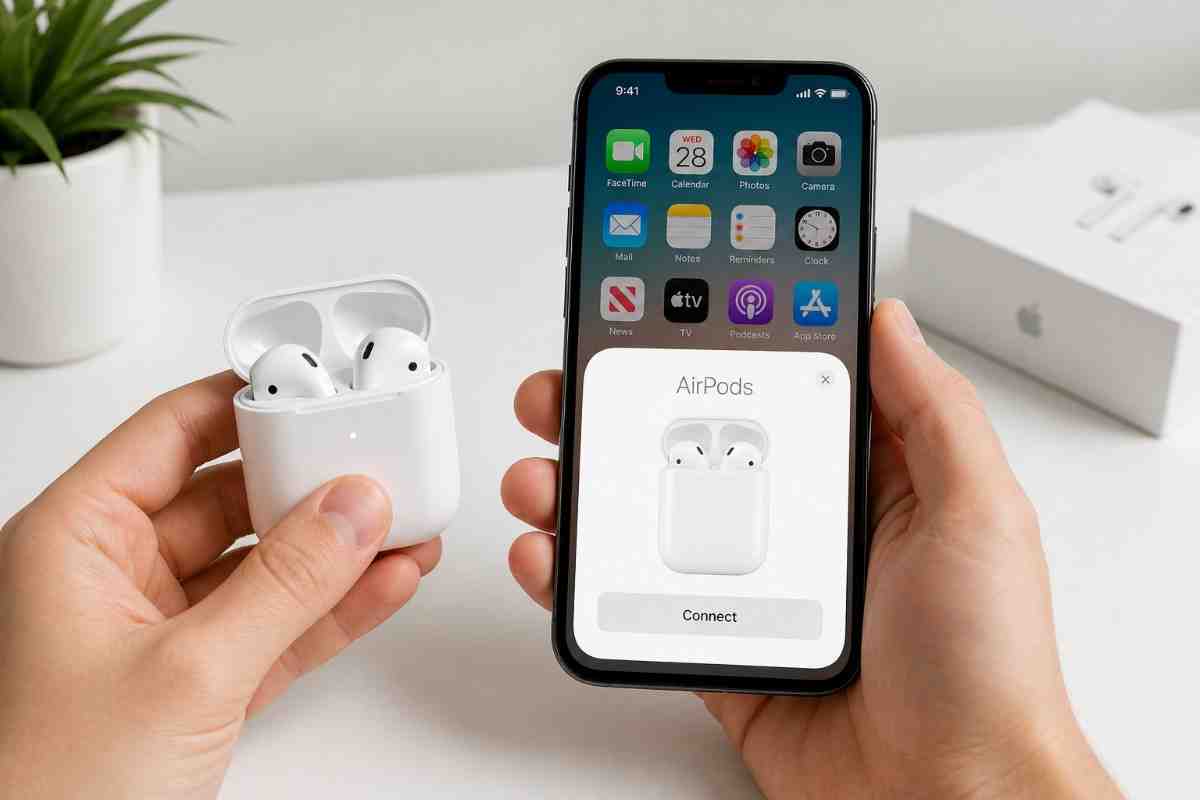
Pair every generation of AirPods to iPhone in under 60 seconds — step-by-step, no confusion.
⚡ TL;DR — Quick Answer
How to Connect AirPods to iPhone
- 1 Turn on Bluetooth: Settings → Bluetooth
- 2 Unlock iPhone and go to the Home Screen
- 3 Open the AirPods case 2–3 inches from iPhone
- 4 Tap Connect on the setup animation popup
- 5 Press the setup button on the case only if no popup appears
- 6 Done — usually under 10 seconds
Connecting AirPods to iPhone is genuinely one of the smoothest pairing experiences in consumer tech. Apple's W1 chip and H1 chip (and the newer H2 in AirPods Pro 2nd gen) handle almost everything automatically. But even so, a lot of people run into tiny hiccups — a popup that doesn't appear, a status light that flashes the wrong color, or AirPods stubbornly connecting to their Mac instead. This guide covers all of it.
🧩 Requirements Before Connecting AirPods
Before anything else, run through these basics. They're the difference between a smooth and successful pairing process and a frustrating five-minute wait with nothing happening.
Compatible iPhone Models
Any iPhone running iOS 10.2 or higher works with AirPods. That's iPhone 5 and up, software-wise — though realistically you're on an iPhone 6 or newer. If you're on an outdated operating system, update first: Settings → General → Software Update. The latest version of iOS always delivers the best AirPods experience, including faster switching and improved Spatial Audio.
Supported AirPods Models
Every generation of standard AirPods works with iPhone, going back to the original AirPods (1st generation) released in 2016. Here's a full breakdown with the minimum iOS requirements table below.
| AirPods Model | Chip | Min. iOS | Auto-Switch | Spatial Audio |
|---|---|---|---|---|
| AirPods (1st gen) | W1 | iOS 10.2 | ❌ | ❌ |
| AirPods (2nd gen) / AirPods 2 | H1 | iOS 12.2 | ❌ | ❌ |
| AirPods (3rd gen) | H1 | iOS 15.1 | ✅ | ✅ |
| AirPods (4th gen) / AirPods 4 | H2 | iOS 18 | ✅ | ✅ |
| AirPods Pro (all versions) | H1 / H2 | iOS 13.2+ | ✅ | ✅ |
| AirPods Pro 3 | H2 | iOS 18 | ✅ | ✅ |
| AirPods Max | H1 | iOS 14.3 | ✅ | ✅ |
Turn On Bluetooth
Go to Settings → Bluetooth and flip the toggle on. You can also swipe down to open Control Center and tap the Bluetooth icon — it turns blue when active. Without Bluetooth, your iPhone can't detect the AirPods case at all, no matter how close you hold it.
🔌 How to Connect AirPods to iPhone (First-Time Setup)
Follow these steps for a smooth first pairing. It takes less than a minute when everything's charged and ready.
🎮 Try the Interactive Demo
See how the setup animation looks on-screen — tap Open Case to start
Bluetooth on · Waiting...
Your AirPods
AirPods Pro
✅ Connected! Audio routes automatically to AirPods.
Step 1 — Unlock Your iPhone
Wake the phone and navigate to the Home Screen. The setup animation won't trigger from the Lock Screen on most iOS versions — so this step matters more than it sounds.
Step 2 — Open the AirPods Case Near iPhone
Hold the open charging case 2–3 inches from your iPhone with the AirPods inside. This triggers Apple's automatic detection and kicks off the setup animation (that little pop-up with the AirPods graphic).
Step 3 — Tap "Connect"
When the popup appears, tap the Connect button. Your iPhone pairs with the AirPods almost instantly. If you're signed into iCloud, this also automatically pairs them with other devices on your Apple Account — like your iPad and Mac.
Step 4 — Press the Setup Button (If Needed)
No popup? Press and hold the setup button on the back of the charging case. Watch for the status light flashes white — that means AirPods are in pairing mode. Now open Bluetooth settings and select your AirPods from the list manually.
Step 5 — Complete Setup
Follow any on-screen prompts. Siri, Automatic Ear Detection, and audio settings configure themselves. An Apple Music trial may also pop up at this point. Tap Done and you're set.
What Do the Light Colors Mean?
The status light (or LED indicator) on the case tells you exactly what's happening. Here's the full breakdown — amber light vs green light vs white vs no light.
Flashing White
Ready to pair. AirPods are in pairing mode and discoverable to any device.
Amber (Flashing)
Pairing error or reset in progress. Hold setup button until it turns white.
Amber (Solid)
Battery charging below 100%. Earbuds or case need more juice.
Green (Solid)
Fully charged — either the AirPods, the case, or both, depending on what's inside.
Flashing White (Case open)
Successfully connected to your iPhone. Battery status confirmation visible in app.
No Light
Case is fully drained or AirPods aren't seated properly. Charge first.
🔁 How to Reconnect AirPods to iPhone (Already Paired)
Already done the first-time setup? Good. Reconnecting AirPods is even faster. Apple builds in three ways to do it, from zero effort to a few taps.
The fastest way by far. Just take your AirPods out of the case near your iPhone. As long as Bluetooth is on, they reconnect in 1–2 seconds. Automatic Ear Detection kicks in and audio routes over instantly — no tapping needed.
This works reliably if the AirPods were last connected to this iPhone. If they've been used on your MacBook or iPad since, they might connect to that device instead. That's where automatic device switching comes in — it picks the device you're actively using.
Go to Settings → Bluetooth. Find your AirPods in the list (they'll appear under My Devices) and tap the name. This is the manual connection method — handy when the automatic route fails or when other Bluetooth devices nearby are causing interference.
You can also tap the small ⓘ next to your AirPods here to access options like Connect to This iPhone, microphone options, Noise Cancellation settings, and separate volume controls. If you see Not Connected in gray, tap the name to force the connection.
Swipe down from the top-right corner (on iPhone X and later) to open Control Center. Tap the AirPlay icon — it looks like a small triangle with three circles at the base. A menu pops up showing all available audio outputs. Tap your AirPods to choose audio source and route audio there immediately.
This is ideal when you want to stream music and videos from your iPhone to the AirPods without leaving the current app. Works great when watching a movie on your tablet and you want to switch the audio to AirPods on your iPhone mid-scene.
⚠️ Why Your AirPods Won't Connect (Quick Fixes)
This is the short version.
For a full breakdown of every AirPods connection problem, read the complete guide: Why Won't My AirPods Connect? Full Troubleshooting Guide →
- Bluetooth is off — Go to Settings → Bluetooth and switch it on. Easy miss.
- AirPods aren't charged — Check battery status in the Batteries widget or open the case near iPhone. An amber light with no green means they need power.
- Too far from iPhone — Bluetooth range drops off past 30 feet. Move closer, especially in crowded spaces with other Bluetooth devices nearby.
- Already connected to another device — This is the most common culprit. Your AirPods may have auto-connected to your Mac or iPad. Disconnect them there first, or just wait for automatic device switching to kick in when you start using your iPhone.
- Outdated operating system — iOS bugs affect Bluetooth pairing. Update via Settings → General → Software Update before blaming the AirPods.
- Need to forget and reconnect — Go to Settings → Bluetooth → tap ⓘ next to AirPods → tap Forget This Device, then re-pair from scratch.
If none of those help, a factory reset almost always clears stubborn pairing issues. See the reset section below.
🔄 How to Reset AirPods and Connect Again
A reset wipes the AirPods' pairing memory and puts them back to factory defaults. You'll pair them fresh afterward — same process as first-time setup. Do this when reconnecting AirPods repeatedly fails or when switching to a completely new iPhone.
When Should You Reset?
Reach for a reset when the AirPods are unresponsive, when firmware updates seem stuck, or when you've bought refurbished iPhones and want to remove from Apple Account and start clean. It's also a solid move before giving or selling your AirPods to someone else — they'll need to remove them from Find My and your Apple Account first.
Reset Steps
Works for AirPods, AirPods Pro, and AirPods Max (Smart Case)
Go to Settings
→ Bluetooth → ⓘ
→ Forget This Device
Put both AirPods
in the case. Close,
then open the lid.
Hold setup button
~15 seconds until
flashes amber
Keep holding until
flashes white.
Now re-pair!
AirPods Max: Use the listening mode button or Digital Crown depending on model generation.
"The five-second wait between the amber flash and the white flash is where most people give up. Keep holding — it takes the full 15 seconds."
🔊 How to Check If AirPods Are Successfully Connected
Not sure if the pairing actually worked? Here are three ways to test the connection — each takes under 10 seconds.
Check Bluetooth Status
Go to Settings → Bluetooth. Your AirPods should show Connected in blue under My Devices. If they show Not Connected, tap the name to manually connect.
Check Battery Widget
Add the Batteries widget to your Home Screen. It shows battery status confirmation for both AirPods and the case separately — a handy visual that something's live.
Play an Audio Test
Open Apple Music or any app and hit play. If sound comes through the AirPods, you're connected. No sound? Check the AirPlay icon in Control Center to manually select AirPods as the audio output.
You can also ask Hey Siri, "Are my AirPods connected?" — and Siri will confirm. Fast, hands-free, and surprisingly satisfying.
🧠 Pro Tips for Faster AirPods Connection
These aren't gimmicks. They're the settings that make the AirPods experience actually feel as good as Apple's ads promise.
Keep Bluetooth Always On
Turning Bluetooth off to "save battery" barely makes a dent on modern iPhones. Keeping it on lets your AirPods auto-reconnect the moment you grab them — no delay.
Use the Same Apple ID (iCloud Sync)
Once paired with one device on your same Apple ID account, AirPods appear in Bluetooth settings on all your other Apple devices automatically. No repeat pairing needed across iPhone, iPad, and Mac.
Enable Automatic Device Switching
Go to Settings → Bluetooth → ⓘ next to AirPods → Connect to This iPhone → select Automatically. Now your AirPods switch to whichever Apple device you're actively using — perfect in a well-interconnected environment.
Rename Your AirPods
In Bluetooth settings, tap ⓘ → Name. If you have two pairs at once (or share a household), custom names like "Tom's AirPods Pro" make it obvious which to tap — especially in Control Center.
Use Personalized Spatial Audio
On supported models, go to Settings → AirPods → Personalized Spatial Audio. Face-scan your head shape for automatic audio balancing tuned to your ears — genuinely improves the immersive audio experience.
Check for Interference
Microwaves, crowded Wi-Fi networks, and other Bluetooth devices nearby all degrade AirPods connectivity. Move to a clearer space if you notice dropouts. Also, keep AirPods clean — wipe with a dry soft cloth regularly, since debris near the optical sensors can cause Automatic Ear Detection to misfire.
💬 Real User Experiences (2026)
"I bought the new AirPods 4 last month and panicked when the popup didn't show up the first time. Turns out my iPhone was on the Lock Screen. Unlocked it, opened the case again — boom, setup animation appeared instantly. Done in eight seconds."— James T., London · March 2026
"The automatic device switching between my iPhone and MacBook is what sold me on AirPods over every other Bluetooth headphones I've tried. I'll be on a call on my Mac, put my iPhone to my ear, and the AirPods just... follow. No tap, no setup button. It's wild."— Amara K., Toronto · January 2026
"I manage corporate meetings and conferences all week. Knowing I can share audio with a colleague via Share Audio from the AirPlay icon — without a second Bluetooth speaker — has been a genuine workflow upgrade. The Lossless Audio and ultra-low latency help too during live events."— Daniel M., New York · February 2026
❓ Frequently Asked Questions
Your AirPods might not appear if Bluetooth is switched off, the battery is dead, or they're already connected to another device. Open the charging case and check whether the status light flashes white — that confirms the AirPods are in pairing mode. Then head to Settings → Bluetooth on your iPhone. If they still don't appear, press and hold the setup button on the back of the case for 15 seconds until the amber light flashes, then switches to white. For a deeper breakdown, see why AirPods won't connect.
Yes — once paired, AirPods reconnect automatically when you take them out of the case near your iPhone, as long as Bluetooth is active. Automatic device switching (available on AirPods 2nd gen, AirPods 3rd gen, AirPods 4, AirPods Pro, and AirPods Max) makes this smarter: if you're using multiple Apple devices on the same Apple ID, the AirPods follow whichever screen you're looking at. You can manage this in Settings → Bluetooth → AirPods → Connect to This iPhone.
Not for first-time setup — you need to open the case to trigger the setup animation pop-up. However, after pairing, you can re-route audio to your AirPods via the AirPlay icon in Control Center without touching the case. This works while the AirPods are in your ears. Also, if you're mid-song on Spotify and your AirPods are already connected, you won't need to touch the case at all — just put them in. Read more about Control Center audio tricks here.
If your iCloud account is active and your AirPods were previously paired to any Apple device under the same Apple ID, they'll appear automatically in Settings → Bluetooth on your new iPhone — no re-pairing required. Just tap them. Setting up a brand new iPhone from scratch? Open your AirPods case during the welcome screen and the pairing animation appears right there — the most seamless workaround Apple's built in. If that doesn't work, check that you're signing into the same Apple Account.
Frequent dropouts usually trace back to low battery, interference from other Bluetooth devices nearby, or an outdated operating system. First, check battery status in the Batteries widget. Then move away from interference sources — crowded Wi-Fi channels and nearby microwaves degrade Bluetooth reliability. Go to Settings → General → Software Update to catch any pending iOS patches. If it keeps happening, try a factory reset (hold setup button 15 seconds until white). The full checklist lives in our AirPods disconnecting troubleshooting guide.
Yes, but with limitations. On an Android phone or tablet or a PC or laptop, AirPods work as reduced-function Bluetooth earbuds. You get audio in and out, but you'll lose features like Automatic Ear Detection, Noise Cancellation toggle, Spatial Audio, and Siri. To pair, hold the setup button until the status light flashes white, then find "AirPods" in your Android or PC Bluetooth settings — no PIN or passcode required. Chromebook pairing follows the same vendor instructions. Check our Android guide for specific steps.
Share Audio lets two pairs of AirPods (or Beats headphones) stream from the same iPhone simultaneously — both people hear the same audio. Tap the AirPlay icon while audio is playing, then tap Share Audio. The second person opens their AirPods case near your iPhone and gets a pop-up on each device to accept. It's ideal for watching movies on a flight together or showing a colleague a video in a corporate meeting without pulling out a speaker. Requires iOS 13 or later and supported devices on both ends. See the full AirPods User Guide from Apple for more.
The H1 chip (in AirPods 2nd gen, 3rd gen, AirPods Pro 1st gen, and AirPods Max) delivers fast connection, Hey Siri support, and automatic device switching. The H2 chip (in AirPods Pro 2nd gen, AirPods 4, and AirPods Pro 3) goes further: it adds Apple AAC Bluetooth Codec with ultra-low latency, stronger Active Noise Cancellation, Transparency mode improvements, and Personalized Spatial Audio with head tracking for a genuinely more immersive audio experience. Both chips make pairing with iPhone intuitive and seamless. Learn more about H1 vs H2 chip differences.
Still having trouble?
Read the full deep-dive troubleshooting guide with every fix, from firmware updates to Bluetooth resets.
Full Troubleshooting Guide →