




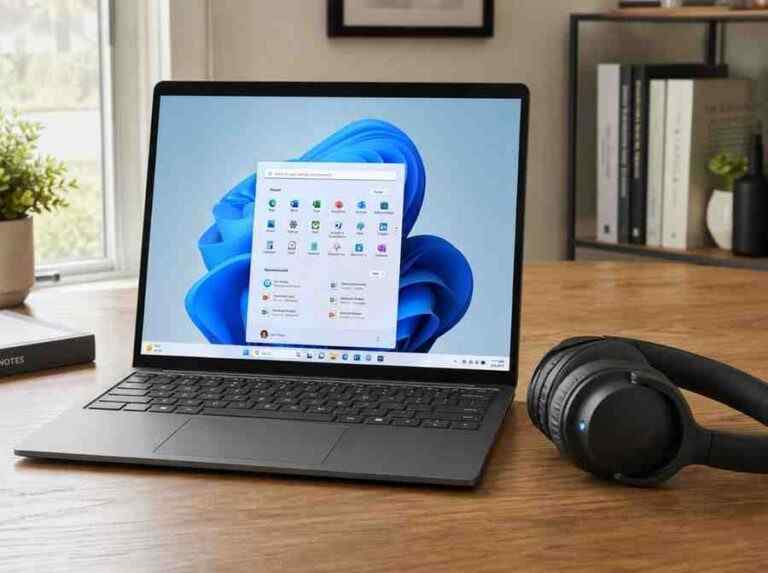
To connect Bluetooth headphones to PC fast, you only need three things: put your headphones in pairing mode, turn on Bluetooth on your PC, then select the headphones to connect. If it fails, we’ll fix the usual culprits in minutes: pairing mode issues, old saved devices, wrong audio output, and missing Bluetooth hardware/drivers.
Connecting Bluetooth headphones to PC is genuinely quick once you know the exact clicks for Windows 10 and Windows 11. In the next minute or two, we’ll do the simple flow (pairing mode → Bluetooth on → select device), and then we’ll handle the common “Why won’t my headphones connect to my PC via Bluetooth?” problems if your setup decides to be dramatic.
The 2-minute method (pairing mode → Bluetooth on → select headphones)
This is the core process that works for almost every brand: Sony, Bose, JBL, Beats, Anker Soundcore, Sennheiser, SteelSeries, and the random budget pair you bought at 2 a.m.
Step 1: Put your headphones in pairing mode (make them discoverable)
If you’re thinking, “How do I make my Bluetooth headphones discoverable?” this is it.
Every device is slightly different, but the general rule is to start with the headphones turned off. Press and hold the power button (or the dedicated Bluetooth button). Do not let go when they turn on — keep holding for 3–5 seconds until you hear a tone, a voice prompt (like “Ready to pair”), or see a rapidly flashing light.
What we look for in testing: a fast blinking blue light, or a voice prompt. If you only see a slow blink, you might be in normal power-on mode, not pairing mode.
Quick tip (helps a lot): If your headphones were previously paired with your phone, disable Bluetooth on your phone for a moment. Otherwise, the headphones may “snap back” to the phone and never show up on your PC.
Step 2: Turn on Bluetooth on your PC
If your question is “How to activate Bluetooth on PC?“ these are the fastest paths.
Windows 11
- Press Windows Key + I to open Settings, select Bluetooth & devices, and toggle the switch to On.
- Or click the Quick Settings area (Wi‑Fi/Sound/Battery) and toggle Bluetooth on.
Windows 10
- Press Windows Key + I, go to Devices > Bluetooth & other devices, and toggle it to On.
- Or click the Action Center icon and toggle Bluetooth on.
Step 3: Pair and connect
Now we tell Windows to look for the headphones and connect.
Windows 11
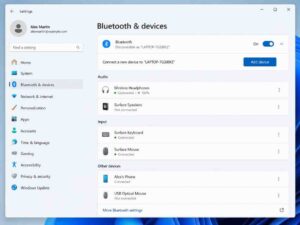
- Go to Settings → Bluetooth & devices → Add device → Bluetooth, then click your headphones in the list.
Windows 10
- Go to Settings → Devices → Bluetooth & other devices → Add Bluetooth or other device → Bluetooth, then click your headphones.
You should see a “Connected” message. If you see “Paired” but not “Connected,” don’t panic. We’ll fix that in the troubleshooting section.
How to connect Bluetooth headphones to PC Windows 10/11 (exact clicks)
Because the UI changes just enough between Windows 10 and 11 to be annoying, here are the “no thinking required” routes.
Windows 11 (2026-friendly path)
- Win + I → Bluetooth & devices
- Toggle Bluetooth: On
- Click Add device
- Choose Bluetooth
- Click your headphone name (example: “WH-1000XM5”)
- Confirm Connected
Buyer context: Windows 11 is usually smoother for Bluetooth audio than Windows 10, but it can still default to the wrong output device after connecting. We’ll handle that below.
Windows 10 (still common on older PCs)
- Win + I → Devices
- Click Bluetooth & other devices
- Toggle Bluetooth: On
- Add Bluetooth or other device → Bluetooth
- Select your headphones → Connect
Practical reason: Windows 10 sometimes stores old pairing records that block reconnection. If you get stuck, remove the device and re-pair (we cover that in troubleshooting).
How do I check if my PC has Bluetooth?
This is the sneaky one. Plenty of desktops (and older laptops) simply do not have Bluetooth built in.
Option A: Check Device Manager (fast, reliable)
- Right-click Start
- Click Device Manager
- Look for Bluetooth
If you see a Bluetooth section with items like “Intel Wireless Bluetooth” or “Realtek Bluetooth Adapter,” you’re good.
If you don’t see Bluetooth:
- Look under Network adapters for something like Bluetooth.
- Or you may need a driver install.
- Or the PC truly has no Bluetooth hardware.
Option B: Check Windows Settings
- Windows 11: Settings → Bluetooth & devices
- If Bluetooth is missing entirely (not just toggled off), that’s a clue.
If your PC doesn’t have Bluetooth
You have two solid options:
- USB Bluetooth adapter (dongle): Cheap, simple, and usually the best fix for desktops.
- Opinion: This is the easiest upgrade, but the cheapest dongles can be flaky with microphones. If you do calls a lot, buy a known brand adapter.
- Internal PCIe Wi‑Fi/Bluetooth card: Better antennas, typically more stable for distance and less interference.
Make sure sound is actually coming through the headphones (common “it connected but…” issue)
These headphones can connect perfectly and still play audio through your laptop speakers. Windows is like that.
Set the output device
- Windows 11: Settings → System → Sound → Output → choose your headphones.
- Windows 10: Settings → System → Sound → choose your output device.
Or click the speaker icon in the taskbar and pick the headphones from the output list.
We recommend this check immediately if your headphones say “Connected” but you hear nothing.
Troubleshoot Bluetooth headphones not connecting to PC (fixes that actually work)
If you’re here, you’re probably asking: “Why won’t my headphones connect to my PC via Bluetooth?”
In our experience, it’s almost always one of these: pairing mode wasn’t real pairing mode, Windows saved a bad connection, the headphones are connecting to another device, or the Bluetooth driver is unhappy.
1) “My headphones don’t show up in the list”
Clear opinion: If the device doesn’t appear, it’s usually not truly in pairing mode.
Practical reason: Windows only lists discoverable devices during scanning.
Buyer context: This happens a lot with premium headphones that auto-connect to your phone.
Try this:
- Turn headphones off
- Hold the power/Bluetooth button again and keep holding until the rapid blink or “pairing” voice prompt
- Move the headphones within 1–2 feet of the PC
- Temporarily turn off Bluetooth on your phone/tablet so the headphones don’t get hijacked
Still not showing?
- Restart Bluetooth on the PC (toggle off/on)
- Reboot the PC (it’s boring, but it clears stuck Bluetooth states)
- If desktop: use the rear USB ports for a Bluetooth dongle, not a front hub
2) “It says Paired, but won’t Connect”
This is classic Windows behavior.
Fix it in this order:
- Windows Settings → Bluetooth → find your headphones → Remove device
- Turn headphones off
- Put headphones back into pairing mode
- Add device again and reconnect
Why it works: You wipe the old pairing keys and create a clean handshake.
3) “Connected, but audio is choppy / cuts out”
Opinion: Choppy Bluetooth is usually interference or a weak adapter, not the headphones “being bad.”
Practical reason: Bluetooth shares crowded 2.4 GHz space with Wi‑Fi, USB 3.0 noise, and wireless peripherals.
Buyer context: This hits desktop users hardest because antennas are often buried behind the case.
Try:
- Switch Wi‑Fi to 5 GHz if possible
- Move the PC away from routers or USB 3.0 hard drives
- If using a dongle, plug it into a USB extension cable so it’s not blocked by the metal case
- Update Bluetooth drivers (see below)
4) “Connected, but microphone doesn’t work (or audio becomes awful)”
Windows sometimes flips to Hands-Free / Headset mode, which can sound noticeably worse. To resolve this issue, you can follow these steps:
- Windows Sound settings → choose the headphones as Output
- For mic input, choose a different mic if you have one (laptop mic or USB mic)
However, if you need high-quality mic plus high-quality audio, Bluetooth can still be limiting on Windows. For frequent calls, we usually recommend a USB headset dongle from the headphone manufacturer, or a dedicated wireless headset.
For more detailed troubleshooting on Bluetooth headset problems, you might find helpful solutions.
5) Update Bluetooth drivers (the non-fun fix that often solves everything)
- Open Device Manager
- Expand Bluetooth
- Right-click your adapter (Intel/Realtek) → Update driver
If that doesn’t help, go to your laptop/PC manufacturer’s support page and install the latest Wi‑Fi/Bluetooth package.
Practical reason: Windows Update doesn’t always deliver the best Bluetooth stack for your hardware.
6) Run the built-in Windows troubleshooter (quick check)
- Windows 11: Settings → System → Troubleshoot → Other troubleshooters → Bluetooth
- Windows 10: Settings → Update & Security → Troubleshoot → Additional troubleshooters → Bluetooth
It won’t fix everything, but it can reset services and point to driver issues.
How to connect Bluetooth headphones to Mac (quick Mac steps)
A lot of people bounce between work MacBooks and Windows PCs, so here’s the Mac path too.
- Put headphones into pairing mode (discoverable)
- On Mac: System Settings (or System Preferences) → Bluetooth
- Turn Bluetooth On
- Find your headphones in the list → click Connect
If you encounter issues with audio quality on Windows due to the Hands-Free mode being activated, you might want to uncheck the handsfree telephony profile as part of your troubleshooting process.
Still helpful: If the Mac connects but the PC won’t later, “forget” the device on the Mac (Bluetooth list → (i) → Forget This Device) so the headphones stop auto-connecting to it.
The fastest “reset everything” method (when you just want it to work)
When we’re testing lots of headphones, this is the quickest clean slate:
- On Windows: Remove device (forget headphones)
- Power off headphones
- Do a headphone Bluetooth reset (varies by brand, check manual)
- Restart PC
- Pair again using the 2-minute method
Opinion: Resets feel drastic, but they save time when you’re stuck in a half-paired state that Windows refuses to resolve.
Quick FAQ (the exact questions people ask)
How to activate Bluetooth on PC?
- Windows 11: Win + I → Bluetooth & devices → Bluetooth On
- Windows 10: Win + I → Devices → Bluetooth & other devices → Bluetooth On
How do I make my Bluetooth headphones discoverable?
Turn them off, then press and hold the power/Bluetooth button until a voice prompt or rapid blinking light appears. Keep holding 3–5 seconds after power-on.
Why won’t my headphones connect to my PC via Bluetooth?
Most common reasons:
- Not truly in pairing mode
- Headphones auto-connected to another device
- Windows saved a bad pairing record (remove device and re-pair)
- Missing Bluetooth hardware or outdated drivers
How do I check if my PC has Bluetooth?
Open Device Manager and look for a Bluetooth section. If it’s missing, you may need drivers or a Bluetooth adapter.
Conclusion: Connect Bluetooth headphones to PC in 2 minutes (and what to do if it fails)
To connect Bluetooth headphones to PC, the winning routine is simple: put your headphones into pairing mode, turn on Bluetooth on your PC, then select the headphones to connect. If Windows refuses to cooperate, the fastest fix is usually to remove the device, re-enter pairing mode properly, and reconnect, then double-check the audio output device.
If you tell us your headphone model and whether you’re on Windows 10 or 11, we can pinpoint the exact reset steps and the most likely fix in one pass.
FAQs (Frequently Asked Questions)
How do I quickly connect Bluetooth headphones to my PC?
To connect Bluetooth headphones to your PC fast, first put your headphones in pairing mode by holding the power or Bluetooth button for 3–5 seconds until you see a rapidly flashing light or hear a voice prompt. Then, turn on Bluetooth on your PC via Settings (Windows Key + I) and toggle Bluetooth on. Finally, select your headphones from the list of available devices to connect.
What should I do if my Bluetooth headphones won’t connect to my PC?
If your headphones fail to connect, check that they’re properly in pairing mode with a fast blinking light or voice prompt. Disable Bluetooth on other devices like your phone to prevent automatic reconnection. Remove any old saved devices from your PC’s Bluetooth settings and try pairing again. Also, ensure the correct audio output device is selected and verify that your PC has the necessary Bluetooth hardware and drivers installed.
How can I turn on Bluetooth on Windows 10 and Windows 11?
On Windows 11, press Windows Key + I to open Settings, go to ‘Bluetooth & devices,’ and toggle Bluetooth on. Alternatively, use the Quick Settings area (Wi-Fi/Sound/Battery) to toggle it. On Windows 10, press Windows Key + I, go to ‘Devices > Bluetooth & other devices,’ and toggle Bluetooth on, or use the Action Center icon to toggle it.
How do I put my Bluetooth headphones into pairing mode?
Start with your headphones turned off. Press and hold the power button or dedicated Bluetooth button for 3–5 seconds without releasing when they turn on. Look for a fast blinking blue light or listen for a voice prompt like ‘Ready to pair.’ Avoid slow blinking lights as that may indicate normal power-on mode instead of pairing mode.
How can I check if my PC has built-in Bluetooth?
Right-click Start and open Device Manager. Look for a ‘Bluetooth’ section with items like ‘Intel Wireless Bluetooth’ or ‘Realtek Bluetooth Adapter.’ If missing, check under Network Adapters for any mention of Bluetooth. You can also check Windows Settings under ‘Bluetooth & devices’—if the option is missing entirely, your PC might not have built-in Bluetooth hardware.
What if my PC doesn’t have built-in Bluetooth hardware?
If your PC lacks built-in Bluetooth, you can easily add it using a USB Bluetooth adapter (dongle). These are affordable, simple to set up, and typically the best fix for desktops without native Bluetooth support.
