




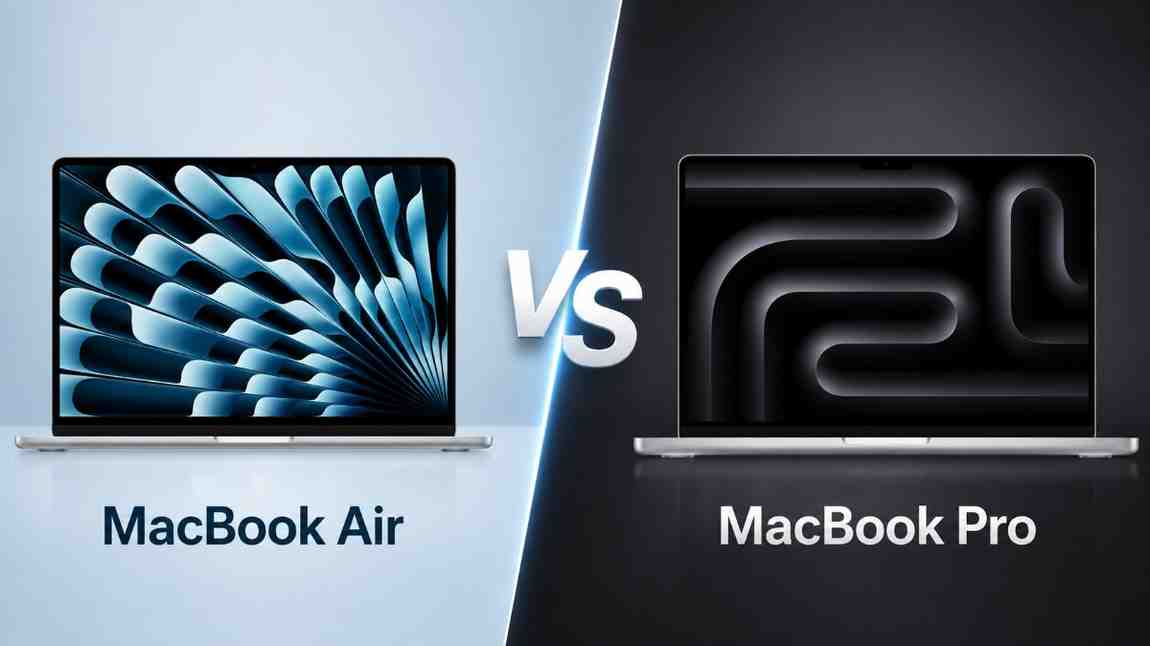
The MacBook Air is still the best value for most people in 2026: it’s lighter, cheaper, and stays completely silent because it’s fanless. The MacBook Pro costs more, but you buy it for sustained performance, a brighter and better display, and ports that save you from dongle life.
The core trade-off is simple: portability and price vs peak performance, display quality, and connectivity. I’ll give quick picks first, then real-world performance context, then buyer-type recommendations.
MacBook Air vs MacBook Pro (2026): which should you actually buy?
MacBook Air vs MacBook Pro (2026) comes down to what you do all day, not what a benchmark chart says. Buy the MacBook Air if your work is mostly browsing, Office/Google Docs, school, light photo edits, and occasional short exports. Buy the MacBook Pro if you run heavy apps for long stretches, work on external displays, or you’re tired of your laptop slowing down when it gets hot.
Ask yourself four questions. What apps do you use, how long do you run the heavy ones, how often do you travel, and what ports do you need daily?
I’ll go beyond “Air is cheaper, Pro is faster.” We’ll talk fanless vs active cooling, screen quality you actually notice, and the hidden cost of hubs, dongles, and external storage.
Neither one is “better.” They’re optimized for different annoyances. Pick your pain point.
What changed for 2026 MacBooks—and what didn’t?
For most people shopping in 2026, the world is still very “M4 era.” You’ll see MacBook Air models stuck on the base M4, while the Pro lineup stretches from M4 up to M4 Pro and M4 Max.
In plain English, Apple silicon tiers aren’t marketing fluff. The base chip is about great burst performance and efficiency. Pro and Max add more sustained CPU and GPU horsepower, more memory bandwidth, and typically stronger connectivity options.
You’ll also hear rumors. OLED MacBooks get whispered about every cycle, and M5 timing always sounds “soon.” Don’t buy on rumors unless you can comfortably wait and you know exactly what feature you’re waiting for.
The evergreen truths didn’t change. The Air stays fanless and thin. The Pro runs heavier, longer workloads without flinching. That’s it.
How different are MacBook Air and Pro on paper (and why it matters)?
Specs matter, but only a few of them consistently change the experience. Focus on chip tier, cooling, display, ports, battery life, weight, and starting price.
Apple’s configurator is where budgets go to die. Unified memory and SSD upgrades get expensive fast, and you can’t upgrade either later.
I see two common mistakes all the time. People under-buy RAM for pro apps and then blame macOS for “getting slow.” Other people over-buy CPU/GPU for web and docs, then wonder why the Pro didn’t make email feel different.
Also, spec sheets don’t show comfort factors. Fan noise, heat on your lap, and screen brightness in daylight matter more than one extra CPU core. Full stop.
Which models are we comparing (13-inch Air, 15-inch Air, 14-inch Pro, 16-inch Pro)?
To keep this useful, I’m comparing the four models most people actually cross-shop:
| Model | Starting price | Chip | RAM (max) | Display | Ports (high level) | Tested battery life | Weight |
| MacBook Air 13-inch (M4) | $999 | M4 | 32GB | 13.6-inch 2560×1600 | 2× TB3/USB4, MagSafe | 15:42 | 2.7 lb |
| MacBook Air 15-inch (M4) | $1,199 | M4 | 32GB | 15.3-inch 2880×1864 | 2× TB3/USB4, MagSafe | 15:14 | 3.3 lb |
| MacBook Pro 14-inch | $1,599 | M4 / M4 Pro / M4 Max | 128GB | 14.2-inch 3024×1964, 120Hz | 3× TB4, HDMI, SDXC, MagSafe | 18:32 | 3.4 lb |
| MacBook Pro 16-inch | $2,499 | M4 Pro / M4 Max | 128GB | 16.2-inch 3456×2234, 120Hz | 3× TB5, HDMI, SDXC, MagSafe | 20:46 | 4.7 lb |
Size matters beyond screen inches. Bigger chassis usually means better thermals, bigger battery, and better speakers. It also means you’ll feel it in your bag.
If you’re price-checking, use “current price” thinking, not “it’ll definitely be on sale” fantasy. Deals change hourly.
Here are the four models, easy to pull up while you read (affiliate tag: techozea-20):
- MacBook Air 13-inch (M4): the lightweight default pick for most people.
- See current price on Amazon
- MacBook Air 15-inch (M4): big screen without Pro pricing.
- See current price on Amazon
- MacBook Pro 14-inch (M4 / M4 Pro / M4 Max): portable performance with real ports.
- See current price on Amazon
- MacBook Pro 16-inch (M4 Pro / M4 Max): the “I do this for a living” machine.
- See current price on Amazon
Short version: know your size and chip tier first. Everything else gets easier.
Where to place Amazon affiliate links without turning the article into spam
If you want links that feel helpful, place them where the reader naturally wants to check a price. The first good spot is right after the model overview, which you just saw. The second best spot is after the final recommendations, when they’ve made up their mind.
If you use product cards, keep them neutral. Show the model, say who it’s for in one line, then offer a “See current price” button. Don’t promise discounts you can’t control.
Trust converts better than hype. Always.
How fast is the MacBook Air vs Pro in real work—not just hype?
Performance isn’t one thing. It’s two things: burst speed and sustained speed.
Burst speed is how fast a laptop feels when you open apps, load pages, and do short tasks. Sustained speed is what happens 8 minutes into a 4K export or 20 minutes into a big code compile. That’s where fans, bigger heatsinks, and higher-tier chips start to matter.
For “good enough” workloads, the Air rarely feels slow. Office, browsing, research, Zoom, light coding, and casual photo editing all land here.
Sustained workloads are different. 4K exports, big Lightroom catalogs, long Xcode builds, heavy Excel sheets, and anything that runs hot for a long time will make the Pro feel smoother and more consistent.
When I reference numbers, I’m using the usual suspects: Geekbench 6 for general CPU, Cinebench 2024 for sustained CPU, BlackMagic Disk Speed for SSD behavior, and Handbrake for video transcode.
Benchmarks guide. Your workflow decides.
Does fanless vs active cooling change the buying decision?
Yes, more than most people admit. The Air’s fanless design is why it feels so nice to live with. It’s silent, it doesn’t suck dust, and it stays comfortable for everyday tasks.
But fanless designs have a limit. Under long renders or sustained compiles, the Air has to manage heat by reducing performance. You don’t notice it in the first minute. You notice it when the task takes longer than it should and the chassis gets warm.
The Pro’s active cooling is the opposite trade. It can hold higher clocks for longer, which means more consistent export times and fewer “why is this suddenly crawling?” moments. You might hear the fans under load, and it can get warm, but it keeps moving.
Concrete scenarios where this matters:
- Exporting a 20-minute 4K timeline in Final Cut Pro.
- Batch exporting RAWs in Lightroom while you keep working.
- Coding with Docker containers plus local AI tooling and a couple browsers full of tabs.
If your laptop routinely feels hot now, buy the Pro. Easy.
Which chip tier (M4 vs M4 Pro vs M4 Max) is actually worth paying for?
Think of it like this. M4 is for general use plus light creative work. M4 Pro is for heavy multitasking and long exports that happen often. M4 Max is for serious GPU work and big timelines where time really is money.
Memory bandwidth and unified memory are the hidden “why is this slow?” factors. Large video projects, lots of layers, huge sample libraries, and multiple pro apps running together all pressure memory more than CPU.
Diminishing returns are real, though. If you don’t export often, you won’t “feel” Max day-to-day. You’ll just see a bigger receipt.
Pay for your bottleneck. Not your ego.
How good is the display—Air’s Liquid Retina vs Pro’s Liquid Retina XDR + ProMotion?
The Air’s Liquid Retina display is genuinely good. It’s sharp, color-accurate enough for most people, and bright enough for indoor work.
The Pro’s Liquid Retina XDR steps into “you can’t unsee it” territory if you do HDR work or you often work in bright environments. You get higher sustained brightness, much better HDR capability, and generally stronger contrast handling for demanding content.
Then there’s ProMotion. You don’t need 120Hz to write emails. Still, once your eyes adjust, scrolling and animations feel smoother. Some people care a lot. Some barely notice. If you’re sensitive to motion, you’ll notice immediately.
One sensible wait rule exists. Wait only if your current laptop is fine and you specifically want OLED for contrast and blooming improvements. Otherwise, buy for today’s work.
Refresh cycles slip. Deals show up on current stock. Buy what you need.
Should you wait for OLED MacBooks?
OLED is rumored often enough that it’s worth discussing carefully. If Apple goes OLED, you’d likely see better contrast, less blooming compared to mini-LED behavior, and potentially different battery trade-offs depending on brightness and content.
But rumors don’t ship your deadlines. If your machine is struggling today, OLED isn’t a plan. It’s a wish.
Wait if you’re comfortable waiting and OLED is the one feature you care about most. If not, buy the Mac that improves your day right now.
That’s the decision.
How is battery life in the real world (and which one lasts longer)?
Apple’s battery claims assume a best-case world. Your brightness, your apps, your peripherals, and your browser habits run the show.
In light tasks, the Air often feels like the battery champ because it’s so efficient and doesn’t spend power on fans. In mixed use, the Pro can match or even beat it, especially with bigger batteries in the larger chassis.
Heavy work drains everything faster. External displays, high brightness, long video calls, Lightroom exports, Docker workloads, and fast networking can all chew through battery.
The good news is boring in the best way. For all-day campus or work, both are strong. The Air is simpler.
How does it connect—ports, Thunderbolt versions, MagSafe, and dongle pain?
The Air keeps ports minimal. That’s fine until you plug in power and an external display and suddenly you’re negotiating with a hub for your SSD, mic, or SD card reader.
The Pro is just easier if you create things. HDMI and SDXC sound old-school until you’re on a shoot or in a studio and you need them now, not after your dongle arrives.
Thunderbolt versions matter if you live on external storage or docks. Faster Thunderbolt helps with high-speed SSDs, multi-display setups, and future-proof docking. In this lineup, the 16-inch Pro’s Thunderbolt 5 support is the real “pro workflow” differentiator.
Also, MagSafe remains underrated. It’s safer at a desk, and it frees Thunderbolt ports for actual work.
If you already own a good hub, the Air is fine. If you hate hubs, buy a Pro.
How much storage and unified memory do you need (so you don’t regret it)?
This is where people mess up because Apple upgrades cost real money and mistakes last years. You can’t upgrade RAM or SSD later. Choose like you’re buying the laptop you’ll still like in three years.
Here are practical tiers that usually hold up:
- Students / general use: 16GB unified memory, 256GB to 512GB SSD.
- Coding + light creative: 16GB to 24GB memory, 512GB SSD.
- Pro photo/video/music: 24GB to 64GB memory depending on projects, 1TB SSD if you keep libraries local.
Workload reality check helps. Final Cut Pro generates caches fast. Lightroom catalogs and previews grow quietly. Music production sample libraries can swallow storage. Xcode builds and simulators add up, and VMs can explode both RAM and SSD needs.
External SSDs are cheap and fast now. Memory is the one you can’t fix later. Prioritize RAM.
What about webcam, biometrics, and day-to-day quality-of-life?
The modern MacBook cameras are fine for calls and Center Stage can genuinely help if you move around. Don’t expect magic in low light, though. You’ll still look better with decent lighting.
Touch ID is the daily win, and it’s standard across these models. Face ID still isn’t a thing on MacBooks as of the current lineup, so don’t buy one expecting it.
Pros tend to feel more like desk replacements. Better speakers, stronger sustained performance, and more ports mean fewer little frictions. The Air feels like a “carry everywhere” tool that disappears in a backpack.
These are the features you notice daily. That’s why they matter.
How much more does MacBook Pro cost—and where the value actually is
The sticker price difference is real, but total cost is sneakier. Add a decent hub, maybe an external SSD, and consider AppleCare if you travel a lot. Suddenly the “cheap” laptop isn’t as cheap.
The Pro earns its premium when you actually use its strengths. Sustained performance, the XDR display with ProMotion, more ports, and stronger thermals are not bragging rights. They’re time and sanity.
The Air’s value is cleaner. Price-to-performance for most tasks is excellent, it stays silent, it’s lighter, and you often don’t need to pay the “pro tax” unless your work demands it.
If you’re ready to price-check without guessing at deals, use the current listings:
- MacBook Air 13-inch (M4) current price
- MacBook Air 15-inch (M4) current price
- MacBook Pro 14-inch (M4) current price
- MacBook Pro 16-inch (M4 Pro/Max) current price
Verdict: pay extra only when you’ll feel it weekly. Not once a year.
Which MacBook should you buy if you’re a student?
Most students should buy the MacBook Air, and the only real question is 13-inch or 15-inch. The 13-inch is the easiest to carry and still gets excellent battery life. The 15-inch gives you breathing room for split-screen notes, research, and assignments without jumping to Pro pricing.
The Pro makes sense for specific student paths. Film/media students exporting constantly will feel the difference. Heavy CS workloads with long builds, lots of containers, and multiple external monitors can justify it too, especially if it’s your main machine.
If your budget is tight, prioritize RAM before SSD. You can always add external storage later.
Default pick: Air, with extra RAM if you can swing it.
Which MacBook should you buy for coding and dev work?
Developers should think about memory first, sustained CPU second, and ports third. Running containers, local databases, multiple browsers, and an external display all at once eats RAM fast.
The Air is fine for web dev, app dev, and moderate builds. It feels fast, and it stays silent, which is honestly great for focus. Once you start doing long compiles, multi-repo work, or heavier local tooling, the Pro’s cooling and higher-tier chips pay off.
Port reality matters more than it should. A good Thunderbolt dock can solve almost anything, but fewer dongles is still sanity when you travel or move between desks.
If builds are your day job, buy the Pro. Simple.
Which MacBook should you buy for creators (photo, video, music)?
For photo work in Lightroom, RAM helps more than people expect. The Air can absolutely edit photos, but big catalogs and batch exports feel smoother on a Pro, especially when you keep working while it churns.
For video, the Pro is the safer call. Sustained performance matters, and the XDR display is legitimately useful if you do HDR work or you care about seeing highlights and contrast accurately. Handbrake-style transcodes are a decent proxy for this kind of workload, and the Pro tends to hold speed longer.
Music production can go either way, but sample libraries push you toward more SSD and more memory. Long sessions with lots of plugins also favor the Pro because it stays consistent when the session heats up.
Creators buy the Pro for fewer compromises. That’s the point.
Which MacBook should you buy if you want the lightest, quietest laptop?
This is the easiest recommendation. Buy the Air.
The fanless design means true silence, and the lighter chassis makes it a laptop you actually take with you. That sounds obvious, but lots of people buy power they don’t need and then resent carrying it.
You should also be honest about the downside. Long exports, hot rooms, and sustained workloads will show the Air’s limits. It won’t explode, but it will slow down to manage heat.
If you want the best portable performance compromise, the 14-inch Pro is the sweet spot. That’s the move.
Should you consider alternatives (Windows laptop, Chromebook, and the ‘MacBook Neo’ rumor)?
If your workflow is genuinely browser-only, a good Chromebook can save you a lot of money. You’ll lose some premium hardware feel, but you might not care.
If you need niche apps, better game support, or specific hardware compatibility, Windows laptops still make more sense. macOS is great, but it isn’t the answer to every software problem.
You might also hear “MacBook Neo” rumors, usually framed as a budget MacBook. Maybe it happens, maybe it doesn’t. Don’t plan a purchase around unconfirmed products, especially if you need a laptop for school or work on a timeline.
Buy for the software you run. Everything else is secondary.
My straight picks (2026): which one wins for each type of buyer?
Best MacBook for most people: MacBook Air 13-inch (M4)
If you want the safest recommendation with the fewest regrets, it’s the 13-inch Air. It’s fast enough for most real life, ridiculously easy to carry, and it stays silent.
When you configure it, don’t get cute. If you can afford one upgrade, do RAM before SSD.
Pick it if you want the best mix of price, portability, and “just works.” Short answer.
Best affordable big-screen: MacBook Air 15-inch (M4)
The 15-inch Air is the big-screen MacBook that doesn’t punish your wallet. You get more space for split-screen work, timelines, or big documents, and you keep the Air’s strengths.
It’s also the model I point to when someone says, “I don’t need Pro power, I just need room.”
If screen space is your daily headache, fix it. This does.
Best portable performance: MacBook Pro 14-inch (M4 / M4 Pro / M4 Max)
The 14-inch Pro is for people who travel but still do real work. You get the better display, better ports, and the cooling that keeps performance consistent when tasks get heavy.
One important nuance: the base 14-inch Pro with the standard M4 blurs the line with the Air. You’re paying for the screen, ports, and chassis benefits more than a giant performance leap unless you move up to M4 Pro or Max.
Buy it when you want headroom without the 16-inch weight. That’s the win.
Best peak performance: MacBook Pro 16-inch (M4 Pro / M4 Max)
If this is your main work machine and you push it hard, the 16-inch Pro is the king. Bigger thermals, bigger screen, and the chips that make sustained tasks less painful all stack in its favor.
It’s not subtle, though. You’ll feel the weight, and you’ll pay for the privilege. In return, you get the fewest compromises in the lineup.
Pick it if time saved is money saved. That’s the logic.
Don’t overbuy. Spend on RAM and the screen and ports you’ll use, not bragging rights. Pick the one that fits your work.
FAQs (Frequently Asked Questions)
What are the main differences between the 2026 MacBook Air and MacBook Pro?
The 2026 MacBook Air is lighter, more affordable, and fanless for silent operation, making it ideal for everyday tasks like browsing and light editing. The MacBook Pro costs more but offers sustained performance, a brighter and higher-quality display, and more ports to reduce reliance on dongles. Essentially, it’s a trade-off between portability and price versus peak performance, display quality, and connectivity.
Which MacBook model should I buy based on my usage?
If your daily work involves browsing, using Office or Google Docs, schoolwork, light photo edits, and occasional short exports, the MacBook Air is the best value. However, if you run heavy applications for long periods, use external displays frequently, or need a laptop that maintains performance without slowing down due to heat, the MacBook Pro is better suited to your needs.
How do cooling systems differ between the 2026 MacBook Air and Pro?
The MacBook Air features a fanless design that keeps it silent but may throttle performance under sustained heavy workloads. In contrast, the MacBook Pro uses active cooling with fans to handle heavier tasks over longer periods without slowing down due to heat buildup.
What are the key specifications that impact user experience in 2026 MacBooks?
Important specs include chip tier (M4 base vs M4 Pro/Max), cooling system (fanless vs active), display quality (brightness and refresh rate), available ports (Thunderbolt versions, HDMI, SDXC), battery life, weight, and starting price. Also consider unified memory (RAM) and SSD storage upgrades carefully since they can’t be upgraded later.
What sizes and configurations are available for the 2026 MacBook Air and Pro?
The main models compared are: MacBook Air 13-inch with M4 chip starting at $999; MacBook Air 15-inch with M4 starting at $1,199; MacBook Pro 14-inch with M4/M4 Pro/M4 Max starting at $1,599; and MacBook Pro 16-inch with M4 Pro/M4 Max starting at $2,499. Each varies in RAM capacity (up to 32GB for Airs and up to 128GB for Pros), display resolution and size, port selection, battery life, and weight.
Are rumors about OLED screens or M5 chips relevant when buying now?
While rumors about OLED MacBooks or next-generation M5 chips circulate each cycle, it’s best not to base your purchase decisions on them unless you can wait comfortably and know exactly what new features you want. The core differences—like fanless design in Airs versus active cooling in Pros—remain consistent regardless of upcoming releases.
