



Is your laptop camera making you look grainy, dark or off-center in every meeting? You moved the lamp. You cleaned the lens. It still looks bad. That is the real reason most people search for the best webcams for Zoom. Not because they want 4K. Because they want to look like themselves on a call.
Here is the good news. You do not need to spend $200. For most Zoom meetings, a $50 1080p webcam with decent light looks better than a $350 4K camera in a dim room. Zoom itself limits most calls to 720p or 1080p anyway. We explain exactly how that works further down. What matters more is lighting, focus, framing, and audio.
This guide compares ten webcams for video conferencing at every budget. For each one, we tell you who it is for, who should skip it, and what it really costs. We did not run all ten through a lab. We compared verified manufacturer specs, Zoom’s own documentation, and independent testing from outlets like PCMag and Tom’s Guide. Then we made a call on each camera the way we would for a friend.
Quick Picks: The Best Webcams for Zoom at a Glance
Use this webcam comparison table to jump straight to the right pick. Every row links to the full review.
| # | Webcam | Best for | Max video | Field of view | Focus | Mic | Shutter | Port | Typical price* |
|---|---|---|---|---|---|---|---|---|---|
| 1 | Logitech Brio 300 | Everyday meetings (best overall) | 1080p / 30 fps | 70° | Fixed | Mono, noise-reducing | Yes | USB-C | $40–$60 |
| 2 | Logitech Brio 500 | Working from home | 1080p / 30 fps (720p / 60) | 90°, 78°, 65° | Autofocus | Dual beamforming | Yes | USB-C | $90–$130 |
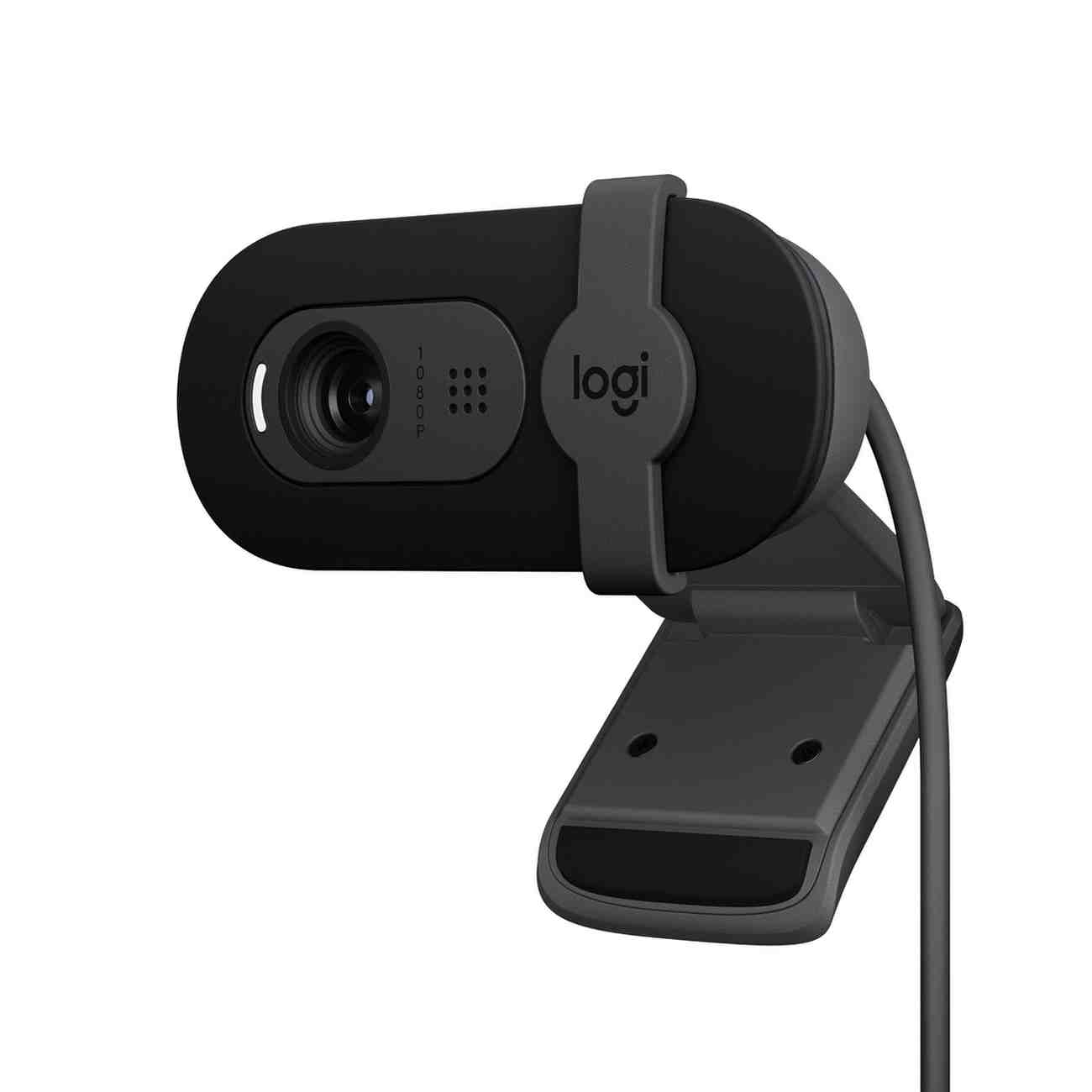
| 3 | Logitech Brio 100 | Tight budgets | 1080p / 30 fps | 58° | Fixed | Mono | Yes | USB-A | $25–$40 |
| 4 | Anker PowerConf C200 | Best value 2K | 2K / 30 fps | 95°, 78°, 65° | Autofocus | Dual stereo, AI noise-canceling | Cover | USB-A cable | $45–$70 |
| 5 | Logitech C920s Pro HD | Classic autofocus pick | 1080p / 30 fps | 78° | Autofocus | Dual stereo | Yes | USB-A | $60–$70 |
| 6 | Logitech MX Brio | Premium 4K and low light | 4K / 30 fps, 1080p / 60 | 90°, 78°, 65° | Autofocus | Dual beamforming | Yes | USB-C | $160–$200 |
| 7 | Logitech Brio 4K | 4K with group framing | 4K / 30 fps, 1080p / 60 | 90°, 78°, 65° | Autofocus | Dual omni | Clip-on shade | USB-C to USB-A (3.0) | $125–$200 |
| 8 | Insta360 Link 2 | Presenters and teachers | 4K / 30 fps, 1080p / 60 | 79.5° | PDAF autofocus | Dual, AI noise-canceling | Privacy mode | USB-C | $150–$200 |
| 9 | OBSBOT Tiny 3 | Premium AI tracking | 4K / 30 fps, 1080p / 120 | 74° | PDAF autofocus | Triple, spatial audio | Privacy mode | USB-C | $300–$350 |
| 10 | Elgato Facecam MK.2 | Image controls | 1080p / 60 fps | 84° | Fixed | None | Slide shutter | USB-C | $100–$150 |
List prices are often higher. Sales change weekly, so tap through for the live price. Feature availability depends on the model, connection, software, and operating system. Check the maker’s spec sheet before you buy.
Not sure which one? Answer a few quick questions.
The 10 Best Webcams for Zoom Meetings
#11. Logitech Brio 300
Best Overall Webcam for Everyday Zoom Meetings
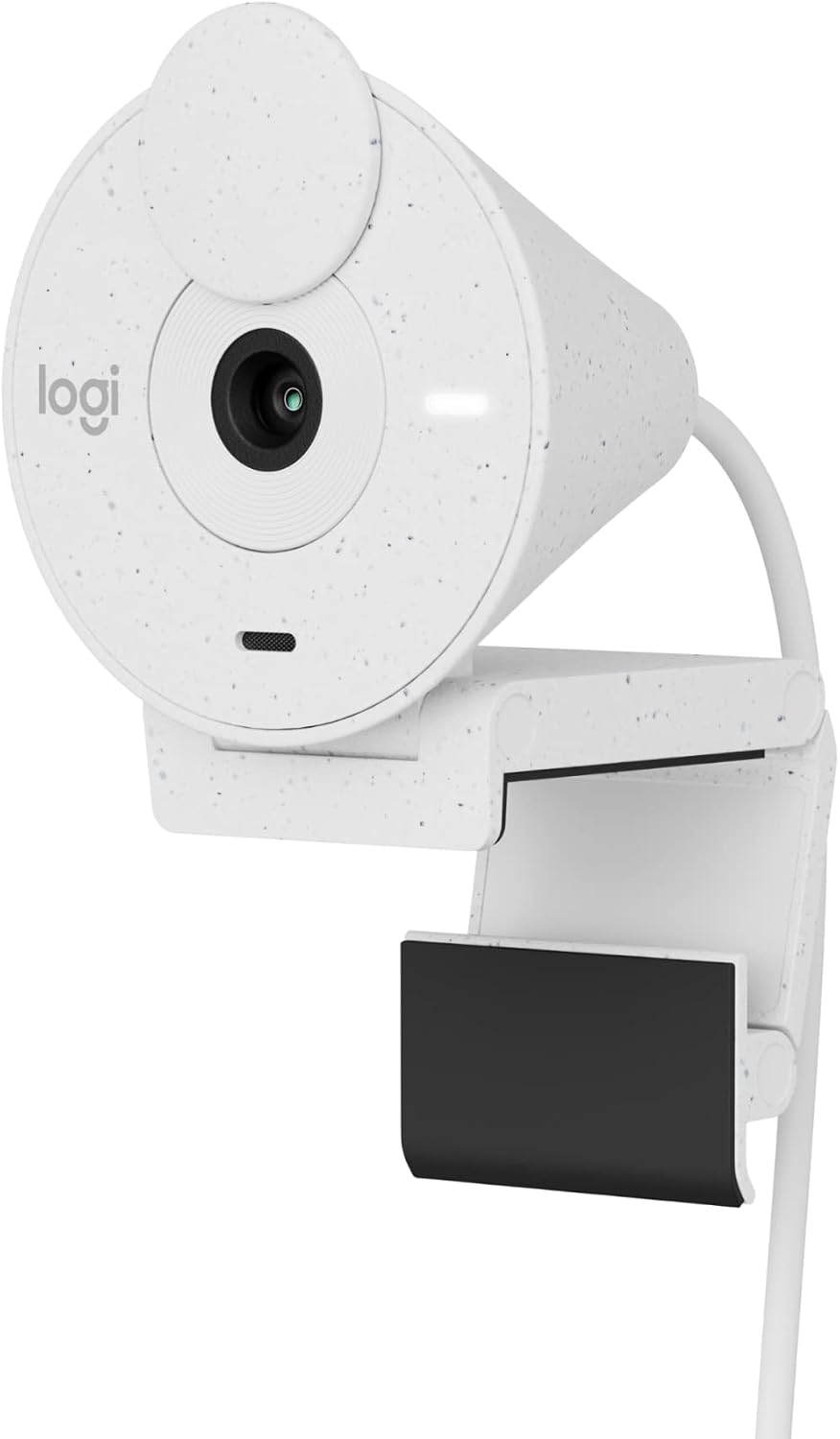
The Logitech Brio 300 is the webcam we would hand to most people. It records Full HD 1080p at 30 fps. RightLight 2 auto light correction lifts your face when the room is dim. A mono noise-reducing mic handles basic calls. And a privacy shutter spins shut when you are done. It uses a fixed USB-C cable, so it is a true plug-and-play USB webcam for a modern laptop.
The 70-degree field of view is a smart choice for Zoom. It frames your head and shoulders. It does not show your whole kitchen. That keeps attention on you.
Now the honest part. The Brio 300 uses fixed focus. If you lean in close, you will go soft. PCMag’s review found the picture a bit noisy and the mic a little echoey. Stream Tech Reviews praised its color accuracy and dynamic range in good light. Both are true. In a bright room, it looks clean. In a dark room, it looks like a $50 webcam.
Key specifications
- Max resolution: 1080p at 30 fps (720p at 30 fps)
- Field of view: 70° diagonal
- Focus: Fixed
- Microphone: Single mono mic with noise reduction
- Lighting: RightLight 2 auto light correction
- Connection: Attached USB-C cable (about 5 ft)
- Privacy: Integrated rotating shutter
- Certified for: Zoom, Microsoft Teams, Google Meet
Pros and cons
Pros
- True plug-and-play. No software needed.
- Privacy shutter built in.
- Auto light correction that actually helps.
- Compact and light. Sits well on thin laptop lids.
- USB-C with no adapter needed on newer laptops.
Cons
- No autofocus.
- No USB-A adapter in the box for older laptops.
- Mic is fine for calls, not for recording.
- No 2K or 4K capture.
Who should buy it: Most people reading this. If you sit at a desk and want to look clear on Zoom, start here.
Who should skip it: Anyone who moves around on calls, works in a dark room, or needs a wider shot. Look at the Brio 500 or the Anker C200 instead.
Our verdict: The Brio 300 is the best value 1080p webcam for Zoom for most people. It is not the sharpest image at this price. It is the one that just works.
Check the Logitech Brio 300 price on Amazon →Prices change often. Tap through for today's price and stock.
#22. Logitech Brio 500
Best Webcam for Working From Home
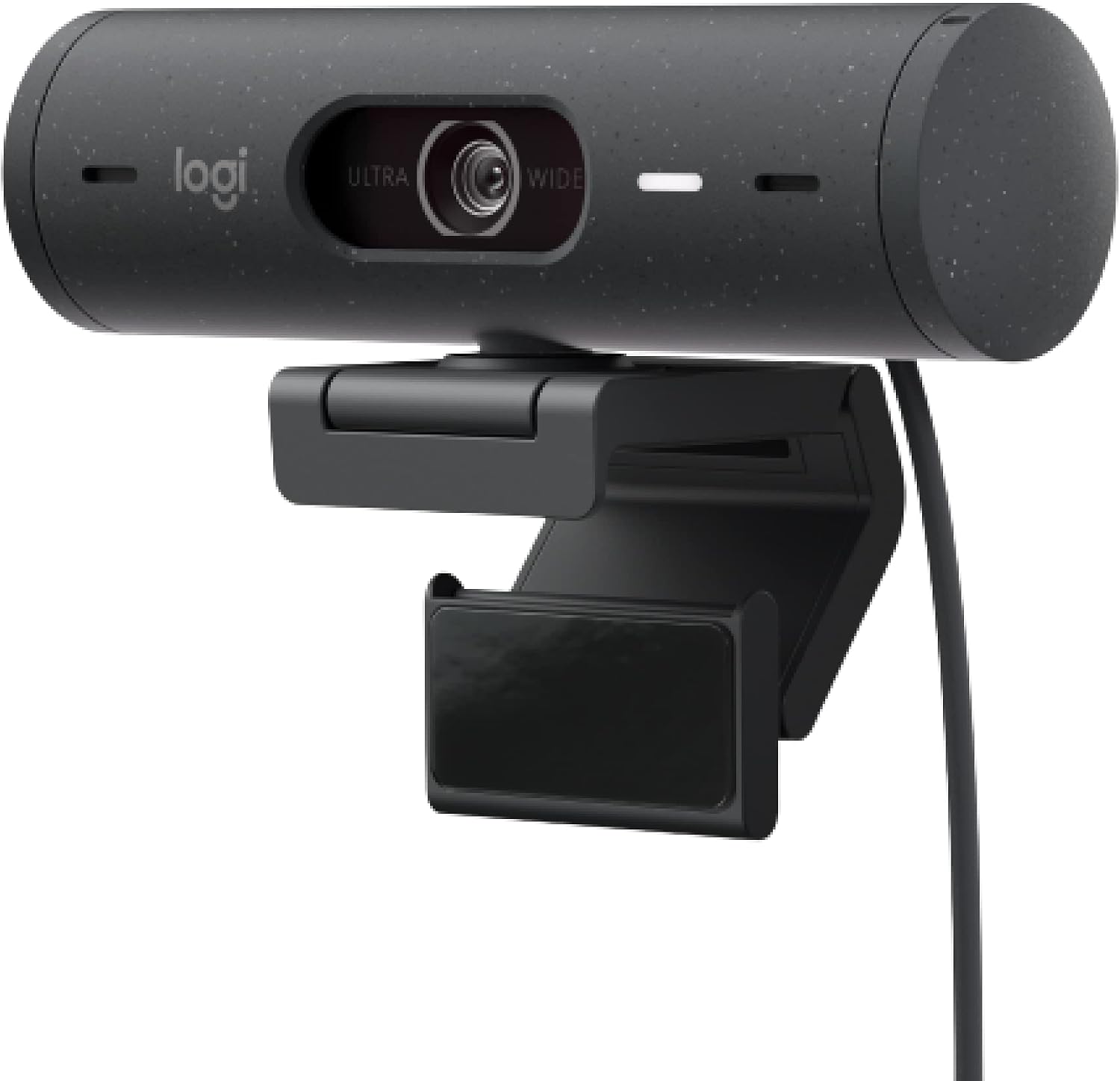
If Zoom is your office, the Logitech Brio 500 is the webcam for working from home that we recommend most. It is still a 1080p webcam. The upgrade is everything around the sensor. You get autofocus, a 90-degree view you can narrow to 78° or 65°, and RightLight 4 with HDR for tricky lighting. Two beamforming mics pick up your voice and cut background noise.
Two features matter most for remote work. Auto-framing keeps you centered when you shift in your chair or stand up for a moment. Show Mode lets you tilt the camera down to show a notebook or product on your desk. Logi Tune flips the image for you, so it reads correctly.
Tom’s Hardware tested it in a dark room lit by one monitor. The image stayed usable thanks to RightLight 4. They also found the mics “not bad” for a webcam, which is high praise in this category.
The main drawback is price. You are paying about double the Brio 300 for convenience, not resolution. The USB-C cable is attached, and there is no USB-A adapter in the box. The auto-framing needs the Logi Tune app. If you are building out the rest of your home office setup, this is the webcam we would plan around.
Key specifications
- Max resolution: 1080p at 30 fps; 720p at 60 fps
- Field of view: 90° diagonal, adjustable to 78° or 65°
- Focus: Autofocus (glass lens)
- Microphones: Dual beamforming, noise-reducing
- Lighting: RightLight 4 with HDR
- Framing: Auto-framing and Show Mode via Logi Tune
- Connection: Attached USB-C cable
- Privacy: Integrated rotating shutter
Pros and cons
Pros
- Autofocus and HDR in a 1080p webcam.
- Auto-framing follows you around the desk.
- Show Mode is great for sketches and documents.
- Better mics than most webcams.
- Adjustable field of view for solo or two-person shots.
Cons
- Costs more than basic 1080p models.
- Best features depend on Logi Tune.
- Not 4K, if that matters to you.
- No USB-A adapter included.
Who should buy it: Full-time remote workers, managers who run meetings, and anyone who shows things on camera.
Who should skip it: Light users who sit still on short calls. The Brio 300 does 80% of this for half the price.
Our verdict: The Brio 500 is the best webcam for Zoom meetings when meetings are your whole day. It is a strong contender for best overall. It only loses on price.
Check the Logitech Brio 500 price on Amazon →Prices change often. Tap through for today's price and stock.
#33. Logitech Brio 100
Best Budget Webcam for Zoom

The Logitech Brio 100 is a budget webcam for Zoom that does the basics right. It shoots 1080p at 30 fps. RightLight 2 brightens your face by up to 50% in dim rooms, according to Logitech. There is a mono mic, a sliding privacy shutter, and a plain USB-A cable that works with almost any PC.
The 58-degree field of view is narrow. That is good for privacy and bad for flexibility. You need to sit back a little to get more than your face in frame. Stream Tech Reviews called its image quality a match for webcams at twice the price, with some grain in low light.
The cable is attached and the lens is fixed focus. There is no tripod thread. You are buying a simple USB webcam for laptop or desktop use, not a creator tool.
Key specifications
- Max resolution: 1080p at 30 fps
- Field of view: 58° diagonal
- Focus: Fixed
- Microphone: Single omnidirectional mic (about 3 ft range)
- Lighting: RightLight 2 auto light balance
- Connection: Attached USB-A cable (about 5 ft)
- Privacy: Integrated sliding shutter
- Works with: Windows, macOS, ChromeOS
Pros and cons
Pros
- Very low price.
- Real 1080p, not upscaled 720p.
- Privacy shutter at this price is rare.
- USB-A fits older laptops and desktops.
- Zero setup.
Cons
- Narrow 58° view.
- Grainy in low light.
- Fixed focus.
- Basic mic.
Who should buy it: Anyone who needs a clear camera for class or weekly calls and has $30 to spend.
Who should skip it: People who need a wider view or who sit in a dark room. Spend $20 more on the Brio 300.
Our verdict: The Brio 100 is the budget webcam we would actually use. Just give it some light.
Check the Logitech Brio 100 price on Amazon →Prices change often. Tap through for today's price and stock.
#44. Anker PowerConf C200
Best Value 2K Webcam with Adjustable Field of View

The Anker PowerConf C200 is a 2K webcam that undercuts a lot of 1080p models. You get 2560 × 1440 capture at 30 fps, autofocus, and three field-of-view settings: 65°, 78°, and 95°. Dual stereo mics use AI noise cancellation. A physical privacy cover slides over the lens. Anker’s manual lists a 5 MP, 1/2.7-inch image sensor and a focus range from 15 cm to 3 m.
That adjustable field of view is the headline feature. Use 65° for a tight solo shot. Switch to 95° when a partner joins the call. Tom’s Guide named it the best budget webcam in its 2026 roundup.
A quick correction to older guides, including our own earlier version: the C200’s widest setting is 95°, not 115°. We checked the manufacturer’s spec sheet.
The trade-offs are real but small. The C200 uses a USB 2.0 connection, so 2K capture is compressed. The field-of-view switch lives in the AnkerWork app. And availability on Amazon swings between first-party and third-party sellers, which changes the price.
Key specifications
- Max resolution: 2K (2560 × 1440) at 30 fps; 1080p and 720p at 30 fps
- Field of view: 95°, 78°, or 65° (selectable)
- Focus: Autofocus, 15 cm to 3 m
- Sensor: 5 MP CMOS, 1/2.7-inch
- Microphones: Dual stereo with AI noise cancellation
- Connection: USB (USB-A cable included)
- Privacy: Built-in sliding cover
- Software: AnkerWork app for FOV, focus, and image settings
Pros and cons
Pros
- 2K capture and autofocus at a budget price.
- Three framing options.
- Stereo mics with noise reduction.
- Physical privacy cover.
- Works on Windows 7+ and macOS 10.11+.
Cons
- Zoom will not send 2K anyway.
- Needs the app to change the field of view.
- Price and stock vary by seller.
- Not a tracking camera.
Who should buy it: Anyone who wants autofocus and a wider shot without spending $100. Great for couples who share a call.
Who should skip it: People who want a camera from a bigger support ecosystem, or who need USB-C.
Our verdict: The C200 is a strong contender for the best cheap webcam with autofocus. Just confirm the seller and price before you click buy.
Check the Anker PowerConf C200 price on Amazon →Prices change often. Tap through for today's price and stock.
#55. Logitech C920s Pro HD
Best Classic Autofocus Webcam for a Traditional Home Office

The Logitech C920s Pro HD is the webcam with privacy shutter that half the internet already owns. It is a 1080p webcam at 30 fps with a five-element glass lens, smooth autofocus, a fixed 78° field of view, and dual stereo mics. Logitech’s RightLight 2 handles exposure.
Why keep an eight-year-old design in a 2026 guide? Because it still does three things the cheaper Brio 300 does not: autofocus, a glass lens, and stereo mics. It is also widely stocked and well supported. Drivers just work.
Still, buy it with eyes open. It uses USB-A with an attached cable. There is no auto-framing, no HDR, and no 60 fps. The Anker C200 beats it on paper for less money. And the original Amazon listing has no featured offer right now, so you may land on an alternate listing or a third-party seller. Check that you are buying the “C920s” with the shutter, not the older C920 without it.
Key specifications
- Max resolution: 1080p at 30 fps; 720p at 30 fps
- Field of view: 78° diagonal (fixed)
- Focus: Autofocus
- Lens: Five-element glass
- Microphones: Dual stereo
- Lighting: RightLight 2
- Connection: Attached USB-A cable (5 ft)
- Privacy: Flip-down shutter
Pros and cons
Pros
- Reliable autofocus and glass lens.
- Stereo mics.
- Privacy shutter.
- Huge install base, so help is easy to find.
- Tripod thread for flexible mounting.
Cons
- Older design, USB-A only.
- No HDR, no auto-framing, no 60 fps.
- Value depends on finding a fair price.
- Amazon availability can be patchy.
Who should buy it: People who want autofocus from a brand with long support, at $60–$70.
Who should skip it: Anyone who can get the Anker C200 for less or the Brio 500 for a bit more.
Our verdict: The C920s is not a liability unless you overpay. At $60 it is a sensible home-office webcam. At $80 it is not.
Check the Logitech C920s price on Amazon →Prices change often. Tap through for today's price and stock.
#66. Logitech MX Brio
Best Premium 4K Webcam for Zoom and Low Light

The Logitech MX Brio is a 4K webcam for Zoom built around an 8.5 MP Sony STARVIS image sensor. Logitech says its pixels are 70% larger than the older Brio 4K’s. That is the spec that matters for low-light performance. It captures 4K at 30 fps or 1080p at 60 fps, with autofocus, HDR, and a 90° field of view you can narrow to 78° or 65°.
PCMag gave it an Editors’ Choice and called out its strong low-light performance and deep focal plane. Tom’s Hardware liked the aluminum build and image controls but noted it is not aimed at streamers. Both flagged the microphones as merely okay.
You also get Show Mode for desk shots, RightSight auto-framing, manual control over exposure, tint, and vibrance in Logi Options+, and a detachable USB-C to USB-C cable. A twist of the lens ring closes the privacy shutter.
The bigger issue is whether you need it. Zoom will send 1080p at best, and usually 720p. The MX Brio earns its price through low-light quality, color accuracy, and sharp 1080p downscaled from 4K. If your room is bright and you never record video, the Brio 500 is the better buy.
Key specifications
- Max resolution: 4K at 30 fps; 1080p at 60 fps
- Sensor: 8.5 MP Sony STARVIS
- Field of view: 90°, 78°, or 65° (selectable)
- Focus: Autofocus
- HDR: Yes
- Microphones: Dual beamforming, noise-reducing
- Framing: RightSight auto-framing; Show Mode
- Connection: Detachable USB-C to USB-C (USB 3.0)
- Privacy: Integrated rotating shutter
Pros and cons
Pros
- Excellent low-light performance for a webcam.
- 4K/30 and 1080p/60 in one camera.
- Deep manual image controls.
- Solid metal build.
- Detachable cable.
Cons
- Expensive for Zoom alone.
- Mics are average for the price.
- Needs a USB-C port or an adapter.
- Some features need Logi Options+.
Who should buy it: Consultants, executives, and anyone who records training videos and joins Zoom calls from the same desk.
Who should skip it: People in bright rooms who only do meetings. You will not see the difference on Zoom.
Our verdict: The MX Brio is the best 4K webcam for Zoom if you want a fixed camera that handles bad light. It is overkill for weekly check-ins.
Check the Logitech MX Brio price on Amazon →Prices change often. Tap through for today's price and stock.
#77. Logitech Brio 4K
Best 4K Webcam for Group Framing on a Budget

The Logitech Brio 4K launched in 2017 and still holds up. It captures 4K at 30 fps, 1080p at 60 fps, and 720p at 90 fps. You get autofocus, RightLight 3 with HDR, 5x digital zoom, dual noise-canceling mics, and three fields of view: 65°, 78°, and 90°. An infrared sensor supports Windows Hello face login.
Street prices have dropped as newer Brios arrived. That makes it a good deal when it dips toward $125. Stream Tech Reviews found its 4K sharpness excellent and its 1080p a bit soft at the edges. Tom’s Guide called the business version a top pick for its image quality.
Watch for two things. First, 4K and 1080p60 need a USB 3.0 port. On USB 2.0 you get 1080p at 30 fps. Second, Logitech sells several “Brio” cameras: Brio 100, 300, 500, the Brio 4K, the Brio 705 for Business, and the MX Brio. Confirm the model number, 960-001105, before you compare prices.
Key specifications
- Max resolution: 4K at 30 fps; 1080p at 60 fps; 720p at 90 fps
- Field of view: 90°, 78°, or 65° (selectable)
- Focus: Autofocus (glass lens)
- HDR: Yes (RightLight 3)
- Zoom: 5x digital
- Microphones: Dual omnidirectional with noise cancellation
- Connection: Detachable USB-C to USB-A cable; USB 3.0 required for 4K
- Privacy: Removable clip-on privacy shade
- Extra: Infrared sensor for Windows Hello
Pros and cons
Pros
- 4K, HDR, and 1080p60 at a frequent discount.
- 90° view fits two or three people.
- Windows Hello face login.
- Detachable cable.
- Tripod thread.
Cons
- Older sensor than the MX Brio; weaker in low light.
- Needs USB 3.0 for its best modes.
- Clip-on shade is easy to lose.
- Model naming is confusing.
Who should buy it: Small groups sharing one webcam, Windows users who want face login, bargain hunters who catch it under $130.
Who should skip it: Anyone who works in low light. The MX Brio is the better 4K webcam there.
Our verdict: The Brio 4K is worth considering only on sale. At $125 it is a bargain. At $199 buy the MX Brio.
Check the Logitech Brio 4K price on Amazon →Prices change often. Tap through for today's price and stock.
#88. Insta360 Link 2
Best Webcam for Presentations and Teaching

The Insta360 Link 2 sits on a two-axis gimbal. When you walk to a whiteboard, the lens physically pans and tilts to keep you in frame. That is different from software auto-framing, which crops the picture and lowers detail. The Link 2 keeps its full 4K sensor on you the whole time.
Image quality is excellent. It uses a 1/2-inch image sensor, large for a webcam, with phase-detection autofocus and HDR. It captures 4K at 30 fps or 1080p at 60 fps. Dual mics with AI noise canceling handle voice. Windows Central praised the image and the Link Controller app, while noting tracking can be a bit inconsistent at times. PCMag’s review covers the same strengths.
Presenter modes seal it. Whiteboard mode detects a board and straightens it. DeskView points the camera down to show papers. Gesture control lets you start tracking or zoom with a raised hand. When idle, the lens tilts down into a privacy position.
The downsides are cost and complexity. If you sit still all day, you are paying for a motor you never use. And the privacy “shutter” is a lens tilt, not a physical cover.
Also consider: The Insta360 Link 2C uses the same sensor without the gimbal for about $150. Tom’s Guide named it the best webcam overall in 2026.
Key specifications
- Max resolution: 4K at 30 fps; 1080p and 720p at 60 fps
- Sensor: 1/2-inch CMOS, 8 MP
- Field of view: 79.5° diagonal
- Focus: Phase-detection autofocus
- HDR: Yes
- Framing: Two-axis gimbal with AI tracking; 4x digital zoom
- Microphones: Dual with AI noise canceling
- Modes: Whiteboard, DeskView, Overhead, Portrait
- Connection: USB-C (USB 2.0)
- Mount: Magnetic monitor mount; tripod thread
Pros and cons
Pros
- Physical tracking keeps you sharp, not cropped.
- Big sensor and fast autofocus.
- Whiteboard and desk modes built for teaching.
- Gesture control works well once learned.
- Great companion app.
Cons
- More than most Zoom users need.
- No physical shutter.
- Tracking can occasionally hunt.
- Setup takes 15 minutes, not 15 seconds.
Who should buy it: Teachers, coaches, trainers, and sales pros who demo products on camera.
Who should skip it: Seated meeting-takers. Get the Link 2C or the MX Brio for the same image without the motor.
Our verdict: The Link 2 is the best webcam for Zoom if you move. It is the one we would buy for a home classroom.
Check the Insta360 Link 2 price on Amazon →Prices change often. Tap through for today's price and stock.
#99. OBSBOT Tiny 3
Best Premium AI Tracking Webcam

OBSBOT launched the Tiny 3 on January 28, 2026, and it is a true pan-tilt-zoom camera in a 63-gram body. The sensor is a 1/1.28-inch CMOS, the largest here, with an ISO range up to 12800 and dual-conversion-gain HDR. It captures 4K at 30 fps and 1080p at up to 120 fps. Dual all-pixel phase-detection autofocus locks on fast.
AI Tracking 2.0 follows people and objects. A voice locator turns the camera toward whoever is speaking. Three mics deliver spatial audio with AI noise reduction, and there are five audio modes. You can control it by voice, by gesture, or with an optional remote.
PCMag named it Editors’ Choice for high-end webcams with a 4.5 rating, calling it “as good as it gets.” Tom’s Guide loved the image but flagged the $50 price jump over the Tiny 2. ZDNET found image quality top-notch but had trouble getting some mic controls to work in the app.
So who is this for? Someone who runs webinars, records courses, and joins Zoom calls from the same desk. For a weekly team meeting, it is a lot of money for features you will not touch.
Also consider: The OBSBOT Tiny 3 Lite keeps the tracking and spatial audio with a smaller 1/2-inch sensor for about $199.
Key specifications
- Max resolution: 4K at 30 fps; 1080p at up to 120 fps
- Sensor: 1/1.28-inch CMOS; ISO 100–12800
- Field of view: 74° diagonal (16:9)
- Focus: Dual all-pixel phase-detection autofocus
- HDR: Dual-conversion-gain HDR
- Framing: Motorized pan-tilt-zoom with AI Tracking 2.0; Whiteboard mode
- Microphones: Three mics with spatial audio and AI noise reduction
- Connection: USB-C (USB-C to USB-A adapter included)
- Weight: 63 g
- Compatibility: Windows 10 64-bit or later; macOS 11 or later
Pros and cons
Pros
- Best image sensor in a consumer webcam.
- Fast, smart tracking with voice locator.
- Three-mic spatial audio.
- 1080p at 120 fps for smooth motion.
- Incredibly small.
Cons
- $349 is a lot for Zoom.
- Many settings to learn.
- Some app features felt unfinished in early reviews.
- No physical shutter (lens tilts down).
Who should buy it: Webinar hosts, course creators, and executives who want one camera for everything.
Who should skip it: Anyone whose meetings are seated and short. The Brio 500 is a fifth of the price.
Our verdict: The Tiny 3 is the premium webcam we would buy if money were no object. For most Zoom users, it is not the one we would recommend first.
Check the OBSBOT Tiny 3 price on Amazon →Prices change often. Tap through for today's price and stock.
#1010. Elgato Facecam MK.2
Best Webcam for Image Controls (No Microphone)

The Elgato Facecam MK.2 is different. It has no built-in microphone. None. Elgato assumes you own a headset or a USB microphone. In exchange, you get a 1/2.5-inch Sony STARVIS image sensor, uncompressed 1080p at 60 fps over USB 3.0, HDR, and an 84° field of view.
The Camera Hub software is the reason to buy it. You get DSLR-style control over exposure, white balance, ISO, contrast, and saturation, plus digital pan, tilt, and zoom. Settings save to the camera, so they stay put when you switch computers. For color accuracy on Zoom, that control beats any auto mode.
The lens is fixed focus with a range of 30 to 120 cm. Sit inside that range and you are sharp. PCMag was lukewarm, rating it 3.0 and citing clunky software and the missing mic. We think the software has improved, but the mic point stands.
For Zoom, 60 fps is a nice-to-have, not a need. Zoom will send 30 fps in most cases. Still, 1080p60 makes your own preview smoother and helps if you also stream.
Key specifications
- Max resolution: 1080p at 60 fps (uncompressed over USB 3.0)
- Sensor: 1/2.5-inch Sony STARVIS CMOS
- Lens: f/2.4, fixed focus, 30–120 cm range
- Field of view: 84° diagonal
- HDR: Yes
- Microphone: None
- Connection: USB-C (USB 3.0 for uncompressed video)
- Privacy: Slide shutter
- Mount: Monitor mount plus tripod thread
Pros and cons
Pros
- Full manual image controls.
- Sony sensor with good color.
- 60 fps and HDR.
- Settings stored on the camera.
- Physical slide shutter.
Cons
- No microphone at all.
- Fixed focus limits how close you can sit.
- Needs USB 3.0 for its best mode.
- 1080p only.
Who should buy it: Streamers, YouTubers, and remote workers who already use a USB microphone or headset.
Who should skip it: First-time webcam buyers who want an all-in-one webcam with microphone.
Our verdict: The Facecam MK.2 is a strong contender for people who like to tweak. Plan your audio first.
Check the Elgato Facecam MK.2 price on Amazon →Prices change often. Tap through for today's price and stock.
How We Evaluated the Best Webcams for Zoom
Here is our method, plainly. We did not put all ten cameras through an identical lab test. We compared published specifications from each manufacturer, Zoom’s own documentation, and independent hands-on testing from outlets we trust. Then we judged each camera on the five things that change a Zoom call.
Image quality and low-light performance
We looked at the image sensor size, lens, HDR, and auto light correction. Resolution alone tells you little. A 1080p webcam with RightLight 4 can look better in a dim room than a 4K webcam with a tiny sensor. We leaned on reviewers who tested in low light, like Tom’s Hardware’s one-monitor test of the Brio 500.
Microphone quality
We checked whether each webcam has a built-in microphone, how many, and whether it uses noise reduction or beamforming. We did not assume a webcam mic beats a headset. In most cases it does not. If you work in a noisy home, a noise-cancelling headset with a mic is a better upgrade than a pricier webcam.
Framing, autofocus, and tracking
We separated fixed focus from autofocus, fixed field of view from adjustable field of view, and software auto-framing from true pan-tilt-zoom. Each step up costs money. We only recommend paying for it when your meetings need it.
Setup and compatibility
We noted USB-A versus USB-C, whether cables detach, which modes need USB 3.0, and which features require an app. A webcam that needs software to unlock its best feature is fine, as long as you know that going in.
Value for money
We compared price to the features you will actually use on Zoom. That is why a $50 camera is our top pick and a $349 camera is not.
How to Choose the Best Webcam for Zoom
720p vs. 1080p vs. 2K vs. 4K: what actually matters?
Resolution is the number of pixels a camera captures. More pixels mean more detail. But Zoom compresses and often shrinks your video before anyone sees it.
- 720p: Fine for basic calls on a tight budget. Looks soft on big screens.
- 1080p: The sweet spot. A 1080p webcam for Zoom covers meetings, classes, and online interviews.
- 2K: Extra detail for recording. On Zoom, it gets scaled down.
- 4K: Useful for recording, cropping, and content creation. Not needed for calls.
Zoom’s HD video guide says 720p “HD” needs a Pro, Business, Education, or Enterprise account. Full HD 1080p is limited to Business and Enterprise plans, must be switched on by Zoom Support, and needs an i7 quad-core CPU or better. So buy for how you work, not for the biggest number.
Frame rate and autofocus: is 30 fps enough?
Frame rate is how many pictures the camera takes per second. 30 fps looks natural for talking. 60 fps looks smoother when you move fast. For Zoom, 30 fps is plenty. Pay for 60 fps only if you stream or record.
Autofocus matters more than frame rate. If you lean toward the screen to read something, a fixed-focus webcam goes blurry. A webcam with autofocus stays sharp. Fixed focus is fine if you sit at the same distance every call.
Sensor size and low-light performance
A bigger image sensor collects more light. That means less grain in a dim room. Among our picks, the OBSBOT Tiny 3 (1/1.28-inch) and Insta360 Link 2 (1/2-inch) have the largest sensors. The MX Brio uses a Sony STARVIS sensor built for low light.
But fix the room first. Face a window or a lamp. Keep bright windows behind the camera, not behind your head. A $15 desk lamp improves a cheap webcam more than a $200 upgrade improves a dark room.
Webcam field of view: how much of the room should show?
Field of view, or FOV, is how wide the camera sees. Measured on the diagonal:
- 58°–70°: Head and shoulders. Hides clutter. Best for solo calls. (Brio 100, Brio 300)
- 78°–84°: Head, shoulders, and some desk. The classic look. (C920s, Link 2, Facecam MK.2)
- 90°–95°: Two people, or you plus a whiteboard. (Brio 500, MX Brio, Brio 4K, Anker C200 at its widest)
An adjustable field of view gives you both. Wider is not always better. It shows more of your room and makes your face smaller.
Built-in microphone vs. external audio
Every webcam here has a built-in microphone except the Elgato Facecam MK.2. Built-in mics are convenient. But audio quality depends on distance, echo, and background noise. A webcam mic sits three feet from your mouth and picks up the room. For a quiet home office, they are fine. For a noisy one, they are not.
Get a headset or USB microphone if you:
- Work near kids, pets, or traffic.
- Record training videos or podcasts.
- Sit more than three feet from the camera.
- Want to sound the same on every call.
Our guides to the best headsets for working from home and the best webcams with a microphone go deeper.
USB-A vs. USB-C and computer compatibility
USB-C and USB-A are plug shapes, not speed ratings. What matters is whether your port and cable support the mode you want. The Brio 4K, MX Brio, and Facecam MK.2 need USB 3.0 for 4K or uncompressed 1080p60. The Brio 300 and Brio 500 come with attached USB-C cables and no USB-A adapter. The Brio 100 and C920s use USB-A.
Before you order, check:
- Does the cable fit your laptop without a dongle?
- Does your laptop have a USB 3.0 port for 4K modes?
- Is your operating system supported? (OBSBOT needs Windows 10 64-bit or macOS 11.)
- Do you need the maker’s app for the feature you care about?
Zoom publishes its own desktop system requirements. If you are also shopping for a computer, see our picks for the best laptops for working from home.
Privacy shutters and software requirements
A physical privacy shutter blocks the lens when you are not on a call. The Brio 100, 300, 500, C920s, MX Brio, and Facecam MK.2 all have one. The Brio 4K ships with a clip-on shade. The Link 2 and Tiny 3 tilt their lens down instead, which is clever but not a cover.
A shutter is not a security feature. It stops the camera from seeing. It does not stop software from listening. Also review camera permissions in Windows or macOS, and only download webcam apps from the maker’s site.
Do You Really Need a 4K Webcam for Zoom?
No. Most people do not.
Here is why. A 4K webcam captures 3840 × 2160 pixels. Zoom then encodes that video, sends it over your internet connection, and the other person’s Zoom decodes it. At every step, Zoom decides the resolution based on your plan, your settings, your CPU, and your bandwidth.
According to Zoom’s HD video article, updated March 2026:
- 720p requires a paid account and a full-screen meeting window.
- 1080p requires a Business or Enterprise account (or specific Pro licenses), must be enabled by Zoom Support, and needs an i7 quad-core CPU or better.
- Virtual backgrounds without a green screen cap your video at 720p, and sometimes 360p on low-end Windows PCs.
- Bandwidth: 720p one-on-one calls need about 1.2 Mbps up and down. Sending 1080p needs at least 3.8 Mbps up.
So a 4K webcam sends 1080p at best on Zoom, and usually 720p. Where 4K helps is before the encode. A 4K sensor downscaled to 1080p looks cleaner than native 1080p. Larger 4K sensors also handle low light better. And if you crop or zoom, you have pixels to spare.
Buy a 4K webcam for Zoom if you also record videos, present in low light, or want a cleaner 1080p image. Otherwise, put the money into a light and a headset.
How to Improve Zoom Video Quality Without Buying a New Webcam
Try these before you spend anything.
1. Put the camera at eye level
Nobody looks good from below. Raise your laptop on books or a stand so the lens sits at eye height. If your webcam sits on a monitor, adjust your chair. Look at the lens, not your own preview.
2. Fix your lighting
Face a window or place a soft lamp behind your screen. Never sit with a bright window behind you. Your camera will expose for the window and turn you into a silhouette. A cheap LED desk lamp bounced off a wall works wonders.
3. Check Zoom’s video settings
Open Zoom, go to Settings → Video, and confirm the right camera is selected. Turn on HD if your account allows it. Try turning off touch-up and virtual background. Zoom’s guide to changing video settings walks through each option.
4. Check your internet connection
Video drops to mush when upload speed dips. Run a speed test. You want at least 3.8 Mbps upload for 1080p, per Zoom. Move closer to the router, plug in an Ethernet cable, or pause big downloads during calls.
5. Plug into the right port
4K webcams and uncompressed 1080p60 need USB 3.0. Plug straight into the computer when you can. Cheap hubs and long extension cables can drop you to lower modes.
Webcam Privacy, Security, and Compatibility
Physical shutters and camera permissions
A shutter gives you a visible, physical “off.” Use it. Then go one step further. In Windows → Settings → Privacy & security → Camera or macOS → System Settings → Privacy & Security → Camera, remove apps that do not need camera access.
Windows, macOS, and ChromeOS checks
All ten webcams here work as plain USB cameras on Windows and macOS. The catch is the extras. Auto-framing, field-of-view switching, and tracking modes live in each maker’s app: Logi Tune or Logi Options+, AnkerWork, Insta360 Link Controller, OBSBOT Center, or Elgato Camera Hub. Check that the app supports your OS version before you buy. ChromeOS users should stick to models Logitech lists as Chromebook compatible, like the Brio 100 and Brio 300.
Firmware and software updates
Download apps only from the manufacturer’s site. Install firmware updates when offered. They fix autofocus bugs and tracking quirks. Early OBSBOT Tiny 3 reviews mentioned app features that did not work yet. Updates are how those get fixed.
Webcam vs. Smartphone Camera for Zoom
Your phone probably has a better camera than any webcam here. Apple’s Continuity Camera and Android’s webcam mode let you use it. So should you?
| Factor | Dedicated webcam | Smartphone camera |
|---|---|---|
| Setup | Plug in once, forget it | App or cable each time; pairing can fail |
| Power | Runs off USB | Drains battery; needs charging on long calls |
| Mounting | Clips on a monitor | Needs a stand or MagSafe mount |
| Interruptions | None | Calls and notifications can cut the feed |
| Image quality | Good to excellent | Often excellent |
| Cost | $30–$350 | Free if you own the phone |
Our take: a phone is a great backup and a fine solution for a job interview. A dedicated webcam wins for daily remote work because it is always there and never rings.
Best Webcam for Zoom by Budget
- Under $50: Logitech Brio 100 when you need the cheapest reliable option. Stretch to the Brio 300 on sale if you can.
- $50–$100: Logitech Brio 300 for simplicity, Anker PowerConf C200 for autofocus and a wider shot, or the C920s if you find it near $60.
- $100–$150: Logitech Brio 500 is the webcam for working from home. The Elgato Facecam MK.2 if you already own a mic. The Brio 4K when it dips here.
- $150–$200: Insta360 Link 2 for presenters, Logitech MX Brio for low light and recording.
- Above $200: OBSBOT Tiny 3, and only if tracking and audio are central to your work.
These are guidelines, not live prices. Check the current price, model number, and return policy before you order. For a broader look beyond Zoom, see our guide to the best webcams for video conferencing and our best webcam for streaming picks.
Frequently Asked Questions
What is the best webcam for Zoom meetings?
For most people, the Logitech Brio 300. It combines 1080p video, auto light correction, a built-in mic, USB-C, and a privacy shutter for about $50. If you spend all day on calls, the Logitech Brio 500 adds autofocus and auto-framing and is worth the extra cost.
Is a 1080p webcam good enough for Zoom?
Yes. Zoom sends 720p for most accounts and 1080p only on Business and Enterprise plans with specific settings. A good 1080p webcam with decent lighting looks professional in every meeting.
Does Zoom support 4K webcams?
You can connect a 4K webcam, but Zoom does not transmit 4K in meetings. The camera’s extra pixels help with low light, cropping, and recording outside Zoom. See Zoom’s HD video requirements for the current limits.
Which webcam is best for low-light rooms?
Among our picks, the Logitech MX Brio and OBSBOT Tiny 3 handle low light best thanks to larger, more sensitive sensors. But a $15 lamp in front of you will improve any webcam more than a sensor upgrade will improve a dark room.
Do I need a webcam with a built-in microphone?
No, but it is convenient. A built-in mic is fine for quiet rooms. A headset or USB microphone sounds better in noisy homes. Remember that the Elgato Facecam MK.2 has no microphone at all. Our guide to what makes a good webcam with a microphone covers the details.
Will a USB webcam work with my laptop?
Almost always, yes, for basic video. Check the plug type (USB-A or USB-C), whether 4K modes need USB 3.0, and whether the companion app supports your operating system.
How do I change my camera in Zoom?
Open Zoom and go to Settings → Video. Pick your webcam from the Camera dropdown. During a meeting, click the arrow next to Start Video to switch. If the webcam is missing, check that your operating system allows Zoom to use the camera.
Can I use my phone as a webcam?
Yes. Macs support iPhones through Continuity Camera. Windows 11 supports many Android phones as webcams. Test it before an important call, and keep the phone plugged in.
Is a privacy shutter important?
It is a simple, visible way to know the camera is off. It is not a replacement for checking app permissions and keeping software updated. Most webcams in this guide include one.
Should I buy a 30 fps or 60 fps webcam?
For Zoom, 30 fps is enough. 60 fps helps if you stream, record, or move a lot on camera. Zoom usually sends 30 fps regardless of what your webcam can do.
Final Verdict: Which Webcam for Zoom Should You Buy?
The best webcam for Zoom is the one that fits how you meet, not the one with the biggest resolution number.
For most people, that is the Logitech Brio 300. It is cheap, simple, Zoom-certified, and has a shutter. If you live on video calls, step up to the Logitech Brio 500 for autofocus and auto-framing. If you teach or present on your feet, get the Insta360 Link 2. If you work in low light or record video, the Logitech MX Brio is the 4K webcam that earns its price.
Before you buy, check the model number, the current price, your USB port, and the return policy. Fix your lighting first. And remember: a webcam’s maximum resolution is not the resolution Zoom will send.
Affiliate Disclosure
As an Amazon Associate, TechOzea earns from qualifying purchases. When you buy through links on this page, we may earn a commission at no extra cost to you. Our recommendations are based on specifications, documented testing by independent reviewers, and value, not on commission rates.
