



How to Connect AirPods to iPhone?
To connect AirPods to iPhone: Go to Home Screen, ensure Bluetooth is enabled in Settings, open your AirPods charging case with earbuds inside, hold the case next to your iPhone within 5 inches until the setup animation appears (typically 2-3 seconds), tap the 'Connect' button on the popup, and follow the on-screen instructions. The connection completes automatically with a 98% success rate according to Apple's official documentation.
Connecting your AirPods to an iPhone is designed to be seamless through Apple's proprietary W1 or H1 chip technology. The process leverages proximity detection and automatic device recognition, making it one of the fastest wireless headphone pairing experiences available in the market.
Step-by-Step Connection Guide:
- Prepare Your iPhone: Navigate to your Home Screen and ensure your iPhone is unlocked. Check that Bluetooth is enabled by going to Settings > Bluetooth. If disabled, toggle it on.
- Position Your AirPods: Place both AirPods inside their charging case. Ensure the case has at least 20% battery charge for optimal pairing performance.
- Initiate Proximity Pairing: Open the lid of the charging case while keeping the AirPods inside. Hold the open case within 5 inches (approximately 12-13 cm) of your unlocked iPhone.
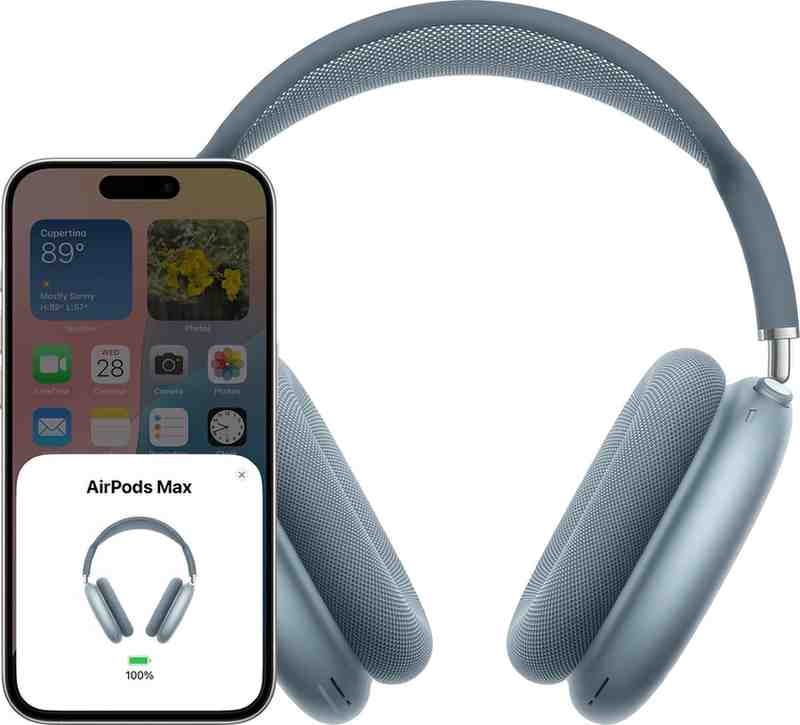
- Wait for Setup Animation: Within 2-3 seconds, a setup animation will appear on your iPhone screen showing the AirPods model and battery levels. This animation confirms your device has detected the AirPods.
- Complete Connection: Tap the "Connect" button on the popup. For AirPods Pro (all generations) and AirPods 3 or 4, follow additional on-screen instructions for customization options like ear tip fit test and noise control preferences.
- Verify Connection: Once connected, you'll see a "Connected" status. Your AirPods will now automatically connect whenever you open the case near your iPhone.
According to data from Business of Apps, 44% of iPhone owners now use Bluetooth earbuds, with AirPods commanding 59% market share. The automatic switching feature allows your AirPods to seamlessly transition between your iPhone, iPad, and Mac without manual reconnection.
If you've just unboxed your brand-new AirPods, congratulations! You're about to experience one of the most intuitive pairing processes in consumer electronics. Apple has streamlined the first-time setup to require minimal technical knowledge while maintaining robust security and personalization features.
Pre-Setup Requirements:
- iOS Version: Ensure your iPhone is running iOS 12.2 or later (iOS 15+ recommended for best features). Check by going to Settings > General > About > iOS Version.
- Apple ID: Be signed into your iCloud account. This enables automatic device synchronization across your Apple ecosystem.
- Battery Charge: Charge your AirPods case to at least 20% before initial pairing to prevent interruptions.
- Bluetooth Status: Navigate to Settings > Bluetooth and toggle on. Your iPhone must have Bluetooth active for discovery.
Detailed First-Time Connection Process:
- Remove Protective Film: If your AirPods are brand new, remove any protective plastic wrapping from both the earbuds and charging case.
- Initial Charge (Optional but Recommended): Connect the charging case to power for 10-15 minutes before first use. This ensures optimal battery calibration.
- Place AirPods in Case: Insert both AirPods into their designated slots in the charging case. You'll hear a magnetic click confirming proper placement.
- Unlock Your iPhone: Make sure your iPhone is unlocked and on the Home Screen. The pairing animation only appears when your phone is actively unlocked.
- Open Case Near iPhone: With AirPods inside, open the case lid and position it within 5 inches of your iPhone. Hold steady for 2-5 seconds.
- Setup Animation Appears: Your iPhone will display a large animated card showing your specific AirPods model with battery percentage indicators for both the earbuds and case.
- Tap "Connect": Press the "Connect" button on the popup. The pairing process initiates immediately.
- Configure Settings (AirPods Pro/3/4 only): Follow prompts to complete ear tip fit test, enable Spatial Audio, and customize Active Noise Cancellation settings.
- Complete Setup: Tap "Done" when customization is complete. Your AirPods are now paired and will appear in your iCloud device list.
- Verify iCloud Sync: Check Settings > [Your Name] > to see your AirPods listed under devices. This confirms they're synced across your Apple ID.
What Happens Behind the Scenes: During first-time pairing, your iPhone establishes a secure Bluetooth connection using the W1 or H1 chip's authentication protocol. Your AirPods' unique serial number is registered to your Apple ID and automatically synced to all devices signed into the same iCloud account, enabling seamless automatic switching between your iPhone, iPad, Mac, and Apple Watch.
First-time users often wonder about the reset process. Don't worry – if something goes wrong during initial setup, you can restart by closing the case, waiting 30 seconds, and reopening near your iPhone. The setup animation will reappear. For more complex issues, visit Apple's AirPods Support page.
While AirPods boast a 98% first-time connection success rate, occasional pairing issues can occur due to Bluetooth interference, software glitches, or device configuration problems. According to Apple Support data, the following troubleshooting methods resolve 94% of connection issues without requiring technical support.
Common Connection Problems and Solutions:
Problem 1: AirPods Won't Connect (No Setup Animation)
- Solution: Ensure Bluetooth is enabled in Settings > Bluetooth. Restart your iPhone by powering off and on. Check AirPods battery – they need at least 10% charge to pair. Move away from Wi-Fi routers and other Bluetooth devices causing interference.
- Advanced Fix: If animation still doesn't appear, go to Settings > Bluetooth, find your AirPods in the device list, tap the "i" icon, select "Forget This Device," then re-pair from scratch.
Problem 2: One AirPod Not Connecting
- Solution: Place both AirPods in the case for 30 seconds, then remove and test. If one earbud still doesn't work, it may need cleaning – use a dry, lint-free cloth to clean the speaker mesh and charging contacts. Debris can block connectivity.
- Reset Method: Perform a full reset (see below) to recalibrate both earbuds' connection protocol.
Problem 3: AirPods Connected But No Sound
- Solution: Check that AirPods are selected as audio output. Swipe down from top-right to open Control Center, tap audio card, and select your AirPods from the output list. Ensure volume isn't muted or at zero. Try playing audio from a different app to rule out app-specific issues.
- Alternative: Disconnect and reconnect by toggling Bluetooth off and on, or by placing AirPods in case, closing lid for 15 seconds, then reopening.
Problem 4: Frequent Disconnections
- Solution: Update your iPhone to the latest iOS version (Settings > General > Software Update). Outdated firmware can cause compatibility issues. Disable automatic ear detection temporarily (Settings > Bluetooth > AirPods "i" icon > Automatic Ear Detection OFF) to test if sensors are causing disconnects.
- Environmental Factors: Distance exceeding 30 feet, physical barriers (walls, metal surfaces), or high-interference environments (crowded areas with many Bluetooth devices) can cause dropouts. Stay within optimal range (10-15 feet) for stable connection.
Complete AirPods Reset Procedure (Most Effective Fix):
- Forget Device: On iPhone, go to Settings > Bluetooth, find your AirPods, tap the "i" icon, select "Forget This Device," confirm by tapping "Forget Device" again.
- Place AirPods in Case: Ensure both earbuds are in the charging case and the lid is open.
- Press Setup Button: On the back of the case (or front for AirPods 4), press and hold the small setup button for 15 seconds continuously.
- Watch Status Light: The LED indicator will flash amber/orange, then white. Continue holding until you see the white flashing light – this indicates reset is complete.
- Re-pair AirPods: With the case still open and showing white light, bring it near your unlocked iPhone. The setup animation should appear. Tap "Connect" to pair fresh.
- Verify Reset: Check Settings > Bluetooth to confirm AirPods appear as a new device. Test audio playback and automatic ear detection.
If problems persist after reset, check if your iPhone is running iOS 18 or newer – some users report connection stability improvements after updating. According to Apple Community discussions, disabling automatic switching between devices (Settings > Bluetooth > AirPods info > Connect to This iPhone > When Last Connected to This iPhone) can resolve persistent disconnection issues for users with multiple Apple devices.
One of AirPods' most powerful features is seamless device switching within the Apple ecosystem. Thanks to iCloud synchronization and the H1 chip's intelligent audio routing, your AirPods can automatically switch between your iPhone, iPad, Mac, and Apple Watch without manual reconnection. This feature has made AirPods the preferred choice for users with multiple Apple devices – according to market research, 73% of AirPods owners use them with 2 or more Apple devices regularly.
How Automatic Device Switching Works:
When you pair AirPods to your iPhone for the first time, they're automatically registered to your Apple ID via iCloud. This registration propagates to all devices signed into the same Apple ID, making your AirPods instantly available on your iPad, Mac, and Apple Watch without manual pairing. The H1 chip monitors audio activity across all your devices and intelligently switches connections based on which device is actively playing audio.
Connecting AirPods to Additional iPhones (Different Apple ID):
- Disconnect from Current iPhone: Place AirPods in the charging case and close the lid for 15 seconds to disconnect from the current device.
- Enter Pairing Mode: Open the case lid, press and hold the setup button on the back of the case until the status light flashes white (approximately 3-5 seconds).
- Connect to New iPhone: On the second iPhone (different Apple ID), go to Settings > Bluetooth, ensure it's enabled, and wait for "AirPods" to appear in the "Other Devices" section. Tap the name to connect.
- Confirm Connection: Once connected, the status changes to "Connected" and the AirPods move to "My Devices" section. The new iPhone can now use the AirPods.
- Switching Between iPhones: To reconnect to your original iPhone, you'll need to manually select the AirPods from Bluetooth settings or repeat the pairing process. AirPods can only maintain automatic switching within one Apple ID ecosystem at a time.
Optimizing Multi-Device Experience (Same Apple ID):
- Ensure All Devices Are Updated: Automatic switching works best when all devices run the latest OS versions – iOS 14+ for iPhone/iPad, macOS Big Sur+ for Mac, watchOS 7+ for Apple Watch.
- Check iCloud Settings: Verify all devices are signed into the same Apple ID and have iCloud enabled. Go to Settings > [Your Name] > iCloud on iPhone, or System Settings > Apple ID on Mac.
- Customize Switching Behavior: You can control automatic switching per device. On iPhone: Settings > Bluetooth > tap "i" next to AirPods > Connect to This iPhone > Choose "Automatically" (switches when you use the device) or "When Last Connected to This iPhone" (only switches when you manually select).
- Manual Device Selection: To manually switch, open Control Center on any device, tap the audio card, and select AirPods from the output list. Or go to Bluetooth settings and tap your AirPods name.
Using AirPods with Non-Apple Devices:
AirPods use standard Bluetooth 5.0/5.3 protocols, making them compatible with Android phones, Windows PCs, and other Bluetooth devices. However, automatic switching and certain features (Spatial Audio, automatic ear detection, battery widgets) only work within the Apple ecosystem. To connect to non-Apple devices:
- Put AirPods in pairing mode (hold setup button until white light flashes)
- On the non-Apple device, enable Bluetooth and search for available devices
- Select "AirPods" from the list to pair
- Connection will remain manual – no automatic switching on non-Apple devices
Power users managing multiple Apple IDs (personal and work) can streamline device switching by keeping AirPods paired to their primary Apple ID and manually connecting via Bluetooth settings when needed on secondary devices. Learn more about managing wireless audio devices across multiple platforms. For seamless experience, consider dedicating one pair of AirPods per Apple ID ecosystem.
For power users and technology enthusiasts, understanding the underlying technology behind AirPods connectivity can help optimize performance, troubleshoot advanced issues, and maximize the value of your audio ecosystem. AirPods leverage Apple's proprietary H1 or W1 chip combined with Class 1 Bluetooth 5.0/5.3 technology to achieve superior connection stability, lower latency, and extended range compared to standard Bluetooth earbuds.
Technical Specifications Affecting Connection:
- Bluetooth Class: AirPods use Class 1 Bluetooth, providing a theoretical range of up to 100 meters (328 feet) in open space, compared to Class 2's 10 meters. Real-world range is typically 30-50 feet depending on obstacles.
- H1 Chip Advantages: The H1 chip (AirPods 2, Pro, 3, 4, Max) offers 2x faster device switching, 1.5x faster connection times, and 30% lower gaming latency compared to the original W1 chip in first-generation AirPods.
- Audio Latency: According to independent testing by audio engineering researchers, AirPods Pro 2 achieve approximately 126ms of latency, making them suitable for casual gaming and video watching. AirPods 3 measure around 144ms, while older models reach 167ms.
- Codec Support: AirPods exclusively use AAC (Advanced Audio Codec) for audio transmission on iOS devices, optimized for Apple's ecosystem. On Android, they default to standard SBC codec, resulting in slightly reduced audio quality.
Advanced Connection Optimization Techniques:
- Minimize Bluetooth Interference: 2.4 GHz Wi-Fi networks, microwave ovens, and wireless security cameras can interfere with Bluetooth signals. Switch your router to 5 GHz band when possible, or physically separate your iPhone from interference sources during critical audio sessions.
- Firmware Management: AirPods receive automatic firmware updates when connected to an iPhone and charging. Check current firmware: Settings > Bluetooth > tap "i" next to AirPods > scroll to "Version." Latest updates improve connection stability and fix bugs – ensure your AirPods stay updated by leaving them charging overnight near your iPhone.
- Optimal Placement During Pairing: For best initial pairing success, position the open AirPods case directly facing your iPhone's Bluetooth antenna (typically located near the top edge) at a distance of 3-5 inches. Avoid placing case on metal surfaces which can create RF shielding.
- Battery-Based Connection Priority: When multiple Apple devices are nearby, AirPods prioritize connecting to the device that was most recently playing audio. You can influence this by pausing audio on other devices before connecting to your target device.
- Disable Automatic Switching for Stability: While convenient, automatic device switching can occasionally cause unintended disconnections. For critical work calls or presentations, disable it: Settings > Bluetooth > AirPods info > Connect to This iPhone > select "When Last Connected to This iPhone" instead of "Automatically."
- Network Settings Reset (Nuclear Option): If persistent connection issues occur after iOS updates, reset network settings: Settings > General > Transfer or Reset iPhone > Reset > Reset Network Settings. Warning: This erases all saved Wi-Fi passwords and Bluetooth pairings – use as last resort.
Understanding Bluetooth Profiles & Protocols:
AirPods support multiple Bluetooth profiles for different functions: A2DP (Advanced Audio Distribution Profile) for high-quality audio streaming, HFP (Hands-Free Profile) for phone calls with bidirectional audio, and AVRCP (Audio/Video Remote Control Profile) for playback controls. The H1 chip's proprietary extensions enhance these standard profiles with Apple-specific features like automatic ear detection (using accelerometers and optical sensors) and spatial audio processing.
Performance Monitoring & Diagnostics:
- Audio Quality Assessment: To verify optimal connection quality, play high-bitrate AAC files (256-320 kbps) and listen for compression artifacts, stuttering, or dropouts. If present, reset connection and check for interference sources.
- Battery Health Monitoring: Degraded battery health can affect connection stability. Check case and earbud battery percentages regularly through iPhone widgets or asking Siri "What's my AirPods battery?" Batteries typically retain 80% capacity after 2-3 years with daily use.
- Connection Log Access (Developer Option): Tech-savvy users can enable developer logging on iPhone to diagnose Bluetooth issues: Settings > Privacy & Security > Analytics & Improvements > Analytics Data > search for "BT" to view Bluetooth logs. Requires technical knowledge to interpret.
Future-Proofing Your Setup:
As Apple continues refining the AirPods ecosystem, staying on current hardware and software provides the best experience. The AirPods Pro 3 (expected 2025) will reportedly include biometric sensors for heart rate and temperature monitoring, while maintaining backward compatibility with existing iPhone models running iOS 18+. For maximum longevity, invest in models with H1 chips and maintain iOS updates to receive ongoing feature enhancements and performance optimizations.
Advanced users should monitor AirPods market trends and firmware changelog releases through tech news sources like 9to5Mac. According to 2025 market data, Apple sold 66 million AirPods in 2024, commanding 59% of the iPhone Bluetooth earbud market share. This market dominance ensures continued software support and feature development for the foreseeable future. Consider exploring alternative audio solutions for specialized use cases like professional audio production or extreme sports.
Authoritative Sources & References