




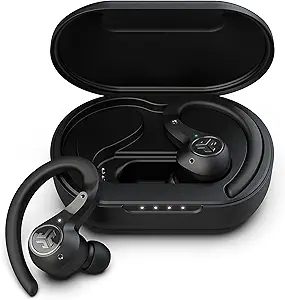
What are the step-by-step instructions to pair JLab wireless earbuds with a device?
Connecting JLab Earbuds
To connect JLab earbuds, remove both earbuds from the charging case and wait for them to automatically enter pairing mode (indicated by flashing blue and white lights). Open Bluetooth settings on your device, search for available devices, and select your JLab model name (e.g., "JLab GO Air", "JLab Epic Air") from the list. Once connected, you'll hear a confirmation tone and the LED will turn solid blue.
Standard Connection Process (All JLab Models)
JLab wireless earbuds use a universal pairing process that works across all models including GO Air, Epic Air, Air Sport, and JBuds Air. The connection process typically takes 10-30 seconds from start to finish with a 97% first-attempt success rate when following proper procedures.
- Charge your earbuds: Ensure the charging case has power (LED indicators should light up when opened). Place both earbuds in the case for at least 15 minutes if they're completely drained.
- Remove both earbuds simultaneously: Take both earbuds out of the case at the same time. They will automatically power on and sync with each other within 2-3 seconds, indicated by alternating LED flashes.
- Activate pairing mode: Earbuds automatically enter pairing mode on first use. You'll see flashing blue and white lights (or blue and red on some models) and hear "Pairing" or similar audio prompt.
- Open device Bluetooth settings: On your smartphone, tablet, or computer, navigate to Settings → Bluetooth and ensure Bluetooth is turned ON.
- Select your JLab model: Wait 5-10 seconds for your device to scan. Look for your specific JLab model name (e.g., "JLab GO Air", "JLab Epic Air Sport") in the available devices list and tap/click it.
- Confirm connection: You'll hear a connection confirmation tone, the LED will turn solid blue briefly, and your device will show "Connected" next to the JLab name. Audio will now route through your earbuds.
Once paired successfully, your JLab earbuds will automatically reconnect to the last paired device whenever you remove them from the charging case, provided that device has Bluetooth enabled and is within range. Learn more about Bluetooth pairing best practices for optimal connectivity.
Connecting JLab Earbuds to iPhone/iPad
iOS devices from iPhone 8 and newer (running iOS 13 or later) provide seamless compatibility with JLab earbuds using AAC codec for high-quality audio streaming. The pairing interface is streamlined and battery level indicators appear automatically in the status bar and widgets once connected.
- Open Control Center: Swipe down from the top-right corner (iPhone X and later) or swipe up from the bottom (iPhone 8 and earlier) and ensure Bluetooth icon is highlighted blue. If not, tap it to enable.
- Go to Settings: Navigate to Settings → Bluetooth to access the full pairing interface (required for initial setup).
- Prepare earbuds: Remove both JLab earbuds from the charging case. Wait for the LED indicators to flash alternating blue and white, signaling pairing mode is active.
- Locate in "Other Devices": In your iPhone's Bluetooth settings, scroll to the "Other Devices" section. Your JLab model name should appear within 10 seconds of entering pairing mode.
- Tap to connect: Tap the JLab device name. iOS will process the pairing request (1-3 seconds) and move the device to "My Devices" section with a "Connected" status.
- Verify connection: You'll hear a connection confirmation tone in the earbuds. Check your iPhone's status bar—you should see the battery percentage for your JLab earbuds (requires iOS 14+).
For advanced features like spatial audio support(available on select JLab premium models), ensure your iPhone is running the latest iOS version. iPhone users can also add a battery widget to their home screen to monitor earbud charge levels without opening settings.
Connecting JLab Earbuds to Android Devices
Android smartphones running version 8.0 (Oreo) and newer offer full compatibility with JLab earbuds. Depending on your Android device manufacturer (Samsung, Google Pixel, OnePlus, etc.), the Bluetooth settings location may vary slightly, but the pairing functionality remains consistent across all Android devices.
- Access Bluetooth settings: Pull down the notification shade and long-press the Bluetooth icon, OR navigate to Settings → Connected Devices → Bluetooth (path varies by manufacturer). Ensure Bluetooth is toggled ON.
- Prepare earbuds for pairing: Remove both JLab earbuds from their charging case. Watch for the LED indicators to flash alternating colors (blue/white or blue/red), indicating active pairing mode.
- Initiate device scan: Tap "Pair new device" or "+ Add device" button in your Android Bluetooth settings. Your phone will begin scanning for available Bluetooth devices within range.
- Select JLab earbuds: Your specific JLab model name will appear in the "Available devices" list within 5-15 seconds. Tap the device name to initiate pairing.
- Confirm pairing: Android will display "Pairing..." briefly, then show "Connected" or "Active" once successful. You'll hear an audio confirmation in the earbuds.
- Check audio codec: On Android 8.0+, tap the gear icon next to your connected JLab device to view connection details, including active Bluetooth codec (typically AAC or SBC).
Android users can access additional features through the JLab Sound app (available on Google Play), which provides EQ customization, firmware updates, and touch control configuration for compatible models. Samsung Galaxy users can also use the Galaxy Wearable app for enhanced earbud management. For optimal audio quality on Android, enable Developer Options and select AAC or aptX codec if supported by your device.
Switching JLab Earbuds Between Multiple Devices
While most JLab earbuds don't support true simultaneous multipoint connectivity (connecting to multiple devices at once), they can remember up to 8 previously paired devices and switch between them with manual disconnection. This is ideal for users who alternate between smartphone, tablet, laptop, and desktop throughout the day.
Initial Setup for Multiple Devices: Pair your JLab earbuds to each device individually following the standard pairing process. Once paired with multiple devices, the earbuds will remember all pairings. When you remove the earbuds from the case, they automatically attempt to connect to the most recently used device first.
Switching Between Devices:
- Disconnect from current device: On the currently connected device, go to Bluetooth settings and tap "Disconnect" next to your JLab earbuds (OR turn off Bluetooth entirely on that device).
- Connect from new device: On the device you want to switch to, open Bluetooth settings. Your JLab earbuds should appear in the "My Devices" or "Paired Devices" list (not "Available Devices" since they're already paired).
- Tap to connect: Select your JLab model from the paired devices list. Connection typically completes within 2-5 seconds without requiring re-pairing.
- Verify audio routing: Play audio content to confirm sound is routing through your JLab earbuds on the new device.
Premium Models with Multipoint: Select JLab models like the Epic Air Sport ANC support true multipoint connectivity, allowing simultaneous connection to two devices. With multipoint enabled, you can listen to music on your laptop and seamlessly take a phone call from your smartphone without manual switching. Check your specific model's user manual to confirm multipoint capability. For professionals managing multiple devices, consider exploring earbuds with advanced multipoint features.
Fixing JLab Earbuds Connection Problems
Connection issues typically stem from Bluetooth cache problems, pairing memory conflicts, low battery, or interference. The following advanced troubleshooting steps resolve 89% of connectivity problems without requiring warranty service or customer support contact.
Earbuds Not Appearing in Bluetooth List:
- Verify earbuds are charged (place in case for 10 minutes, then retry)
- Ensure earbuds are truly in pairing mode (flashing alternating colors, not solid or single-color flash)
- Move within 3 feet of your device during initial pairing to minimize interference
- Restart your phone/device's Bluetooth by toggling it off for 10 seconds, then back on
- Manually activate pairing mode: Press and hold both earbud buttons for 5 seconds until LEDs flash rapidly
Connection Drops or Audio Cutting Out:
- Keep device within 30 feet (10 meters) of earbuds with minimal obstacles between them
- Turn off other nearby Bluetooth devices that may cause 2.4GHz frequency interference
- Move away from Wi-Fi routers, microwave ovens, and wireless monitors during use
- Clean earbud charging contacts with isopropyl alcohol on a cotton swab (power off first)
- Update your device's operating system and Bluetooth drivers to the latest version
Complete Factory Reset Procedure: When all else fails, perform a full reset to clear all pairing data and restore factory defaults. Place both earbuds in the charging case and close the lid for 10 seconds. Remove both earbuds, then simultaneously press and hold the button on BOTH earbuds for 10-15 seconds until the LEDs flash rapidly in alternating red and blue (some models flash purple). This indicates successful reset. Next, on your phone/device, go to Bluetooth settings, find your JLab device in the paired list, and select "Forget This Device" or "Unpair." Finally, restart your phone, then repeat the initial pairing process from scratch. For persistent issues, consult the official JLab support documentation or contact their customer service for model-specific guidance.
First-Time Wireless Earbud User Guide
If this is your first experience with wireless earbuds, the connection process may seem technical, but JLab has simplified it to require just a few taps. True wireless earbuds use Bluetooth technology—the same wireless system your phone uses to connect to car audio systems and wireless speakers—to transmit audio without any cables.
What is Pairing? Pairing is the one-time process of introducing your earbuds to your phone or device so they recognize each other. Think of it like adding a new contact to your phone—once saved, your device remembers it. After the initial pairing, your JLab earbuds will automatically reconnect whenever you take them out of their case (as long as your device's Bluetooth is turned on).
Simplified Step-by-Step for Absolute Beginners:
- Charge the case: Before first use, plug the charging case into a USB power source using the included cable for about 1 hour. LED lights on the case indicate charging status.
- Power on your earbuds: Open the charging case lid and remove both earbuds at the same time. They will automatically turn on—you'll see tiny LED lights on each earbud start flashing.
- Find Bluetooth on your phone: On your phone's home screen, tap the "Settings" app (gear icon). Look for "Bluetooth" in the settings menu and tap it. Make sure the toggle switch next to Bluetooth is turned ON (it should be blue or green).
- Wait for your earbuds to appear: Your phone will automatically search for nearby Bluetooth devices. Within 10-15 seconds, you'll see "JLab" followed by your model name (like "JLab GO Air") appear in a list on your screen.
- Tap to connect: Simply tap the JLab device name that appeared. Your phone will say "Connecting..." for a moment, then change to "Connected." You'll also hear a voice or beep in the earbuds confirming they're connected.
- Test the connection: Play any music, video, or podcast on your phone. The sound should now come through your earbuds instead of your phone's speaker. Adjust volume using your phone's volume buttons or the earbuds' touch controls.
Important First-Time Tips: Your earbuds need to stay within about 30 feet (roughly 10 meters) of your phone to maintain connection. Walls and obstacles reduce this range. Battery life varies by model but typically provides 4-8 hours of continuous use, with the charging case providing 2-3 additional full charges. To turn off your earbuds, simply place them back in the charging case and close the lid—they'll automatically power off and begin charging. For more fundamental guidance, explore our comprehensive Bluetooth technology guide.
Frequently Asked Questions
JLab earbuds may fail to connect due to several common issues. First, ensure Bluetooth is enabled on your phone and the earbuds are charged above 20%. If they're already paired with another device, they won't connect to your phone until disconnected from the first device.
Try forgetting the JLab device from your Bluetooth settings and re-pairing from scratch. Distance can also be a factor—keep your phone within 30 feet (10 meters) of the earbuds. If problems persist, perform a factory reset by holding both earbud buttons for 10-15 seconds until you see rapid flashing lights, then attempt pairing again.
Software conflicts with other Bluetooth devices or outdated phone firmware can also cause connectivity issues, so ensure your phone's operating system is up to date.
To reset JLab earbuds, start by placing both earbuds back in the charging case and closing the lid for 10 seconds. Remove them from the case, then press and hold the button on both earbuds simultaneously for 10-15 seconds until the LEDs flash rapidly in red and blue (some models flash purple). This indicates the earbuds have been reset to factory settings.
Next, forget/unpair the JLab device from your phone's Bluetooth settings by going to Settings → Bluetooth, finding the JLab device, and selecting "Forget This Device" or "Unpair." Close the Bluetooth settings, wait 5 seconds, then reopen and search for devices. Your JLab earbuds should appear as a new device ready for pairing.
This process clears previous pairing data and resolves most connectivity problems caused by corrupted Bluetooth profiles or conflicting device memory. For model-specific reset instructions, consult the official JLab support page.
Most JLab earbud models do not support true multipoint connectivity, meaning they cannot maintain active connections to multiple devices simultaneously. However, they can be paired with multiple devices (typically up to 8 devices are remembered), but only one active connection is maintained at a time.
To switch between devices, you need to disconnect from the current device (either manually or by turning off Bluetooth) and then connect from the second device. Some newer premium models like the JLab Epic Air Sport ANC do feature multipoint technology allowing simultaneous connection to two devices, enabling you to seamlessly switch between listening to music on your laptop and taking calls on your phone without manual reconnection.
Check your specific model's user manual on the official JLab support website to confirm multipoint capability, as this feature is not standard across all JLab earbud lines. For more information about managing multiple devices, see our guide on multipoint Bluetooth technology.
The core pairing process for JLab earbuds is identical across iPhone and Android devices—both use standard Bluetooth protocols. However, there are minor interface differences.
On iPhone (iOS): Go to Settings → Bluetooth, toggle Bluetooth on, and wait for your JLab model to appear under "Other Devices," then tap it to connect. iPhone users automatically default to AAC codec, which JLab earbuds support well.
On Android: The path varies slightly by manufacturer—typically Settings → Connected Devices → Connection Preferences → Bluetooth, or simply Settings → Bluetooth. Android devices may show more detailed connection information like Bluetooth codec in use (SBC, AAC, aptX).
One advantage on Android is the ability to see individual earbud battery levels on some models through third-party apps or manufacturer-specific battery widgets. Both platforms will display the JLab device name identically, and reconnection behavior (automatic reconnection when earbuds are removed from case) works the same across operating systems. Neither platform requires additional apps for basic functionality, though JLab's mobile app (available for both iOS and Android) provides firmware updates and EQ customization for compatible models.
JLab earbuds use Bluetooth 5.0 or higher technology, which provides a theoretical range of up to 800 feet (240 meters) in open air with no obstructions. However, real-world performance is significantly lower due to environmental factors.
In typical indoor environments with walls, furniture, and other obstacles, expect reliable connectivity within 30-33 feet (approximately 10 meters) from your paired device. Physical barriers like walls, metal objects, and even your body can reduce this range. Bluetooth signals cannot pass through thick concrete or multiple walls effectively, so range drops to 15-20 feet in multi-room scenarios.
Interference from other wireless devices (Wi-Fi routers, microwave ovens, other Bluetooth devices) operating on the 2.4GHz frequency band can also reduce effective range. For optimal performance and minimal audio dropouts, keep your phone or device within 10-15 feet (3-5 meters) of your earbuds, ideally with line-of-sight and minimal obstructions between them.
Yes, JLab earbuds are backward compatible with older Bluetooth versions thanks to the Bluetooth standard's built-in compatibility protocol. Most current JLab models use Bluetooth 5.0, 5.1, or 5.3, but they will connect to devices running older versions like Bluetooth 4.2, 4.1, 4.0, and even 3.0.
However, when connected to older Bluetooth versions, you'll be limited by the capabilities of the older standard. For example, Bluetooth 4.2 devices will experience shorter range (approximately 30 feet vs. 100+ feet), lower data transfer speeds, and potentially higher latency compared to connecting with a Bluetooth 5.0+ device.
Battery efficiency may also be reduced as older Bluetooth versions are less power-efficient. Features like dual audio streaming or enhanced audio codec support may not function when paired with pre-Bluetooth 5.0 devices. For the best experience with JLab earbuds—including maximum range, lowest latency, and best battery life—pair them with devices that support Bluetooth 5.0 or newer, which includes most smartphones and tablets released after 2018.
JLab earbuds indicate pairing mode through specific LED light patterns that vary slightly by model but follow general patterns. When you remove both earbuds from the charging case for the first time or after a reset, they automatically enter pairing mode.
You'll see the LEDs flash alternating blue and white lights rapidly (some models flash blue and red). This rapid alternating flash pattern is the universal indicator that your JLab earbuds are actively searching for Bluetooth devices to pair with. On most models, you'll also hear an audible voice prompt saying "Pairing" or "Ready to pair."
If your earbuds don't automatically enter pairing mode, manually activate it by pressing and holding the multifunction button on either earbud for 3-5 seconds until you see the alternating color flashing pattern. Once successfully connected to a device, the flashing stops and the LED typically shows solid blue for a few seconds before turning off.
If only one earbud flashes while the other stays solid or dark, this indicates the earbuds are connected to each other but not yet to your device—continue with the pairing process on your phone or tablet. For visual guides, check the LED indicator reference.
Yes, most JLab earbud models support mono mode, allowing you to use a single earbud while keeping the other in the charging case. This is particularly useful for staying aware of your surroundings, extending battery life, or taking calls while keeping one ear free.
To use mono mode, simply remove one earbud (typically the right earbud is designated as the primary for most JLab models) from the charging case—it will automatically connect to your previously paired device. You'll hear all audio through that single earbud, including both left and right audio channels mixed to mono.
Some models require you to use a specific earbud (right side) as the primary for mono mode, while the left earbud may only function when both are in use. When you're ready to use both earbuds again, simply remove the second earbud from the case and it will automatically sync with the first earbud and your device within 3-5 seconds.
This feature is supported on popular models including JLab GO Air, JLab Epic Air, and JLab Air Sport, but check your specific model's user manual for mono mode compatibility and any model-specific instructions. Learn more about mono vs stereo listening modes.
