




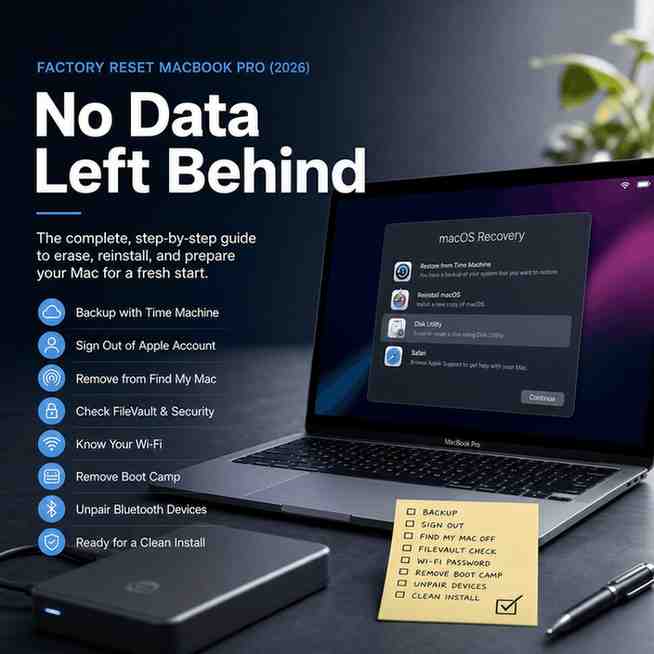
Factory resetting a MacBook Pro sounds simple. Wipe it, reinstall macOS, done.
In real life, the “gotchas” are always the same. Activation Lock. Forgotten Apple Account. A weird extra “Data” volume that still hangs around. A Boot Camp partition you forgot existed. Or you wipe the wrong thing and then spend an hour staring at a globe icon while Internet Recovery crawls.
So this is the no drama, no data left behind way to do it.
Before You Factory Reset: Do These 10 Things (So You Don’t Get Stuck at Activation Lock)
First, quick clarity. A “factory reset” on a Mac usually means three things:
- Your data is wiped (user accounts, files, settings).
- macOS is reinstalled (fresh system).
- Accounts and device ties are removed (especially Apple Account and Find My, so you do not trigger Activation Lock for the next person).
If you only do one of those, you can end up with a Mac that looks clean but is still linked to you. That is where people get stuck.
Here are the 10 things I’d do before touching the erase button.
1) Decide why you’re resetting (this changes the “end state”)
Be honest about the goal, because it affects what you do after the wipe.
- Keeping the Mac (you just want it running clean): you will erase, reinstall, then sign back into iCloud and restore from backup.
- Fixing major issues (boot loops, corrupted system, weird bugs): Recovery Mode erase is often better because you can fully control the disk structure.
- Selling / trade in / giving away: you want the Mac to reboot to Setup Assistant, then you stop. No sign in. No setup finished.
Resale and trade in value is also affected by how smooth the buyer’s setup is. If they see Activation Lock, it becomes a problem instantly.
2) Back up what you actually need
Factory reset means you are choosing to lose what is on the internal drive.
- Time Machine backup to an external drive is the classic.
- Or copy critical folders to external storage.
- Or confirm everything important is already in iCloud, Google Drive, Dropbox, whatever you trust.
If you are doing this because the Mac is unstable, do the backup first. Even a messy backup is better than nothing.
3) Sign out of iCloud (Apple Account) the right way
If you’re selling or trading in, this is the one that prevents the most pain.
On macOS Ventura, Sonoma, Sequoia and newer:
- System Settings → Apple Account (your name) → Sign Out
On older macOS:
- System Preferences → Apple ID → Overview → Sign Out
If you’re asked whether to keep a copy of iCloud data on this Mac, you can usually say no, since you’re wiping anyway.
4) Turn off Find My on the Mac (this is what ties to Activation Lock)
Even if you sign out, double check Find My is not still enabled.
- System Settings → Apple Account → iCloud → Find My Mac (disable it)
Activation Lock is basically Find My + device ownership. If Find My stays on, the next setup can demand your Apple Account password.
5) Sign out of iMessage and FaceTime (optional but clean)
This is not always required, but I still do it for handoff devices.
- Messages app: Settings → iMessage → Sign Out
- FaceTime app: Settings → Sign Out
6) Unpair Bluetooth accessories (so they don’t auto bind later)
This sounds minor until you reset the Mac, then your mouse and keyboard keep trying to attach to the wrong Mac across the room.
- System Settings → Bluetooth → (i) next to device → Forget This Device
Do this for:
- Magic Keyboard, Magic Mouse, trackpads
- Third party Bluetooth keyboards and mice
- Headphones if you want to be extra tidy
7) Know your Wi Fi password (Recovery may ask you)
During macOS Recovery or Internet Recovery you may have to select a Wi Fi network and enter the password before you can reinstall.
If you do not know it, get it now.
- Check your phone.
- Check your router label.
- Ask the person who set up the network.
This matters more than people think because you can end up stuck at “Reinstall macOS” with no internet.
8) Plug into power and plan for time
Do not attempt a full erase and reinstall on a low battery.
- Keep it connected to power.
- Expect anywhere from 30 minutes to a few hours depending on internet speed and disk size.
Also, Recovery installs sometimes reboot a few times. That can look like something is wrong. Usually it is normal.
9) If you used Boot Camp or a Windows partition, decide what you want to do with it
If you ever installed Windows with Boot Camp on an Intel MacBook Pro, you probably have extra partitions.
If you are selling or trading in, the simplest approach is:
- Erase the entire internal disk during the reset, so Windows partitions are gone too.
If you want to keep Windows for yourself, that is a different plan. But for “factory reset for resale”, wipe it all.
10) If you have a firmware password, know it now
This is different from your login password. A firmware password can block booting to Recovery or external installers.
If you do not know it, stop here. Your options become Apple Support + proof of purchase.
Pick Your Reset Method: Erase Assistant vs Recovery Mode (Apple Silicon, T2, Intel)
In 2026 there are basically two real ways to factory reset a MacBook Pro.
Method 1: Erase Assistant (Erase All Content and Settings)
This is the easiest and usually the fastest.
- Best when available on macOS Monterey 12 or later
- Designed for Apple silicon and T2 Security Chip Macs especially
- It removes user data, keys, accounts, and resets the system quickly
Method 2: macOS Recovery + Disk Utility + reinstall
This is the “most control” path.
- Works on Intel, T2, and Apple silicon
- Best for older macOS, broken installs, disk errors, partition cleanup, Boot Camp removal
- Lets you fully manage APFS containers, volumes, and partitions
Quick expectations based on your Mac
- Apple silicon (M series): Recovery entry is different. Also, you may see messages about “Repair Assistant” if a repair was started but not finished.
- Intel with T2: still supports modern secure erase behavior, plus Startup Security Utility settings matter.
- Older Intel without T2: Recovery works, but you may rely on Internet Recovery more often.
Both methods can give you a clean install. Recovery just gives finer control over disk layout, which matters if your internal drive is messy.
Method 1 (Fastest): Factory Reset with Erase Assistant (Monterey, Ventura, Sonoma, Sequoia)
If your MacBook Pro is on macOS Monterey or later, check for this first. Apple keeps moving labels around, but the feature is the same.
Who this is for
- You can log into macOS normally.
- You are on Monterey 12+.
- You want the cleanest, fastest wipe without manually erasing APFS volumes.
Steps (high level, but you can follow them)
- Click Apple menu (top left).
- Go to System Settings (or System Preferences on Monterey).
- Go to General.
- Find Transfer or Reset.
- Click Erase All Content and Settings.
- Follow prompts. You’ll confirm, enter your password, and the Mac will start the erase.
That’s it. It feels almost like resetting an iPhone now, which is the point.
What’s happening behind the scenes (why it’s fast)
On Apple silicon and T2 Macs, user data is protected with encryption. Erase Assistant can destroy the encryption keys and reset secure storage quickly, rather than doing old style multi pass “overwrite the disk” erases.
So it is fast. And reliable.
After erase: what you should do next
The Mac will restart into Setup Assistant.
You’ll see:
- Language selection
- Country / region
- Wi Fi selection
Now the decision moment:
- If you’re selling or trading in: stop as soon as you see the first setup screens. Do not sign in. You can shut down at the country or keyboard screen. The next owner will finish setup.
- If you’re keeping it: continue setup, sign in, restore from backup if you want.
If it asks for Activation Lock anyway
This usually means Find My was still enabled or the Mac is still linked to your Apple Account.
What to do:
- Enter the Apple Account email and password it requests (the one that owns the device).
- Once you’re in, complete setup just enough to get to settings, then sign out properly and erase again.
If you do not have those Apple Account credentials, you cannot properly reset it for resale. There isn’t a legit workaround. Apple designed it that way.
Method 2 (Most Control): Factory Reset in Recovery Mode + Disk Utility (Works on Intel, T2, Apple Silicon)
Choose Recovery Mode when:
- You cannot boot normally.
- You forgot your login password and need to work around it.
- You want to remove Boot Camp partitions.
- Disk Utility needs First Aid, you suspect disk corruption.
- You want to truly wipe and rebuild the disk structure.
How to enter Recovery on Apple silicon (M series)
- Shut down بالكامل. Not sleep. Not just close the lid.
- Press and hold the power button.
- Keep holding until you see Loading startup options.
- Click Options.
- Click Continue.
- Select an admin user if asked, enter password.
You’ll land in macOS Recovery.
How to enter Recovery on Intel
- Restart and immediately hold Command (⌘) + R for standard Recovery.
- For Internet Recovery on some models: Option + Command + R.
(If you see a globe icon, that’s Internet Recovery. It means it is downloading the recovery environment.)
Disk Utility: change the view first
Inside Recovery, open Disk Utility.
Then do this:
- View → Show All Devices
This is important because if you only see volumes, you might erase the wrong layer. You want to see:
- The physical disk (top level)
- Containers
- Volumes (like Macintosh HD and Macintosh HD Data)
Erase strategy overview (so you don’t guess)
- For modern macOS: APFS is standard.
- For much older systems: Mac OS Extended (Journaled) may be needed, but if you are installing modern macOS you almost always want APFS.
Also, on newer Macs you’ll often see a Volume Group, usually:
- Macintosh HD (System)
- Macintosh HD Data (Data)
They work together. Wiping only one sometimes leaves a confusing leftover.
Reinstall macOS
After you erase:
- Quit Disk Utility.
- Choose Reinstall macOS.
- Pick the internal disk you erased (usually Macintosh HD).
- Let it run. Keep on power, keep connected to internet if asked.
When it finishes, it will boot to Setup Assistant.
Disk Utility: The “No Data Left Behind” Erase Checklist (APFS, Volume Groups, Partitions)
This is the part where people accidentally leave stuff behind. Not because the data is still readable by a normal person. But because the disk layout is weird and setup gets messy, or old volumes remain, or Boot Camp partitions linger.
Here’s the cleaner checklist.
1) Identify the actual internal drive
In Disk Utility (with “Show All Devices” enabled), look for something like:
- Apple SSD (top level device)
- Internal, physical
Under it you’ll see containers and volumes.
2) If you see an APFS Volume Group, erase the group (or erase the device)
If Disk Utility shows a volume group option like:
- “Macintosh HD” and it says it’s part of a group
Best options:
- Erase Volume Group (if offered). This removes both System and Data properly.
- Or, for the most complete cleanup especially if partitions exist: select the top level internal disk device and erase it.
If your goal includes removing Boot Camp, erasing the whole device is often simplest.
3) Delete leftover APFS volumes you do not recognize
Sometimes you’ll see extras like:
- “Macintosh HD Data” (with a hyphen)
- “Update”
- “Preboot”
- “Recovery”
- “VM”
Some of these are normal helper volumes inside an APFS container, but if you see duplicated “Data” volumes or obvious leftovers from previous installs, cleaning up by erasing the container or device is easiest.
The guiding principle:
- If you are selling it, you do not need a complex structure. You want one clean install.
4) If Boot Camp existed, remove the Windows partition cleanly
Two practical approaches:
- Simplest: erase the entire internal disk device. This deletes Windows partitions automatically.
- More surgical: delete the Windows partition/container, then expand APFS back, but honestly if you’re here to wipe for resale, the “erase whole disk” approach saves time and mistakes.
5) After erasing, confirm the disk looks empty and ready
You want to see a fresh state where:
- The internal disk has a clean APFS container (or none yet, depending on how you erased).
- There are no old user named volumes lingering.
- Disk Utility is not showing mounted volumes full of old stuff.
Then reinstall macOS.
Reinstall macOS Cleanly (And Avoid Common Setup Traps)
Reinstalling in Recovery is usually straightforward, but a few things trip people up.
Choose the installer you’re offered
Recovery will present a macOS installer. It may reinstall:
- The current macOS version
- Or the closest compatible version for that Mac
If you’re hoping for a specific version (like Monterey vs Sequoia), you might need a bootable installer later, but for most people, just install what Recovery offers.
If prompted to connect to Wi Fi
- Select your Wi Fi network
- Enter the password
- Keep the Mac on power
Expect reboots. Sometimes the progress bar seems to pause. If the fan spins up and it’s warm, it’s working.
The correct “resale end state”
If you’re selling or trading in, do this:
- When Setup Assistant appears, stop at the earliest screens (country, keyboard, Wi Fi).
- Shut down.
- Hand it off.
Do not sign in with your Apple Account during setup, because then you just re link the device.
If Activation Lock triggers during setup
Same rule as above:
- You must sign in with the Apple Account linked to Find My.
If you cannot, you cannot complete the reset for resale. At that point it’s an ownership issue, not a technical issue.
Security & Firmware: Startup Security Utility, Firmware Passwords, and External Boot
These settings are not talked about enough. They can completely block your reset flow.
Startup Security Utility (Intel with T2 and some supported Macs)
In Recovery, some Intel Macs (especially with T2) include Startup Security Utility.
This can control:
- Secure Boot level
- Whether you can boot from external media (USB installer)
When this matters:
- You’re trying to use a bootable installer.
- You are doing an offline install.
- Recovery reinstall is failing and you need another route.
If you temporarily loosen external boot, remember to set it back later. For most users, default secure settings are best.
Firmware password
Firmware password is a pre boot lock. It can prevent:
- Booting into Recovery
- Booting from external drives
- Changing startup disk
If you do not know it:
- You will likely need Apple Support and proof of purchase.
- There is no clean DIY bypass that is legitimate.
Bootable installer (advanced fallback)
A bootable installer is useful when:
- You need a specific macOS version
- You are installing multiple Macs
- Your internet is unreliable
- Recovery install keeps failing
I’m not turning this into a full bootable USB tutorial here, but it’s worth knowing it exists as the “if everything else fails” option.
If you changed security settings to allow external boot, you can usually return to defaults after reinstall. Or just leave it as Apple sets it after a clean install.
If You’re Locked Out: Forgotten Password, Can’t Sign In, or Mac Won’t Boot
This is where resets get emotionally annoying. Because you’re ready to wipe, but the Mac is not cooperating.
Let’s map the scenarios.
Scenario 1: You forgot your Mac login password (local account)
If you can’t sign into macOS but you still own the Apple Account, Recovery is your friend.
- Boot to Recovery
- You may be able to use password reset options, depending on macOS version and how the account was set up
- Once you regain admin access, you can use Erase Assistant (if available) or just erase in Recovery
Even if you cannot reset the local password, you can usually still erase the disk from Recovery. Which is the point if you’re wiping it anyway.
Scenario 2: You forgot your Apple Account password
This is different.
- If Find My is enabled and Activation Lock is on, you will need that Apple Account to remove the lock.
- Resetting the Apple Account password via Apple’s recovery process can take time.
If you’re preparing for resale and you do not have Apple Account access, do not proceed thinking you can “just wipe it”. The next setup will still demand the Apple Account.
Scenario 3: You forgot both
Then your practical outcome is:
- You can likely erase the disk.
- But you may not be able to activate it for a new owner if it remains locked to your Apple Account.
For trade in, many programs will reject locked devices. So solve Apple Account access first if the Mac is still linked.
FileVault note (disk encryption)
If FileVault is enabled:
- To access existing data, you need an authorized user or a FileVault recovery key.
- To wipe the Mac, you can still erase the disk in Recovery without needing to decrypt your old files.
So FileVault can block recovery of data. It does not stop a wipe. Which is fine here.
If macOS won’t boot at all
Go straight to Recovery or Internet Recovery.
- Run Disk Utility → First Aid (optional but useful if you’re troubleshooting)
- If you’re wiping anyway, proceed to erase and reinstall
Apple silicon Repair Assistant / unfinished repair message
Sometimes after hardware service or a failed repair process, Apple silicon Macs can show an “unfinished repair” state. That can block setup until it’s cleared or completed.
If you see anything like Repair Assistant prompts, do not ignore it.
- Follow the on screen steps.
- If it loops or blocks activation, you may need Apple support involvement.
It’s rare. But when it happens, it’s very “why is this happening to me” energy.
Optional Resets (When Troubleshooting Before You Wipe): NVRAM/PRAM and SMC
These are not factory resets. They do not erase your data. But people search them constantly because sometimes you want to fix a Mac without wiping.
NVRAM / PRAM reset (Intel only)
NVRAM stores things like:
- Startup disk selection
- Display resolution quirks
- Some audio settings
- Certain boot related issues
On Intel Macs, you may see advice to reset it (PRAM is the older term people still use).
Apple silicon Macs handle many of these behaviors automatically on reboot, and you generally do not do a manual NVRAM reset the same way.
SMC reset (Intel only)
SMC relates to power and hardware behavior like:
- Fans going crazy
- Sleep issues
- Battery charging weirdness
- Power button behavior
Again, Apple silicon changed this world. Many “SMC style” fixes are basically power cycle and firmware managed now.
So yes, these are real troubleshooting tools. But if your goal is “no data left behind”, they are not the tool. They are the “maybe I don’t have to wipe” tool.
After the Reset: Verify It’s Truly “Factory” and Ready for Sale/Trade In
When you finish, don’t just assume it worked. Do a quick sanity check.
Validation checklist
You want to see:
- Setup Assistant appears on boot (language, country, keyboard screens).
- No user accounts visible.
- If you open Disk Utility (optional check), you see a clean internal drive structure with no weird extra user volumes.
If you see a login screen with a user name, you did not wipe fully. Go back.
Confirm the Mac is not still tied to your Apple Account
This is the part people forget, and then the buyer messages them later.
On another device (or after you’re done):
- Go to your Apple Account device list (or Find My list)
- Remove the MacBook Pro if you are selling it
If the Mac remains in Find My devices, Activation Lock can come back to haunt you later.
If you’re keeping the Mac
After reset, normal things will need re pairing:
- Bluetooth keyboard/mouse
- Wi Fi sign in
- iMessage and iCloud sign in
This is expected. It’s not a sign something went wrong.
Trade in / recycle next steps
- Include the charger if the trade in program expects it.
- Do not forget external drives. If you’re selling an external SSD with it, wipe that too.
- Keep your Time Machine backup safe. Do not hand that off with the Mac (yes, people accidentally do this).
That’s basically it. If you follow the prep steps and pick the right method, you end up with what you actually want: a MacBook Pro that boots like it just came out of the box, with no personal data left behind, and no Activation Lock surprises waiting for the next screen.
FAQs (Frequently Asked Questions)
What are the key steps involved in factory resetting a MacBook Pro?
Factory resetting a MacBook Pro involves three main steps: wiping your data (user accounts, files, settings), reinstalling macOS for a fresh system, and removing accounts and device ties (especially your Apple Account and disabling Find My) to prevent Activation Lock.
Why is it important to sign out of iCloud and turn off Find My before factory resetting?
Signing out of iCloud and turning off Find My Mac are crucial because they unlink your Apple Account from the device. If Find My remains enabled, Activation Lock can trigger during setup after reset, requiring your Apple ID password and potentially locking the next user out.
How should I prepare before performing a factory reset on my MacBook Pro?
Before resetting, back up important data via Time Machine or cloud services, sign out of iCloud, disable Find My, sign out of iMessage and FaceTime if desired, unpair Bluetooth devices to avoid auto-connecting later, know your Wi-Fi password for Recovery mode, plug into power to avoid interruptions, and ensure you know any firmware passwords.
What are the differences between Erase Assistant and Recovery Mode methods for resetting a MacBook Pro?
Erase Assistant (Erase All Content and Settings) is the easiest and fastest method available on macOS Monterey 12 or later for Apple silicon and T2 chip Macs; it removes user data, keys, and accounts quickly. Recovery Mode with Disk Utility offers more control over disk structure and is useful for fixing major issues or when Erase Assistant isn’t available.
How do Boot Camp partitions affect factory resetting my MacBook Pro?
If you have a Boot Camp or Windows partition on an Intel MacBook Pro, it creates extra disk partitions. For resale or trade-in purposes, it’s best to erase the entire internal disk during reset to remove these partitions completely. If you want to keep Windows yourself, you’ll need a different plan.
What should I do if I have forgotten my firmware password before resetting my MacBook Pro?
A firmware password differs from your login password and can block booting into Recovery or external installers. If you don’t know it, you cannot proceed with the reset easily. Your best option is to contact Apple Support with proof of purchase to help remove or reset the firmware password.
