




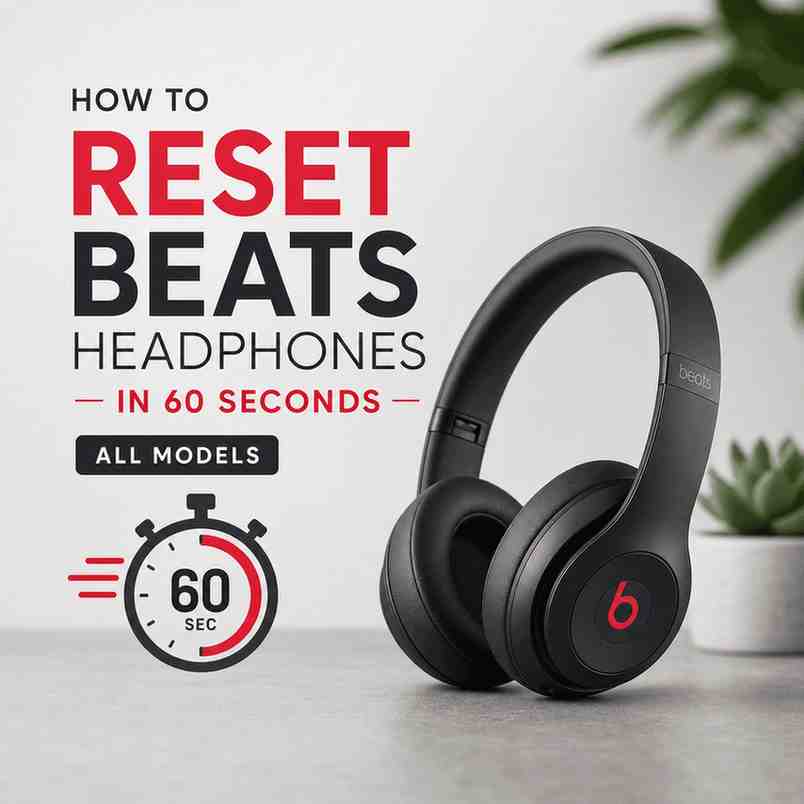
This guide shows how to reset Beats headphones all models in about a minute, using the exact button combos for each headset or earbud. We also cover “hard reset” vs “factory reset,” how to re-pair after the LED flashes, and what to do if your Beats headphones are not working.
If your audio is cutting out, your Beats won’t pair, or you’re handing them to someone else, a reset usually fixes it fast. The core idea is simple: you hold a specific button combination for 10 to 15 seconds until the LED light flashes, then you re-pair to your phone, tablet, or laptop.
Before you reset: what a “reset” actually does
A reset clears the connection state and forces your Beats to restart their pairing behavior. On most models, you’ll press and hold a specific combination of buttons for 10 to 15 seconds until the LED flashes.
In practical terms, a reset helps when:
- Pairing is stuck or your device can’t find your Beats
- One side of earbuds won’t connect
- Audio stutters, drops, or is delayed
- Your Beats are connected to the “wrong” device and won’t switch cleanly
What happens after you reset:
- You’ll need to re-pair with your devices (Bluetooth pairing again).
- If you use Apple devices, you may see a setup card pop up again.
- Your Beats may forget some old Bluetooth relationships.
That said, if your Beats have a physical issue (damaged cable, dead battery, water damage), a reset won’t perform miracles. Still, it’s the first thing we do in testing because it solves a surprising number of “not working” complaints.
60-second quick reset checklist (works for most situations)
When you just want the fastest path to a working connection:
- Charge for 2 minutes (seriously). Low battery causes weird pairing behavior.
- Forget the device on your phone or computer. See the steps for your platform below.
- Do the model-specific reset (sections below): hold the button combo for 10 to 15 seconds until the LED flashes.
- Put the Beats in pairing mode and re-pair.
How to forget the device on your platform
- iPhone/iPad: Settings → Bluetooth → (i) → Forget This Device
- Android: Settings → Bluetooth → gear icon → Unpair/Forget
- Mac: System Settings → Bluetooth → Forget
If you want the exact button combo for your model, jump to the matching section below.
How do I hard reset my headphones?
People say “hard reset” in two different ways:
- Soft restart: power off/on, put back in the case, reconnect.
- Hard reset (factory-style reset): the 10 to 15 second button hold until the LED flashes.
In this article, we’re using “reset” to mean the second one: the LED-flash reset that forces the device back into a clean pairing state.
Reset by Headphone Model (fast steps)
Below are the exact steps we recommend for each major Beats model. If you’re not sure which model you have, check any of the following:
- The name shown in Bluetooth settings (often includes “Solo3,” “Studio3,” etc.)
- The printing inside the earcups or on the case
- Your original box or receipt
Beats Studio Pro: reset in 10 seconds
To reset Beats Studio Pro quickly:
- Make sure they’re powered on.
- Press and hold the System button on the right earcup for 10 seconds.
- Release when the lights flash.
- Re-pair with your device.
This is one of the cleanest reset processes Beats makes, and it’s usually enough to fix stubborn pairing loops.
Reset Beats Solo series (Solo 3, Solo 4, Solo Pro): the universal combo
This is the reset method most people need, and it’s the same style across the Solo line.
Reset Beats Solo 3 Wireless (and Solo 4)
To reset Beats Solo 3 Wireless:
- Turn the headphones on.
- Press and hold the Power button + Volume Down for about 10 seconds.
- Release when the LED light flashes.
- Re-pair in Bluetooth settings.
Reset Beats Solo Pro
To reset Beats Solo Pro:
- Make sure Solo Pro is on (unfolded).
- Press and hold Power + Volume Down for ~10 seconds.
- Release when the LED flashes.
- Re-pair.
How to force restart Beats Solo?
If you’re asking “how to force restart beats solo,” this is it. It’s the same practical action: the Power + Volume Down hold until the LED flashes, then re-pair.
Buyer context: Solo models are popular commuter headphones. They sound good and travel well. However, they can get “sticky” when switching between a phone and laptop, so the reset combo is worth memorizing.
Reset Beats Flex (neckband): quick and reliable
To reset Beats Flex (this one matters because the buttons are on different modules):
- Make sure Beats Flex is on.
- Press and hold the Power button (right module) and Volume Down (left module) at the same time.
- Hold for about 10 to 15 seconds, then release when the LED flashes.
- Re-pair.
If you were specifically searching “reset beats flex,” that’s the exact combo we use.
Reset Beats Fit Pro: earbuds reset via case button
To reset Beats Fit Pro:
- Put both earbuds in the charging case.
- Leave the lid open.
- Press and hold the system button on the case for ~15 seconds.
- Release when the LED flashes (often red/white pattern).
- Re-pair.
The Fit Pro are excellent for workouts. Still, earbuds can desync more easily than headphones, so case-button resets are common.
Reset Beats Powerbeats Pro: case button method (most common fix)
To reset Beats Powerbeats Pro:
- Put both earbuds in the case.
- Keep the lid open.
- Press and hold the system button on the case for ~15 seconds.
- Release when the LED flashes.
- Re-pair.
If one earbud isn’t connecting, we recommend doing this reset after charging the case for a few minutes. Powerbeats Pro issues are often battery-state related.
Reset Beats Powerbeats 3 Wireless
To reset Beats Powerbeats 3 Wireless:
- Plug them into power (optional but helpful if the battery is low).
- Press and hold the Power button + Volume Down for 10 seconds.
- Release when the LED flashes.
- Re-pair.
This model behaves a lot like the Solo reset logic: power plus volume down.
Reset Beats Powerbeats 2 Wireless
To reset Beats Powerbeats 2 Wireless:
- Turn them on.
- Press and hold the Power button for about 10 seconds (until the LED behavior changes).
- If your unit has Volume buttons and supports the combo reset, use Power + Volume Down for ~10 seconds.
- Re-pair.
Powerbeats 2 is older, and button behavior can vary slightly by production run. If the first method doesn’t trigger an LED flash, try the Power + Volume Down combo next.
Reset Beats Solo 2 Wireless
To reset Beats Solo 2 Wireless:
- Turn the headphones on.
- Press and hold the Power button for 10 seconds (or until the LED flashes).
- If that doesn’t work, try Power + Volume Down for ~10 seconds.
- Re-pair.
Solo 2 is another older model where the exact sequence can differ. The LED flash is the key signal you’re looking for.
Reset Beats Studio 3 Wireless: the one people search for
To reset Beats Studio 3 Wireless:
- Turn them on.
- Press and hold Power + Volume Down for about 10 seconds.
- Release when the LED flashes.
- Re-pair.
If you’re frequently switching between iPhone and Windows, Studio 3 can sometimes hang onto a connection. A reset is the fastest way to clear that “connected but no audio” situation.
Reset Beats Studio Wireless older models (Studio 2 / earlier)
To reset Beats Studio Wireless older models:
- Turn the headphones on.
- Press and hold Power + Volume Down for 10 seconds.
- Release when the LEDs flash.
- Re-pair.
If your Studio has a different button layout, the principle stays the same: hold the key combo until the LED flash confirms the reset.
Reset Beats Studio Buds vs Studio Buds Plus reset steps (they’re similar)
The good news: reset beats studio buds vs studio buds plus reset steps are almost identical.
Reset Beats Studio Buds
- Put both buds in the case and keep the lid open.
- Press and hold the case button for ~15 seconds.
- Release when the LED flashes.
- Re-pair.
Reset Beats Studio Buds Plus
- Put both buds in the case and keep the lid open.
- Press and hold the case button for ~15 seconds.
- Release when the LED flashes.
- Re-pair.
Practical note: If your Buds keep reconnecting to a tablet you don’t use anymore, forgetting the device first and then doing the case-button reset is the cleanest fix.
Reset Beats Tour 2
To reset Beats Tour 2 (often listed as “Beats Tour2”):
- Power them on.
- Press and hold the Power button for 10 seconds until the LED changes or flashes.
- Re-pair.
Tour 2 is from an era where Bluetooth behavior is less consistent than newer Beats. That said, a reset plus a fresh re-pair solves most basic connection problems.
How do I reset my Beats to a new owner?
If you’re selling or gifting your headphones, you want two things: clear the pairing history on the Beats, and remove them from your Apple ID (if applicable).
- Reset the Beats using the steps above for your model (hold the button combo for 10 to 15 seconds until the LED flashes).
- On the previous owner’s phone or computer, select Forget This Device in Bluetooth settings, which you can find here.
- If the Beats are linked to an Apple ID, go to Apple Account / Find My, open the Devices list, select the Beats, and choose Remove Device (wording may vary).
- The new owner can then pair the headphones as if they were brand new.
This process handles both the headphone’s internal pairing memory and any account-level association, making it a complete handoff to a new owner.
Why are my Beats headphones not working? (what to try after a reset)
A reset is step one. If you still have issues, here’s what we do next, in order.
1) Confirm it’s not just the wrong output device
On phones and laptops, audio can route to the speaker even when Bluetooth is connected. Check:
- iPhone Control Center → AirPlay/audio output
- Mac sound output selector
- Windows sound output dropdown
2) Disable and re-enable Bluetooth
Sounds basic. Still, it resets the host device’s Bluetooth stack, which is often the real problem.
3) Update the firmware (when applicable)
Some Beats updates happen silently through iOS. On Android, Beats app support varies by model. If you suspect firmware issues, pairing to an iPhone temporarily can sometimes trigger an update.
4) Charge everything
Not only the earbuds, but also the case. Many “right earbud dead” complaints are really “case battery empty.”
5) Check for debris in earbud charging contacts
Studio Buds, Fit Pro, and Powerbeats Pro can fail to charge if the contacts are blocked. A dry cotton swab can help.
Re-pairing after the LED flash reset (so you don’t get stuck)
After you reset, you usually need to place the device in pairing mode:
- Headphones (Solo/Studio): turn on, and if they don’t enter pairing automatically, hold the Power button until the LED indicates pairing.
- Earbuds (Fit Pro/Powerbeats Pro/Studio Buds): open the case near your phone, or press/hold the case button briefly to trigger pairing mode.
Then on your device:
- Go to Bluetooth settings
- Select the Beats
- Confirm pairing
If you’re on iPhone, you’ll often get the pop-up pairing card, which is the easiest path.
Common reset mistakes we see (and how to avoid them)
- Not holding long enough. Most models need 10 to 15 seconds.
- Letting go before the LED flashes. The LED flash is your confirmation.
- Trying to reset while the battery is nearly dead. Charge first.
- Skipping “Forget this device.” If your phone keeps trying to reconnect to old pairing data, it can look like the reset failed.
- Resetting only one earbud. For true wireless models, always reset with both buds in the case.
Wrap up: how to reset Beats headphones all models (the simple rule)
If you remember nothing else, remember this: how to reset Beats headphones all models usually comes down to holding the right button combo for 10 to 15 seconds until the LED light flashes, then re-pairing.
Whether you need to reset Beats Flex, reset Beats Studio 3 Wireless, reset Beats Fit Pro, reset Beats Powerbeats Pro, reset Beats Solo 3 Wireless, or even reset Beats Studio Buds vs Studio Buds Plus reset steps, the pattern is the same. Find your model, do the LED-flash reset, and pair fresh. If your Beats headphones are not working after that, the issue is more likely battery, charging contacts, host device Bluetooth, or hardware.
FAQs (Frequently Asked Questions)
What does resetting my Beats headphones actually do?
Resetting your Beats headphones clears their connection state and forces them to restart the Bluetooth pairing behavior. This helps fix issues like stuck pairing, one earbud not connecting, audio stutters or drops, and problems switching between devices. After a reset, you’ll need to re-pair your Beats with your phone, tablet, or laptop.
How do I perform a quick reset on most Beats headphone models?
To quickly reset most Beats headphones: 1) Charge them for at least 2 minutes to avoid low battery issues; 2) Forget the Beats device from your phone or computer’s Bluetooth settings; 3) Press and hold the specific button combination for your model for 10 to 15 seconds until the LED flashes; 4) Put your Beats in pairing mode and re-pair with your device.
What’s the difference between a soft reset and a hard reset on Beats headphones?
A soft reset usually means simply powering off and on or putting the headphones back in their case to reconnect. A hard reset (or factory-style reset) involves holding down specific button combinations for 10 to 15 seconds until the LED flashes, which clears all Bluetooth connections and resets the device to a clean pairing state. This guide refers to ‘reset’ as the hard reset method.
How do I reset my Beats Studio Pro headphones?
To reset Beats Studio Pro: Make sure they are powered on, then press and hold the System button on the right earcup for about 10 seconds until you see the LED light flash. Release the button and then re-pair your headphones with your device.
What is the universal reset button combo for Beats Solo series (Solo 3, Solo 4, Solo Pro)?
For Beats Solo series headphones, including Solo 3 Wireless, Solo 4, and Solo Pro: Turn on your headphones, then press and hold both the Power button and Volume Down button simultaneously for about 10 seconds until the LED flashes. Release the buttons and re-pair your Beats in Bluetooth settings.
How can I forget my Beats device on different platforms before resetting?
Before resetting, it’s recommended to forget your Beats device from Bluetooth settings: On iPhone/iPad: Go to Settings → Bluetooth → tap (i) next to your device → Forget This Device. On Android: Settings → Bluetooth → gear icon next to device → Unpair/Forget. On Mac: System Settings → Bluetooth → select device → Forget.
