




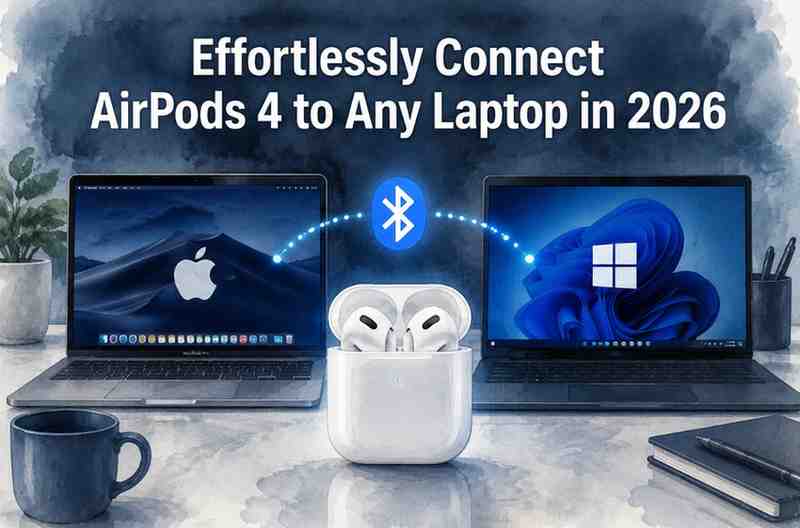
Connecting AirPods 4 to a laptop, whether it’s a Windows PC or a MacBook, involves enabling Bluetooth on your computer, opening your AirPods case to initiate pairing mode, and then selecting the AirPods from your device’s Bluetooth settings.
The process is generally straightforward but can sometimes require a quick reset or specific driver checks.
Key Takeaways
- AirPods 4 connect to laptops via Bluetooth, requiring your laptop to have Bluetooth capability.
- The pairing process differs slightly between Windows and macOS, but both are intuitive.
- Ensure your AirPods 4 are charged and in pairing mode (open case, hold button) before attempting to connect.
- Troubleshooting often involves resetting the AirPods, checking laptop Bluetooth drivers, or restarting devices.
- AirPods 4, like their predecessors, offer multipoint-like functionality for seamless switching between Apple devices but may require manual switching for non-Apple laptops.
- While AirPods are convenient, dedicated over-ear cans might offer superior audio or ANC for primary laptop use.
- Lack of Bluetooth on your laptop will necessitate an external USB Bluetooth adapter.
- Common issues include interference, outdated drivers, or incorrect audio output selection.
What are AirPods 4 and Are They Out Yet?
AirPods 4 refers to the fourth generation of Apple’s standard AirPods, which are indeed available as of 2026. These true wireless earbuds represent an evolution from previous models, aiming to strike a balance between audio quality, battery life, and seamless integration with Apple’s ecosystem.
They sit below the “Pro” lineup, meaning they typically forgo advanced features like active noise cancellation (ANC) and spatial audio with dynamic head tracking, focusing instead on core functionality and comfort.
Apple has positioned the AirPods 4 as an accessible entry point into their audio hardware, offering solid performance for calls, music, and podcasts.
They are generally seen as a refinement rather than a radical overhaul, improving upon the fit and sound profile of the AirPods 3 while maintaining a familiar design language. Crucially for laptop users, their Bluetooth connectivity remains a core feature.
How Do I Pair AirPods 4 to a Windows Laptop?
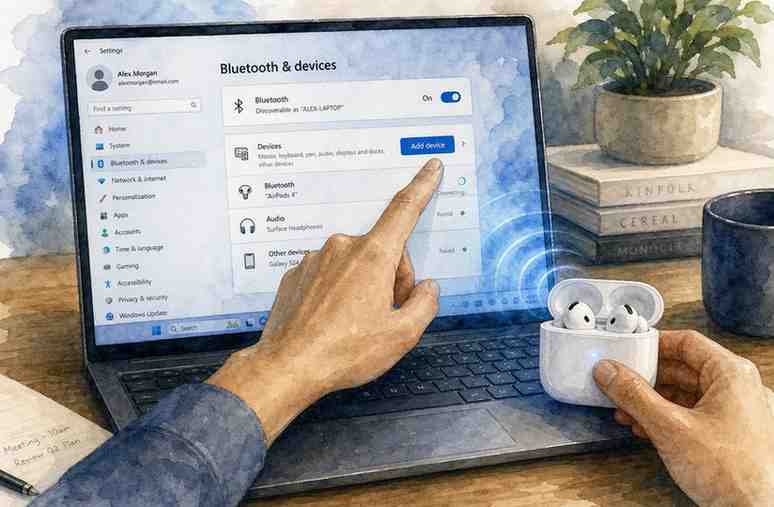
To connect AirPods 4 to a Windows laptop, you’ll need to enable Bluetooth on your PC, put your AirPods into pairing mode, and then add them as a new device through the Windows settings menu. This process is consistent across modern Windows versions, including Windows 10 and 11. It’s a simple, step-by-step procedure.
Here’s the breakdown:
- Charge and Prepare Your AirPods 4: Ensure your AirPods 4 are adequately charged. Place both AirPods in their charging case and keep the lid open. On the back of the charging case, locate the small, circular setup button.
- Activate Pairing Mode: Press and hold the setup button on the back of the AirPods 4 case for about five to ten seconds. The status light on the front of the case should begin to flash white, indicating that your AirPods are now in pairing mode and discoverable.
- Enable Bluetooth on Your Windows Laptop:
- Click the Start Menu (Windows icon) and then select Settings (the gear icon).
- Navigate to Bluetooth & devices (or “Devices” then “Bluetooth & other devices” on older Windows 10 versions).
- Toggle the Bluetooth switch to the “On” position if it isn’t already.
- Add Your AirPods as a New Device:
- In the “Bluetooth & devices” window, click on Add device (usually a “+” icon).
- Select Bluetooth from the options presented (this indicates you’re adding a Bluetooth audio device).
- Your Windows laptop will now scan for nearby Bluetooth devices. Look for “AirPods 4” (or sometimes just “AirPods”) in the list.
- Click on your AirPods 4 when they appear.
- Confirm Connection: Once selected, Windows will attempt to connect. You might see a “Connecting” status, followed by “Connected” or “Paired.” A notification may also pop up confirming the connection.
- Set as Default Audio Device (if necessary): Sometimes, even after pairing, your laptop might not automatically switch audio output to the AirPods.
- Click the Speaker icon in your taskbar (usually bottom right).
- Click the arrow next to the current audio output device.
- Select “AirPods 4” from the list of available devices.
Connecting your AirPods to a Windows machine offers decent audio quality for most everyday tasks, though you won’t get the same seamless integration or advanced codec support you’d find with Apple devices. Windows laptops typically use the SBC or AAC codec with AirPods, which is fine for general listening but doesn’t compare to LDAC or aptX Adaptive found in higher-end over-ears. For more general guidance on connecting headphones, check out our article on how to connect AirPods to a laptop.
What About Connecting AirPods 4 to a MacBook?
Connecting AirPods 4 to a MacBook is generally a more streamlined process compared to Windows, thanks to Apple’s integrated ecosystem. If your AirPods 4 are already paired with your iPhone, they should automatically appear as an available audio device on your MacBook (and other Apple devices) when both are signed into the same Apple ID. This is one of the distinct advantages of staying within the Apple ecosystem.
Here’s how to connect AirPods 4 to a MacBook:
- Ensure AirPods 4 are Ready: Make sure your AirPods 4 are in their charging case with the lid open. If they’re not already paired with your iPhone, press and hold the setup button on the back of the case until the status light flashes white.
- Check Bluetooth on Your MacBook:
- Click the Control Center icon (two toggles) in the menu bar at the top right of your screen.
- Click on the Bluetooth icon within Control Center to ensure it’s turned on.
- Select AirPods from Bluetooth Menu:
- If your AirPods 4 are already linked to your Apple ID, they should appear under the “Sound” section in Control Center, or directly under the Bluetooth menu. Simply click on them to connect.
- If they haven’t been linked or you’re pairing them for the first time with this MacBook:
- Go to System Settings (or System Preferences on older macOS versions).
- Click Bluetooth in the sidebar.
- Your AirPods 4 should appear in the “Nearby Devices” or “Devices” list.
- Click Connect next to “AirPods 4.”
- Confirm Audio Output: Once connected, your MacBook should automatically switch its audio output to your AirPods. You can verify this by checking the Sound output in the Control Center or the Sound settings within System Settings.
The “automatic switching” feature between Apple devices is a significant convenience, allowing you to seamlessly move from listening on your iPhone to your MacBook without manually pairing each time. However, this feature relies on all devices being signed into the same Apple ID. For those who frequently switch between a MacBook and other Apple gear, this feature isn’t half bad.
Why Won’t My AirPods Connect to My Laptop?
If your AirPods 4 aren’t connecting to your laptop, it’s often due to one of several common issues: incorrect pairing mode, depleted battery, Bluetooth interference, or outdated drivers. While Apple’s ecosystem generally makes connections smooth, external factors can complicate the process.
It’s worth knowing that even the most advanced Bluetooth devices can suffer from these fundamental hurdles.
Common culprits include:
- AirPods Battery: The most obvious, yet often overlooked, cause. AirPods won’t connect if their battery is too low or completely dead. Always ensure they’re charged.
- Incorrect Pairing Mode: Your AirPods need to be in active pairing mode (white flashing light) to be discoverable by a new device. If the light isn’t flashing white, they aren’t looking for a new connection.
- Laptop’s Bluetooth is Off or Malfunctioning: Double-check that Bluetooth is enabled on your laptop. Sometimes, a quick toggle off and on can resolve minor glitches.
- Interference: Other wireless devices (Wi-Fi routers, microwaves, other Bluetooth devices) can sometimes interfere with the Bluetooth signal, especially in crowded wireless environments. Try moving closer to your laptop or away from other electronics.
- Outdated Bluetooth Drivers (Windows): For Windows laptops, outdated or corrupted Bluetooth drivers are a frequent cause of connectivity problems. Drivers manage how your hardware communicates with the operating system.
- Too Many Paired Devices: If your AirPods are already paired with several devices, they might prioritize a known connection, making it harder for a new device to discover them.
- Distance: Bluetooth has a limited range, usually around 10 meters (33 feet). Moving too far from your laptop will cause disconnection.
What Troubleshooting Steps Can I Try If AirPods Aren’t Pairing?
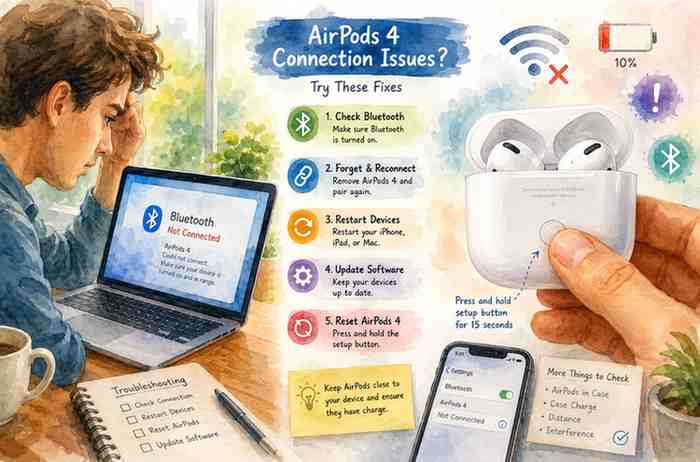
If your AirPods 4 are stubbornly refusing to pair with your laptop, a systematic approach to troubleshooting can often resolve the issue. Most problems are minor and can be fixed with a few simple steps, saving you a trip to support.
It’s important to approach these steps patiently, as a quick fix might be just around the corner.
Here’s a checklist of troubleshooting steps:
- Restart Your Laptop: The classic “turn it off and on again” works wonders for many tech glitches, including Bluetooth issues. A fresh boot can clear temporary software conflicts.
- Reset Your AirPods 4: This is a crucial step for stubborn pairing problems.
- Place both AirPods in their charging case and close the lid for 30 seconds.
- Open the lid.
- Press and hold the setup button on the back of the case for about 15 seconds, or until the status light flashes amber a few times, then continuously flashes white. This clears all previous pairings.
- Now, try pairing them to your laptop again. You can find detailed instructions on how to reset AirPods if needed.
- Forget AirPods from Other Devices: If your AirPods are paired with other nearby devices (like your phone), they might be automatically connecting to those, preventing connection to your laptop.
- On your iPhone or iPad: Go to Settings > Bluetooth, tap the “i” icon next to your AirPods, and select “Forget This Device.”
- Repeat for any other Apple devices.
- Update Bluetooth Drivers (Windows Laptops):
- Right-click the Start Menu and select Device Manager.
- Expand the “Bluetooth” section.
- Right-click on your Bluetooth adapter (e.g., “Intel Wireless Bluetooth”) and select “Update driver.”
- Choose “Search automatically for drivers.” If that doesn’t work, visit your laptop manufacturer’s website to download the latest drivers directly.
- Check for System Updates: Ensure both your Windows or macOS operating system is up to date. Software updates often include fixes for Bluetooth connectivity and compatibility.
- Remove and Re-add AirPods from Laptop:
- On Windows: Go to Settings > Bluetooth & devices, click on your AirPods, and select “Remove device.” Then, restart the pairing process.
- On macOS: Go to System Settings > Bluetooth, click the “i” icon next to your AirPods, and select “Forget This Device.” Then, restart the pairing process.
- Test with Another Device: Try pairing your AirPods 4 with a different device (like a smartphone) to determine if the issue lies with the AirPods themselves or your laptop. If they connect fine elsewhere, your laptop is likely the culprit.
- Use a USB Bluetooth Adapter (if desperate or built-in is flaky): If your laptop’s integrated Bluetooth is consistently problematic, a cheap external USB Bluetooth adapter can bypass it. These are widely available and can sometimes offer a more stable connection, especially for older laptops.
)
Can I Connect AirPods to Multiple Devices at Once?
AirPods, including the AirPods 4, support a feature similar to multipoint connectivity within the Apple ecosystem, allowing them to intelligently switch between your iPhone, iPad, Apple Watch, and MacBook when all are signed into the same Apple ID. This isn’t true multipoint in the traditional sense, but rather a seamless hand-off facilitated by Apple’s H-series chip.
However, for non-Apple devices like Windows laptops, the experience is less fluid. While you can pair your AirPods 4 to both your Windows laptop and your iPhone, they will not automatically switch between them based on which device is playing audio.
You’ll need to manually disconnect them from one device and connect them to the other each time. This manual intervention is a common frustration for users bridging Apple and non-Apple hardware, a limitation that many dedicated multipoint over-ears like the Sony WH-1000XM5 or Sennheiser MOMENTUM 4 Wireless handle more gracefully.
Are There Any Common Connection Issues with AirPods and Laptops?
Yes, beyond the basic pairing problems, several common connection issues can arise when using AirPods 4 with laptops, particularly with Windows machines. These often manifest as intermittent audio, dropped connections, or microphone problems. It’s worth understanding these nuances.
For the most part, these aren’t dealbreakers, but they can be irritating:
- Audio Stuttering/Dropouts: This can happen due to Bluetooth interference from other 2.4 GHz devices, physical obstructions, or being at the edge of the Bluetooth range. Moving closer to the laptop or clearing the line of sight can help.
- Poor Microphone Quality: When using AirPods 4 for calls on a Windows laptop, you might notice a significant drop in audio quality for both your voice and the incoming audio. This is because Bluetooth typically switches to a lower-bandwidth codec (like SBC with HFP/HSP profiles) when the microphone is active, prioritizing two-way communication over high-fidelity listening.
- Connectivity priority: On Windows, AirPods don’t always “prefer” the laptop. If your phone is also nearby and playing media, the AirPods might try to connect there, requiring manual selection on your laptop.
- Delay/Latency: While generally good for casual listening, some users might experience slight audio-visual latency, particularly during gaming or watching videos where precise lip-sync is critical. This is inherent to many Bluetooth connections, though some codecs (like aptX Adaptive) mitigate this better than AAC or SBC.
- Failure to Reconnect Automatically: After disconnecting or leaving range, AirPods might not always automatically reconnect to your Windows laptop. This often necessitates manually selecting them from the Bluetooth devices list again.
What’s the Difference Between AirPods Pro and Regular AirPods for Laptop Use?
The primary differences between AirPods Pro and regular AirPods (like the AirPods 4) for laptop use boil down to features like Active Noise Cancellation (ANC), Transparency mode, Spatial Audio capabilities, and fit. These distinctions significantly impact the user experience, especially in varying environments.
For a substantial whack to the price, the Pro models offer features that can elevate your laptop experience:
| Feature | AirPods 4 (Standard) | AirPods Pro (e.g., AirPods Pro 2) |
|---|---|---|
| Active Noise Cancellation (ANC) | No | Yes (Significant noise reduction) |
| Transparency Mode | No | Yes (Hear surroundings naturally) |
| Fit | Universal fit, hard plastic (some prefer this) | Customizable silicone ear tips (better seal, more secure) |
| Spatial Audio | Yes, but typically fixed (no dynamic head tracking) | Yes, with dynamic head tracking |
| Adaptive EQ | Yes (adjusts sound based on fit) | Yes (more advanced, also adjusts based on ear canal shape) |
| Haptic Feedback (Case) | No | Yes (on some Pro models, like AirPods Pro 2, for charging/pairing) |
| Price | Lower | Higher |
For laptop users, the biggest differentiator is ANC. If you work in a noisy office, coffee shop, or frequently travel, the AirPods Pro’s ANC is a game-changer, allowing you to focus on your work or media without distraction.
The customizable ear tips also tend to provide a better seal, which naturally improves bass response and passive noise isolation, making for a more immersive listening experience.
However, if you primarily use your laptop in quiet environments and prefer an open-fit earbud, the regular AirPods 4 aren’t a bad bet. They are also generally more comfortable for extended wear for those who dislike the in-ear pressure of silicone tips.
Do AirPods 4 Have Any Special Features for Laptop Connectivity?
The AirPods 4, like other standard AirPods generations, primarily leverage their H-series chip for seamless integration within Apple’s ecosystem, which includes MacBooks. This chip facilitates features like automatic switching between Apple devices and quick setup. However, for non-Apple laptops, “special features” are largely absent.
That said, even on Windows, they offer solid core functionality:
- Quick Pairing (within Apple Ecosystem): On MacBooks, if your AirPods 4 are already paired with your iPhone, they’ll appear automatically in your Bluetooth settings for instant connection. This is the closest thing to a “special feature” for laptop connectivity.
- Automatic Device Switching (within Apple Ecosystem): As discussed, AirPods 4 can intelligently switch audio sources between your Apple devices (iPhone, iPad, MacBook) based on which device is playing sound. This only works if all devices are signed into the same Apple ID.
- Basic Battery Status Integration: On MacBooks, you can see the battery levels of your AirPods and their case directly in the menu bar. On Windows, you might get a basic battery percentage in the Bluetooth settings, but it’s not as integrated or consistent.
For Windows users, the experience is largely generic. You get standard Bluetooth audio functionality—playback, pause, skip, and microphone access—but none of the deeper integration found with Apple’s own hardware. This means no automatic switching, no detailed battery widgets, and less reliable “Hey Siri” activation.
How Much Do AirPods 4 Cost?
The AirPods 4 launched at a suggested retail price of $169.00 in 2026. This places them in the mid-range for true wireless earbuds, offering a more accessible option compared to the premium AirPods Pro lineup, which typically costs upwards of $249.00.
However, as someone who monitors tech pricing, I can tell you that street prices often fluctuate. It’s not uncommon to find them on sale for $149.00 or even slightly less, especially during major retail events.
This pricing strategy makes them a competitive choice against rivals like the Samsung Galaxy Buds 3 or Google Pixel Buds Pro, though those competitors often offer more codec versatility or different feature sets. For a device like the Microsoft Surface Laptop Studio 2, an extra pair of cans for casual listening might be a good idea.
Are AirPods 4 Worth It for Someone Who Primarily Uses a Laptop?
Whether AirPods 4 are “worth it” for a primary laptop user depends heavily on their laptop’s operating system, existing device ecosystem, and specific needs. For MacBook users deeply embedded in the Apple ecosystem, the AirPods 4 offer unmatched convenience through automatic switching and seamless pairing. For Windows users, the value proposition is less clear-cut.
Here’s my take:
- For MacBook Users (Especially with other Apple devices): Absolutely. The ease of connection, automatic switching, and integrated battery status make them incredibly convenient. If you already own an iPhone or iPad, the AirPods 4 feel like a natural extension of your workflow. They provide reliable audio and decent microphone quality for video calls, which is often a priority for laptop use.
- For Windows Laptop Users (Solely): It’s a bit more of a hit-or-miss scenario. While they connect easily enough and provide good sound quality for casual listening (for AAC codec users), you miss out on all the “smart” features. The microphone quality for calls will likely be basic, and there’s no automatic switching if you also use them with an Android phone, for example. In this scenario, you’re essentially paying for Apple’s ecosystem benefits without fully utilizing them. Other earbuds or even dedicated closed-back headphones might offer better value for pure audio performance, better codecs (like aptX Adaptive or LDAC on some Windows laptops), or true multipoint connectivity for the same or less money.
Ultimately, if your digital life is entirely within Apple’s sphere, the AirPods 4 are a solid, convenient choice for your MacBook. If you’re a Windows-only user, I get the feeling you might find better dedicated alternatives, like the Jabra Elite 10 or Sennheiser CX Plus True Wireless, which offer broader codec support and often better ANC for similar prices.
What if My Laptop Doesn’t Have Bluetooth?
If your laptop doesn’t have built-in Bluetooth, you’re not entirely out of luck when it comes to connecting your AirPods 4. The solution is straightforward: you’ll need to purchase a separate USB Bluetooth adapter.
These small dongles plug into any available USB-A or USB-C port on your laptop and effectively add Bluetooth functionality.
Here’s what you need to know:
- USB Bluetooth Adapters: These are inexpensive and readily available from most electronics retailers. They typically cost between $10.00 and $30.00.
- Installation: For most modern operating systems (Windows 10/11, macOS), these adapters are plug-and-play, meaning you just plug them in, and the necessary drivers are automatically installed. You might occasionally need to install a driver manually, but it’s rare.
- Compatibility: Ensure you get an adapter that supports Bluetooth 4.0 or higher for optimal performance with AirPods 4. Most adapters sold today support at least Bluetooth 5.0, which is more than sufficient.
- Functionality: Once installed, your laptop will recognize the USB adapter as its primary Bluetooth radio. You can then follow the standard pairing steps for your AirPods 4 as if your laptop had built-in Bluetooth.
- Limitations: While effective, an external adapter might not always be as seamlessly integrated as built-in Bluetooth, and its range can sometimes be slightly less robust depending on the quality of the adapter. However, for simply connecting AirPods 4, it’s a perfectly viable solution. For those wondering about other accessories, check out our general guide on laptops accessories.
What Are Some Good Alternatives to AirPods for Laptop Use?
For someone primarily using a laptop, especially a Windows machine, there are many excellent alternatives to AirPods 4 that might offer better features, audio quality, or value.
The market for true wireless earbuds and over-ear cans is incredibly competitive in 2026, meaning you have plenty of strong options.
I can count on one hand the products that truly excel at everything, but these come close:
- Sony WF-1000XM5 (True Wireless Earbuds): These are a formidable competitor if you want premium features in an earbud form factor. They boast world-class ANC, excellent sound quality (supporting LDAC codec on compatible Android devices, though AAC on Windows/Mac), and solid battery life. They’re pricy, but the ANC unit is outstanding.
- Sennheiser MOMENTUM 4 Wireless (Over-Ear Headphones): If you’re open to over-ears, the MOMENTUM 4 Wireless offer exceptional sound, very good ANC, and true multipoint connectivity for easy switching between a laptop and another device. They’re comfortable for long sessions, making them ideal for laptop-centric work. [LISTENING NOTE: On “Billie Eilish – bad guy,” the bass response is tight and impactful without bleeding into the mids, and Eilish’s vocals are rendered with excellent clarity and separation, providing a wide, airy soundstage.]
- Jabra Elite 10 (True Wireless Earbuds): These earbuds provide excellent call quality, good ANC, and true multipoint connectivity, allowing them to stay paired to two devices simultaneously. This means easier switching between your laptop and phone, a major plus for productivity.
- Bose QuietComfort Earbuds II (True Wireless Earbuds): Another top contender for ANC, these Bose earbuds offer incredibly effective noise cancellation. While their sound profile can be a bit bass-heavy for some, they create a silent bubble perfect for focused laptop work.
- Anker Soundcore Liberty 4 NC (True Wireless Earbuds): For a substantially lower cost, these offer surprisingly effective ANC, decent sound, and good battery life. They represent a strong value proposition if you’re looking to save some money but still want good performance, though their microphone quality isn’t always top-tier.
Each of these alternatives brings different strengths to the table, and the best choice ultimately depends on whether you prioritize ANC, sound quality, call performance, or budget.
Conclusion
Connecting your AirPods 4 to a laptop in 2026 is a straightforward process, primarily relying on Bluetooth. For MacBook users, the experience is largely seamless, leveraging Apple’s ecosystem for quick pairing and automatic switching.
Windows laptop users will find the connection equally simple for basic audio, though they miss out on Apple’s integrated smart features and might face occasional troubleshooting needs related to drivers or manual device switching.
Ultimately, the AirPods 4 offer a convenient, wire-free audio solution for laptop use, but their true value shines brightest within the Apple ecosystem.
For Windows users, while functional, it’s worth considering whether alternatives might provide a more feature-rich experience—especially if true multipoint connectivity, advanced codecs, or best-in-class active noise cancellation are high on your priority list.
Whether you stick with AirPods 4 or explore other options, understanding the nuances of Bluetooth connectivity will ensure a smoother audio experience with your laptop.
