




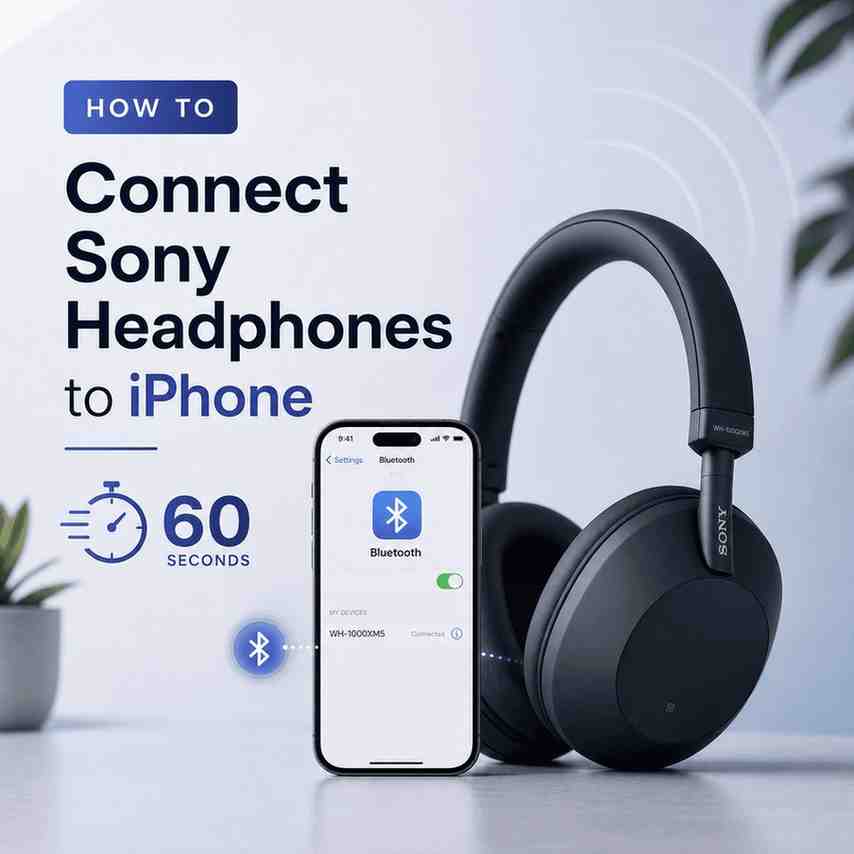
You can connect Sony headphones to an iPhone in about a minute. The whole thing is basically two moves.
- Put the headphones in pairing mode.
- Pick them from your iPhone’s Bluetooth list.
That’s it. But I know how it goes. Sometimes the headphones do not show up. Sometimes they connect once and never again. Sometimes you have two Sony devices in the list and you tap the wrong one and now you are annoyed for no reason.
So this guide is the quick 60 second method first, then a more step by step version, then the fixes if something goes weird.
The 60 second method (works for most Sony headphones)
1) Put the Sony headphones into pairing mode
Start with the headphones powered off.
- Press and hold the Power button (or Power/Bluetooth button) for 5 to 7 seconds.
- Keep holding until you see the indicator light start flashing (often rapid blue) and you hear something like “Bluetooth pairing”.
Small note that saves time: if your Sony headphones are brand new, straight out of the box, they often jump into pairing mode automatically the first time you turn them on. So if you power them on and you immediately hear “Bluetooth pairing”, you are already good.
2) Connect from your iPhone
On your iPhone:
- Open Settings
- Tap Bluetooth
- Turn Bluetooth ON
- Look under Other Devices
- Tap your headphone name (example: WH-1000XM5, WF-1000XM5, WH-CH520, etc.)
Once it connects, you will see Connected next to the device. Audio should route to the headphones right away.
That is the core process. If you just wanted the fast answer, you are done.
However, if you’re using a Windows device instead of an iPhone, you might want to know how to turn Bluetooth on or off in Windows.
Now if you want the clean, no confusion version (and the fixes), keep going.
Step by step breakdown (so you do not miss the tiny details)
Step 1: Make sure your headphones are actually in pairing mode
This is where most people accidentally waste time. A Sony headset can be:
- On, but not in pairing mode
- Connected to another device already
- In a “reconnect” state, not a “pair new device” state
You want true pairing mode.
What pairing mode usually looks like:
- A blinking light that is clearly “active” (often alternating or rapid)
- A voice prompt like “Bluetooth pairing”
- The device becomes discoverable on your iPhone
General method that works for most models:
- Turn the headphones off
- Hold the Power button for 5 to 7 seconds
- Wait for flashing + voice prompt
If your model has a separate pairing button, use that. But in 2026, most Sony headphones still use the long press power method.
Step 2: Connect using iPhone Settings, not Control Center
This is one of those annoying iPhone things.
Yes, you can toggle Bluetooth from Control Center, but for pairing, it is more reliable to go here:
Then:
- Make sure Bluetooth is ON
- Wait a couple seconds under Other Devices
- Tap the Sony headphone name
If you see it and tap it and it immediately flips to Connected, you are done.
If it says “Connection Unsuccessful” or it just spins, skip to the troubleshooting section below. Do not keep tapping it 14 times. It never helps.
What if you have Sony earbuds (WF series) instead of over ear headphones (WH series)?
Same idea, slightly different “pairing mode” behavior.
For a lot of Sony earbuds, pairing mode is triggered while the earbuds are in the case.
Typical approach (works on many WF models):
- Put both earbuds in the charging case.
- Open the lid.
- Press and hold the pairing button on the case (if your case has one) until the light starts flashing.
Some newer models use touch sensors instead. If yours does not have a case button, you may need to press and hold both earbud touch areas while they are out of the case. Sony’s lineup varies, so if the long press on the case does nothing, try the other method.
Either way, once you see that pairing light pattern, go back to the iPhone Bluetooth screen and tap the device name.
If your Sony headphones do not show up on iPhone Bluetooth (most common fixes)
This is the part everyone ends up googling at 1 a.m. So let’s make it simple.
Fix 1: Turn Bluetooth off and back on (from Settings)
Go to:
Settings > Bluetooth > toggle OFF > wait 3 seconds > toggle ON
Then wait under Other Devices again.
Fix 2: Move the headphones closer. Like, closer than you think
During pairing, keep them within 1 to 2 feet of the iPhone. Pairing power is not always the same as normal connected power.
Fix 3: Make sure the headphones are not connected to something else nearby
Sony headphones often auto connect to the last phone, laptop, tablet, or even a TV dongle.
Quick test:
- Turn Bluetooth off on your other devices for a minute (laptop especially)
- Or just walk away from them
- Put the headphones back in pairing mode
- Refresh the iPhone Bluetooth list
Fix 4: Restart your iPhone (it is boring, but it works)
- Power the iPhone off
- Power it back on
- Go straight to Settings > Bluetooth
- Pair again
Fix 5: Forget the device and re pair (if it is already in My Devices)
If you have connected before, the headphone name may be sitting in My Devices and acting weird.
Do this:
- Settings > Bluetooth
- Find your Sony headphones under My Devices
- Tap the i icon
- Tap Forget This Device
- Put the headphones back into pairing mode
- Tap them again under Other Devices
This clears bad pairing records. And yes, it fixes the “it used to work yesterday” situation.
If it connects but there is no sound (or sound is coming from the iPhone speaker)
1) Force the audio output to your Sony headphones
Sometimes the headphones connect, but iOS still sends audio to something else.
While audio is playing:
- Open Control Center
- Tap the AirPlay / audio output icon (top right of the Now Playing widget)
- Select your Sony headphones
2) Check volume on both sides
- Turn up iPhone volume
- Turn up headphone volume (or use the touch gestures if your model has them)
It sounds obvious. But half the “no sound” reports are just volume mismatch, especially after connecting to a different device earlier.
3) Check if your iPhone is stuck on another Bluetooth device
If your car system, speaker, or another headset is connected at the same time, iOS might be routing audio elsewhere. Disconnect the other device temporarily.
Pairing mode tips by common Sony headphone types (quick references)
Sony naming can be confusing, but you will usually see these patterns:
WH series (over ear headphones)
Examples: WH-1000XM5, WH-1000XM6 (if you have a newer one), WH-CH520, WH-XB910N
Typical pairing:
- Power off
- Hold Power for 5 to 7 seconds
- “Bluetooth pairing”
- Select in iPhone Bluetooth list
WF series (true wireless earbuds)
Examples: WF-1000XM5, WF-C700N, etc.
Typical pairing:
- Use case pairing button or touch sensor method
- Wait for flashing light
- Select in iPhone Bluetooth list
If you are not sure what you have, look at the model name printed inside the headband (WH) or on the case/earbuds (WF).
Download the Sony app (optional, but actually useful)
Sony’s official app (as of now commonly called Sony | Sound Connect, previously known as Sony Headphones Connect) is not required to pair. But it is worth having if you want your headphones to sound the way you paid for.
You can use it to:
- Adjust EQ (and save presets)
- Control noise cancellation and ambient sound
- Toggle features like speak to chat (on supported models)
- Check battery status more clearly
- Apply firmware updates
How to set it up after pairing
- Pair the headphones in iOS first.
- Install Sony | Sound Connect from the App Store.
- Open the app and follow the prompts.
If the app cannot find your headphones, close the app completely, reopen it, and make sure the headphones are connected in Settings > Bluetooth. The app relies on that connection.
What about multipoint? (connected to iPhone and laptop at the same time)
A lot of Sony models support multipoint now. It is great when it works. It is also the reason pairing can get confusing.
If you want to connect to your iPhone while it is already connected to a laptop:
- Put the headphones into pairing mode again.
- Pair from the iPhone Bluetooth menu.
- Then open your Sony app settings (or headphone settings depending on model) to enable multipoint.
If your headphones only support one connection at a time, you will need to disconnect from the laptop first. Otherwise your iPhone may see the headphones but fail to connect.
The “it keeps disconnecting” fix list (quick, practical)
If you connect successfully but it drops randomly:
- Charge the headphones. Low battery can cause unstable Bluetooth on some models.
- Stay away from heavy interference for testing. Crowded gym, busy office, tons of WiFi routers, it can be messy.
- Forget device and re pair (explained above).
- Update firmware in Sony | Sound Connect if an update is available.
- If you have iOS updates pending, install them. Bluetooth bugs do get patched.
If nothing works, do a reset (last resort, but it clears stubborn issues)
Sony has two concepts: a reset and an initialize. Different models use different button combos, so I cannot give one universal keystroke that applies to every Sony headphone ever made without risking being wrong for your specific unit.
But the general idea is:
- Look up your exact model reset steps (example: WH-1000XM5 reset, WF-1000XM5 initialize)
- Perform the reset
- Then pair again from scratch
If you tell me your exact model name, I can give the precise reset combo. For this article, I am keeping it safe and general.
Quick recap (the simple way again)
If you forget everything else, here is the whole connection process in plain terms:
- Turn Sony headphones off.
- Hold the Power or Bluetooth button for 5 to 7 seconds until it says “Bluetooth pairing” and the light flashes.
- On iPhone: Settings > Bluetooth > ON.
- Tap the Sony headphone name under Other Devices.
- Optional: install Sony | Sound Connect to customize sound and update firmware.
Done. Usually in under a minute. If not, the “Forget This Device” step fixes most of the stubborn cases. This Apple discussion thread might also provide some useful insights if you’re still facing issues after following these steps.
FAQs (Frequently Asked Questions)
How do I quickly connect my Sony headphones to an iPhone?
To quickly connect your Sony headphones to an iPhone, first put the headphones into pairing mode by turning them off and then pressing and holding the Power (or Power/Bluetooth) button for 5 to 7 seconds until the indicator light flashes and you hear a ‘Bluetooth pairing’ prompt. Then, on your iPhone, go to Settings > Bluetooth, turn Bluetooth on, find your headphone name under Other Devices, and tap it to connect.
What should I do if my Sony headphones do not appear in the iPhone’s Bluetooth list?
If your Sony headphones don’t show up on your iPhone’s Bluetooth list, try these fixes: toggle Bluetooth off and on again in Settings; move the headphones closer to the iPhone (within 1 to 2 feet); ensure the headphones are not connected to another nearby device by turning off Bluetooth on those devices; restart your iPhone; or forget the device in Bluetooth settings and re-pair.
How can I put different Sony headphone models into pairing mode?
For most Sony headphones, turn them off and press and hold the Power button for 5 to 7 seconds until you see a flashing light and hear a ‘Bluetooth pairing’ voice prompt. For Sony earbuds (WF series), place both earbuds in the charging case, open the lid, then press and hold the pairing button on the case until the light flashes. If there’s no case button, try pressing and holding both earbud touch sensors while out of the case.
Why should I use Settings instead of Control Center on my iPhone when pairing Sony headphones?
While you can toggle Bluetooth from Control Center, it’s more reliable to pair new devices through Settings > Bluetooth. This method ensures your iPhone properly searches for new devices under Other Devices and allows you to tap your Sony headphones’ name for a stable connection.
What does pairing mode look like on Sony headphones?
Pairing mode usually features a blinking or rapidly flashing indicator light (often blue), a voice prompt saying ‘Bluetooth pairing,’ and makes the device discoverable on your iPhone. The device is actively searching for new connections rather than reconnecting to previously paired devices.
How do I fix connection issues if my Sony headphones connect once but won’t reconnect again?
If your Sony headphones connect once but fail afterward, try forgetting the device on your iPhone by going to Settings > Bluetooth, tapping the info icon next to your headphone’s name under My Devices, selecting Forget This Device, then re-pairing from scratch. Also ensure no other devices are auto-connecting by turning their Bluetooth off temporarily.
