




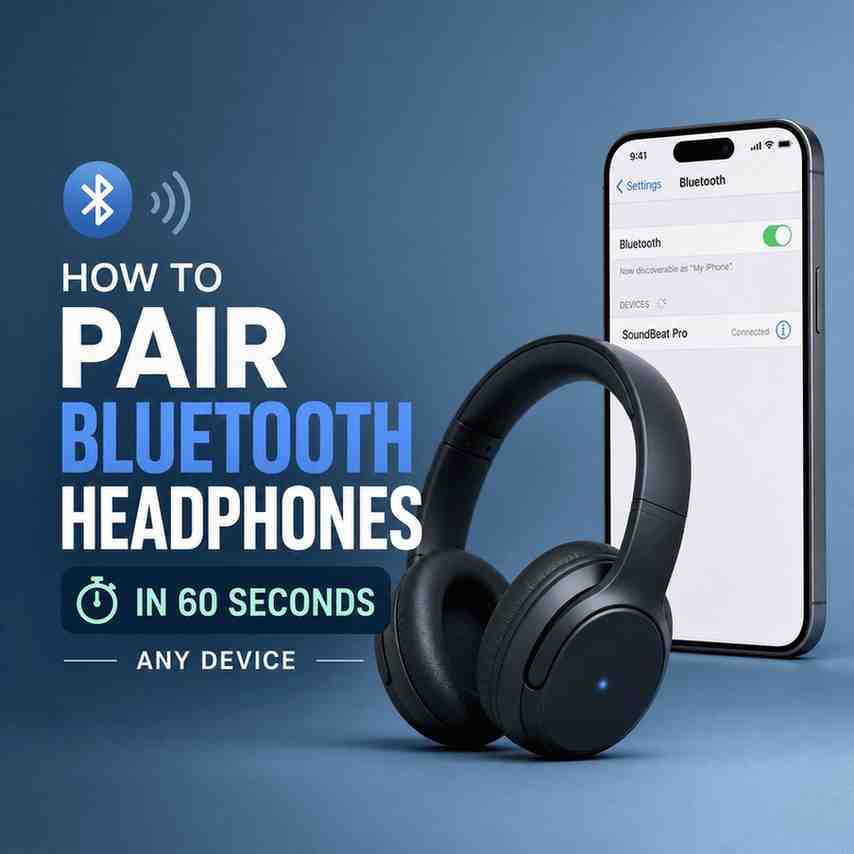
Pairing Bluetooth headphones is usually a two-step process: put the headphones in pairing mode, then connect from your phone, tablet, computer, or TV. Below, we’ll walk through the fastest “works on almost anything” method, plus device-specific steps and quick fixes if your headphones won’t show up.
If you’re trying to pair Bluetooth headphones fast, this guide is built for you. We’ll keep it practical: Step 1: Put Headphones in Pairing Mode, then Step 2: Connect to Your Device (iPhone, Android, Windows, Mac, smart TV, and more). We’ve tested enough headphones over the years to know the small details that save the most time, like when to remove earbuds from the case, when to hold the power button, and when to forget an old device.
The 60-Second Method (Works on Almost Any Device)
Here’s the core pattern that applies to nearly every brand, whether you’re using AirPods-style earbuds or big over-ear headphones.
- Step 1: Put Headphones in Pairing Mode
- Step 2: Connect to Your Device
- Confirm “Connected,” and you’re done.
That’s it. The only difference between devices is where the Bluetooth menu lives.
Step 1: Put Headphones in Pairing Mode (Wireless Earbuds vs Over-Ear)
Most pairing problems happen right here, so we’re going to be a little picky.
Wireless Earbuds: Take them out of their charging case
Wireless Earbuds: Take them out of their charging case. Many automatically enter pairing mode when removed, while others require you to press a button on the case.
What we do when we want it to work on the first try:
- Open the lid, take both earbuds out, and wait 3 to 5 seconds.
- If nothing happens, press and hold the case button (often on the back or inside) until you see a blinking light.
- Watch for a flashing indicator (commonly white, blue, or alternating colors), or listen for a pairing tone.
Buyer context: Earbuds are convenient, but they’re also the most finicky because the case can keep them “asleep.” Taking them out fully and waiting those few seconds saves real time.
Over-Ear Headphones: Hold the Power or Bluetooth button
Over-Ear Headphones: With the headphones powered off, press and hold the Power button (or the dedicated Bluetooth button) for about 3 to 7 seconds. You will hear an audio cue (e.g., “Pairing”) or see a flashing light (often red and blue).
What we look for:
- Headphones are off (not just disconnected).
- Press and hold Power or Bluetooth for 3 to 7 seconds.
- You hear “Pairing,” “Ready to pair,” or see red/blue blinking (varies by brand).
However, some headphones use a longer hold, around 10 seconds, especially if they combine power-on and pairing into one long press. If you get a normal power-on but no blinking pairing light, turn them off and try again with a longer press.

Step 2: Connect to Your Device (iPhone, Android, iPad, Tablets)
Once your headphones are in pairing mode, you’re basically racing the timer. Many models stay discoverable for 30 to 120 seconds.
On an iPhone or iPad
Use this exact path:
- Open the Settings app.
- Tap Bluetooth and toggle it On.
- Scroll to the Other Devices section.
- Wait for your headphones to appear.
- Tap the headphone name to connect.
If a pairing prompt appears (PIN code), most devices use 0000 or 1234, though many modern models don’t require a code.
That said, if you’re pairing AirPods or Beats, you may get a special pop-up animation. It’s still Bluetooth pairing underneath, just with extra Apple polish.
On an Android device
There are a few skins, but the fastest approach is consistent:
- Swipe down from the top of the screen.
- Tap the Bluetooth icon to turn it On.
- Press and hold the Bluetooth icon to open the full settings menu.
- Tap Pair new device (or wait for the scan list).
- Tap your headphones’ name to pair.
If you don’t see “Pair new device,” look for “Available devices,” “Scan,” or a plus icon.
On an Android Device: Swipe down from the top of the screen and tap the Bluetooth icon to turn it on. Press and hold the Bluetooth icon to open the full settings menu.
Pair Bluetooth Headphones to Windows (Windows 11 and Windows 10)
Windows is easy once you know where Microsoft moved the menus this year.
Windows 11
- Settings → Bluetooth & devices
- Turn Bluetooth On
- Click Add device → Bluetooth
- Select your headphones from the list
- Click Done
After pairing, Windows may set your headphones as the default audio output. If not:
- Click the speaker icon in the taskbar
- Choose the headphone output device
Windows 10
- Settings → Devices → Bluetooth & other devices
- Turn Bluetooth On
- Click Add Bluetooth or other device → Bluetooth
- Select your headphones
Still, Windows sometimes shows two profiles: “Headphones” (stereo) and “Headset” (hands-free). For music, pick stereo. For calls, hands-free can work, but audio quality is often worse.

Pair Bluetooth Headphones to Mac (macOS)
Mac pairing is smooth, as long as your headphones are in pairing mode before you click.
- Click Apple menu → System Settings (or System Preferences on older macOS)
- Click Bluetooth
- Turn Bluetooth On
- Find your headphones and click Connect
If your audio doesn’t route automatically:
- Go to Sound settings
- Set Output to your headphones
While macOS is usually reliable, it can “remember” older pairings too aggressively. If your headphones connect but audio stays on speakers, switching the output device fixes it instantly.
Pair Bluetooth Headphones to Smart TVs (Samsung, LG, Sony, Roku)
TV pairing varies a lot, but the logic is the same: pairing mode first, then scan.
Samsung Smart TV (general path)
- Settings → Sound → Sound Output → Bluetooth Speaker List
- Select your headphones → Pair and connect
LG Smart TV (general path)
- Settings → Sound → Sound Out
- Choose Bluetooth → select headphones → Connect
Sony / Android TV / Google TV (general path)
- Settings → Remotes & Accessories (or Bluetooth)
- Add accessory → select headphones
Roku TV (important note)
Many Roku TVs don’t support standard Bluetooth audio for random headphones. Roku often pushes Private Listening via the Roku mobile app or specific Roku accessories.
Buyer context: TVs can be picky. If you’re buying headphones mainly for TV late-night viewing, we recommend checking whether your specific TV model supports Bluetooth audio output, not just Bluetooth remotes.
Pair Bluetooth Headphones to Nintendo Switch, PlayStation, and Xbox
Nintendo Switch
Newer Switch system updates support Bluetooth audio.
- System Settings → Bluetooth Audio → Pair Device
- Put headphones in pairing mode
- Select them from the list
However, some microphones won’t work well over Switch Bluetooth, and latency can vary by headphone.
PlayStation (PS5 / PS4)
PlayStation consoles are restrictive with Bluetooth audio. Many regular Bluetooth headphones won’t connect directly for gameplay audio.
What works reliably:
- Official wireless headsets with a USB dongle
- A compatible USB Bluetooth audio adapter (results vary)
- Connecting to the TV’s Bluetooth instead (if your TV supports it)
Xbox
Xbox is also restrictive with standard Bluetooth audio.
Common solutions:
- Xbox Wireless headsets
- A headset that connects via Xbox protocol
- Use the TV’s Bluetooth (if available)
- Use the Xbox app for chat and wired audio for game sound (depends on your setup)
Even if you love your current Bluetooth headphones, consoles can force you into dongles or platform-specific models.
If Your Headphones Won’t Show Up: The Fix List (Fast)
When pairing fails, it’s usually one of these five things. We go in this order because it’s the fastest to test.
1) Make sure you’re actually in pairing mode
This sounds obvious, but it’s the #1 issue.
- Earbuds: take them out again, close and reopen the lid, then hold the case button.
- Over-ear: power off, then hold the button longer until the pairing light blinks.
2) Turn Bluetooth off and back on (on your phone/computer)
Not glamorous, but it clears a lot of stuck scans.
3) “Forget” the headphones and re-pair
If you’ve paired before and it’s acting weird:
- iPhone/iPad: Settings → Bluetooth → tap i → Forget This Device
- Android: Settings → Bluetooth → gear icon → Forget/Unpair
- Windows/macOS: remove device from Bluetooth list
Then repeat:
- Step 1: Put Headphones in Pairing Mode
- Step 2: Connect to Your Device
4) Charge the headphones (and the case)
Low battery can cause half-pairing, random disconnects, or the device not advertising itself.
5) Move away from interference
Microwaves, USB 3.0 hubs, crowded Wi‑Fi, and tons of nearby Bluetooth devices can mess with discovery. If we’re troubleshooting, we temporarily move to a simpler spot and try again.

Common Pairing Questions (Quick Answers)
Why do my headphones connect but no sound plays?
Because the device is paired, but the audio output is still set to speakers.
- iPhone/Android: change output in the volume panel or media output picker
- Windows/macOS: set headphones as the active output device
- TVs: confirm “Sound Output” is set to Bluetooth
Why do I see two versions of my headphones on Windows?
That’s Windows showing different Bluetooth profiles.
- Headphones / Stereo = better sound, best for music and video
- Headset / Hands-Free = includes mic support, but audio quality usually drops
Can I pair Bluetooth headphones to multiple devices?
Many modern headphones support multipoint, meaning they can connect to two devices at once.
Still, not all models do. If your headphones keep reconnecting to your laptop when you want your phone, disable Bluetooth on the device you don’t want, pair to the other one, then re-enable.
What if it asks for a PIN?
Try 0000 or 1234. If that fails, check your manual or the manufacturer support page for the default code.
Brand Notes (Because Buttons Differ)
We try not to overcomplicate this, but brand behavior matters when you’re speed-pairing.
AirPods / Beats (Apple ecosystem)
Usually:
- Open the case near iPhone, follow the on-screen prompt. If manual:
- Hold the button on the case until the light flashes.
Sony / Bose / Sennheiser / JBL / Anker Soundcore
Generally:
- Hold Power or Bluetooth button until you hear “Pairing” or see blinking LED.
Though some models prioritize reconnecting to the last device. If it keeps snapping back, you may need to “forget” it on the old device first.
The Quick Checklist We Use When Testing Pairing Speed
If you want a repeatable method that feels almost automatic, this is it:
- Put headphones close to the device (within 1 meter).
- Step 1: Put Headphones in Pairing Mode (wait for blinking light or “Pairing” voice prompt).
- Open Bluetooth settings immediately.
- Step 2: Connect to Your Device by tapping the headphone name.
- Confirm sound output is set correctly.
This is how we pair Bluetooth headphones in under a minute, even when we’re cycling through multiple phones and laptops for testing.
Conclusion: Pair Bluetooth Headphones the Fast Way (Every Time)
To pair Bluetooth headphones in 60 seconds, you only need two moves: Step 1: Put Headphones in Pairing Mode, then Step 2: Connect to Your Device from the Bluetooth menu on iPhone, Android, Windows, Mac, or your TV. If your headphones don’t appear, the fastest fix is usually to confirm pairing mode, toggle Bluetooth, then forget and re-pair. Once you do it this way a couple times, it becomes a muscle-memory routine you can repeat on any device.
FAQs (Frequently Asked Questions)
What is the fastest way to pair Bluetooth headphones with any device?
The fastest method to pair Bluetooth headphones is a simple two-step process: first, put your headphones into pairing mode; second, connect to your device via its Bluetooth menu. This approach works on almost any device, including phones, tablets, computers, and smart TVs.
How do I put wireless earbuds into pairing mode?
To put wireless earbuds into pairing mode, take both earbuds out of their charging case and wait 3 to 5 seconds. If they don’t enter pairing mode automatically, press and hold the button on the charging case until you see a blinking light or hear a pairing tone. Look for flashing indicators in white, blue, or alternating colors.
What is the correct way to put over-ear Bluetooth headphones into pairing mode?
With over-ear headphones powered off, press and hold the Power button or dedicated Bluetooth button for about 3 to 7 seconds. You should hear an audio cue like ‘Pairing’ or see a red/blue blinking light. If that doesn’t work, try holding the button longer (around 10 seconds) as some models require a longer press.
How can I connect my Bluetooth headphones to an iPhone or iPad?
On your iPhone or iPad, open the Settings app and tap Bluetooth. Turn Bluetooth on, then scroll to the ‘Other Devices’ section and wait for your headphones to appear. Tap the headphone name to connect. If prompted for a PIN code during pairing, try ‘0000’ or ‘1234’, though many modern devices don’t require one.
What are the steps to pair Bluetooth headphones with an Android device?
On Android devices, swipe down from the top of the screen and tap the Bluetooth icon to turn it on. Then press and hold the Bluetooth icon to open full settings. Tap ‘Pair new device’ or look for ‘Available devices’ or a plus icon. Select your headphones from the list to pair.
How do I pair Bluetooth headphones with Windows 11?
In Windows 11, go to Settings > Bluetooth & devices. Turn on Bluetooth if it’s off. Then select ‘Add device,’ choose ‘Bluetooth,’ and select your headphones from the list of available devices to complete pairing.
