




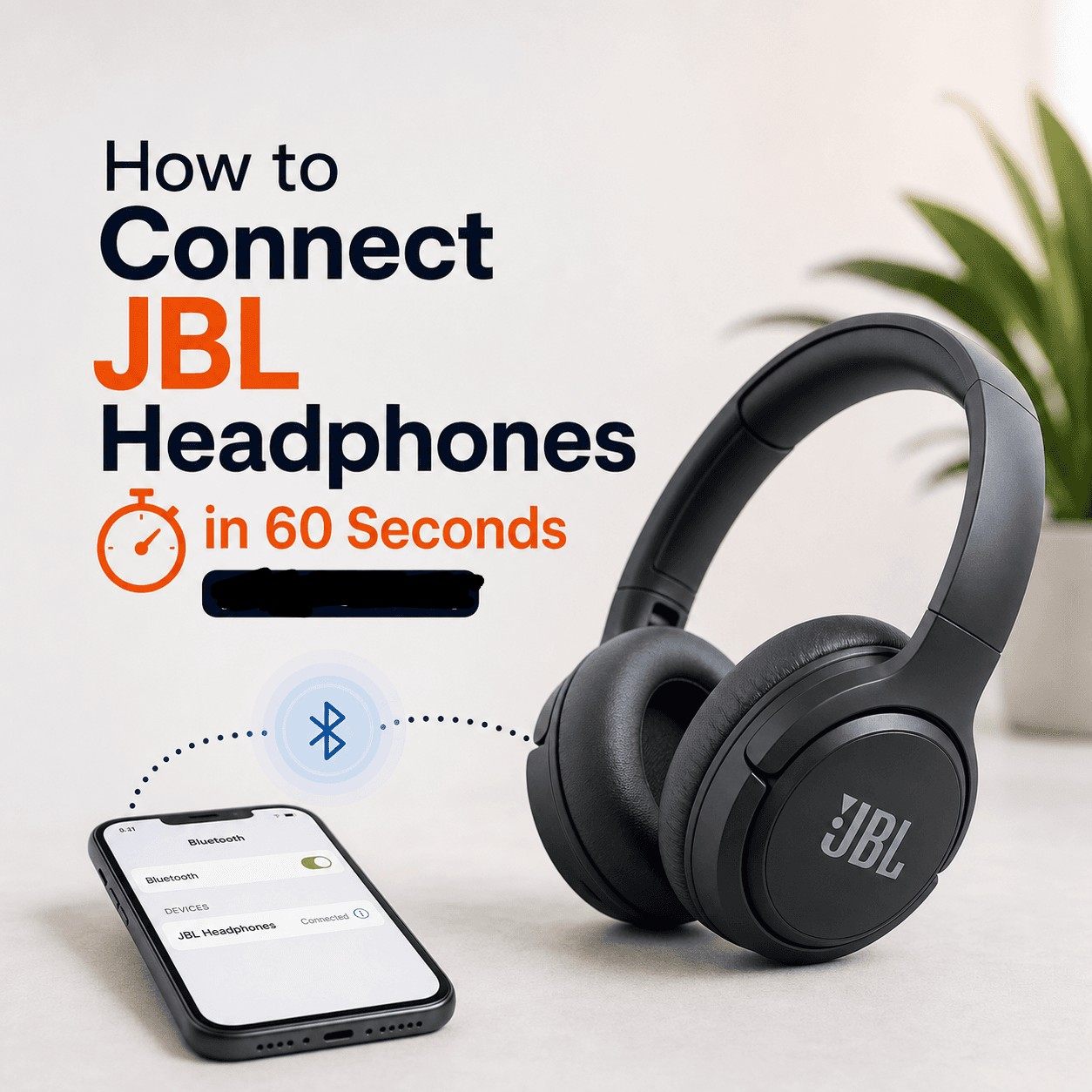
Sometimes connect JBL headphones in one smooth click and you forget Bluetooth even exists.
Other times. Nothing. Just you, a blinking light, and a phone that pretends it cannot see the headphones sitting right there.
So let’s make this simple.
If you follow the quick 60 second method first, you will connect most JBL headphones (Tune, Live, Club, Tour, Quantum, etc). Then we’ll go device by device for iPhone, iPad, MacBook, laptop, Chromebook, TV, PS5, Roku, LG TV, even an LG monitor.
And yeah, we’ll fix the common stuff too, like Why are JBL headphones not connecting?
The 60 second method (works for most JBL headphones)
Before anything else, do this. It solves like 80 percent of pairing problems.
- Put your JBL headphones on your desk. Keep them close to the device.
- Bluetooth range matters more than people think. Start within 1 to 3 feet.
- Press and hold the power button on the RIGHT ear cup.
- Hold it a few seconds longer than you think you need to.
- Look for pairing mode.
- If it’s the first time connecting, it usually automatically goes into pairing mode.
- You will notice the LED light alternate between blue and white as it searches for a device to connect to.
- On your phone/computer/TV, open Bluetooth settings.
- Turn Bluetooth ON. Wait a second.
- Tap your JBL model name when it appears.
- Example: “JBL TUNE 770NC” or “JBL LIVE 660NC”.
That’s it. If it connects, you are done.
If it does not show up, skip down to the troubleshooting section. Because there is always a reason.
Are JBL headphones compatible with iPhones?
Yes. Basically all JBL Bluetooth headphones work with iPhones.
The only time people think they are not compatible is when:
- The headphones are connected to a different device already (like a laptop)
- They are not actually in pairing mode (blue and white blink is the tell)
- iOS Bluetooth is being weird and needs a quick toggle or restart
So yes, they’re compatible. You just need to pair them correctly once, then after that they normally reconnect automatically.
How to connect JBL headphones to iPhone
This is the cleanest way to do it.
- On the JBL headphones, press and hold the power button on the RIGHT ear cup to enter pairing mode.
- Wait for the blue and white alternating LED.
- On iPhone: Settings > Bluetooth
- Turn Bluetooth ON.
- Under Other Devices, tap your JBL headphones name.
- If prompted for a PIN, try 0000 (rare on modern JBL, but still shows up sometimes).
Once connected, you should see it under My Devices and it will usually reconnect when you power them on.

How to connect JBL headphones to phone (Android)
Android varies slightly by brand, but the idea is identical.
- Put JBL into pairing mode (hold power button on RIGHT ear cup, look for blue and white LED).
- On Android: Settings > Connections > Bluetooth (or just search “Bluetooth” in Settings).
- Turn Bluetooth ON.
- Tap your JBL headphone name.
- Confirm Pair.
Tip: On some Android phones, you can also long press the Bluetooth icon in quick settings to jump straight to the device list.
How to connect JBL headphones to iPad
If you can connect to an iPhone, you can connect to an iPad. Same process.
- Put JBL into pairing mode (blue and white alternating LED).
- iPad: Settings > Bluetooth
- Tap the JBL name under Other Devices.
If your iPad keeps trying to connect to old earbuds instead, turn those off first. Or hit “Forget This Device” on the old one.
How to connect JBL headphones to laptop (Windows 11 / Windows 10)
Windows can be a little slow to discover devices, so give it 5 to 10 seconds.
- Put JBL into pairing mode (hold power on RIGHT ear cup, blue and white LED).
- On Windows 11: Settings > Bluetooth & devices
- Click Add device
- Choose Bluetooth
- Select your JBL headphones.
On Windows 10: Settings > Devices > Bluetooth & other devices > Add Bluetooth or other device.

If Windows connects but audio still plays from the laptop speakers, you probably just need to switch output:
- Click the speaker icon in the taskbar
- Select your JBL headphones as the output device
How to connect JBL headphones to computer (desktop PC)
Same as laptop, with one extra gotcha.
A lot of desktop PCs do not have Bluetooth built in.
So if you do not see a Bluetooth toggle in Windows at all, you need one of these:
- A USB Bluetooth adapter (cheap, easiest)
- A Wi-Fi/Bluetooth PCIe card
Once Bluetooth exists on the PC, pair it like the Windows steps above.
How to connect JBL headphones to MacBook (macOS)
Mac pairing is usually painless.
- Put JBL into pairing mode (blue and white blinking).
- On Mac: System Settings > Bluetooth
- Find your JBL headphones and click Connect
If you are on an older macOS version: System Preferences > Bluetooth.
Quick check after connecting:
- System Settings > Sound > Output and choose the JBL headphones

How to connect JBL headphones to Chromebook
Chromebooks hide Bluetooth in a slightly different place.
- Put JBL into pairing mode.
- On Chromebook, click the time (bottom right).
- Click the Bluetooth icon to turn it on.
- Click Bluetooth again to open device list.
- Select your JBL headphones and Pair.
If it connects but audio is still coming from the Chromebook speakers:
- Click the volume slider and select JBL as output.
How to connect JBL headphones to TV (generic smart TV steps)
TV Bluetooth is the wild west. Some TVs support Bluetooth headphones, some only support Bluetooth remotes, and some support nothing at all.
But if your TV supports Bluetooth audio, do this:
- Put JBL headphones in pairing mode (blue and white LED).
- TV: go to Settings > Sound > Sound Output > Bluetooth (wording varies)
- Search for devices
- Select your JBL headphones
If your TV does not have Bluetooth audio support, you still have options:
- Bluetooth transmitter that plugs into the TV’s headphone jack or optical output
- Streaming device that supports Bluetooth audio (some do)
How to connect JBL headphones to Roku TV
Roku TVs are a special case.
Most Roku TVs do not pair directly with Bluetooth headphones the normal way. Instead, Roku pushes you toward Private Listening in the Roku mobile app, where your phone becomes the audio bridge.
Two ways to do it:
Option A: Roku Private Listening (most common)
- Install the Roku app on iPhone or Android.
- Connect your phone to the same Wi-Fi as the Roku TV.
- Open the Roku app, select your TV.
- Tap Remote, then tap the headphones icon for Private Listening.
- Connect JBL headphones to your phone (standard Bluetooth pairing).
Option B: Roku TV with built in Bluetooth (some models)
If your Roku TV model supports Bluetooth audio output:
- Put JBL in pairing mode.
- Roku: Settings > Remotes & devices > Wireless headphones (or Bluetooth menu if available)
- Pair JBL.
How to connect JBL headphones to LG TV
LG TVs usually support Bluetooth audio, but menu names change by model and year.
- Put JBL headphones in pairing mode (blue and white LED).
- On LG TV: Settings (gear icon) > All Settings > Sound
- Look for Sound Out and choose Bluetooth / Bluetooth Speaker
- Select your JBL headphones from the list
If you cannot find any Bluetooth option under Sound Out, your LG TV might not support Bluetooth audio, even if it supports Bluetooth for remotes. In that case, you will need a Bluetooth transmitter.
how to connect jbl headphones to lg monitor
This one trips people up because monitors are not TVs.
Most LG monitors do not have Bluetooth audio output. Some have Bluetooth features for screen sharing or peripherals, but not for headphones.
So here are the realistic paths:
If your LG monitor has Bluetooth audio (rare)
- Put JBL into pairing mode.
- Monitor settings: find Bluetooth Audio or Sound Output
- Pair JBL.
If your LG monitor is connected to a PC or console (most common)
You do not pair to the monitor. You pair to the source.
- If it’s a PC: pair JBL to Windows/macOS (see above)
- If it’s a PS5: see PS5 section
- If it’s a streaming stick plugged into the monitor: you may need a Bluetooth transmitter
If you are using HDMI from a computer into the monitor, pairing to the computer is the move. Simple.
How to connect JBL headphones to PS5
So you have a few workarounds:
Option A: Use a Bluetooth USB adapter
- Plug a compatible Bluetooth audio USB dongle into the PS5.
- Put JBL headphones into pairing mode.
- Pair JBL to the dongle.
Option B: Connect JBL to your TV instead
If your TV supports Bluetooth audio:
- Pair JBL to the TV
- Make sure PS5 audio is outputting to the TV
Option C: Wired (if your JBL supports it)
Some JBL headphones include a 3.5mm cable.
- Plug into your controller headphone jack.
This is the least annoying option if you already have the cable.
Why are JBL headphones not connecting?
This is the part everyone googles at 1:12 AM.
Here are the most common reasons, in plain language:
1. They are not actually in pairing mode
Powering on is not the same thing as pairing.
Fix:
- Press and hold the power button on the RIGHT ear cup
- Look for the LED light alternate between blue and white
No blue and white blink. No pairing.
2. They are already connected to another device
JBL headphones love reconnecting to the last thing they paired with. Your laptop in the other room, for example.
Fix:
- Turn Bluetooth off on the other device
- Or forget the JBL device on that device temporarily
3. Bluetooth list is cluttered, and your phone is confused
Fix:
- Toggle Bluetooth off and on
- Restart the phone
- On iPhone: Settings > Bluetooth > tap the (i) next to JBL > Forget This Device and re pair
4. The headphones need a reset
Different JBL models have different reset combos, but a common one on many JBL Bluetooth headphones is:
- Press and hold Volume Up + Volume Down for around 5 to 10 seconds (while powered on)
If that does nothing, search your exact model name plus “factory reset” because JBL changes it across lines.
5. Battery is low enough to be weird
Even if it powers on, low battery can cause flaky pairing.
Fix:
- Charge for 10 to 15 minutes, then try again.
6. You are too far away (or there is interference)
Microwaves, crowded Wi-Fi, lots of Bluetooth devices nearby, thick walls. It happens.
Fix:
- Pair within 1 to 3 feet
- Move away from routers or other Bluetooth devices while pairing
How to put JBL go into pairing mode?
Quick clarification: JBL Go is usually a small JBL Bluetooth speaker, not headphones. But the pairing idea is the same, and people search this phrase constantly so let’s not pretend it is not relevant.
To put a JBL Go speaker into pairing mode:
- Turn it on.
- Press the Bluetooth button (the one with the Bluetooth symbol).
- Look for the blinking blue light (pattern depends on model).
For JBL headphones though, pairing mode is typically:
- Press and hold the power button on the RIGHT ear cup
- Look for blue and white alternating LED
Two products, similar idea, different buttons.
Quick checklist if you want this to work first try every time
- Start close. Like, right next to your phone.
- Make sure pairing mode is active (blue and white blink).
- If it does not show up in 15 seconds, toggle Bluetooth off and on.
- If it still does not show up, forget the device and re pair.
- If it still still does not show up, reset the headphones.
Wrap up (the no drama version)
If you only remember one thing, remember this:
Press and hold the power button on the RIGHT ear cup.
If you see the LED light alternate between blue and white, you are in pairing mode. Then you just pick the JBL name on whatever device you are using.
And if you got stuck, it’s usually not mysterious. It’s one of the usual suspects. Not really in pairing mode, connected to something else, or needs a reset.
That’s the whole game.
FAQs (Frequently Asked Questions)
Why are my JBL headphones not connecting to my device?
Most connection issues occur because the headphones are not properly in pairing mode, are connected to another device already, or Bluetooth on your device needs a quick toggle or restart. Make sure your JBL headphones are close (1-3 feet) to your device, press and hold the power button on the RIGHT ear cup until you see the blue and white alternating LED indicating pairing mode, then select your JBL model name in your device’s Bluetooth settings.
Are JBL headphones compatible with iPhones and other Apple devices?
Yes, virtually all JBL Bluetooth headphones are compatible with iPhones, iPads, and MacBooks. Just ensure that the headphones are in pairing mode and that your Apple device’s Bluetooth is turned on. After the initial pairing, they usually reconnect automatically when powered on.
How do I connect my JBL headphones to an iPhone?
To connect JBL headphones to an iPhone: 1) Press and hold the power button on the RIGHT ear cup until you see the blue and white blinking LED indicating pairing mode. 2) On your iPhone, go to Settings > Bluetooth and turn it ON. 3) Under ‘Other Devices,’ tap your JBL headphone’s name (e.g., ‘JBL TUNE 770NC’). 4) If prompted for a PIN, enter 0000. Once connected, they will appear under ‘My Devices’.
What is the easiest way to connect JBL headphones to a Windows laptop or desktop?
First, ensure your PC has Bluetooth capability—if not, use a USB Bluetooth adapter or PCIe card. Then: 1) Put your JBL headphones into pairing mode by holding the power button on the RIGHT ear cup until you see blue and white alternating lights. 2) On Windows 11: Go to Settings > Bluetooth & devices > Add device > Bluetooth; on Windows 10: Settings > Devices > Bluetooth & other devices > Add Bluetooth or other device. 3) Select your JBL headphones from the list. If audio still plays through speakers, switch output by clicking the speaker icon in the taskbar and selecting your headphones.
How can I connect my JBL headphones to Android phones?
To connect JBL headphones to Android: 1) Put the headphones into pairing mode by pressing and holding the power button on the RIGHT ear cup until you see blue and white blinking lights. 2) On Android, go to Settings > Connections > Bluetooth (or search ‘Bluetooth’ in Settings). 3) Turn Bluetooth ON. 4) Tap your JBL headphone’s name from available devices and confirm pairing if prompted.
What should I do if my JBL headphones don’t show up in my device’s Bluetooth list?
If your JBL headphones don’t appear in your device’s Bluetooth list: Ensure they are in proper pairing mode (blue and white alternating LED). Keep them close (within 1-3 feet). Turn off any other devices that might be connected to them. Try toggling Bluetooth off and back on or restarting your device. If problems persist, reset your headphones following manufacturer instructions or consult troubleshooting guides specific to your device.
