




Pair Shokz headphones fast by using the right method for your model. Headband bone-conduction Shokz, which utilize bone conduction technology, use the Volume+ (power) button to enter pairing mode. OpenFit earbuds, on the other hand, require the use of the charging case and touch controls for pairing.
If pairing fails, it is usually not due to the “Bluetooth version” at all. Common issues include old pairing records, low battery, or the headphones connecting to another device first.
Before you start: identify your Shokz model
If you are trying to pair Shokz headphones and your phone shows “AfterShokz,” that is normal. AfterShokz rebranded to Shokz, but many Bluetooth names still use the older label, like “AfterShokz Aeropex” or “Trekz Air.”
This guide has two pairing flows:
- Bone Conduction & Band Headbands (OpenRun, OpenMove, Aeropex, OpenComm, Trekz Air, Trekz Titanium)
- True Wireless Earbuds (OpenFit, OpenFit Air)
Here is how to find your model fast:
- In the Shokz app (if it is already paired to something).
- On the box or quick-start card.
- Printed under the band (headband models) or inside/under the charging case (earbuds).
- In your device’s saved Bluetooth list (look for “OpenRun,” “Aeropex,” “OpenFit,” or “AfterShokz”).
For a clean 60-second pairing, set yourself up like this:
- Charge for at least 10 minutes if you are unsure.
- Turn Bluetooth ON on your phone/PC.
- Keep Shokz within 1–3 feet for first pairing.
- Stop other nearby devices from actively pairing, since they can “steal” the connection.
A quick reality check on Bluetooth versions: iPhone, Android, Windows 10/11, and macOS almost always work fine together. When it fails, it is usually settings, interference, or old pairing data.
Pair Shokz headband bone-conduction models in 60 seconds
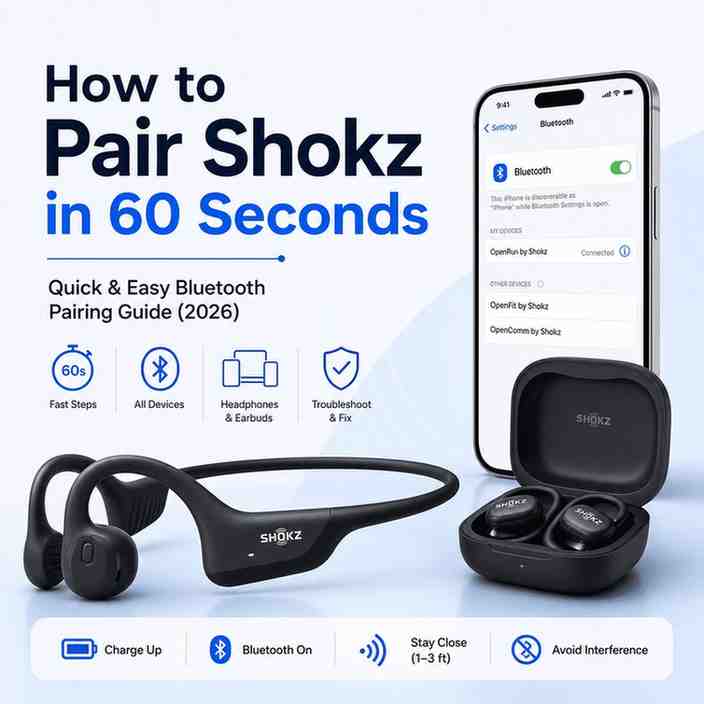
This is the main “do this now” flow for headband models.
1) Turn off the headphones
Yes, really. Turn off the headphones first so you do not fight auto-reconnect to an old device.
If they are on and you hear “Connected,” they are already grabbing something.
2) Enter pairing mode: Press and hold the Volume+ (power) button for 5 to 7 seconds
Enter pairing mode: Press and hold the Volume+ (power) button for 5 to 7 seconds.
Release when you hear the voice prompt “Pairing” (or “Audrey”) and the LED flashes red and blue.
That red/blue flash is the big sign you did it right. If you only see a slow blue flash or no red at all, you are probably just powered on, not pairing.
3) Connect in Bluetooth settings
Connect: Open your phone or computer’s Bluetooth settings, look for your specific model (e.g., “OpenRun by Shokz”), and select it.
You may see a name like:
- OpenRun by Shokz
- OpenMove by Shokz
- AfterShokz Aeropex
- AfterShokz Trekz Air
- OpenComm by Shokz
Confirmation cues:
- The LED will flash blue once (pattern varies by model).
- You will hear “Connected.”
If you get asked for a pairing code or PIN, try 0000. Most modern devices never ask, but some older PCs still do.
Mini note for OpenComm (boom mic) models
OpenComm is meant for calls and meetings. It usually pairs as a headset just fine. However, after pairing, check your device audio settings and confirm:
- Output = Shokz (for sound)
- Input = Shokz/OpenComm (for mic)
This one setting is the difference between “people can’t hear me” and a normal call.
Pair Shokz true wireless earbuds
Earbuds pair differently than the headband models. Do not use the Volume+ method here.
1) Put both earbuds in the charging case and leave the lid open
Place both earbuds inside the charging case and leave the lid open.
Make sure they are seated and charging.
2) Enter pairing mode with the earbuds
Enter pairing mode: Press and hold the touch area on both earbuds simultaneously until the indicator light flashes orange and green.
If you do not see the indicator light behavior, reseat both earbuds and try again. On some units, the light is subtle in bright rooms.
3) Connect in Bluetooth settings
Connect: Open your device’s Bluetooth settings and select “OpenFit by Shokz” (or OpenFit Air).
Confirmation usually looks like:
- A connected tone or voice prompt plays on the earbuds.
- Your device shows Connected in Bluetooth settings.
If only one earbud connects
- Put both earbuds back in the case and press them down gently.
- Close the lid for 5 seconds, then open it again.
- Re-enter pairing mode and reconnect.
Pair Shokz with iPhone or iPad (iOS/iPadOS)
- Open Settings → Bluetooth.
- Turn Bluetooth On.
- Put your Shokz into pairing mode. For headband models, hold Volume+ until the LED flashes red and blue. For OpenFit earbuds, open the case and hold both touch areas until the LED flashes orange and green.
- Tap your Shokz name when it appears in the device list.
If it keeps reconnecting to an old device name
- Go to Settings → Bluetooth and tap the (i) icon next to the old Shokz or AfterShokz name.
- Tap Forget This Device, then pair again from the beginning.
If audio plays from iPhone speakers instead of Shokz
- Open Control Center and tap the AirPlay / audio output icon.
- Select your Shokz as the output route.
Apple Watch tip (great for runs)
- On your Apple Watch, go to Settings → Bluetooth.
- Put your Shokz into pairing mode and hold them close to the watch until they connect.
Pair Shokz with Android phones/tablets
Android menus vary a bit, but the idea is the same.
- Open Settings → Connections (or Connected devices) → Bluetooth.
- Turn Bluetooth On.
- Put Shokz into pairing mode (headband vs earbuds method).
- Tap the model name in the available devices list.
If you do not see it:
- Tap Scan or Pair new device
- Keep the phone within 1–3 feet
- Move away from busy areas (laptops, smart TVs, gym cardio machines can be noisy)
If Android asks permissions (calls/media), accept them. For OpenComm, choose calls plus audio if you want the mic working for phone calls.
If it says “paired” but you hear nothing:
- Open the Android media panel (volume menu)
- Pick Shokz as the active output device
Pair Shokz with a Windows laptop/PC
Windows pairing is easy, but it times out fast. Put Shokz in pairing mode first.
Windows 11
- Settings → Bluetooth & devices
- Click Add device → Bluetooth
- Select your Shokz when it appears
Windows 10
- Settings → Devices → Bluetooth & other devices
- Click Add Bluetooth or other device
- Select your Shokz
After pairing, set the right audio devices:
- Settings → System → Sound
- Output: choose Shokz for music/audio
- Input: choose Shokz/OpenComm if you need the mic
If you see two audio profiles like “Stereo” and “Hands-Free AG Audio”:
- Use Stereo for best music quality.
- Use Hands-Free/Headset for calls and meetings (it enables the mic, but audio quality can drop).
That tradeoff is normal Bluetooth behavior on Windows.
Pair Shokz with Mac/MacBook
- Click the Apple menu → System Settings (or System Preferences).
- Click Bluetooth → turn it On.
- Put Shokz into pairing mode.
- Click Connect next to the Shokz device name.
After connecting, confirm audio routing:
- System Settings → Sound
- Output = Shokz
- Input = Shokz/OpenComm (if you want the mic)
If it will not show up:
- Toggle Bluetooth Off/On on the Mac
- Or remove the old Shokz device from the list and re-pair
- Keep Shokz within a few feet during first discovery
Advanced: Multipoint Pairing
Most Shokz headband models support Multipoint pairing, which lets you stay connected to a phone and a laptop at the same time. Earbuds support varies by model and firmware, so check your manual if you use OpenFit.
Here is the common headband flow:
- Pair your first device (phone, for example).
- Turn the headphones off.
- Re-enter pairing mode (hold Volume+ until the red/blue flash).
- Press and hold Multifunction + Volume+ for 2–3 seconds until you hear a prompt like “Multipoint Enabled” (wording varies).
- Pair your second device (laptop, for example) in Bluetooth settings.
How switching works in real life:
- Pause audio on Device A before starting audio on Device B.
- Calls usually take priority and will grab the headset.
Common gotcha: Device B connects, but audio still plays on Device A. Fix it fast:
- On Device B, go to Bluetooth and hit Connect (or disconnect/reconnect).
- Then set Shokz as the active output device.
If multipoint makes things flaky, disable it using the same button combo until you hear “Multipoint Disabled” (or similar).
Why won’t my Shokz connect to Bluetooth?
This is the short list that fixes most problems in minutes.
Fix 1: Make sure you are in pairing mode (not just powered on)
Pairing mode usually looks like:
- Red/blue flashing = pairing mode
- Slow blue flash or steady behavior = connected/standby (varies)
If you do not see red/blue on a headband model, try again and hold the button a little longer.
Fix 2: Remove old pairing records (then re-pair)
On your phone/PC/Mac:
- Tap Forget / Remove for the old Shokz/AfterShokz entry
- Then re-enter pairing mode and pair again
Old records cause the “it shows up but won’t connect” loop.
Fix 3: Get closer and reduce interference
For first-time pairing, stay within 1–3 feet. Also try:
- Turn off Bluetooth on nearby devices that already know your Shokz.
- Move away from dense Wi‑Fi areas if possible.
Fix 4: Make sure you are not at the multipoint limit
If your Shokz are already connected to two devices, a third device may fail to connect.
- Disconnect Shokz from one device
- Then try pairing again
Fix 5: Charge for 10–15 minutes
Low battery can cause pairing failures and random disconnects.
Even if it “turns on,” it may not have enough stable power to pair cleanly.
Fix 6: If you see a pairing code prompt and it fails
Try 0000.
If that still fails, do a reset (next section).
How do I reset my Shokz headphones?
Resetting helps when Shokz get stuck, refuse to enter pairing mode, or keep disconnecting.
Soft reset (try this first)
This is the safe option:
- Power the Shokz off.
- Power them on.
- On your phone/PC, toggle Bluetooth off/on.
- If needed, forget the device and pair again.
A simple power cycle fixes more than you would think, especially after OS updates.
Factory reset (when soft reset is not enough)
Because Shokz has many models, the exact button sequence can differ. Still, the basic idea is the same: clear the pairing memory, then pair like it is new.
For OpenFit / OpenFit Air (high level):
- Put both earbuds in the case.
- Leave the lid open.
- Use a long press on both earbuds’ touch areas to reset pairing info (follow your manual’s timing).
- Then re-enter pairing mode and pair again.
After a reset, keep it simple:
- Pair to one device first
- Confirm it is stable
- Then enable multipoint if you want it
If resets do not help across multiple devices, jump to the support section.
NFC pairing, smartwatches, and other special cases
NFC pairing
Some phones support tap-to-pair with NFC, but Shokz support depends on model and region. If your model supports it, the steps are usually shown in the official user manual. If you do not see NFC mentioned in your manual, assume it is not supported.
Smartwatch pairing (Apple Watch, Garmin, Huawei, etc.)
Pair from the watch, not the phone.
- Open the watch Bluetooth menu
- Put Shokz into pairing mode
- Keep them very close to the watch during discovery
This is especially useful if you run without your phone.
Using Shokz for calls and meetings
On computers, pick the right device in the app:
- Speaker = Shokz
- Microphone = Shokz/OpenComm (if you have it)
If the mic does not work, your laptop may be using the wrong Bluetooth profile. Switch to the headset/hands-free option for calls.
Auto reconnection vs manual reconnection
When you turn Shokz on, they often grab the last device they used. However, if you want a different device:
- Open Bluetooth settings on the device you want
- Tap your Shokz name and choose Connect
Sometimes the “manual connect” is faster than fighting auto-reconnect.
When to use Shokz technical support
Most pairing problems are settings problems. Hardware issues are rarer, but they happen.
Signs it is a settings issue
- It pairs to one device but not another.
- It shows up in discovery but will not connect.
- It works after “Forget device” and re-pair.
Signs it may be hardware
- No LED at all, even when charging.
- It will not charge or will not power on.
- Buttons do not respond.
- It drops connection on every device even after reset.
What to prepare before contacting support
Have this ready to save time:
- Exact model name (OpenRun, Aeropex, OpenComm, OpenFit, etc.)
- Your device OS (iOS/Android/Windows/macOS version)
- What the LED does (red/blue flash, nothing, solid color)
- What you already tried (forget device, reset, multipoint off)
Use official sources:
- Shokz support site and ticket system
- User manual PDFs
- Official Shokz instruction videos
Avoid random firmware tools from forums. They cause more problems than they fix.
If it is out of warranty, repair only makes sense for power and charging issues. For Bluetooth pairing problems alone, repair is rarely cost-effective.
Conclusion
To pair Shokz headphones in under a minute, the key is using the right flow. Headband bone-conduction models use the Volume+ (power) pairing method, while OpenFit earbuds use the case and touch controls. If it still will not connect, clear old Bluetooth records, charge for 10 minutes, and make sure you are truly in pairing mode before you blame Bluetooth itself.
FAQs (Frequently Asked Questions)
How do I identify my Shokz headphone model for pairing?
You can identify your Shokz model by checking the Shokz app if already paired, looking at the box or quick-start card, finding the printed model under the band (for headband models) or inside/under the charging case (for earbuds), or reviewing your device’s saved Bluetooth list for names like ‘OpenRun,’ ‘Aeropex,’ ‘OpenFit,’ or ‘AfterShokz.’
What is the correct way to pair Shokz bone conduction headband headphones?
To pair Shokz bone conduction headband models (OpenRun, OpenMove, Aeropex, OpenComm), first turn off the headphones. Then press and hold the Volume+ (power) button for 5 to 7 seconds until you hear ‘Pairing’ and see the LED flash red and blue. Next, open your phone or computer’s Bluetooth settings, select your specific model name (e.g., ‘OpenRun by Shokz’), and connect. If prompted for a PIN, try 0000.
How do I pair Shokz true wireless earbuds like OpenFit or OpenFit Air?
Place both earbuds in the charging case with the lid open to ensure they are seated and charging. Then press and hold the touch area on both earbuds simultaneously until the indicator light flashes orange and green. Next, open your device’s Bluetooth settings and select ‘OpenFit by Shokz’ or ‘OpenFit Air’ to connect.
Why does my Shokz headphone pairing fail even though Bluetooth versions are compatible?
Pairing failures are usually not due to Bluetooth version incompatibility. Common issues include old pairing records stored on devices, low battery levels on headphones, or headphones automatically connecting to another nearby device first. Clearing old pairings, fully charging your headphones, and ensuring no other devices are actively connecting can help resolve these problems.
How can I pair my OpenComm Shokz headset properly for calls?
After pairing your OpenComm headset using the standard bone conduction method, check your device’s audio settings to confirm that output is set to Shokz for sound and input is set to Shokz/OpenComm for the microphone. This ensures that others can hear you during calls and meetings.
What should I do if only one earbud connects when pairing my OpenFit earbuds?
If only one earbud connects, place both earbuds back into the charging case and press them down gently. Close the lid for about 5 seconds, then open it again. Re-enter pairing mode by pressing and holding both touch areas until the indicator flashes orange and green, then try reconnecting through your device’s Bluetooth settings.
