


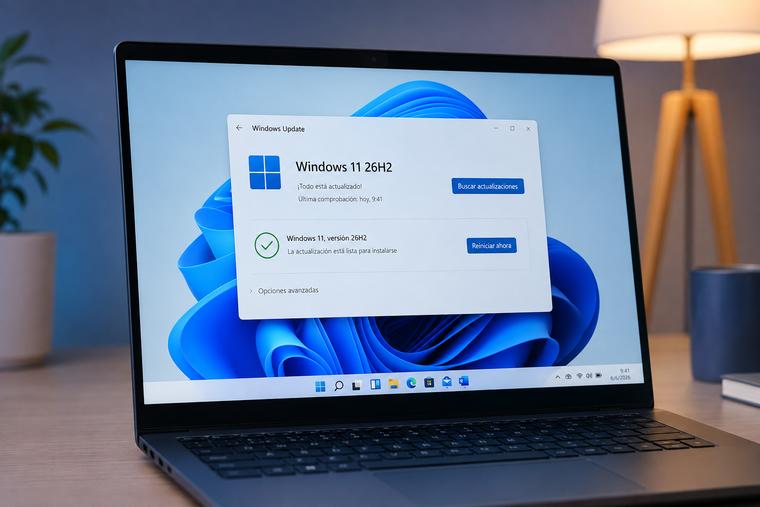
Key Takeaways
-
Microsoft confirms that KB5132061 installation failures affect a limited group of Windows 11 devices, particularly those that installed the October preview update KB5127936.
-
The reported error codes are
0x80070306,0x800f0989and0x800f0993. Microsoft says an automatic repair is rolling out. -
Most affected home users should keep their laptops connected to the internet and use Windows Update in Settings rather than immediately uninstalling updates or resetting Windows.
A Windows security update should normally install in the background, restart your laptop when necessary and leave your computer with the latest protection. But Microsoft’s November 2026 update has not followed that pattern for every Windows 11 device.
Microsoft has confirmed that some computers are unable to complete the installation of the November security update, KB5132061. Affected devices may repeatedly try to install it or display one of three error codes. The problem is associated with the October optional preview update, KB5127936.
That does not mean Windows 11 is broken across the board. Microsoft describes the issue as affecting a limited number of devices, and it has started delivering an automatic repair. For eligible users, the company says no manual action is required.
The important question for laptop owners is not simply whether an update has failed. It is whether their computer falls into the affected group, whether the repair has reached their device and whether they should take any additional steps.
This guide explains the issue, the error codes, the update’s other changes and the safest way to respond.
What happened with KB5132061?
Microsoft released KB5132061 on November 10, 2026, as part of its monthly security update cycle.
The update applies to Windows 11 version 26H2 and 25H2 across all editions. It also applies to Windows 11 version 24H2 Enterprise and Education editions.
The official documentation identifies the following operating-system builds:
| Windows version | November update build |
|---|---|
| Windows 11 26H2 | 26300.9974 |
| Windows 11 25H2 | 26200.9974 |
| Windows 11 24H2 Enterprise/Education | 26100.9974 |
The update includes security improvements and fixes carried forward from earlier releases. It also includes changes related to Secure Boot, USB audio, printing, NTLM security, Remote Desktop and PowerShell.
However, Microsoft subsequently documented a problem that can prevent some devices from completing the installation.
According to Microsoft’s official KB5132061 support documentation, affected computers may repeatedly attempt to install the update or display an error message.
BleepingComputer separately reported Microsoft’s confirmation, quoting a service notification that describes the affected devices and the automatic repair process.
This distinction matters. The problem is not evidence that every Windows 11 laptop will fail to update. It is a specific installation issue affecting a limited group of devices.
Which Windows 11 laptops are affected?
Microsoft links the problem to computers that installed the October 2026 non-security preview update, KB5127936.
A preview update is an optional release that can deliver non-security improvements and fixes before they are included in a later monthly security update.
That means two laptops running the same Windows 11 version may behave differently.
One may install KB5132061 normally, while another that received the October preview update may encounter an installation failure.
The important point is that the Windows version alone does not establish whether a laptop is affected. The previous update history also matters.
Windows versions covered by KB5132061
Microsoft lists Windows 11 26H2 and 25H2 across all editions, plus 24H2 Enterprise and Education editions.
That does not mean every device running those versions has the installation problem. Microsoft specifically connects the issue to the October preview update.
Windows 11 24H2 Home and Pro users should also pay attention to their support status. Those editions reached their end-of-support date in October 2026, so users should not assume that the 24H2 update path applies to them in the same way as supported Enterprise and Education devices.
For current laptop buying advice, TechOzea’s best Windows laptops guide provides a starting point for comparing supported Windows devices.
Does the issue affect every laptop manufacturer?
Microsoft’s documentation describes a Windows update issue rather than a fault limited to a particular laptop brand.
There is no confirmed evidence in the sources checked that the problem is specific to Dell, HP, Lenovo, ASUS, Acer, Microsoft Surface or another manufacturer.
A laptop’s processor, memory capacity, graphics chip and display type are not identified as the cause.
For now, users should focus on the Windows update history rather than assuming that their laptop’s hardware is responsible.
What do the error codes mean?
Microsoft lists three error codes associated with the installation problem:
-
0x80070306 -
0x800f0989 -
0x800f0993
These codes indicate that Windows could not complete the update process. They do not, by themselves, identify a failed SSD, damaged RAM, faulty battery or defective motherboard.
A Windows cumulative update involves several software components working together. Windows must prepare the update, verify the required files, process the changes and complete the installation.
If the process fails, Windows may display an error rather than finish the update.
Error 0x80070306
This is one of the errors Microsoft lists in the known-issue documentation.
If it appears while KB5132061 is installing, the correct first step is to check whether the laptop received KB5127936 and whether Microsoft’s automatic repair has reached the device.
Do not assume that the code means the laptop needs a hardware replacement.
Error 0x800f0989
This error is also included in Microsoft’s documented issue.
Users should record the code and the time it appeared. That information can help distinguish a repeated installation failure from a different Windows Update problem.
Error 0x800f0993
Microsoft also identifies this error among the reported symptoms.
The same guidance applies: check the update history, keep Windows Update available and allow the documented repair process to run.
The three codes are useful clues, but Microsoft has not published a separate consumer troubleshooting procedure for each one. The safest approach is to follow the official resolution rather than apply unrelated fixes.
Why the October preview update matters
The connection to KB5127936 is one of the most important details in this story.
Optional preview updates are intended to let users and administrators receive selected non-security improvements before the next regular monthly update.
They are not mandatory for every user.
Microsoft says devices that did not install the October 2026 preview update are not affected by this particular installation issue.
That gives laptop owners a useful way to understand the problem.
If a computer did not receive KB5127936, it should not be assumed to be part of the affected group simply because it runs Windows 11.
If it did receive the preview update and now repeatedly fails to install KB5132061 with one of the listed errors, the situation is consistent with Microsoft’s documented problem.
What is a cumulative update?
A cumulative update is a package containing multiple Windows fixes and improvements.
Rather than requiring users to install every previous monthly fix individually, Windows cumulative updates include earlier changes alongside the new ones.
This approach makes monthly maintenance easier, but it also means an update can involve several dependent components.
What is the servicing stack?
The servicing stack is the Windows component responsible for installing updates.
Microsoft explains that servicing stack updates improve the reliability of the update process and support operations such as component repair and Windows deployment.
The November KB5132061 package also includes a servicing stack update, KB5132688. That update is intended to improve the reliability of the Windows update installation process.
This is why an installation failure should not immediately be treated as a hardware problem.
Windows updates rely on an internal servicing system, and Microsoft is addressing this particular problem through an automatic software repair.
What Microsoft’s automatic repair means
Microsoft says it is delivering a repair automatically to affected devices.
The company identifies two important conditions:
-
The affected device must be connected to the internet.
-
The user must be using Windows Update in Settings to install updates.
Microsoft says the repair requires no manual action from end users.
The documented rollout window is 24 to 48 hours beginning November 11, 2026, at 10:00 AM Pacific Time.
That means the stated window extends into November 13, 2026. It is a repair rollout window, not a promise that every laptop will be repaired at exactly the same moment.
Should you wait or manually install the update?
For a normal home user who sees one of the documented errors, waiting for the automatic repair is the sensible first step.
Keep the laptop connected to the internet and use the normal Windows Update interface.
Avoid downloading unofficial update packages or using third-party repair utilities.
Microsoft does provide manual installation instructions for administrators and advanced users. However, those instructions are not the same thing as a recommendation for every consumer to bypass the automatic repair.
If you are managing a business fleet through WSUS or another endpoint management system, follow the appropriate Microsoft deployment guidance rather than assuming that the consumer repair process applies to every managed device.
How to check whether KB5132061 installed
You can check the update status without opening Command Prompt or changing advanced Windows settings.
Step 1: Open Windows Update
-
Select the Start menu.
-
Open Settings.
-
Select Windows Update.
-
Check the displayed update status.
If Windows says the update is installing, allow the process to finish.
If it displays one of the documented error codes, record it.
Step 2: Check update history
Open Settings, then Windows Update, and select Update history.
Look for the November 2026 security update and check whether KB5132061 appears as successfully installed or failed.
This is useful because a failed attempt does not necessarily mean the update is still missing after a later successful installation.
Step 3: Check the Windows build
You can use the built-in Windows version utility:
-
Press Windows + R.
-
Enter
winver. -
Press Enter.
-
Check the displayed Windows version and build number.
For the supported versions covered by KB5132061, the expected November builds are 26300.9974 for 26H2, 26200.9974 for 25H2 and 26100.9974 for 24H2 Enterprise/Education.
If the build is not yet updated, that alone does not prove the laptop is affected by the installation problem. Check the update history and error messages as well.
What laptop owners should do now
The best response depends on what Windows reports.
If KB5132061 installed successfully
No special action is needed for this installation issue.
You should still keep Windows Update enabled and install future security updates normally.
If the update fails with one of Microsoft’s listed error codes
If the laptop has the relevant October preview update installed, follow Microsoft’s automatic repair guidance.
-
Keep the laptop connected to the internet.
-
Open Windows Update in Settings.
-
Allow the automatic repair to reach the device.
-
Check the update history again after the repair period.
-
Restart when Windows requests it.
Do not repeatedly force the same update installation if Windows continues to report the documented error.
If the laptop is not connected to the internet regularly
Microsoft’s documented automatic repair specifically applies to affected devices connected to the internet and using Windows Update in Settings.
A laptop that is frequently offline may not receive the repair at the same time as an always-connected device.
Connect it to a reliable network and check Windows Update again.
If you use a laptop for work
If the device is managed by an employer, do not bypass company update policies.
Your IT administrator may control update deployment through Windows Update for Business, WSUS, Microsoft Intune or another management system.
Report the error code and update history to the administrator.
If you are replacing an older business device, compare suitable models in TechOzea’s best business laptops guide.
If you only need web-based applications
A Windows laptop is not the only way to handle email, documents, browsing and streaming.
For users whose work is mainly browser-based, a Chromebook may be an alternative. TechOzea’s best Chromebooks guide compares ChromeOS devices for different budgets and workloads.
That is a buying consideration, not a workaround for KB5132061.
What businesses and IT administrators should do
Businesses should treat this issue as an update-management event rather than a reason to halt all Windows security maintenance.
The first step is to identify devices that received KB5127936 and then check whether KB5132061 failed.
IT teams should record:
-
Device model and Windows version.
-
Update history.
-
Whether KB5127936 was installed.
-
The exact error code.
-
Whether the device uses Windows Update in Settings or an enterprise deployment system.
-
Whether the November update has since installed successfully.
This helps administrators separate affected devices from systems experiencing unrelated update problems.
Avoid blanket rollback policies
Microsoft has not instructed all users to uninstall KB5132061.
A broad rollback could remove security fixes from devices that installed the update successfully.
The better approach is to identify the affected devices and follow the repair guidance for the specific installation issue.
Watch for the out-of-band documentation update
Microsoft says it will update the support documentation once the repair rollout is complete.
Administrators should monitor the official Windows release health documentation for changes to the issue status.
Other important fixes in the November update
The installation issue is receiving attention, but KB5132061 also includes changes that matter to everyday laptop users.
USB Audio Class 1.0 devices
Microsoft says the November update resolves remaining symptoms affecting certain USB Audio Class 1.0 devices.
Affected devices had been unable to start, produce sound or respond correctly to volume controls after an earlier security update.
The issue was limited to USB Audio Class 1.0 devices. Some multichannel symptoms had already been resolved through an earlier out-of-band update.
The November update addresses the remaining documented symptoms.
This is relevant to users with USB headsets, microphones, audio interfaces and other class-compliant USB audio hardware.
It should not be described as a universal fix for every USB audio problem.
Secure Boot certificate updates
Microsoft is continuing to distribute newer Secure Boot certificates to eligible Windows devices.
Secure Boot helps verify trusted software during the startup process.
Microsoft says the November update includes additional device-targeting information to increase the number of devices eligible to receive the newer certificates automatically.
The company also says devices that have not yet received the new certificates can continue starting and receiving standard Windows updates.
NTLM security improvements
The update also changes Windows behavior related to NTLM message signing.
Microsoft says clients can now offer NTLM message signing by default for non-anonymous connections.
The goal is to reduce exposure to NTLM relay attacks and help administrators identify connections that do not use signing.
This is particularly relevant to business environments that still rely on older authentication workflows.
Remote Desktop and PowerShell
Microsoft lists a Remote Desktop certificate-mismatch fix and stricter encoding validation for PowerShell script signatures.
The PowerShell change can cause scripts containing invalid UTF-8 encoding to fail signature validation even if they were previously accepted.
Microsoft’s guidance is to review affected scripts, save them using valid UTF-8 encoding with a byte order mark and sign them again.
These changes are more relevant to administrators and developers than to most home laptop users, but they demonstrate that KB5132061 is more than a routine bug-fix package.
Why the security update still matters
It would be a mistake to focus only on the installation error and ignore the security reason for the update.
Microsoft’s November security release includes fixes for Windows and other Microsoft products.
Microsoft’s Security Response Center confirms that CVE-2026-124194, an Outlook spoofing vulnerability, was exploited before the update was released.
BleepingComputer counted 1,235 vulnerabilities in the November Patch Tuesday release, although that figure is its own tally rather than a count published by Microsoft as an official headline statistic.
There is an important distinction here: the Outlook vulnerability requires the relevant Office or Outlook security fix. Installing KB5132061 alone should not be treated as proof that every Microsoft product on a laptop has been patched.
What laptop users should do
-
Install applicable Windows security updates.
-
Update Microsoft Office or Microsoft 365 Apps separately when required.
-
Be cautious with unexpected message files and attachments.
-
Do not assume a Windows cumulative update automatically updates every Microsoft application.
A laptop can be running the latest Windows build while still needing an Office application update.
What happens if the update keeps failing?
Microsoft says the automatic repair should resolve the documented problem within 24–48 hours from the stated rollout start.
If the error continues after that window, users should consult Windows Help and contact Microsoft Support.
Before contacting support, gather the following:
-
The Windows 11 version.
-
The displayed operating-system build.
-
Whether KB5127936 appears in update history.
-
Whether KB5132061 failed more than once.
-
The exact error code.
-
The approximate time of the failed installation.
These details are more useful than simply reporting that Windows Update is not working.
Should you reset Windows?
A full Windows reset is not an appropriate first response to this documented issue.
It can take considerable time, may require reinstalling applications and can create unnecessary disruption.
Microsoft has already documented an automatic repair for affected devices.
Unless Microsoft Support provides different instructions for an individual device, users should avoid resetting Windows solely because KB5132061 failed with one of the listed codes.
Should you uninstall the October preview update?
Microsoft’s documented resolution is the automatic repair, not a general instruction to uninstall KB5127936.
Removing updates without a specific reason may create additional maintenance problems.
Follow the official repair guidance before making changes to the update history.
What to watch next
Three developments will determine how this issue progresses.
First, the repair rollout. Microsoft says the automatic fix should reach affected devices within its stated window. The next important indicator is whether the company marks the issue as resolved in its release health documentation.
Second, installation success. The practical test is whether affected devices can complete KB5132061 installation after receiving the repair.
Third, Microsoft’s technical explanation. The company has not published a detailed root-cause analysis or an affected-device count. Further documentation could clarify why the October preview update created an installation conflict for some devices.
For now, the most useful advice is straightforward: check the update history, identify the error code and let Microsoft’s repair process run before attempting disruptive recovery steps.
Frequently asked questions
What is Windows 11 KB5132061?
KB5132061 is Microsoft’s November 10, 2026 cumulative security update for Windows 11 versions 26H2 and 25H2, plus 24H2 Enterprise and Education editions. It includes security improvements and fixes for several Windows components.
Why does KB5132061 fail to install?
Microsoft says the issue affects a limited number of devices that installed the October 2026 optional preview update, KB5127936. The company has not published a detailed technical explanation of the underlying cause.
What error codes are associated with the November update problem?
Microsoft identifies 0x80070306, 0x800f0989 and 0x800f0993 as errors that affected devices may display when trying to install the November security update.
Do I need to manually fix the KB5132061 installation problem?
Most affected end users do not need to take manual action. Microsoft says an automatic repair is rolling out to eligible devices connected to the internet and using Windows Update in Settings.
Should I uninstall KB5132061 if it fails?
Not as a first step. Microsoft has documented an automatic repair and has not instructed all affected users to uninstall the update. Check the error code and follow the official support guidance.
Does KB5132061 fix USB audio problems?
Yes. Microsoft says the update resolves remaining symptoms affecting certain USB Audio Class 1.0 devices that could fail to start or produce sound. It is not a universal fix for every USB audio issue.
Does KB5132061 fix the Outlook zero-day?
Do not assume that it does. Microsoft’s November security release includes a separate Outlook vulnerability fix for CVE-2026-124194. Users should ensure that applicable Office or Microsoft 365 Apps security updates are installed as well.
What if the update still fails after Microsoft’s repair window?
Check Windows Update again, record the error code and review the update history. If the problem persists after Microsoft’s stated 48-hour period, consult Windows Help or contact Microsoft Support.
Final verdict
Microsoft’s confirmation of KB5132061 installation failures is important, but it should not cause unnecessary alarm among Windows laptop owners.
The issue is limited to a subset of devices associated with the October preview update. Microsoft has documented the error codes and is delivering an automatic repair.
For most home users, the right approach is to keep Windows Update available, check the installation status and avoid unnecessary resets or unofficial repair tools.
The November security update remains important. Once the automatic repair reaches an affected device, the laptop should be able to complete the update through the normal Windows Update process.
